
Search Our Database
How to Install PHP Selector and Upgrade PHP Version on DirectAdmin (Evolution Skin)
Introduction
Upgrading PHP versions in DirectAdmin is essential for accessing the latest features, performance improvements, and security patches. PHP is already integrated into DirectAdmin, and you can easily manage and upgrade it using CustomBuild, a tool within DirectAdmin.
However, if your server is running an EOL (End-of-Life) operating system, you may encounter issues when trying to upgrade PHP or other software. EOL OS versions no longer receive security updates or official support, making them incompatible with newer PHP versions and other software.
Prerequisites
- Access to DirectAdmin with Admin privilege
- Basic understanding on DirectAdmin features
- Server Running a Supported OS
Step-by-step Guide
Step 1: Access to DirectAdmin
-
- Login to your DirectAdmin control panel.
The URL to your DirectAdmin typically will be like <domain>:2222 or <server IP>:2222.
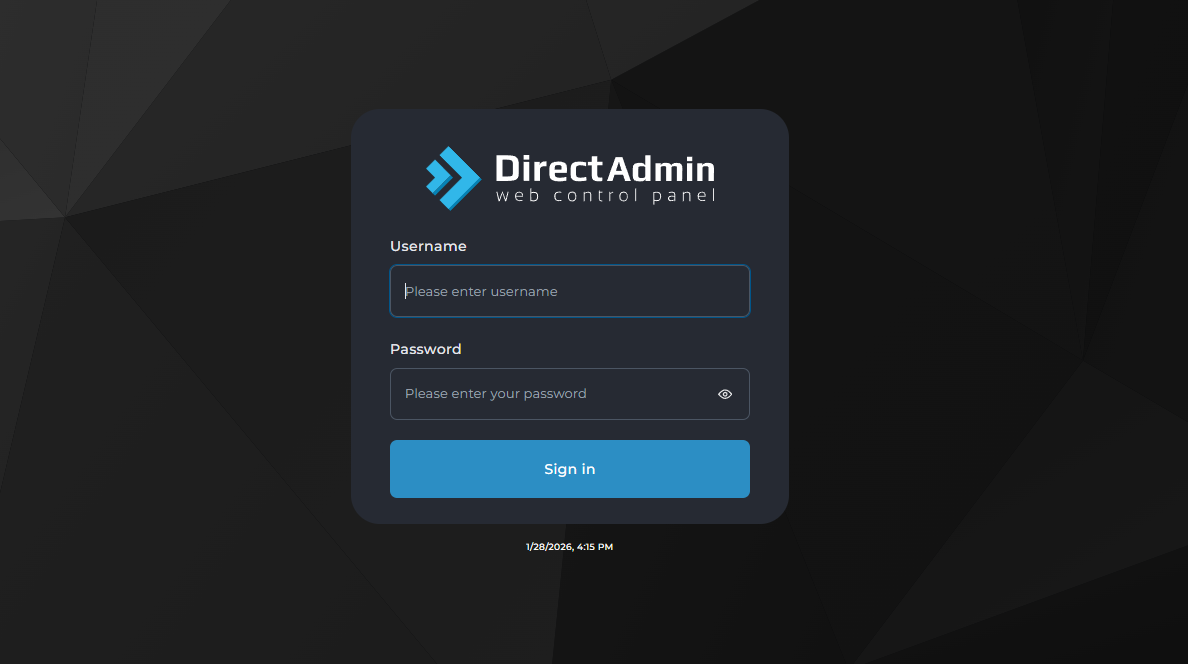
- Login to your DirectAdmin control panel.
Step 2: Navigate to CustomBuild
-
In the Admin Panel, go to the Server Manager section from the top menu.
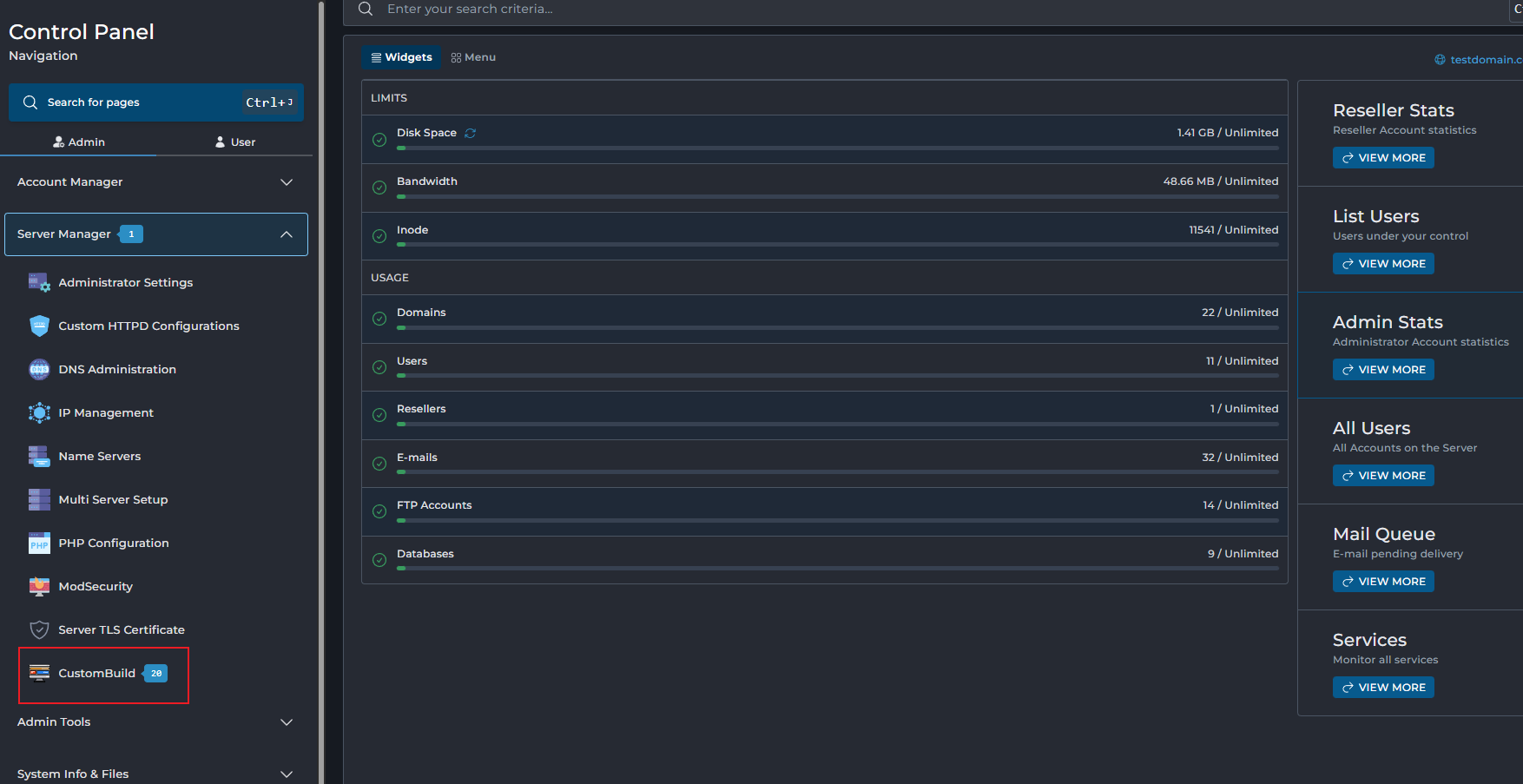
-
Click on the “Settings” option within CustomBuild. This is where you can configure and select the PHP version you want to upgrade to
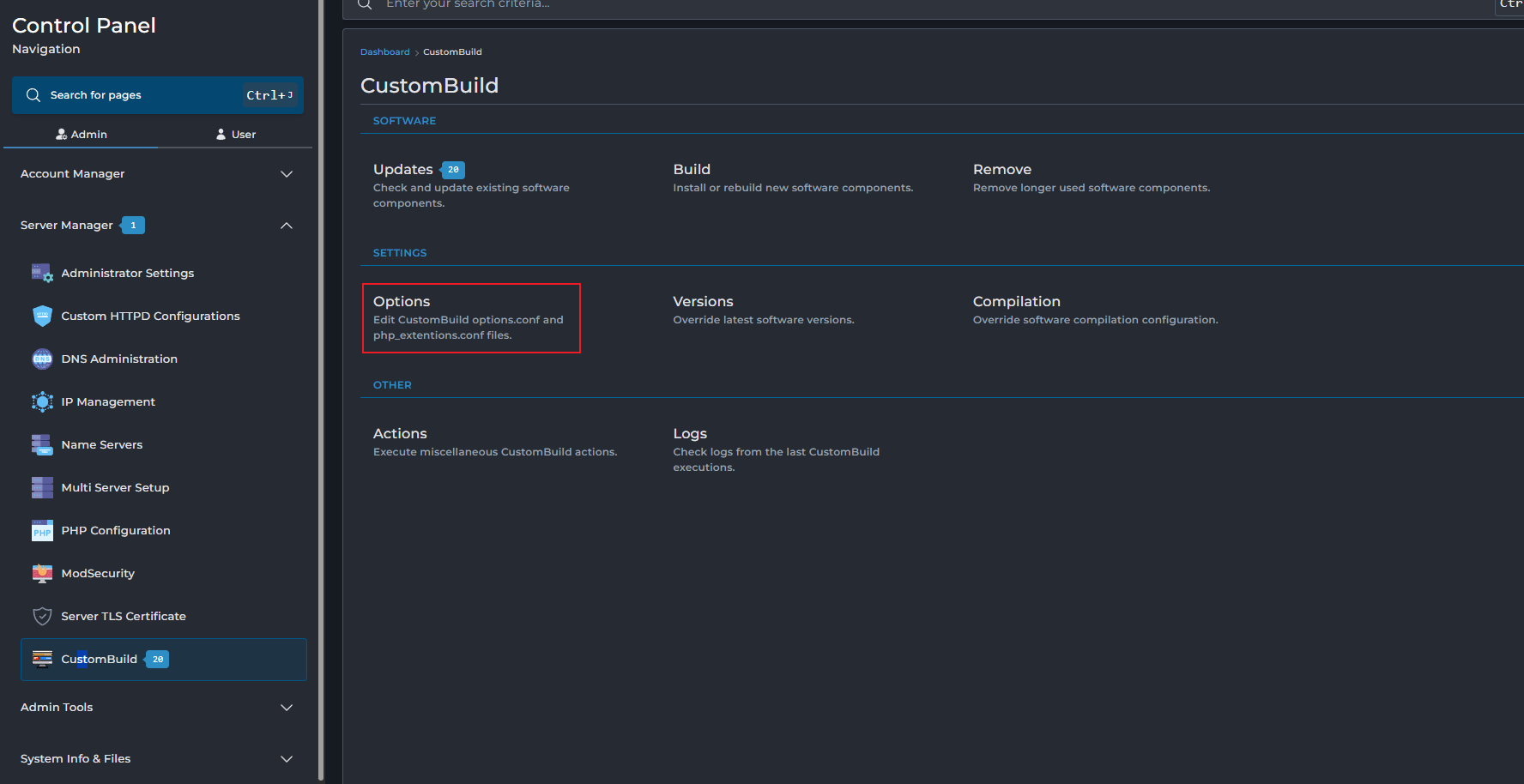
Step 3: Choose PHP Version to Install
- In the Settings section, you will see a dropdown menu for selecting the PHP version.
-
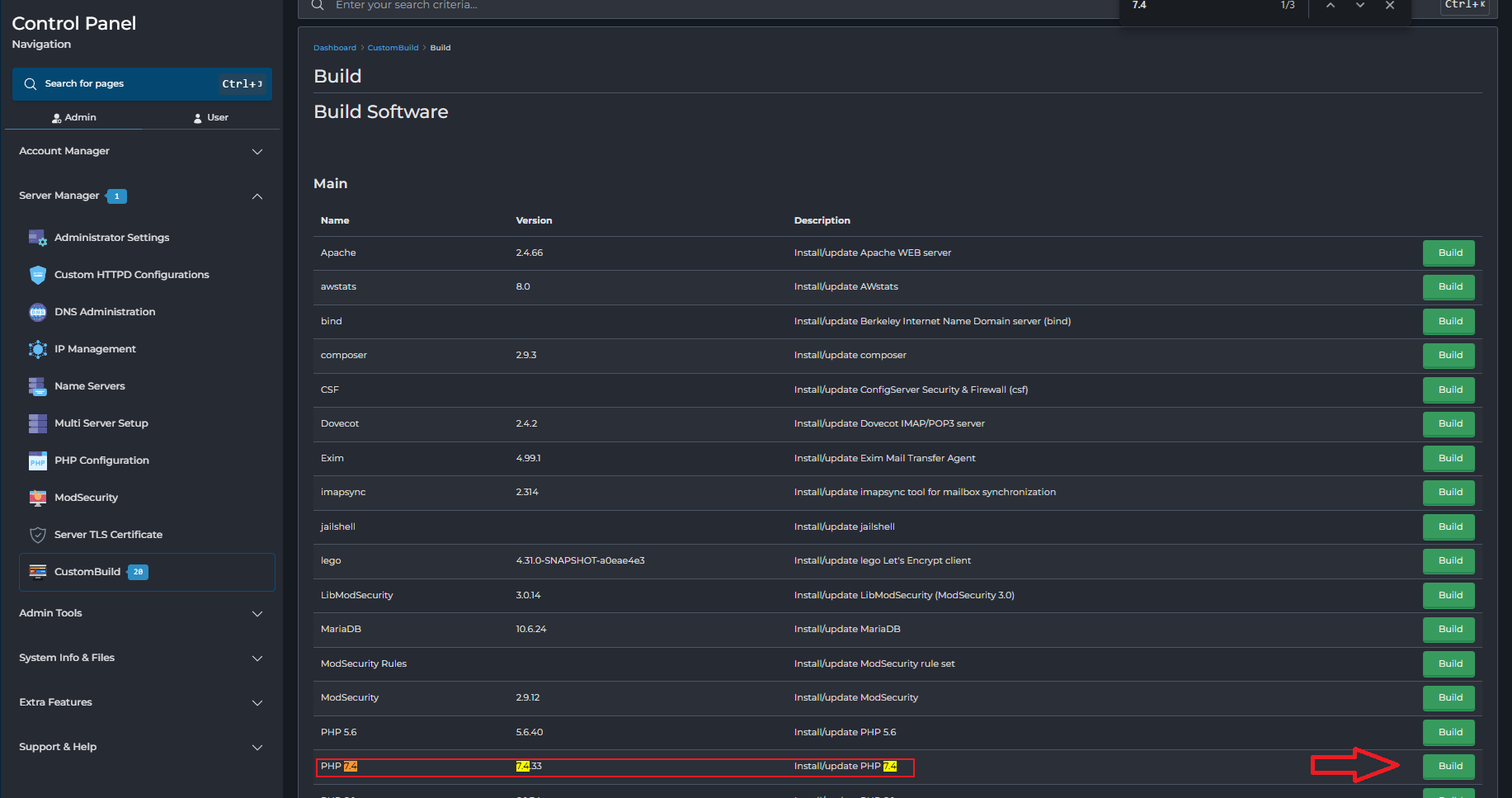
Select the PHP version you wish to upgrade to (e.g., PHP 8.x or the latest stable version). Make sure you choose a version that is compatible with your server’s environment.
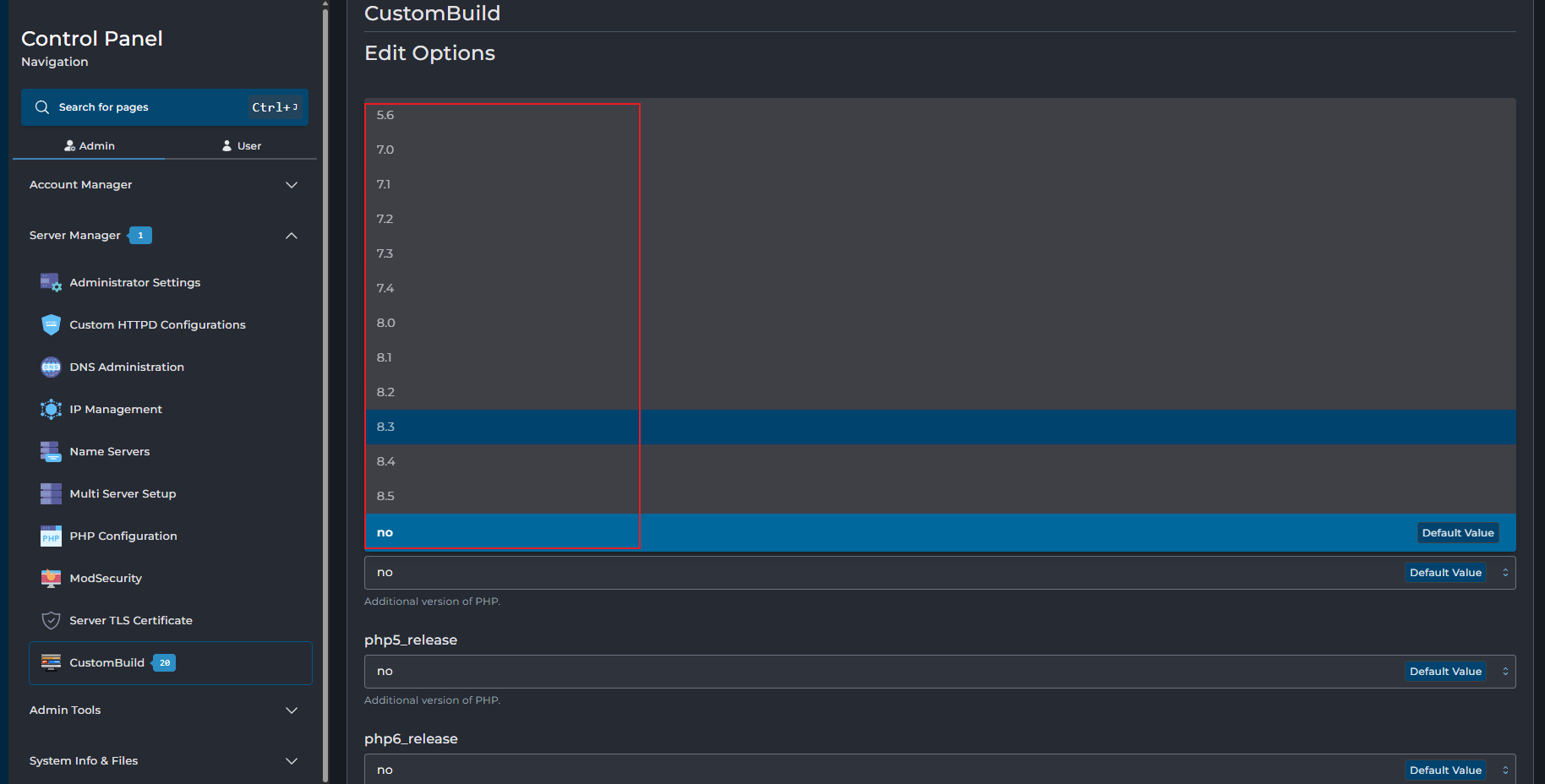
Step 4: Begin the Build Process
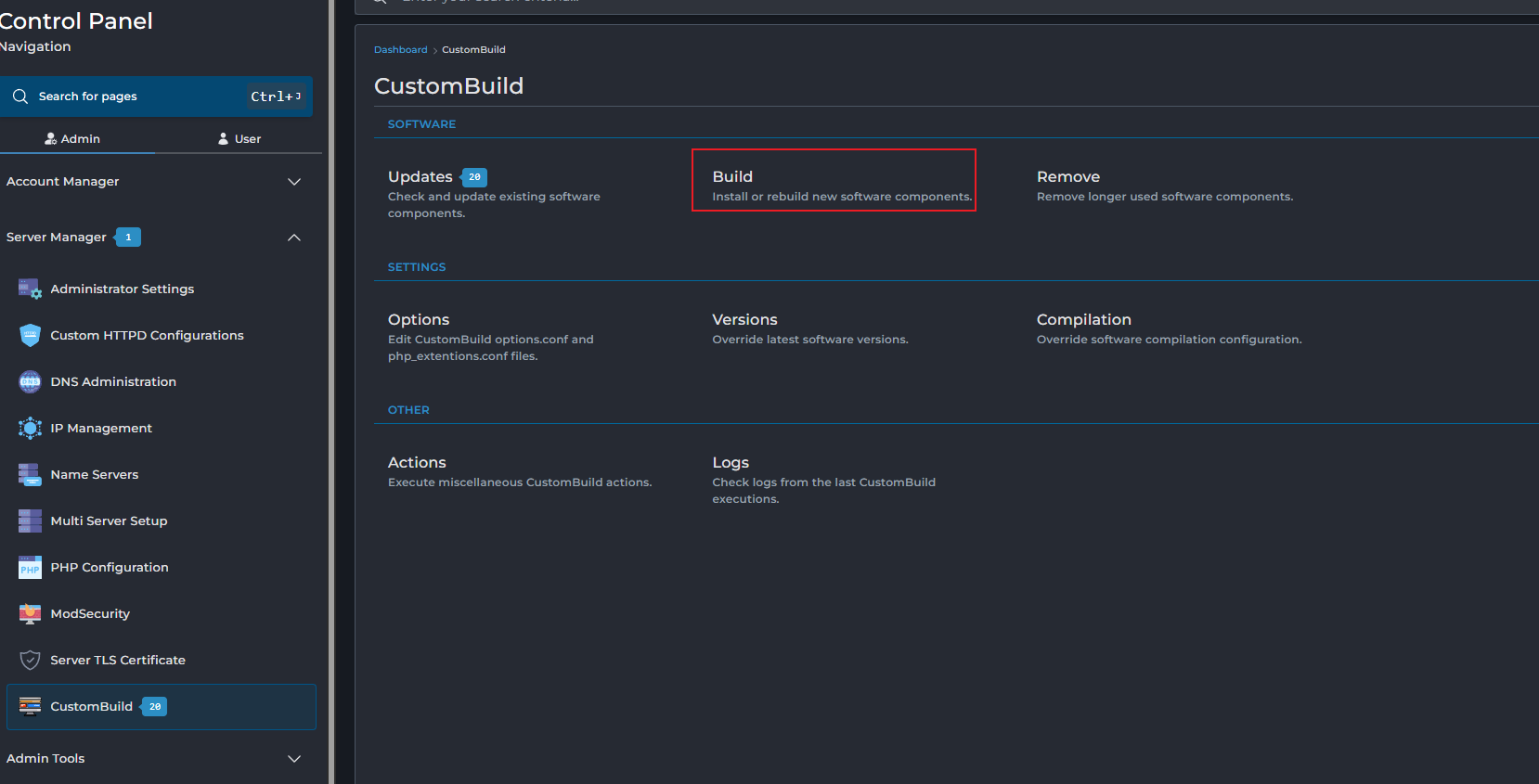
- After selecting the desired PHP version, navigate back to the CustomBuild main menu.
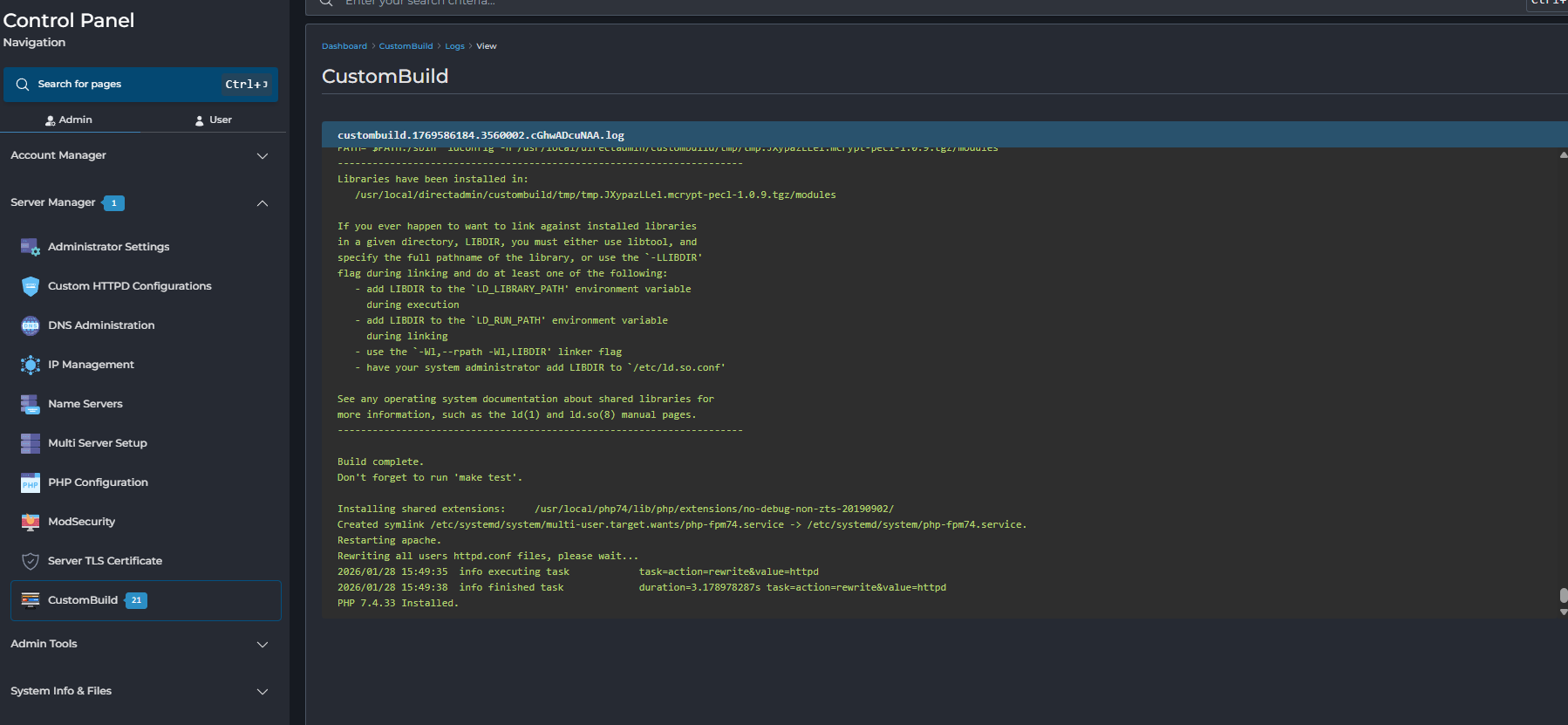
- Under the Software section, click on “Build”. This will trigger the installation or upgrade process for the selected PHP version.
Step 5: Verify PHP Version in DirectAdmin
Log into DirectAdmin as a user or admin, then go to:
User Level → Domain Setup → PHP Version Selector
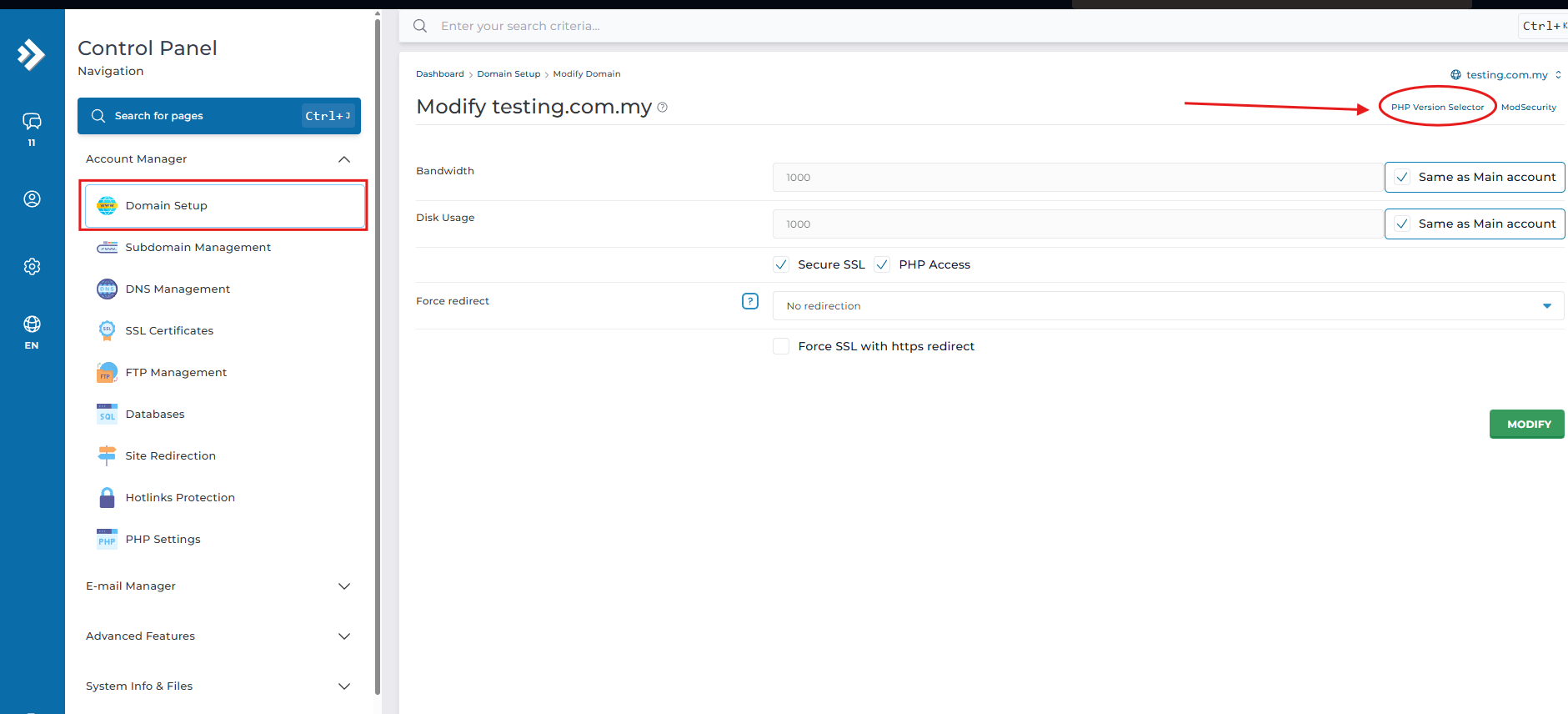
Each domain should now be able to select from the installed PHP versions. Only the versions defined in phpX_release and built will appear.

Introduction
Upgrading PHP versions in DirectAdmin is essential for accessing the latest features, performance improvements, and security patches. PHP is already integrated into DirectAdmin, and you can easily manage and upgrade it using CustomBuild, a tool within DirectAdmin.
However, if your server is running an EOL (End-of-Life) operating system, you may encounter issues when trying to upgrade PHP or other software. EOL OS versions no longer receive security updates or official support, making them incompatible with newer PHP versions and other software.