
Search Our Database
How to Unblocked Blocked User in Gmail Web
Introduction:
Restoring communication with a previously blocked sender in Gmail Web ensures their messages are delivered to your inbox instead of being diverted to Spam. The process begins by clicking the Settings icon and selecting the See all settings button to open the main configuration menu. Users then navigate to the Filters and Blocked Addresses tab, which displays the list of blocked email addresses. To remove the restriction, locate the specific user, click the unblock option next to their name, and finalize the action by clicking Unblock in the confirmation prompt.
Prerequisites:
- User must possess a fully registered and active Gmail account.
- The procedure explicitly requires accessing the Gmail Web interface.
- You must have a blocked email address currently listed within the “Filters and Blocked Addresses” settings tab.
Step-by-step Guide:
Step 1: Access Settings
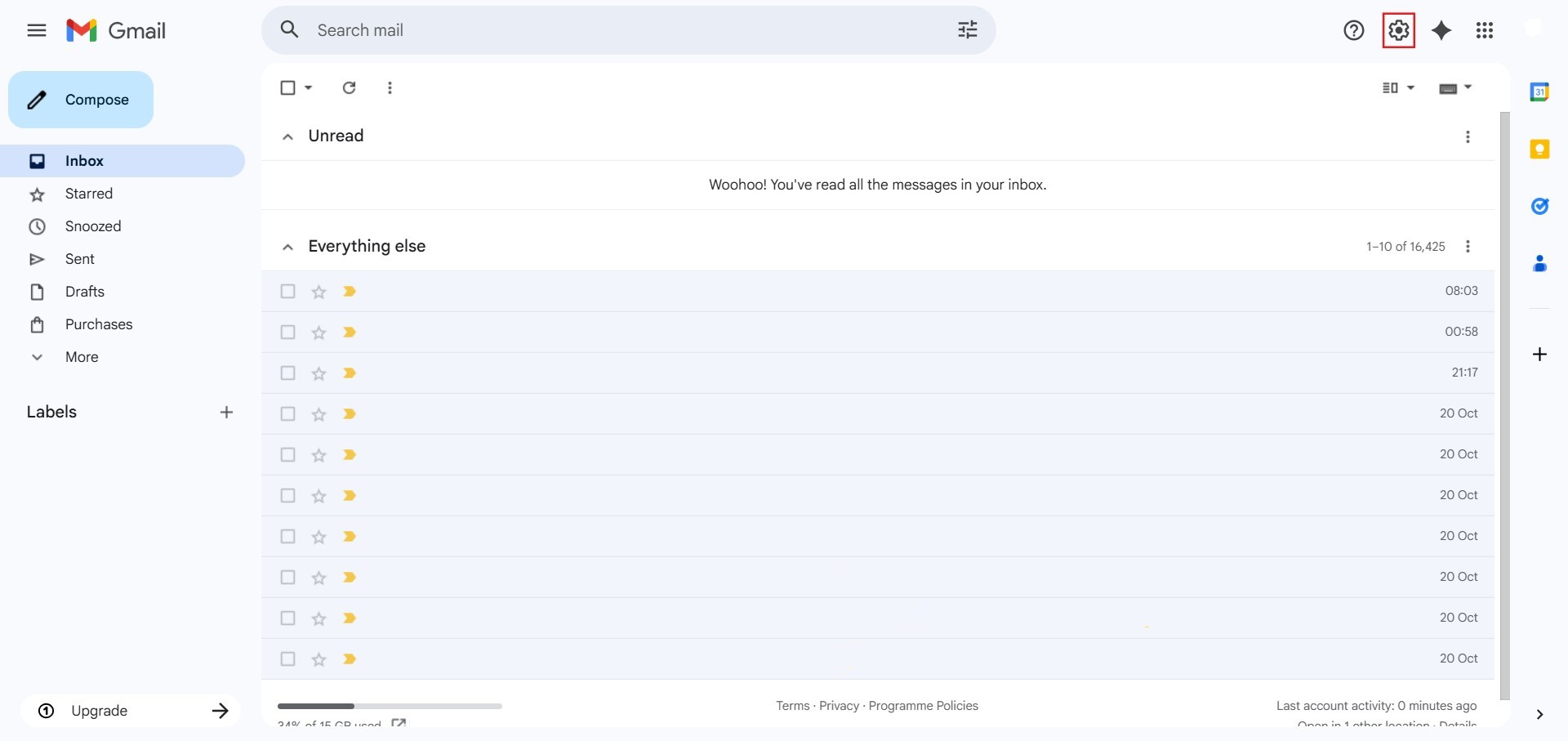
- The initial action required is to Click setting.
Step 2: Navigate to All Settings
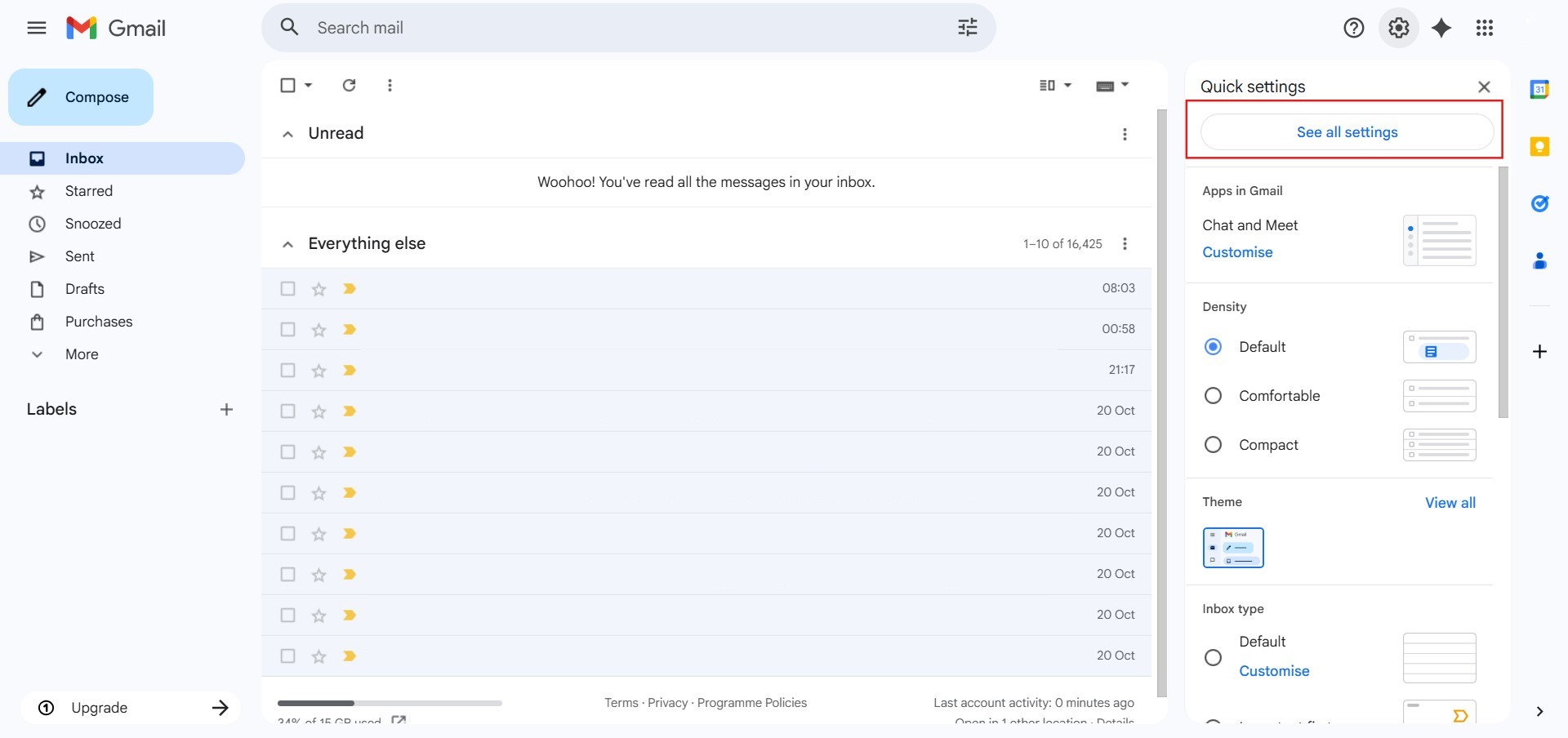
- After clicking “setting,” proceed to select See all Settings.
Step 3: Navigate to Filters
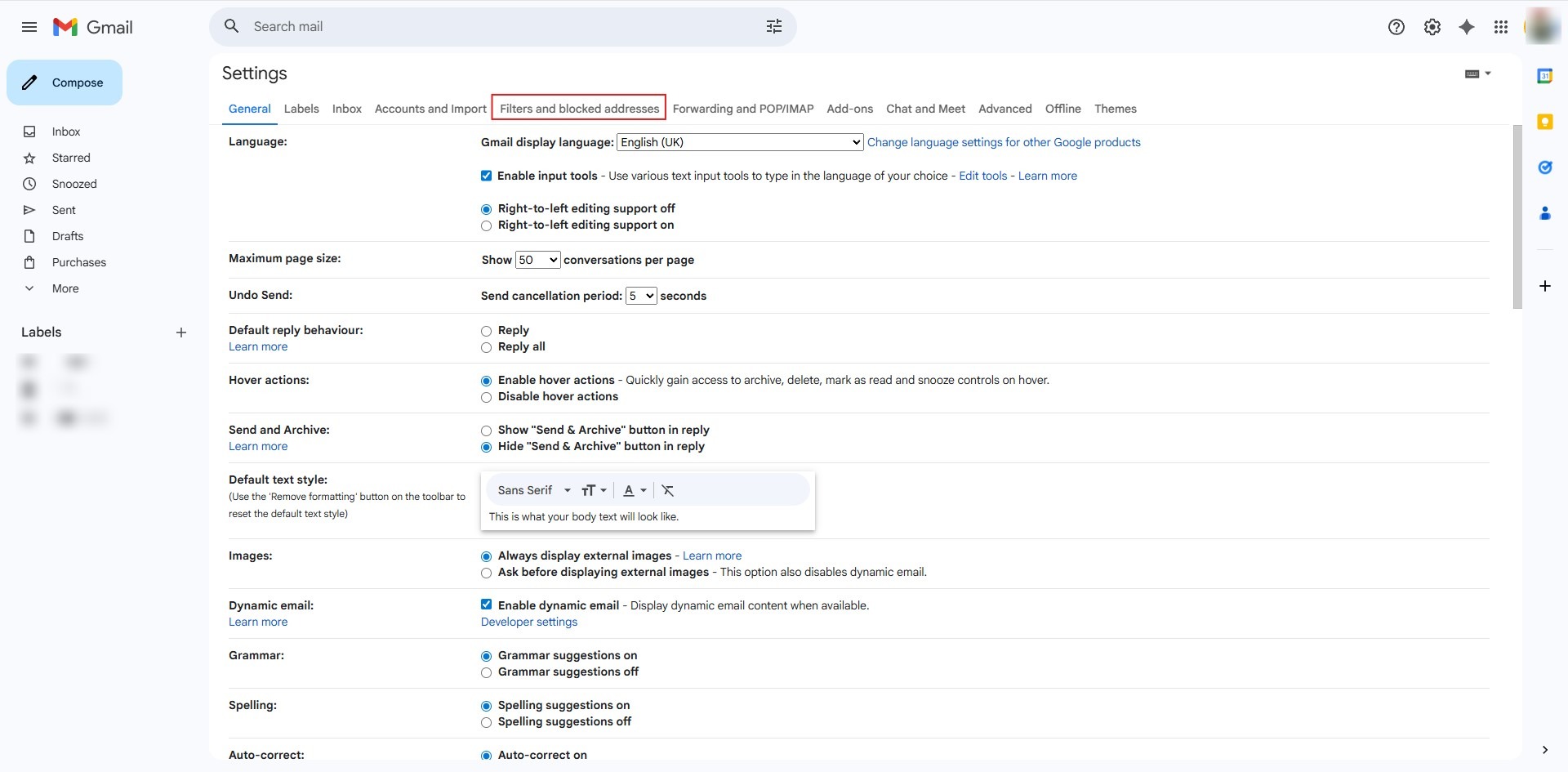
- Click on the “Filters and blocked addresses” tab at the top of the settings page.
Step 4: Unblock Target User
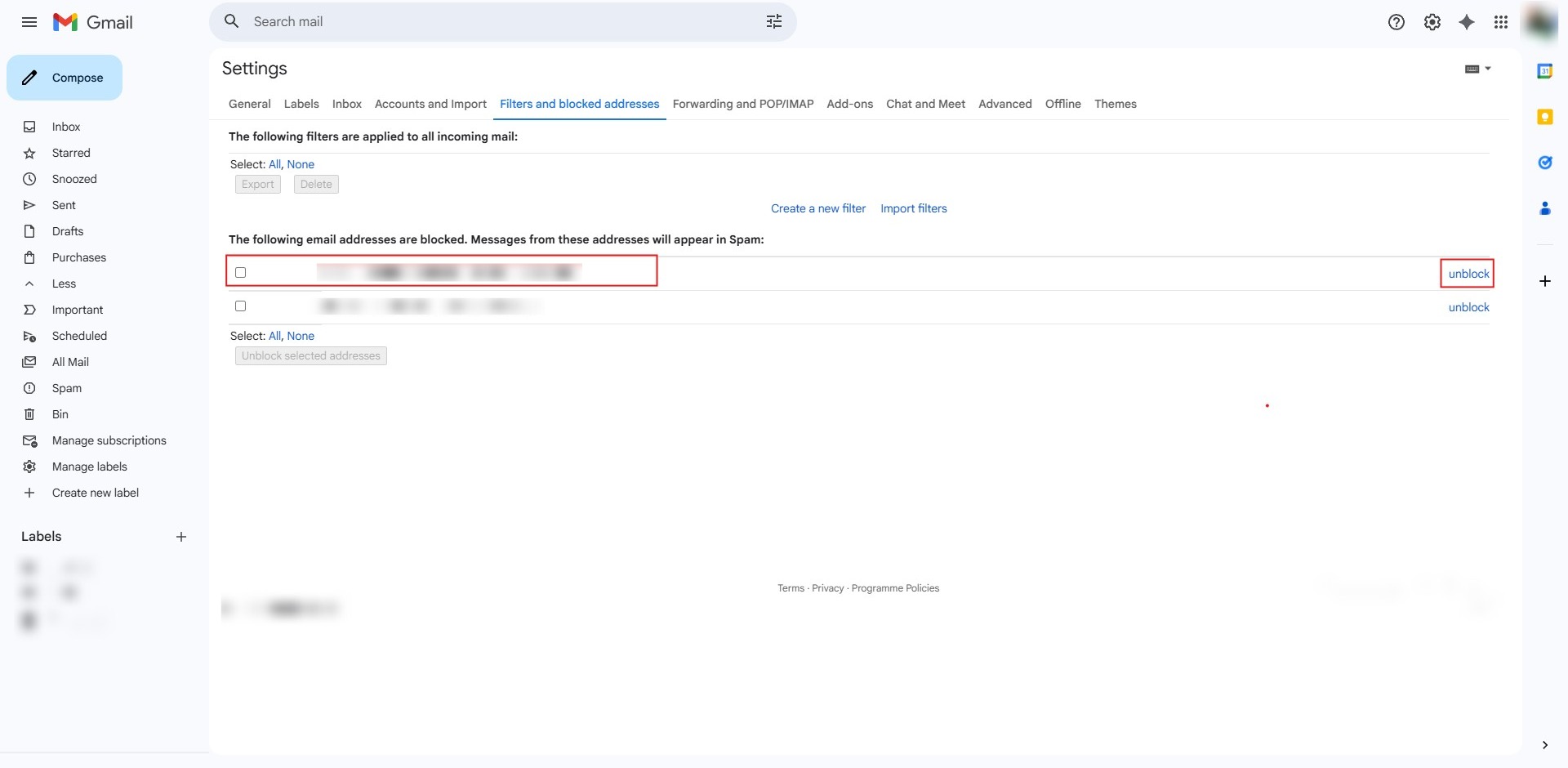
- Locate the specific user you wish to restore and click unblock.
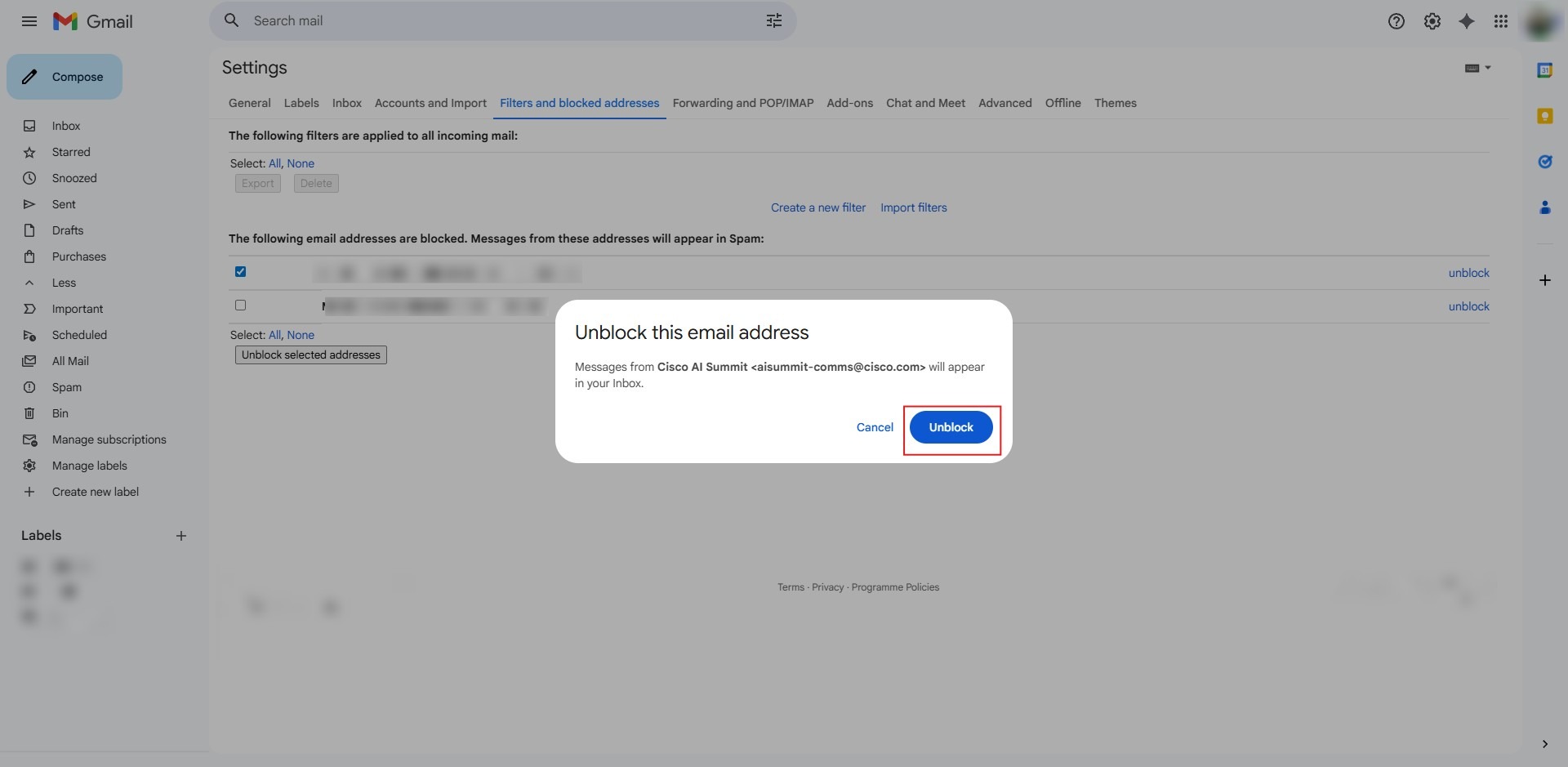
Step 5: Confirm Action
- Click the Unblock button to finalize the removal of the restriction.
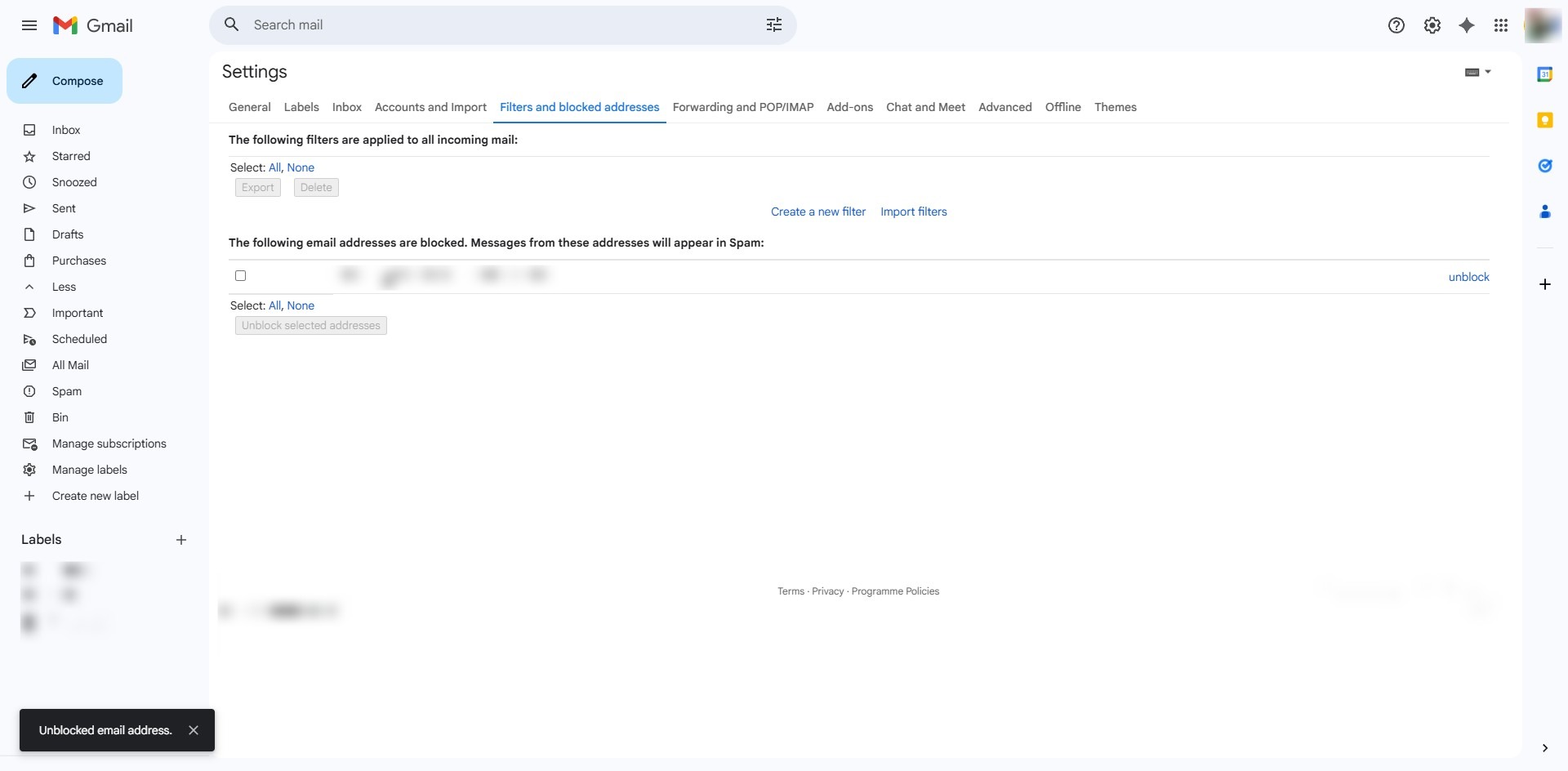
Step 6: Verify Success
- The process is a Success, and the user is removed from the blocked list.
Conclusion:
In summary, unblocking a user in Gmail Web is a decisive step to restore normal communication with previously restricted contacts. By navigating to the Filters and Blocked Addresses tab within the full settings menu, users can locate specific email addresses and remove restrictions using the unblock option. The process is completed by clicking the Unblock button to confirm the action, ensuring the contact is successfully removed from the blocked list.