
Search Our Database
How to Import a New Filter and Blocked with Specific Email User in Gmail Web
Introduction:
Importing a filter for a specific email user in Gmail Web allows you to quickly apply pre-configured rules to your account from a saved file. The procedure begins by accessing the settings gear icon and selecting the “See all settings” button to view the full configuration dashboard. From there, you must navigate to the “Filters and blocked addresses” tab, where the “Import filters” link is located. This interface allows you to upload a filter file from your local device by clicking “Choose File” followed by “Open file”. To activate the new rules, you simply click the “Create filters” button, and the system will confirm the action with a “Filter import complete” notification in the bottom-left corner.
Prerequisites:
- User must possess a fully registered and active Gmail account.
- The procedure explicitly requires accessing the Gmail Web interface.
- You must have a compatible rule file stored on your local device.
Step-by-step Guide:
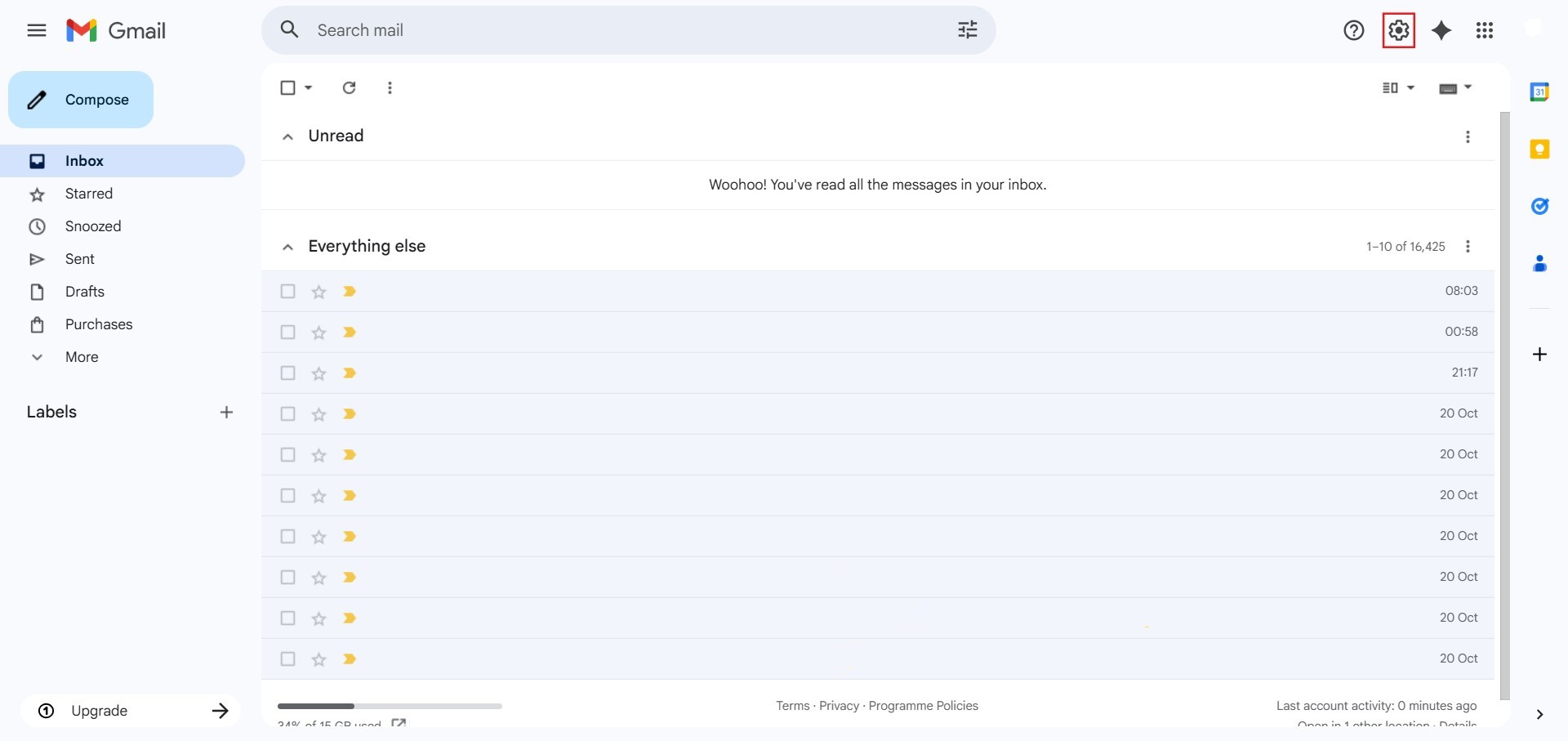
Step 1: Access Settings
- The initial action required is to Click setting.
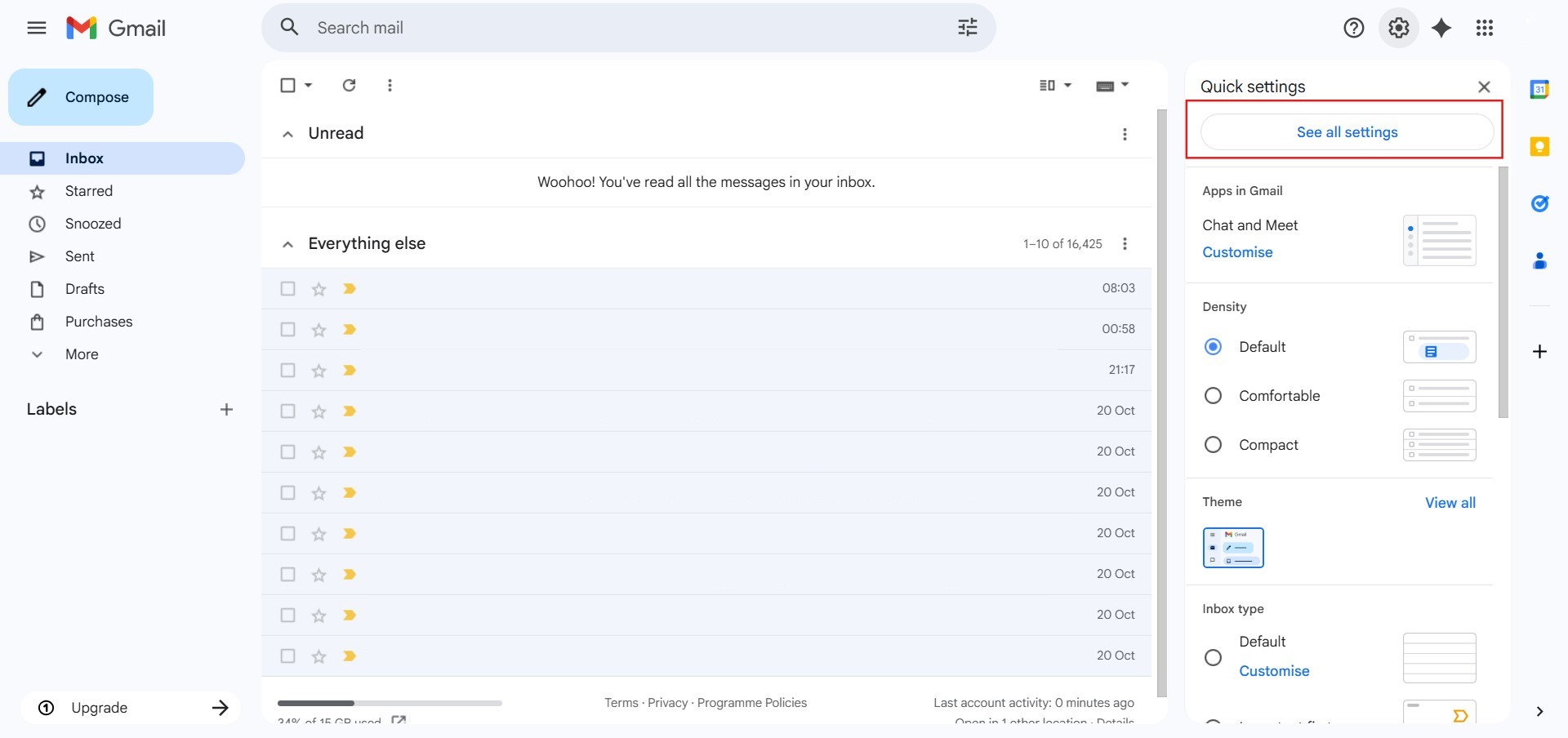
Step 2: Navigate to All Settings
- After clicking “setting,” proceed to select See all Settings.
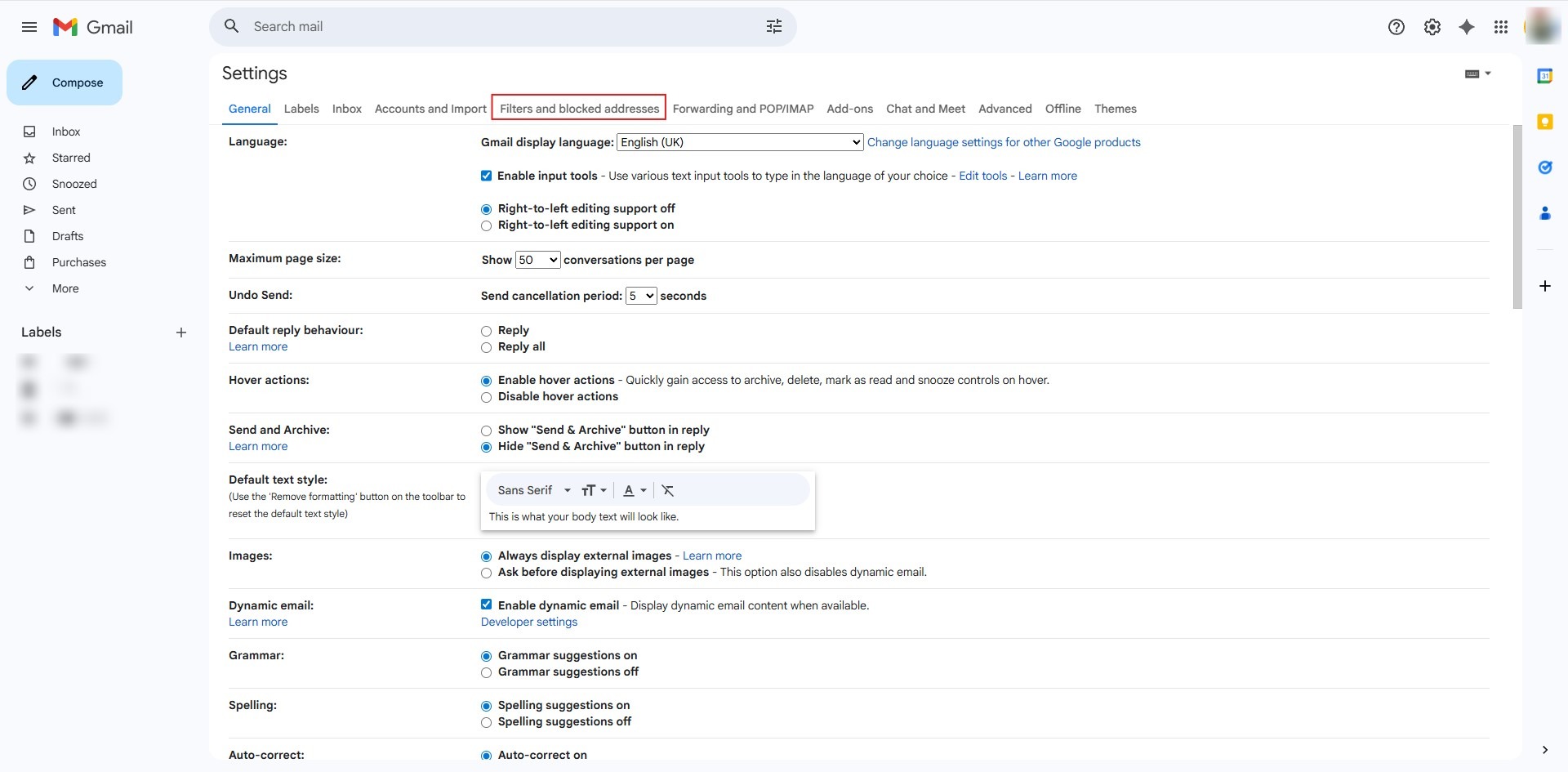
Step 3: Navigate to Filters
- Click on the “Filters and blocked addresses” tab at the top of the settings page.
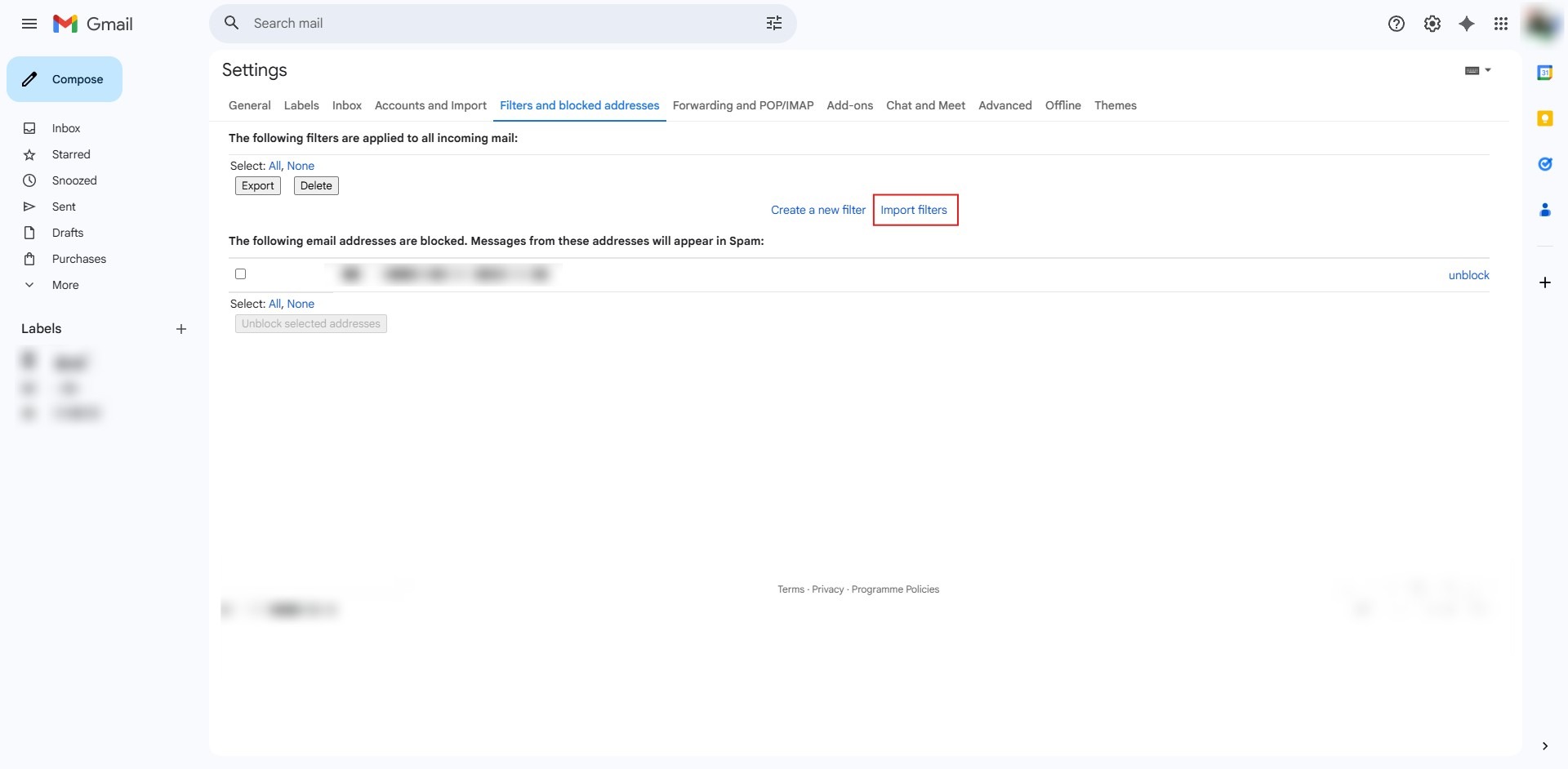
Step 4: Import Filter
- Click the “Import filters” link found in the middle of the page.
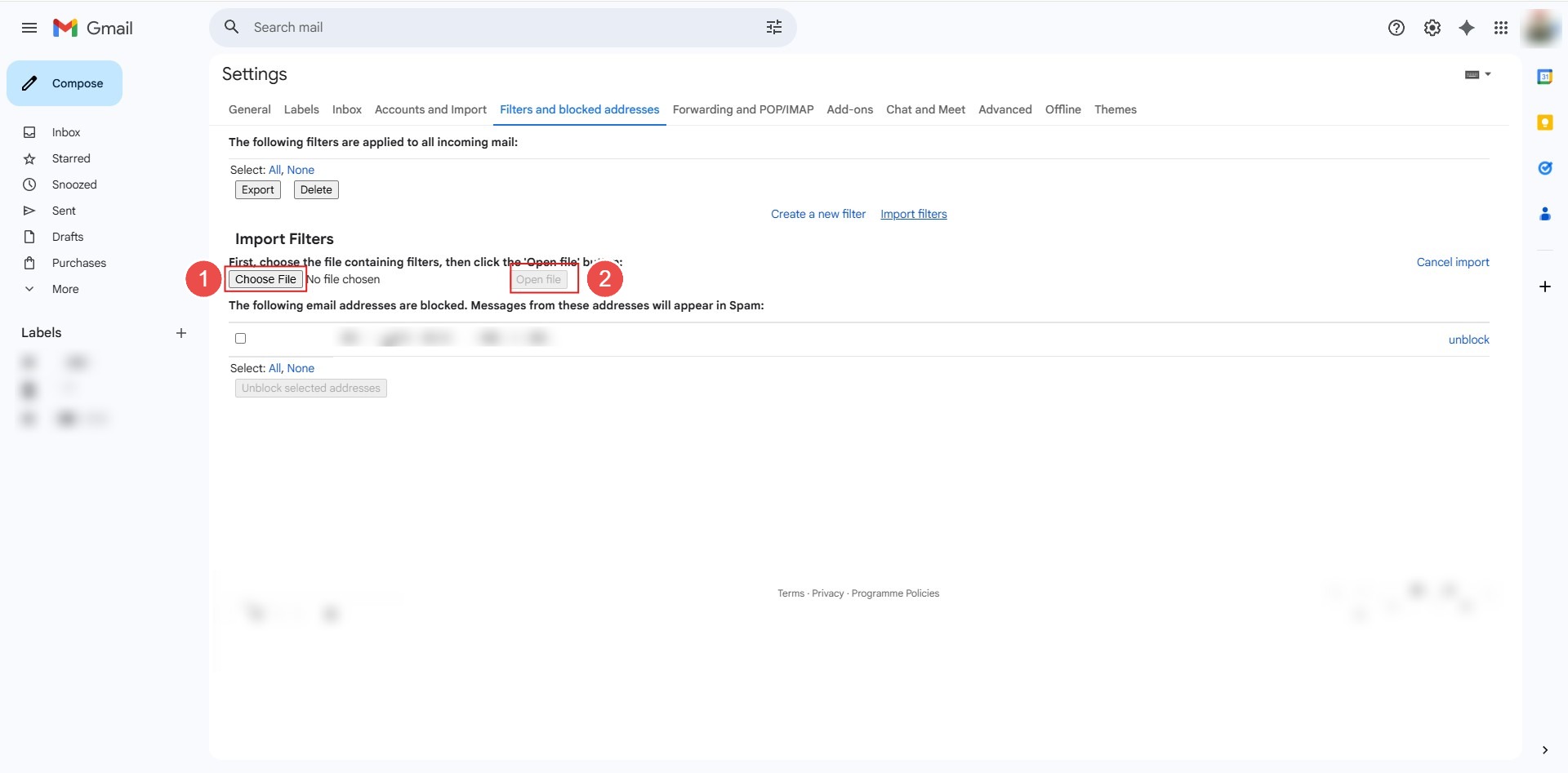
Step 5: Choose and Open File
- Click the “Choose File” button to locate the filter data on your local device, then click “Open file” to upload it.
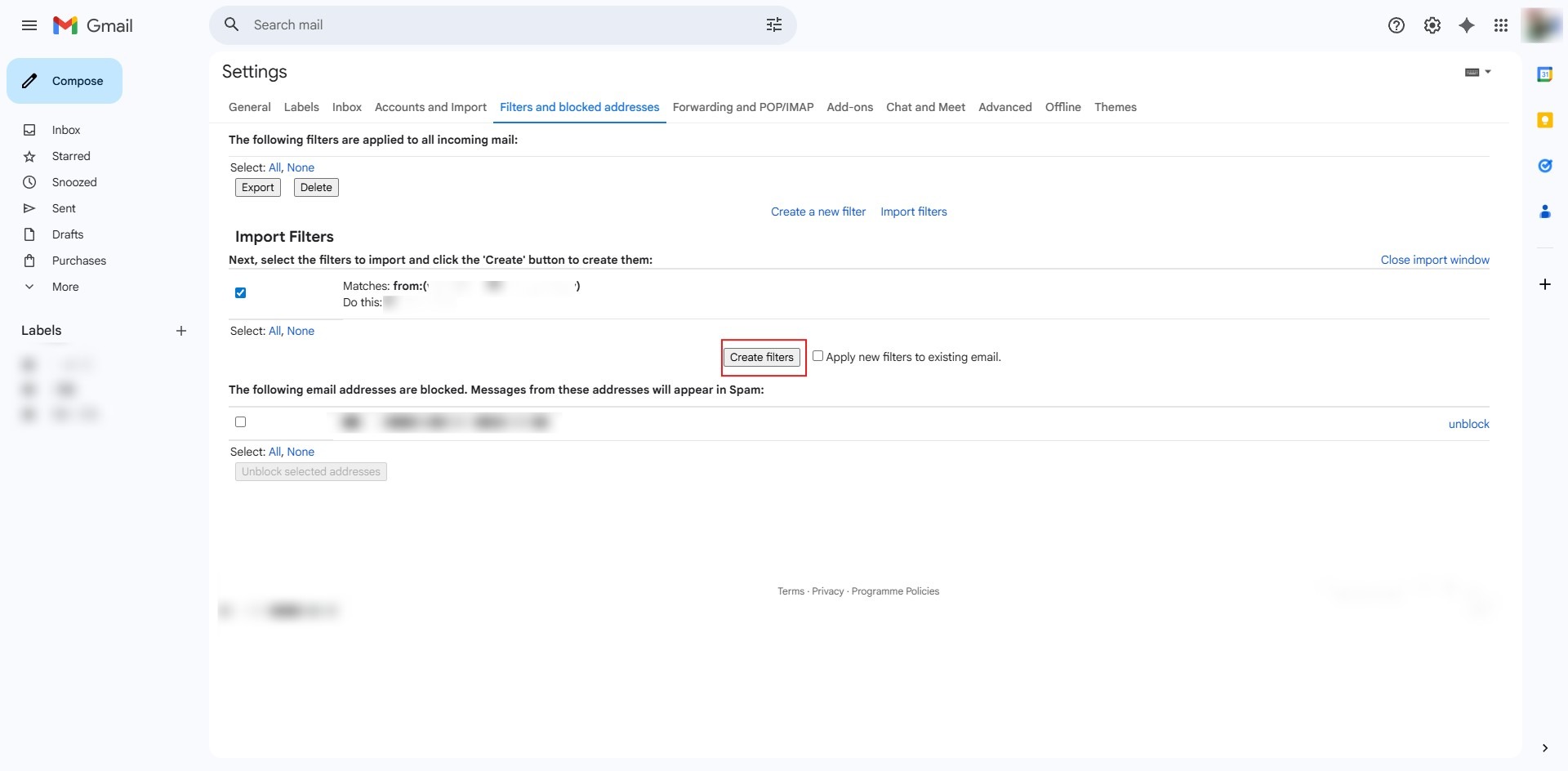
Step 6: Finalize Integration
- Click the “Create filters” button to activate the imported rules in your account.
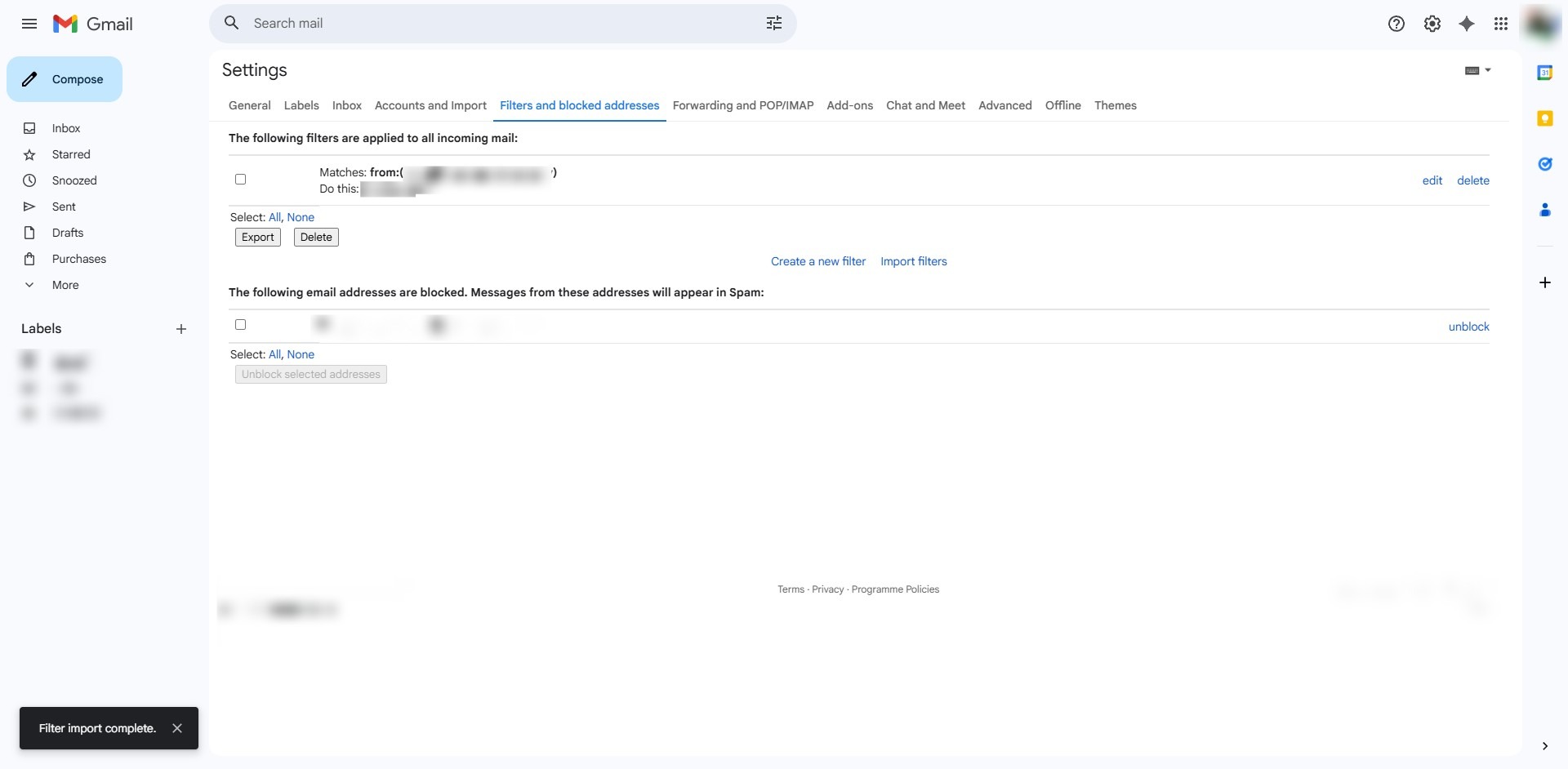
Step 7: Confirmation of Success
- The process is complete when the system displays a “Filter import complete” notification in the bottom-left corner of the screen.
Conclusion:
In conclusion, importing a filter for specific words in Gmail Web is efficiently handled through the “Filters and blocked addresses” settings tab. By utilizing the “Import filters” link to upload a pre-configured rule file from your local storage and clicking “Create filters,” you can immediately activate complex sorting or blocking logic. The procedure is finalized when the system displays a success notification confirming the import is complete.