
Search Our Database
How to Remove Contact in Gmail Web
Introduction:
Removing a contact through the Gmail Web interface is a direct and efficient way to manage your directory without leaving your inbox. This process is initiated by clicking the Contact icon in the sidebar and locating the specific target individual you wish to delete from your list. Once the target profile is accessed, you simply click the bin icon and confirm the removal by selecting “Move to the bin”. The action is completed once a success notification appears at the bottom of the screen, confirming the contact has been moved to the bin.
Prerequisites:
- The specific individual you wish to delete must already exist in your directory so that you can locate and select their profile.
- You must be signed into your Google account to access your personal directory and ensure changes are saved to your profile.
Step-by-step Guide:
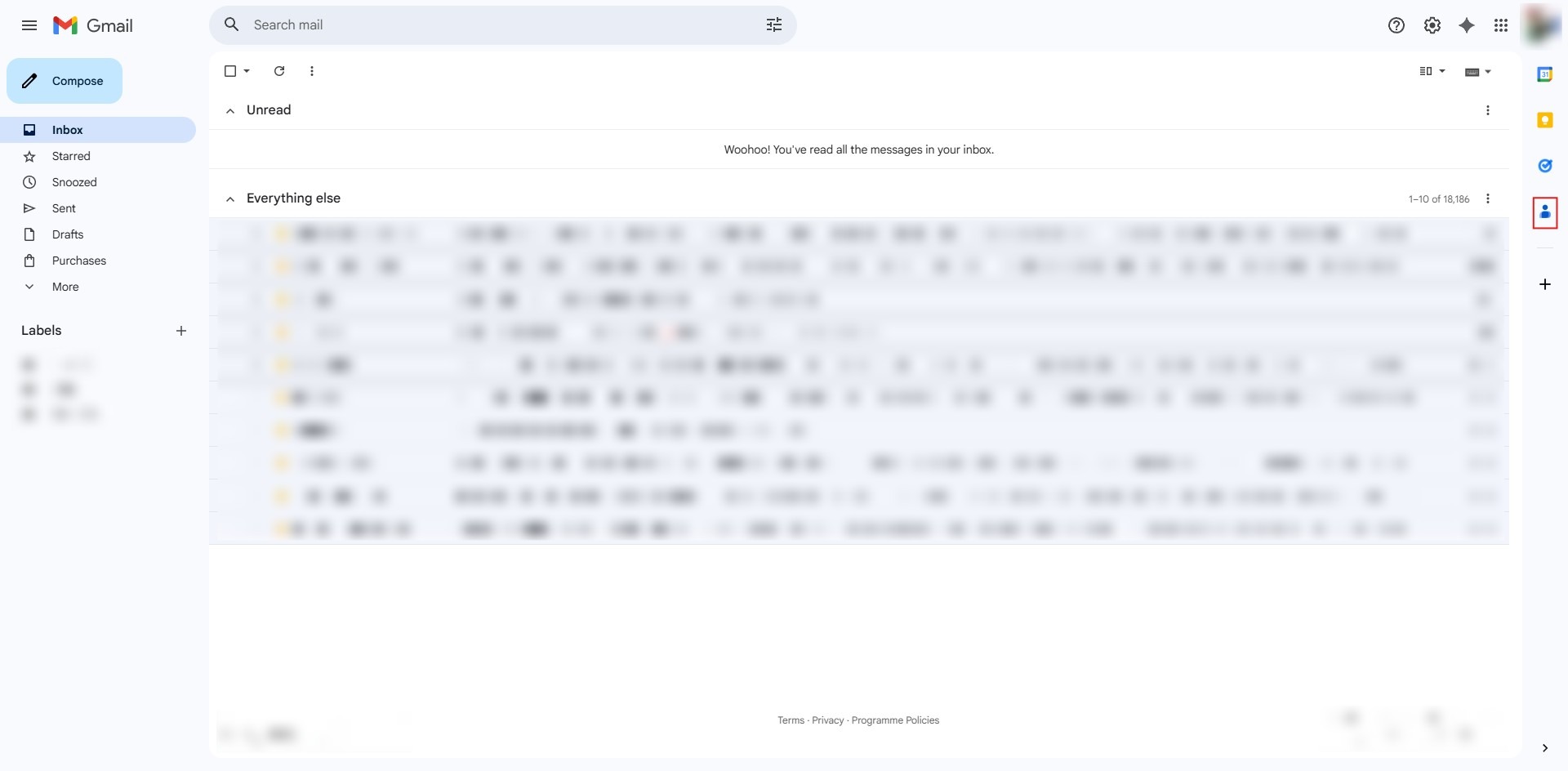
Step 1: Click Contact Icon
- In your Gmail inbox, navigate to the right-side panel and click the Contact Icon.
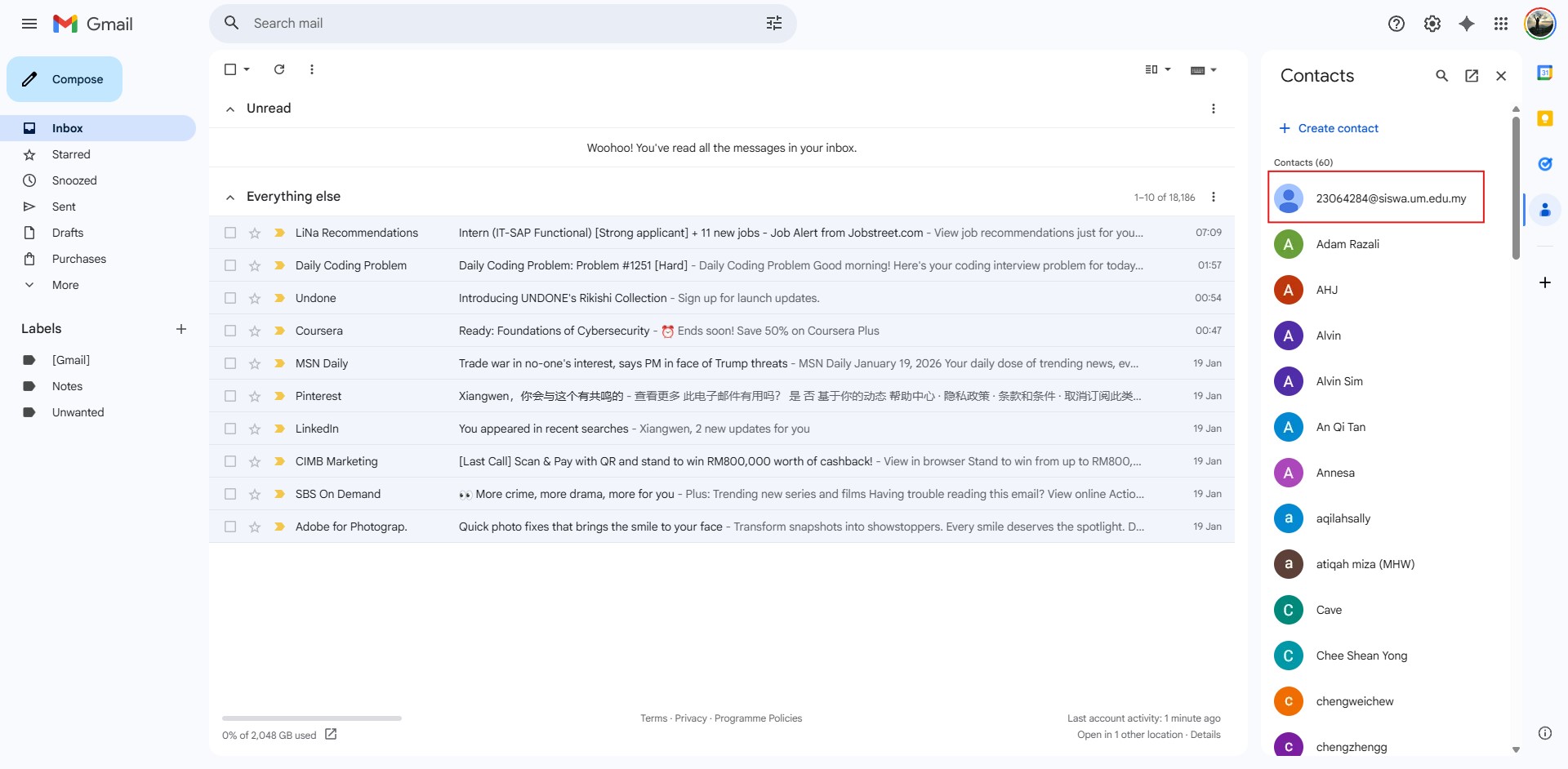
Step 2: Locate Target
- Browse through your contact list to locate the specific individual you wish to delete.
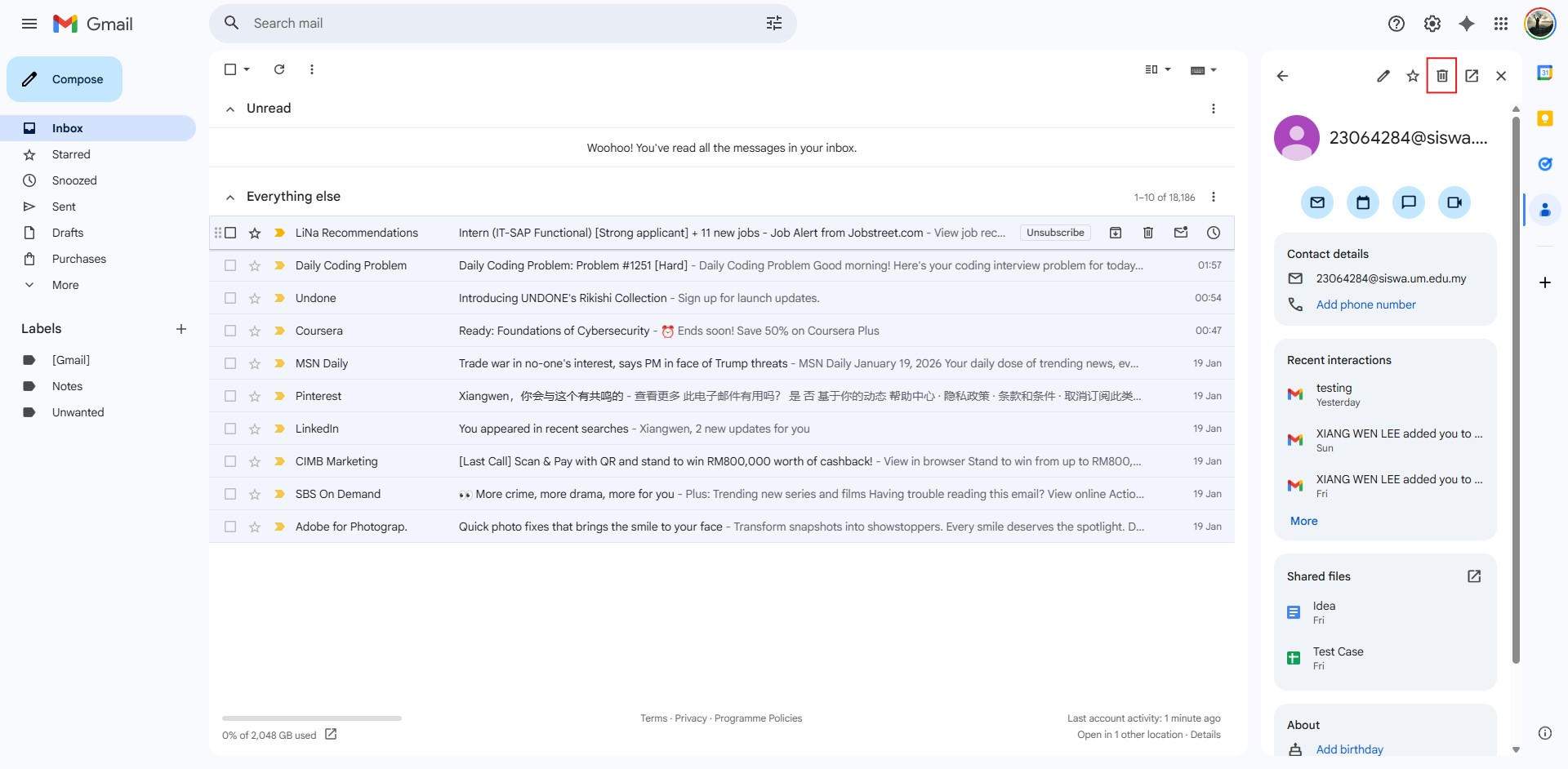
Step 3: Click Bin Icon
- Once the contact’s profile summary is open, click the bin icon found at the top of the panel.
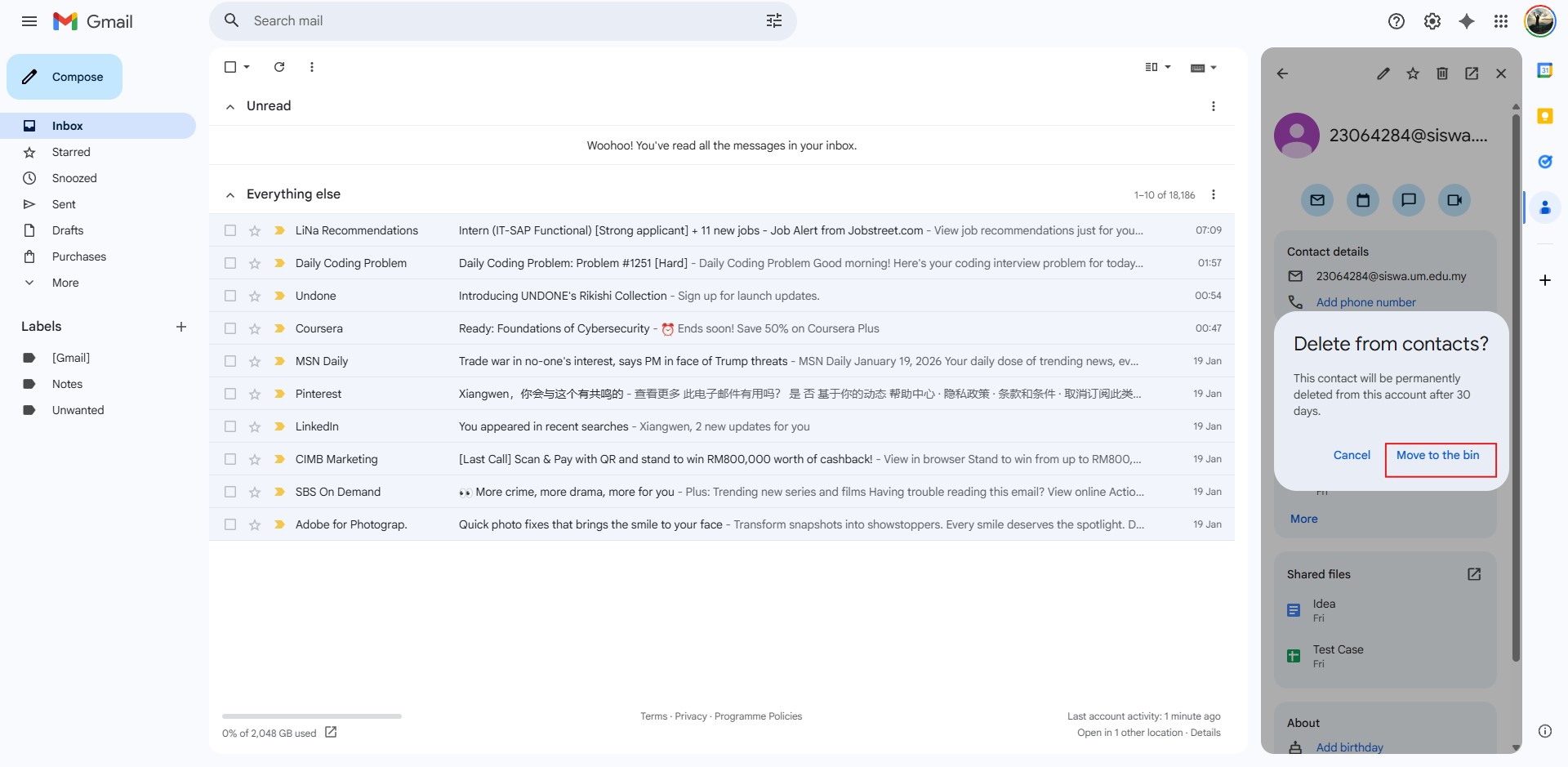
Step 4: Move to Bin
- When the confirmation window appears, click the “Move to the bin” button to finalize the removal.
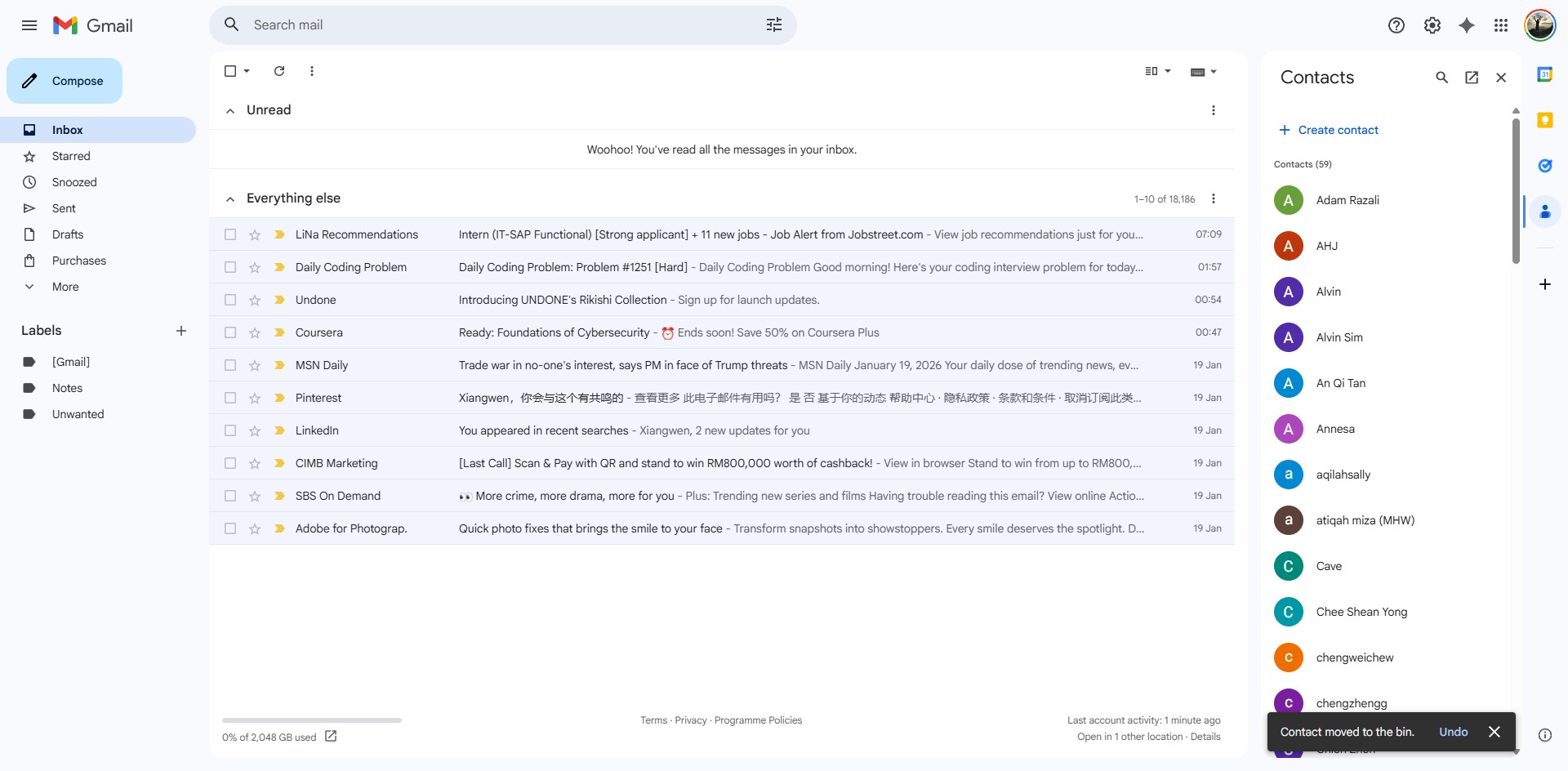
Step 5: Confirmation
- The process is successful when a notification appears at the bottom of the screen stating the contact has been moved to the bin.
Conclusion:
In conclusion, removing a contact through the Gmail Web interface is a seamless operation that begins by clicking the Contact Icon in the side panel to access your directory. Once you locate the specific target profile, the removal is initiated by clicking the bin icon and confirmed by selecting the “Move to the bin” option. The process is complete when the system displays a success notification, confirming that the contact has been removed from your list.