
Search Our Database
How to Add Contact with Existing Email in Gmail App
Introduction:
Adding a new contact via an existing email in the Gmail App is a streamlined method that allows you to capture sender details directly from your correspondence without manual typing. This process is initiated by locating and opening an email that contains the target individual’s information and tapping their user icon. From the resulting profile overlay, you select the add contact button (the person icon with a plus sign) and choose to complete the action using the Google Contacts application. This automatically populates the name and email fields, allowing you to finalize the entry by simply tapping “Save”. A success notification will appear at the bottom of the screen to confirm the contact has been added to your account.
Prerequisites:
- You must have a received email from the target individual to access their sender profile.
- You must select the Google Contacts option to proceed with the data entry.
Step-by-step Guide:
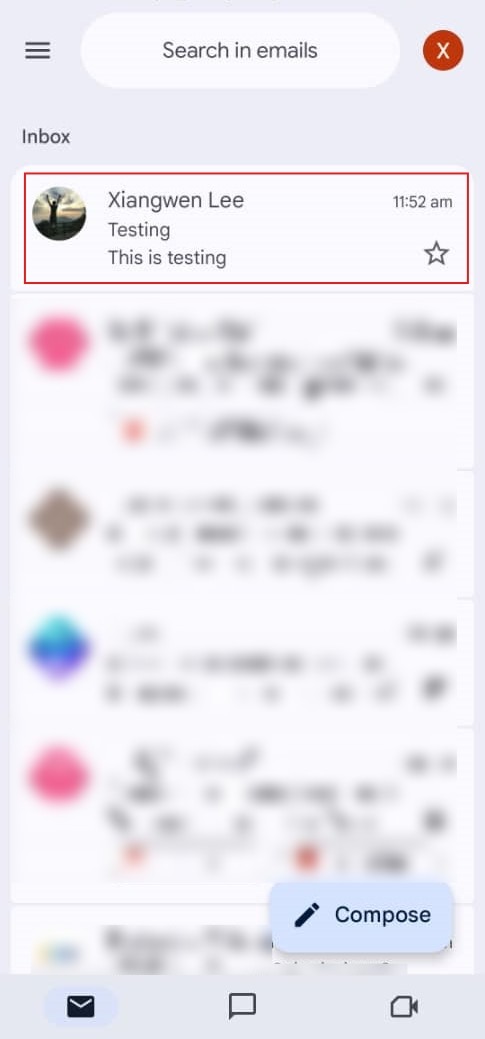
Step 1: Locate Email
- Open the Gmail app and navigate to the specific email thread that contains the sender you wish to add to your contacts.
Step 2: Tap User Icon
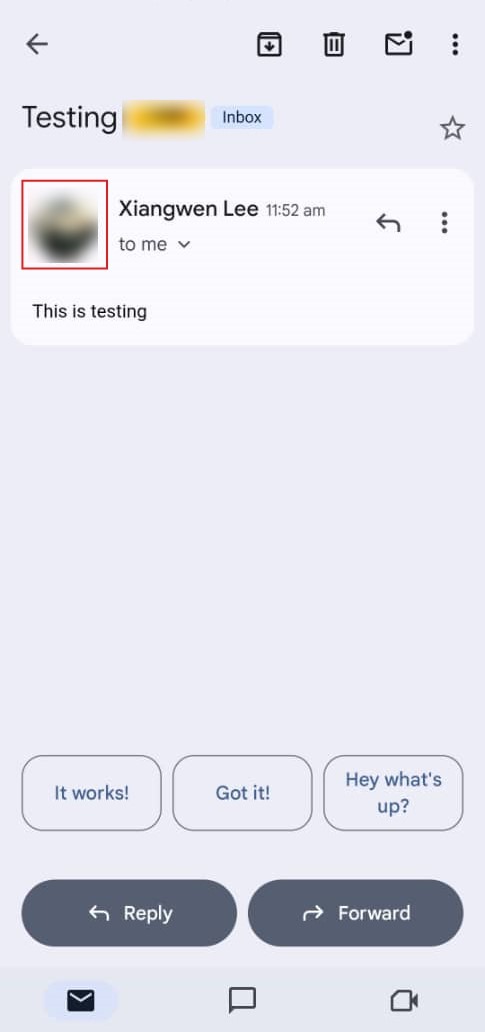
- Tap the User Icon (the profile picture or initial) next to the sender’s name within the email.
Step 3: Tap Add Button
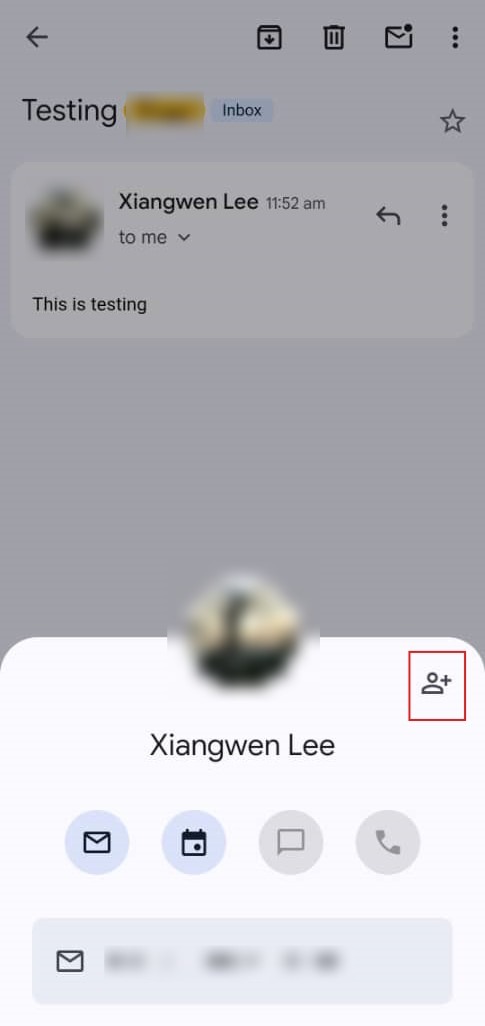
- On the profile summary that appears at the bottom of the screen, tap the Add Contact icon (represented by a person with a plus sign).
Step 4: Select App
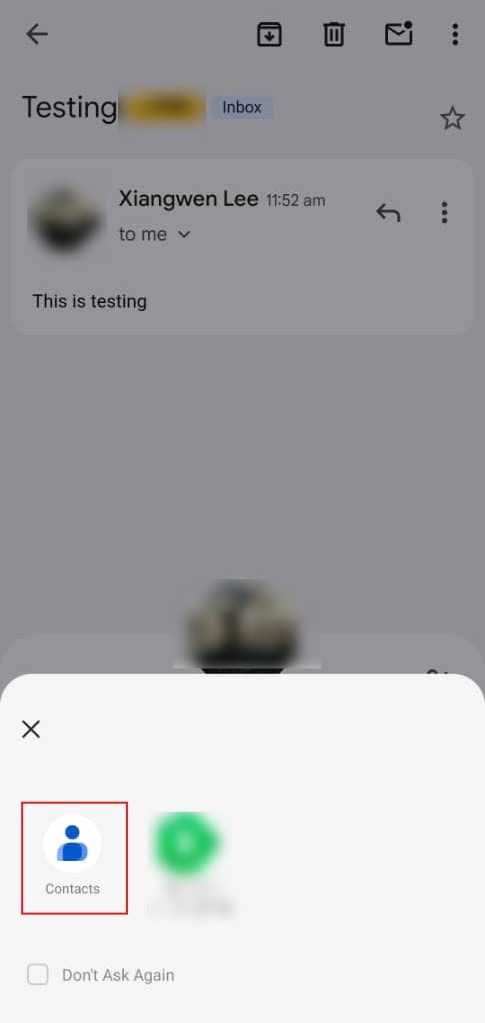
- When prompted by the system, select the Google Contacts application to handle the new entry
Step 5: Save Details
- The app will automatically populate the name and email fields; review the information and tap the “Save” button at the top.

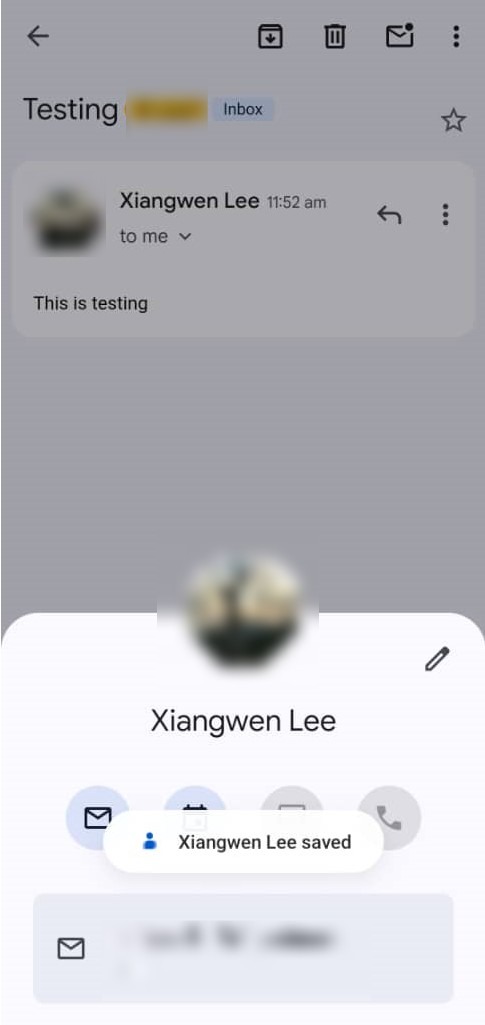
Step 6: Confirmation
- The process is successful once a notification appears at the bottom of the screen stating the contact has been saved.
Conclusion:
In summary, adding a contact from an existing email in the Gmail App is a straightforward process that begins by locating the specific email and tapping the sender’s user icon. By selecting the add button and utilizing the Google Contacts application to manage the entry, the user’s name and email details are automatically captured. The process concludes once you click “Save” and receive a success notification, confirming that the contact has been successfully added to your mobile directory.