
Search Our Database
How to Change Date Format from DD/MM/YY (UK Style) to MM/DD/YY (US Style) in Gmail Web
Introduction:
For users who prefer the US-style date format (MM/DD/YY) over the UK-style (DD/MM/YY), the Gmail Web interface provides a straightforward method to align the platform with regional preferences. The sources indicate that the display of dates in Gmail is fundamentally linked to the Gmail display language setting located in the general settings menu.
The two regional styles are defined as follows:
- UK Style: This format follows the DD/MM/YY structure (Day/Month/Year), which is activated when the display language is set to English (UK).
- US Style: This format follows the MM/DD/YY structure (Month/Day/Year), which is standard for users who select English (US) as their primary display language.
To transition from the UK to the US format, a user must navigate to the “See all settings” section and update their language preference to English (US), ensuring that all time-stamped information across the inbox reflects the American standard.
Prerequisites:
- You must have active access to the Gmail Web interface via a desktop or laptop browser.
- You must be logged into the specific Google account that requires the formatting adjustment.
- You must have the ability to access the “See all settings” menu.
- You must identify your current Gmail display language (likely set to English (UK)) and be prepared to switch it to English (US) to achieve the MM/DD/YY format.
Step-by-step Guide:
Step 1: Access Settings
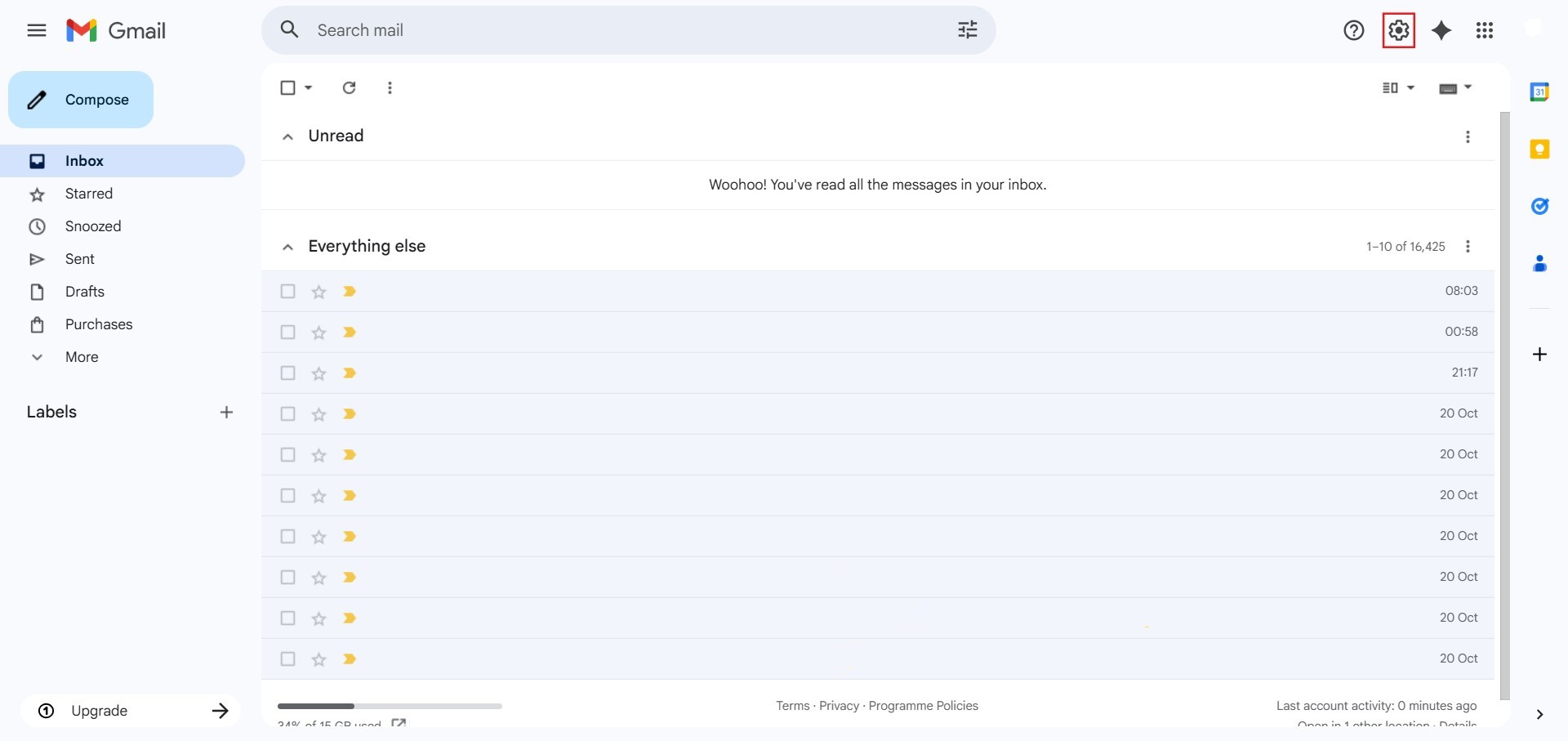
- The initial action required is to Click setting.
Step 2: Navigate to All Settings
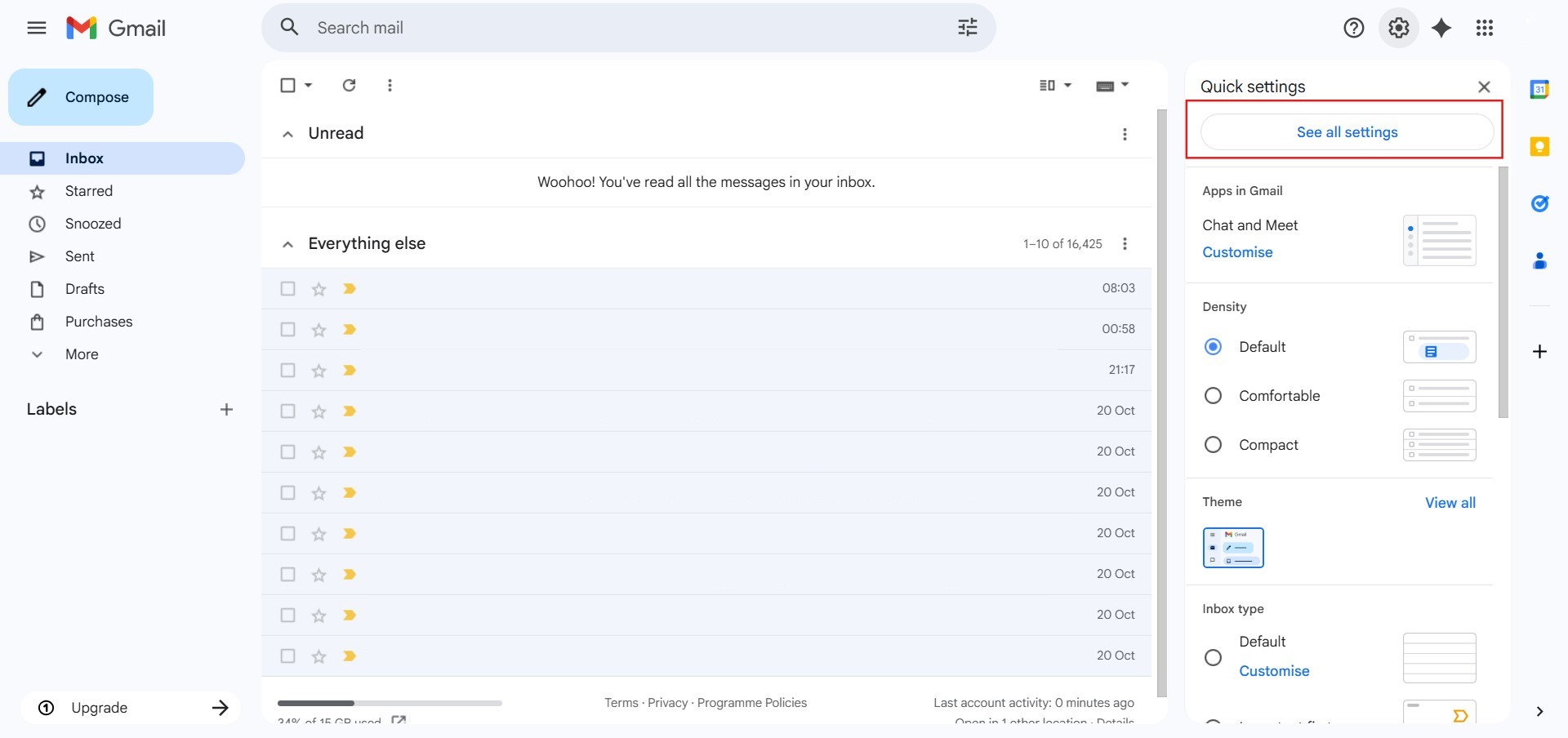
- After clicking “setting,” proceed to select See all Settings.
Step 3: Locate Language
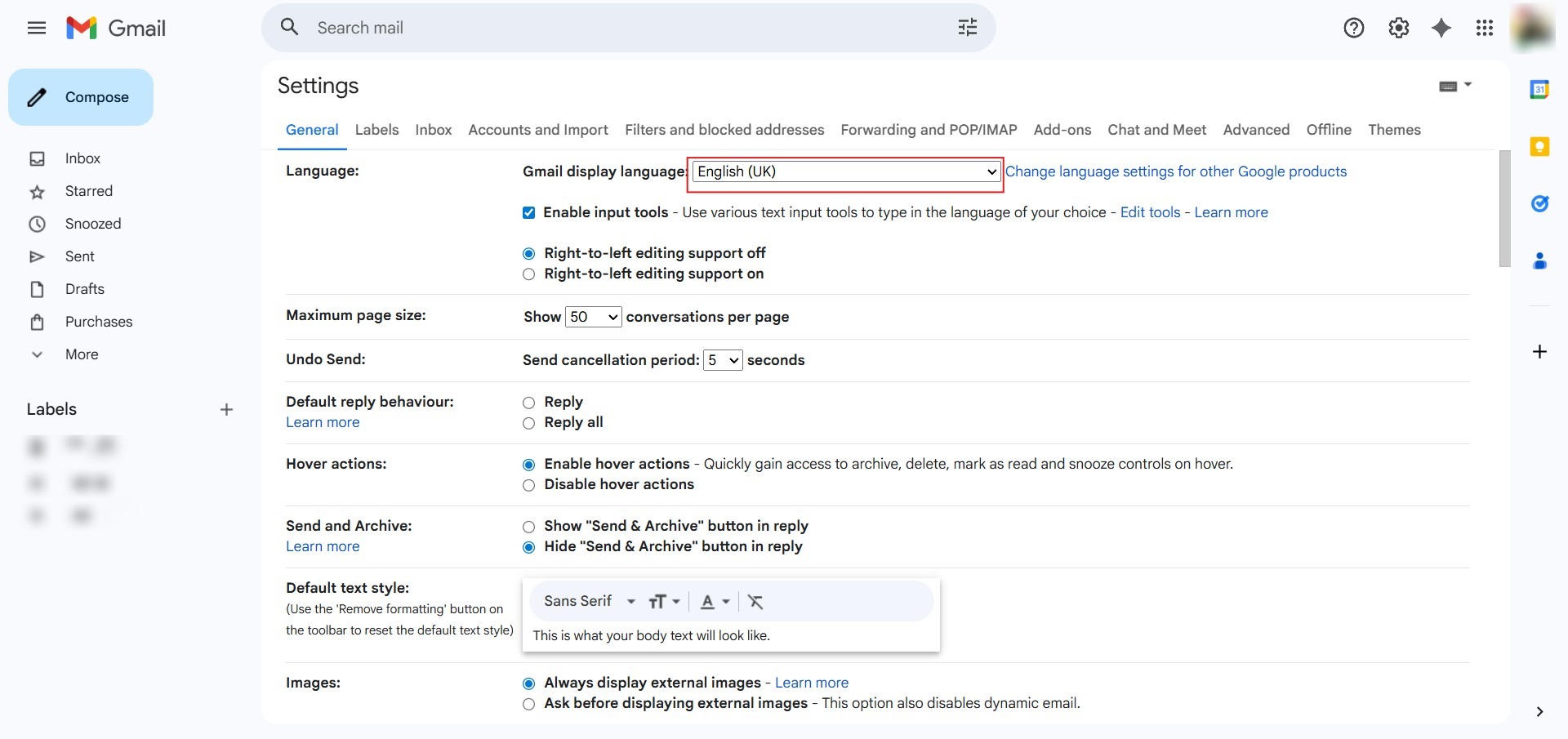
- Under the “General” tab, find the “Language” section at the top of the list.
Step 4: Access Dropdown
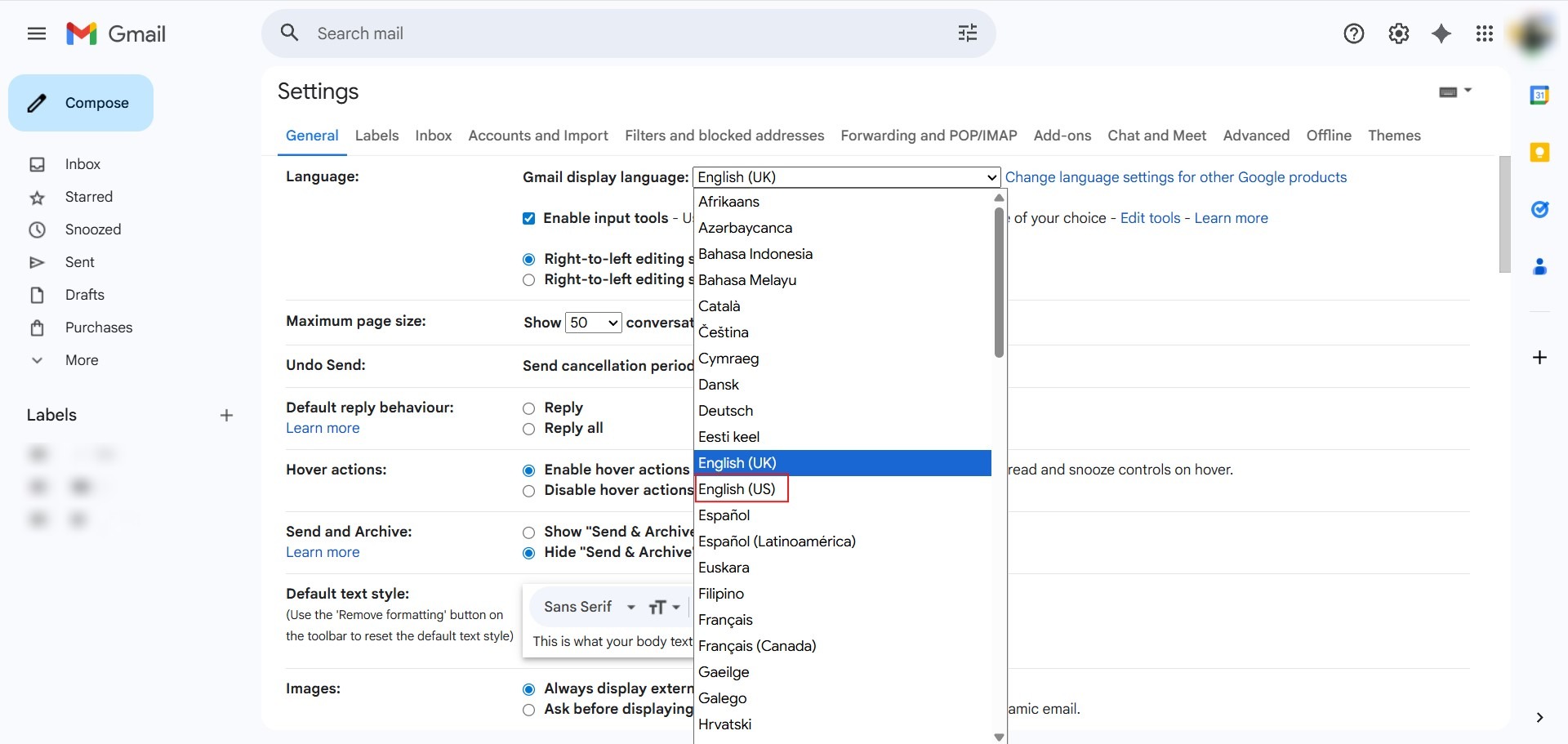
- Click the dropdown menu next to “Gmail display language” (which should currently be set to English (UK)).
Step 5: Select US Style
- From the list of available languages, select “English (US)” to trigger the MM/DD/YY date architecture.
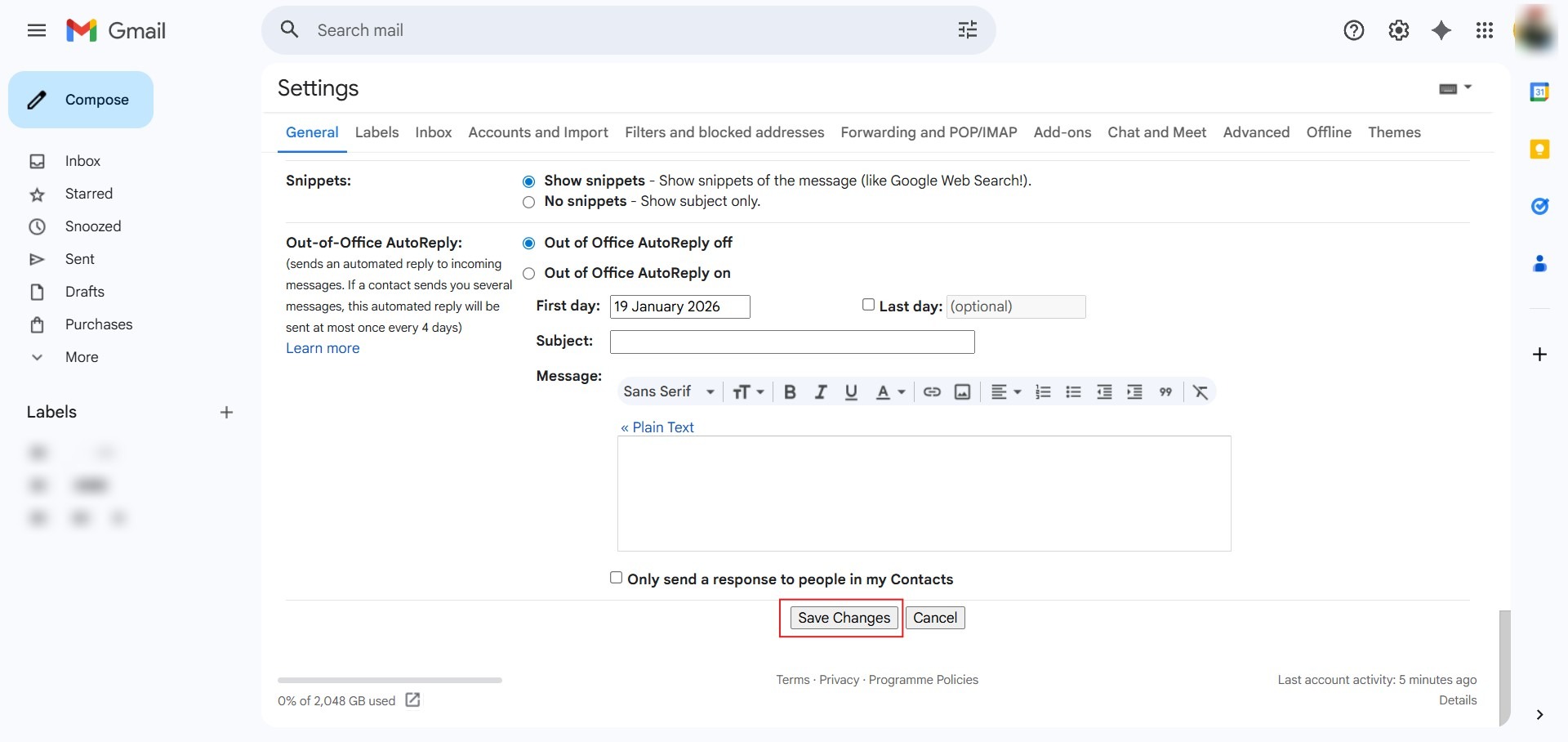
Step 6: Commit Changes
- Scroll to the bottom of the settings page and click “Save Changes”.
Conclusion:
In conclusion, transitioning the date format in Gmail Web from the UK style (DD/MM/YY) to the US style (MM/DD/YY) is an administrative task fundamentally linked to the platform’s regional language settings. By reconfiguring the Gmail display language from English (UK) to English (US), the system automatically reorders the chronological data to prioritize the month over the day.