
Search Our Database
How to Import or Migrate Old Data into New Gmail Account
Introduction:
For a professional Gmail user, transitioning to a new primary email address or consolidating digital workspaces requires a reliable method for preserving legacy information. The platform provides a specialized administrative feature known as “Transfer your content” to facilitate the migration of data from an old account to a destination account.
This process is designed to move your historical data into a centralized environment, ensuring that important communications and records are not lost during the transition. By utilizing a secure verification code system, Gmail ensures that only authorized users can initiate the migration, requiring access to both the source and the new account to confirm the request before you start the transfer.
Prerequisites:
- You must have the login credentials for the account currently holding the data.
- You must have a pre-existing destination account.
Step-by-step Guide:
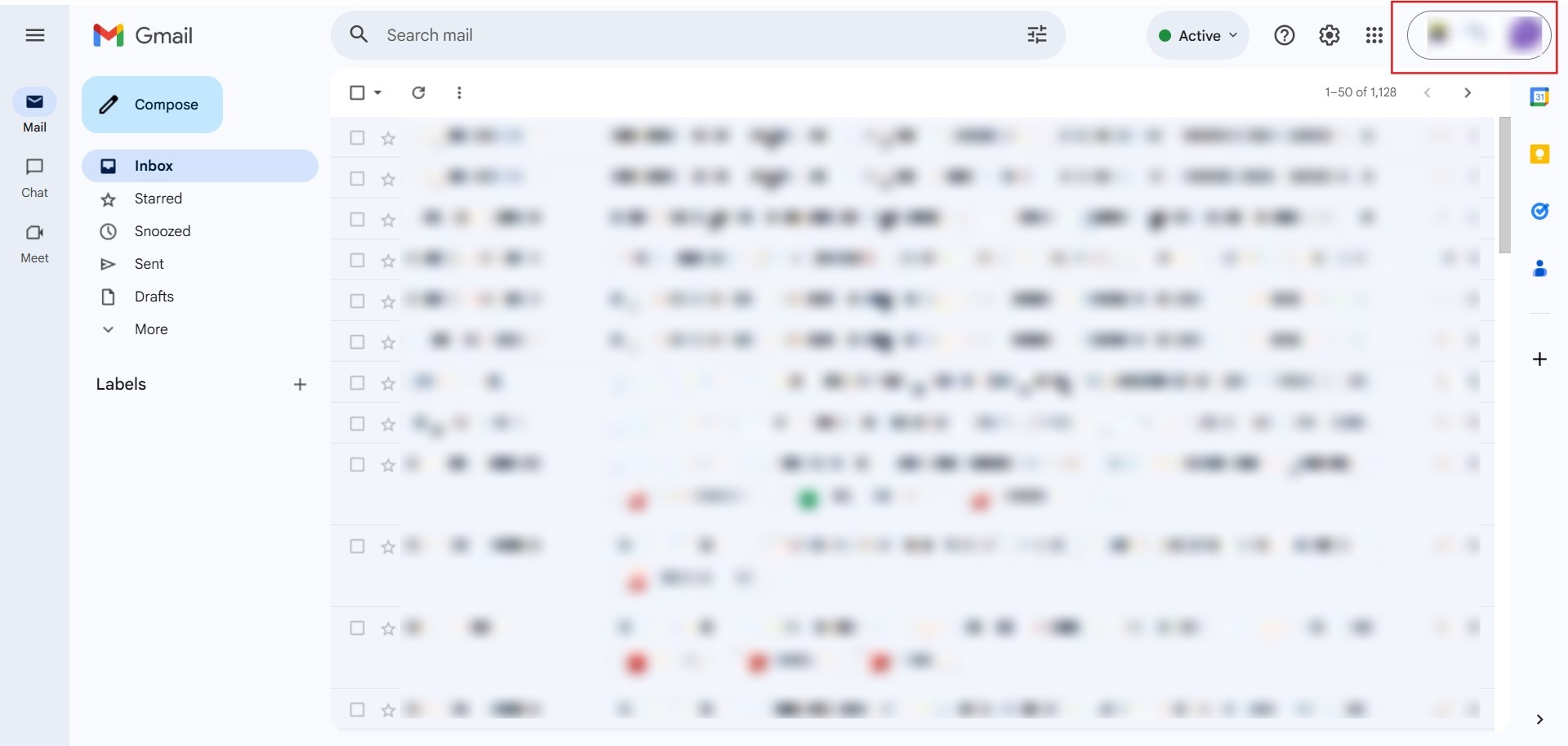
Step 1: Access Account
- In your source account, click on your mail profile icon.
Step 2: Open Settings
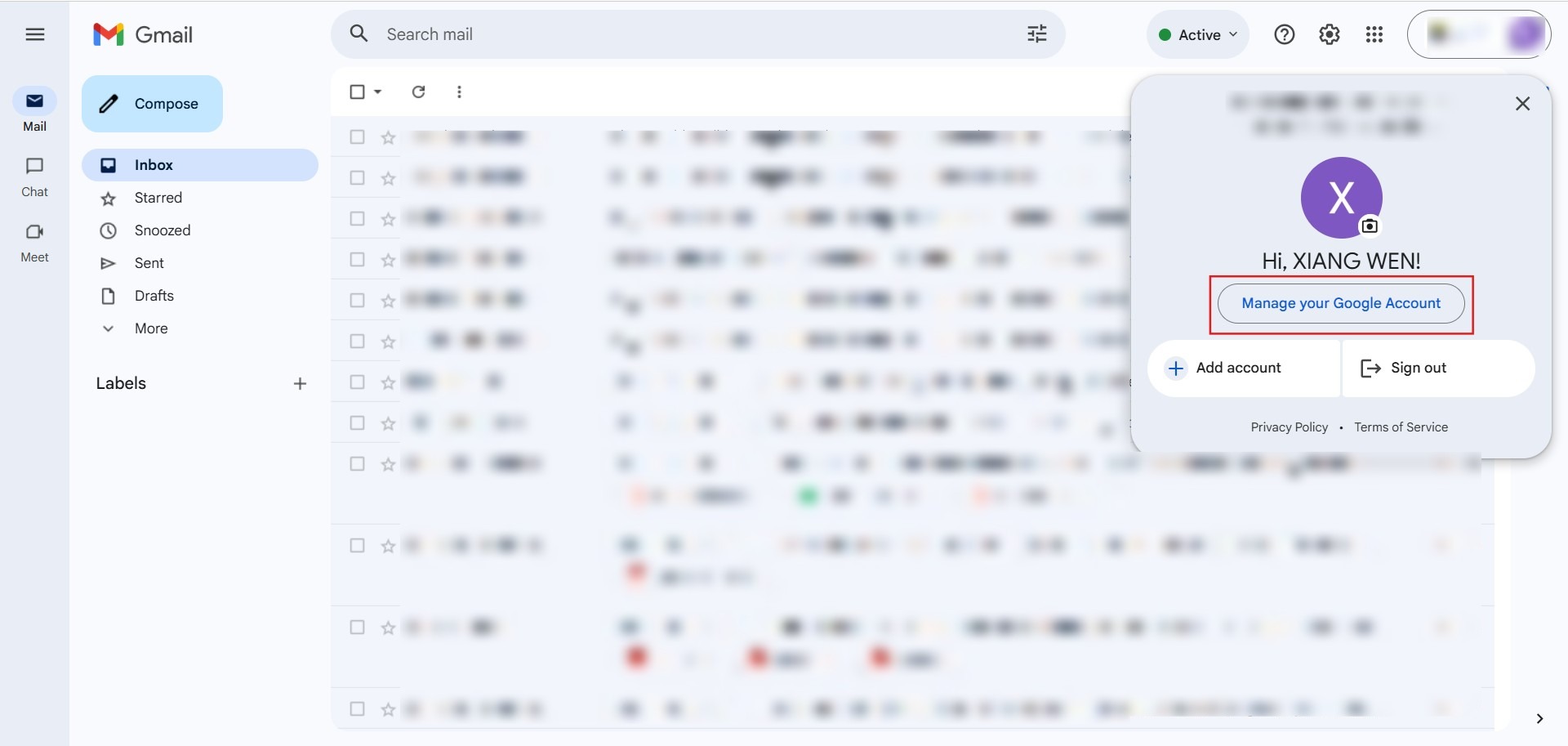
- Select the option to “Manage your Google Account.”
Step 3: Locate Tool
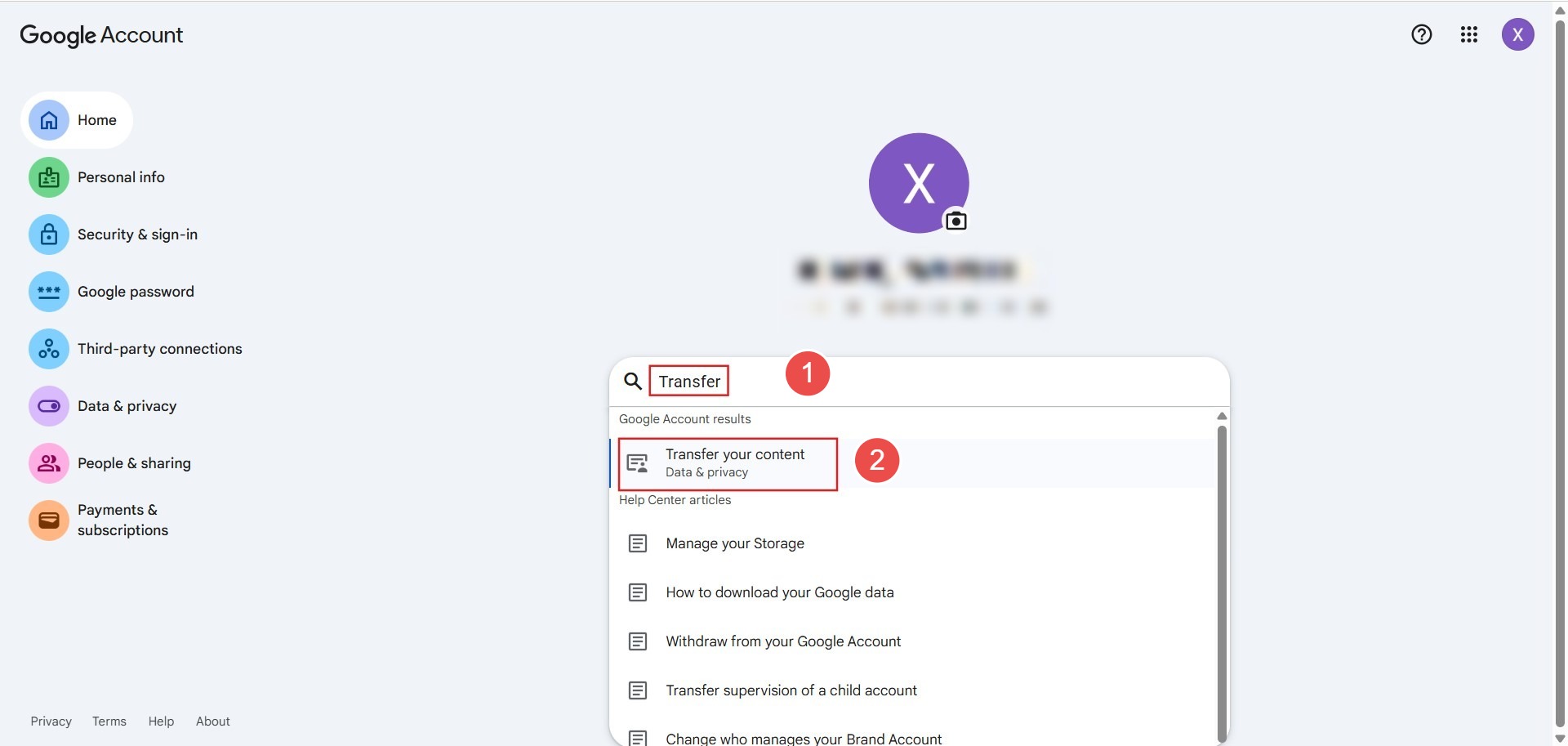
- Use the search bar within the account settings to find and click “Transfer your content.”
Step 4: Target Destination
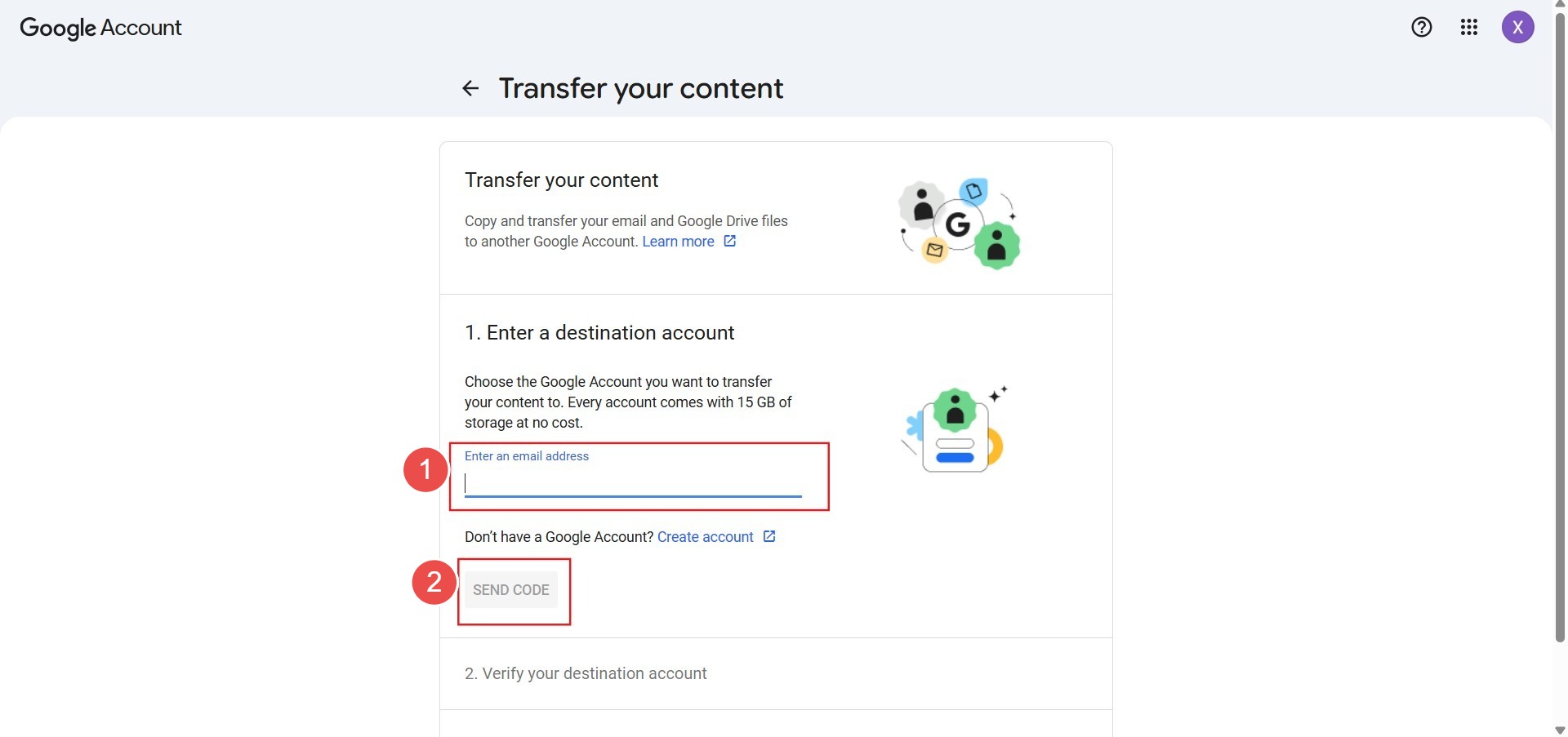
- Enter the email address of your destination account and click “Send Code.”
Step 5: Retrieve Code
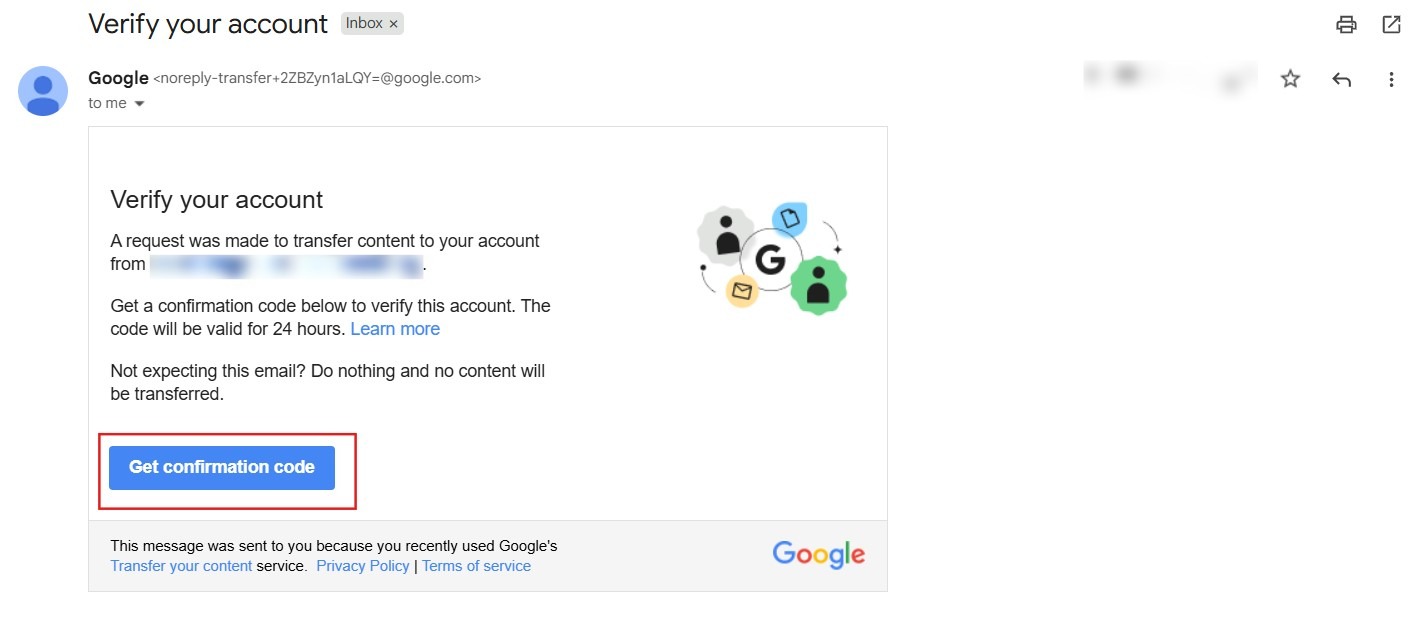
- Switch to the destination account’s inbox, open the Google verification email, and click “Get confirmation code.”
Step 6: Bridge Accounts
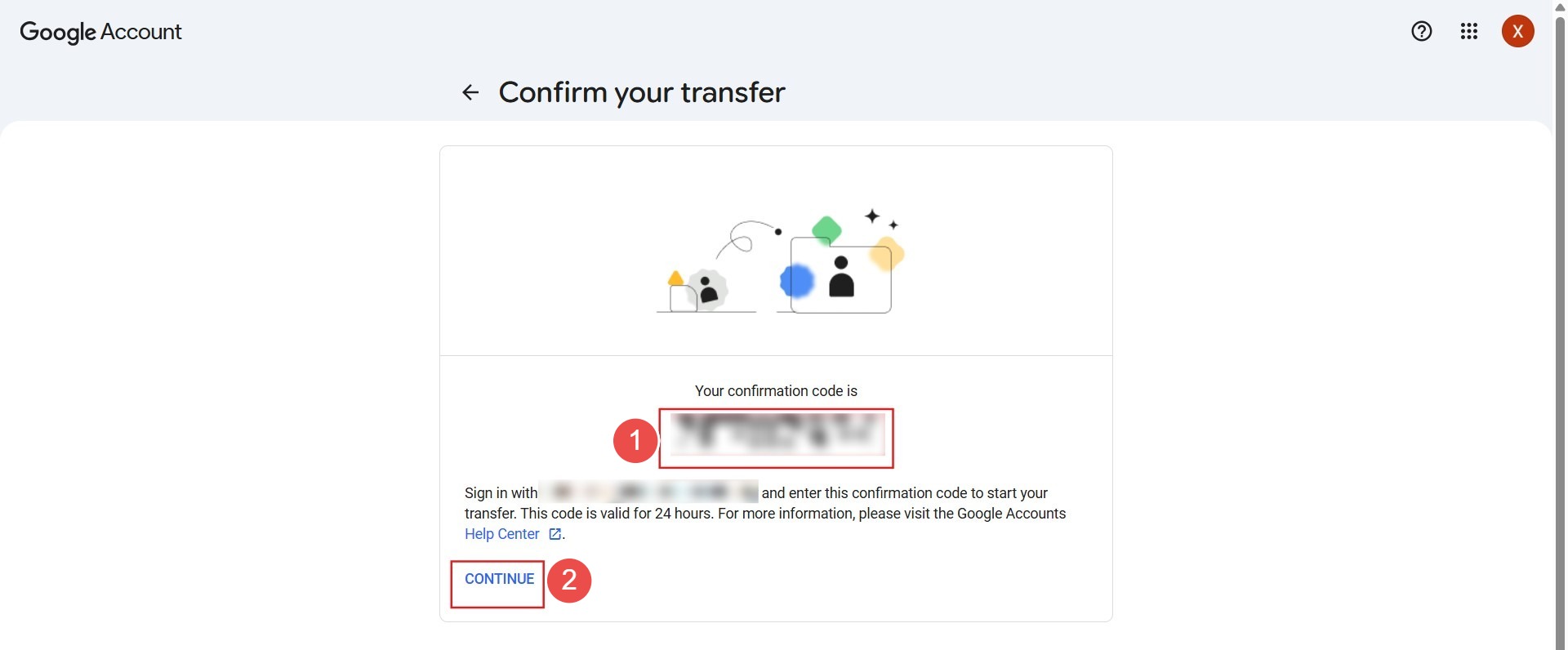
- Copy the provided code, return to the source account’s transfer page, and click “Continue.”
Step 7: Verify Link
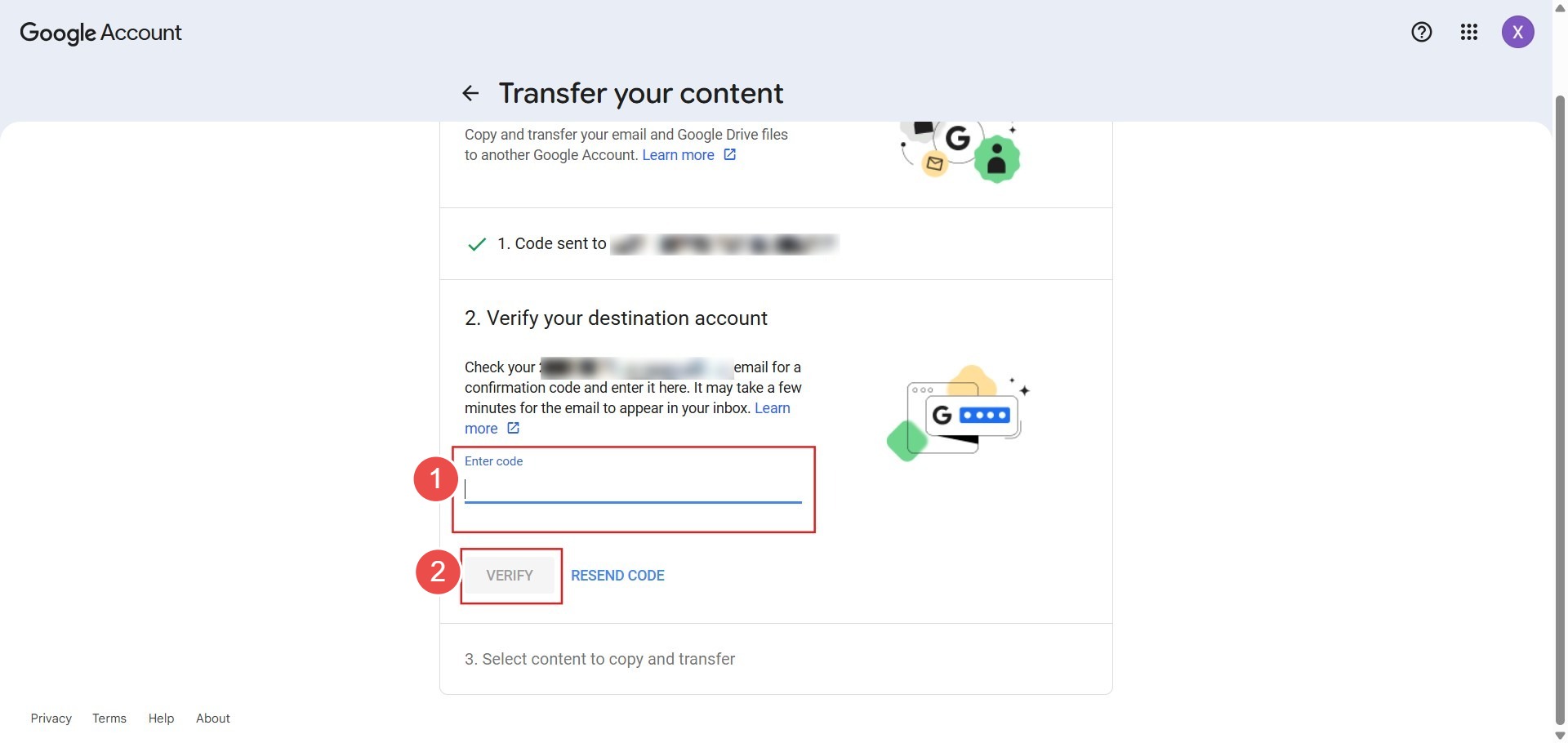
- Enter the copied code into the field.
- click the “Verify” button.
Step 8: Initiate Move
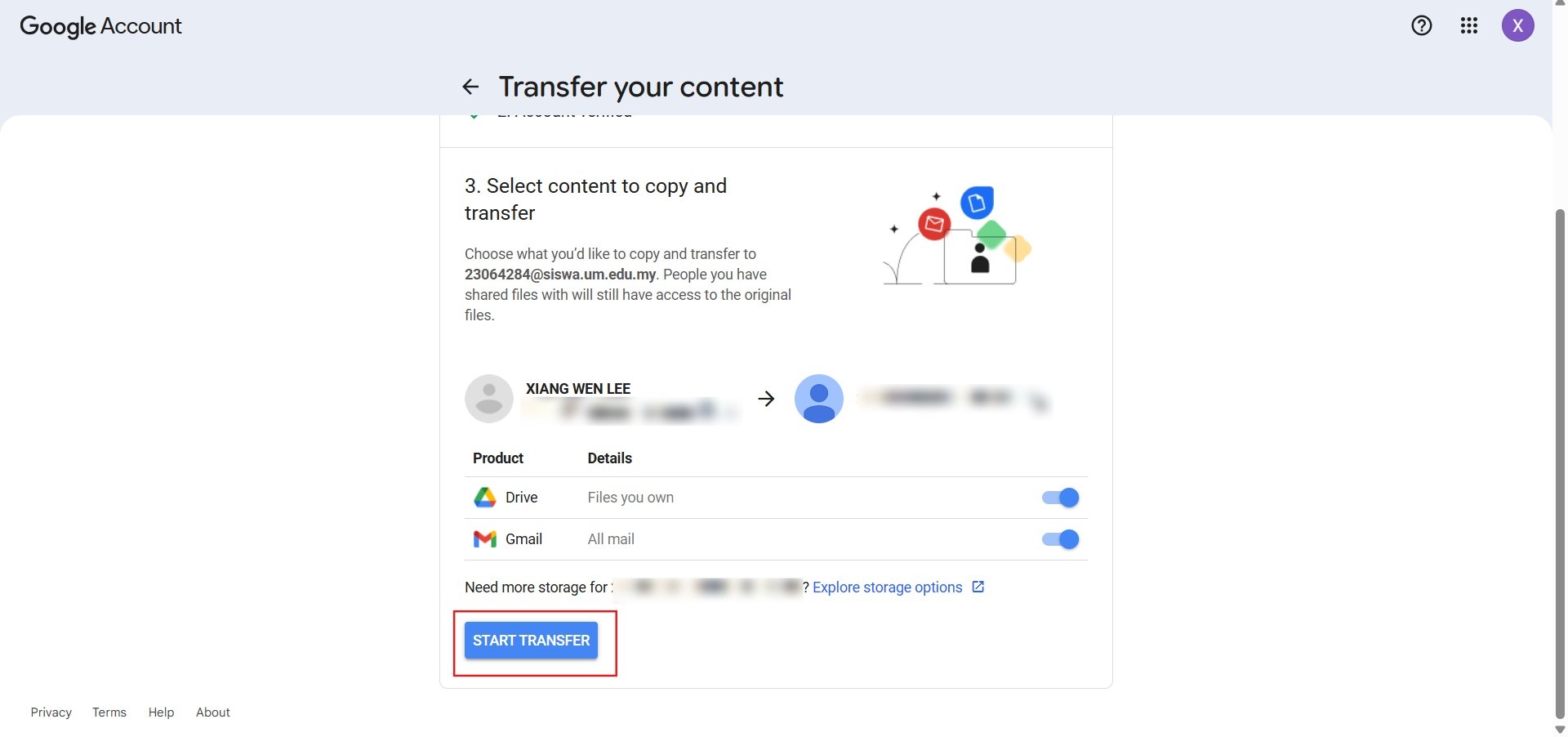
- Click “Start transfer” to begin the migration of your old data into the new centralized environment.
Conclusion:
Successfully migrating your digital history to a new Gmail account ensures that legacy project data and professional communications remain accessible as your workspace evolves. By following the “Transfer your content” workflow within your Google Account settings, you create a seamless transition that avoids the risks of manual data entry or fragmented archives. The process concludes once you click “start transfer,” after which the platform’s automated systems handle the data relocation in the background.