
Search Our Database
How to Unsubscribe a Calendar in Google Calendar App
Introduction:
For a professional Google Calendar user, maintaining an organized mobile workspace is essential for focusing on current priorities and managing team efficiency on the go. When a shared project timeline or a collaborator’s schedule is no longer relevant to your daily operations, the Google Calendar App provides a streamlined method to unsubscribe from that specific calendar.
By navigating to the “setting” menu and identifying the particular schedule, you can remove it from your personal view, ensuring your mobile interface remains a secure, centralized, and clutter-free environment. This action allows you to refine your view to include only relevant stakeholders and milestones without affecting the calendar’s availability for other members of the organization.
Prerequisites:
- You must be logged into a valid Google account.
- Ensure you are accessing the app-based version.
- You must have an established calendar available to unsubscribe.
Step-by-step Guide:
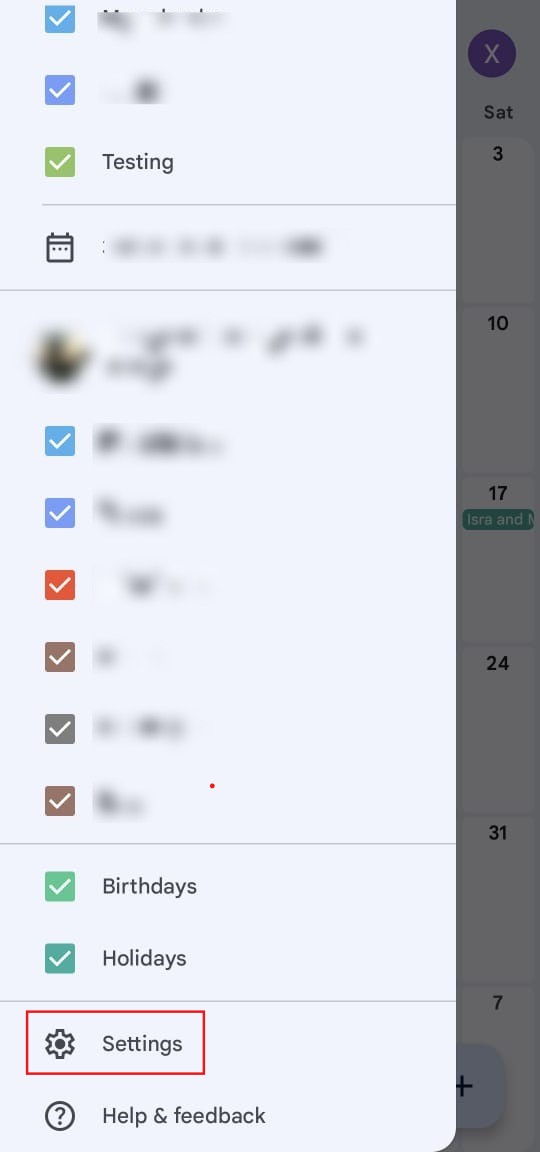
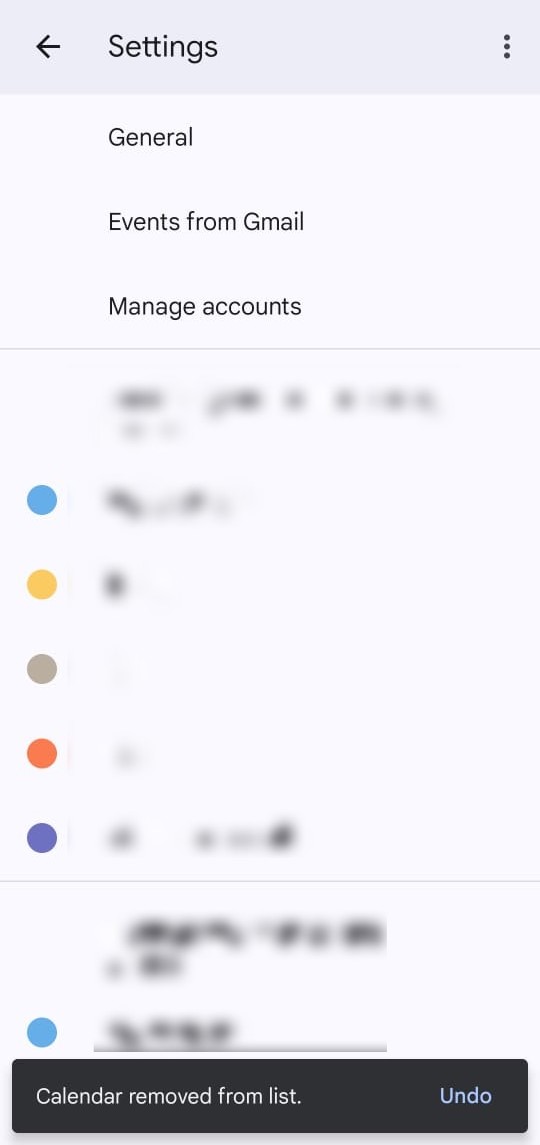
Step 1: Access Settings
- Open the application and click on the setting icon to view your administrative options.
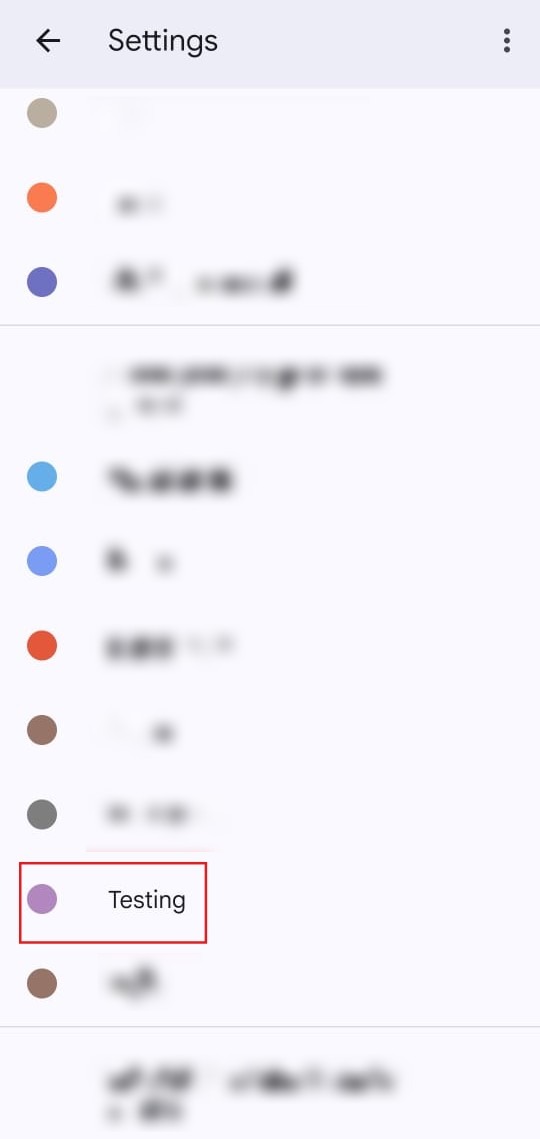
Step 2: Identify the Calendar
- Scroll through your synced accounts to locate the specific calendar you want to remove.
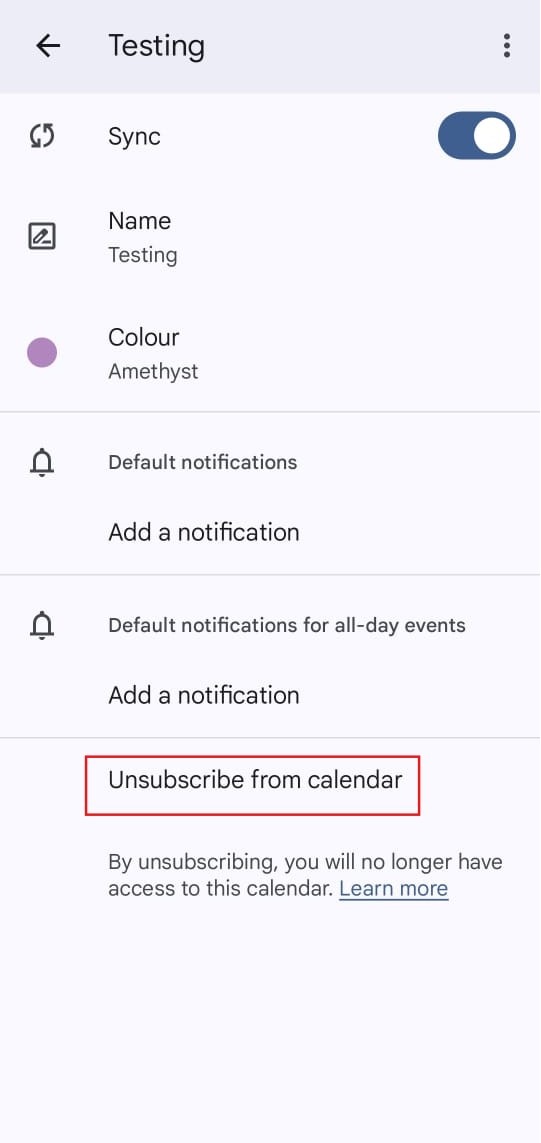
Step 3: Revoke Access
- Click on the “unsubscribe” option within that calendar’s settings menu.
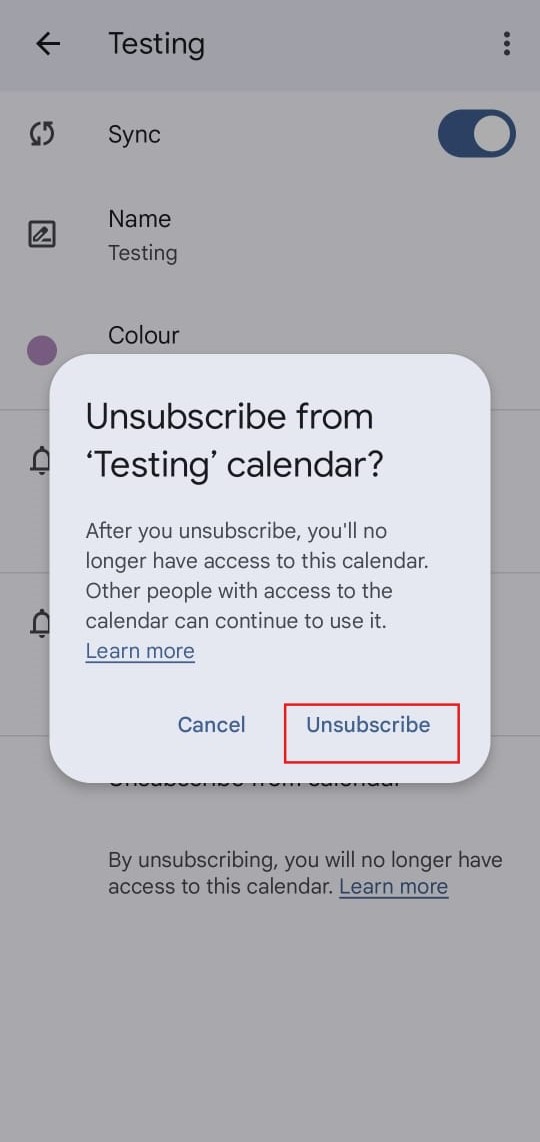
Step 4: Confirm Action
- Select “Confirm” in the prompt to finalize your decision.
Step 5: Confirmation
- The process is a success once the schedule no longer appears in your app’s sidebar or main view.
Conclusion:
In summary, mastering the ability to unsubscribe from non-essential schedules via the Google Calendar App is a fundamental skill for any professional looking to maintain a clutter-free and highly organized mobile workspace. By utilizing the “setting” icon to navigate to a specific calendar’s options and selecting “unsubscribe,” you can immediately streamline your view to focus only on active project milestones and relevant stakeholders.
The process is definitively a success once the schedule no longer appears in your application’s synced list, ensuring that your centralized scheduling platform remains efficient even while you are on the go.