
Search Our Database
How to Unsubscribe a Calendar in Google Calendar Web
Introduction:
For a professional Google Calendar user, maintaining an organized and uncluttered interface is vital for operational efficiency. When a shared schedule or public calendar is no longer relevant to your current workflow, the Google Calendar Web interface allows you to unsubscribe to remove it from your personal view.
Unlike the process for calendars you own—which involves permanent deletion—unsubscribing is the preferred method for removing calendars shared by others. By locating the specific calendar and clicking the “X” icon, you can trigger the “Remove Calendar” action, ensuring your centralized platform remains focused only on active milestones and essential collaborations.
Prerequisites:
- You must be logged into a valid Google account.
- Ensure you are accessing the web-based version.
- You must have an established calendar available to unsubscribe.
Step-by-step Guide:
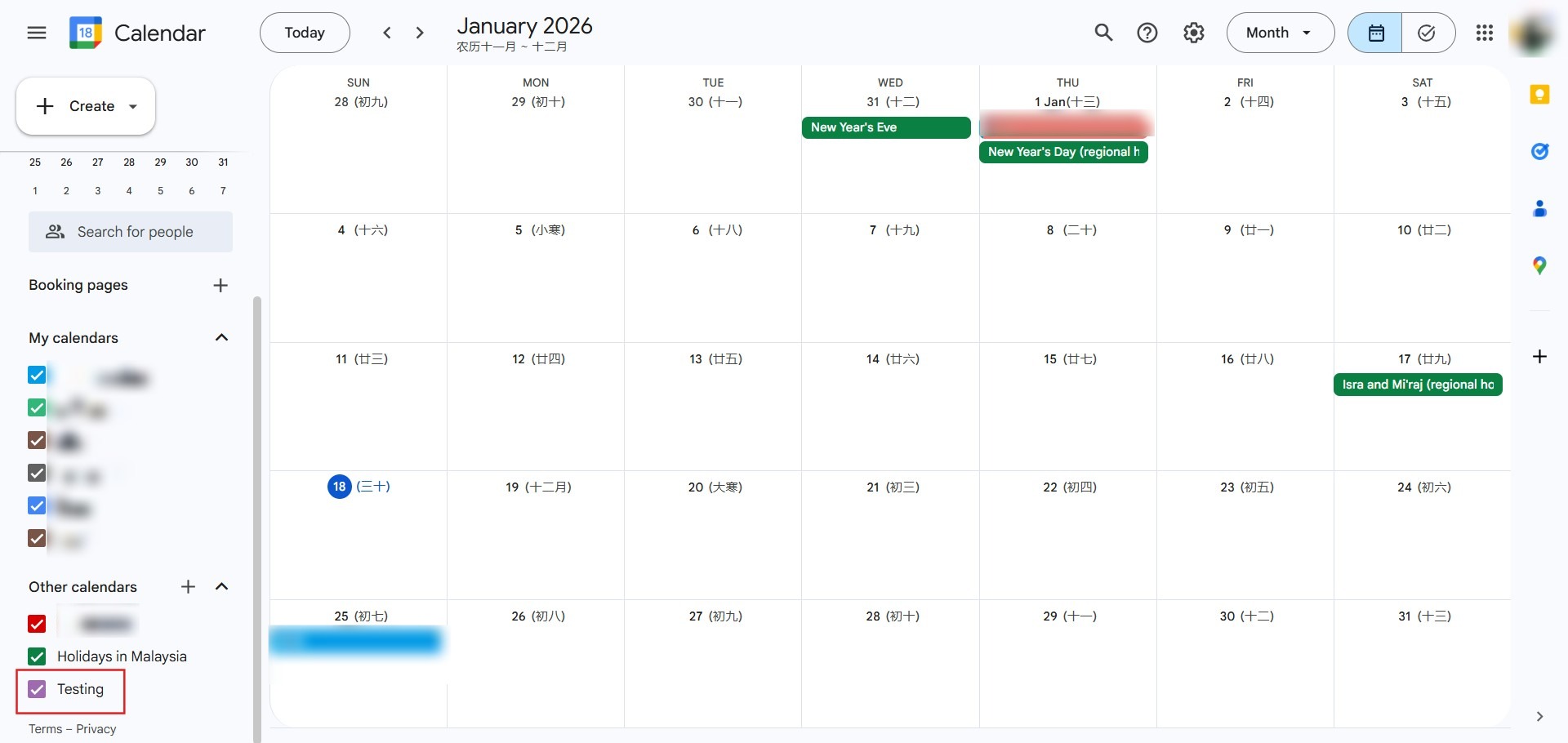
Step 1: Locate Calendar
- Scroll through your list to identify the specific calendar you wish to stop viewing.
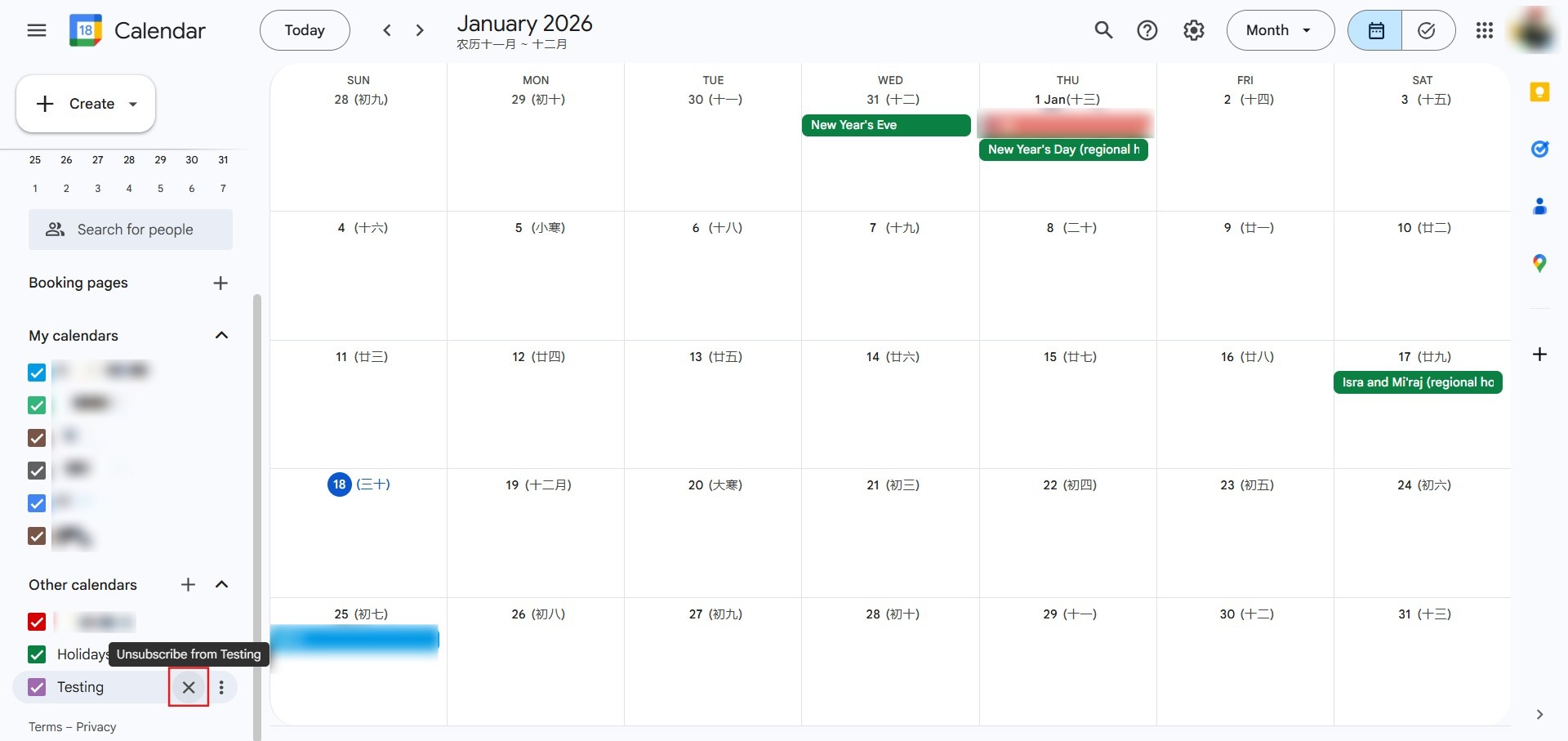
Step 2: Initiate Removal
- Click the “X” icon located next to the calendar name.
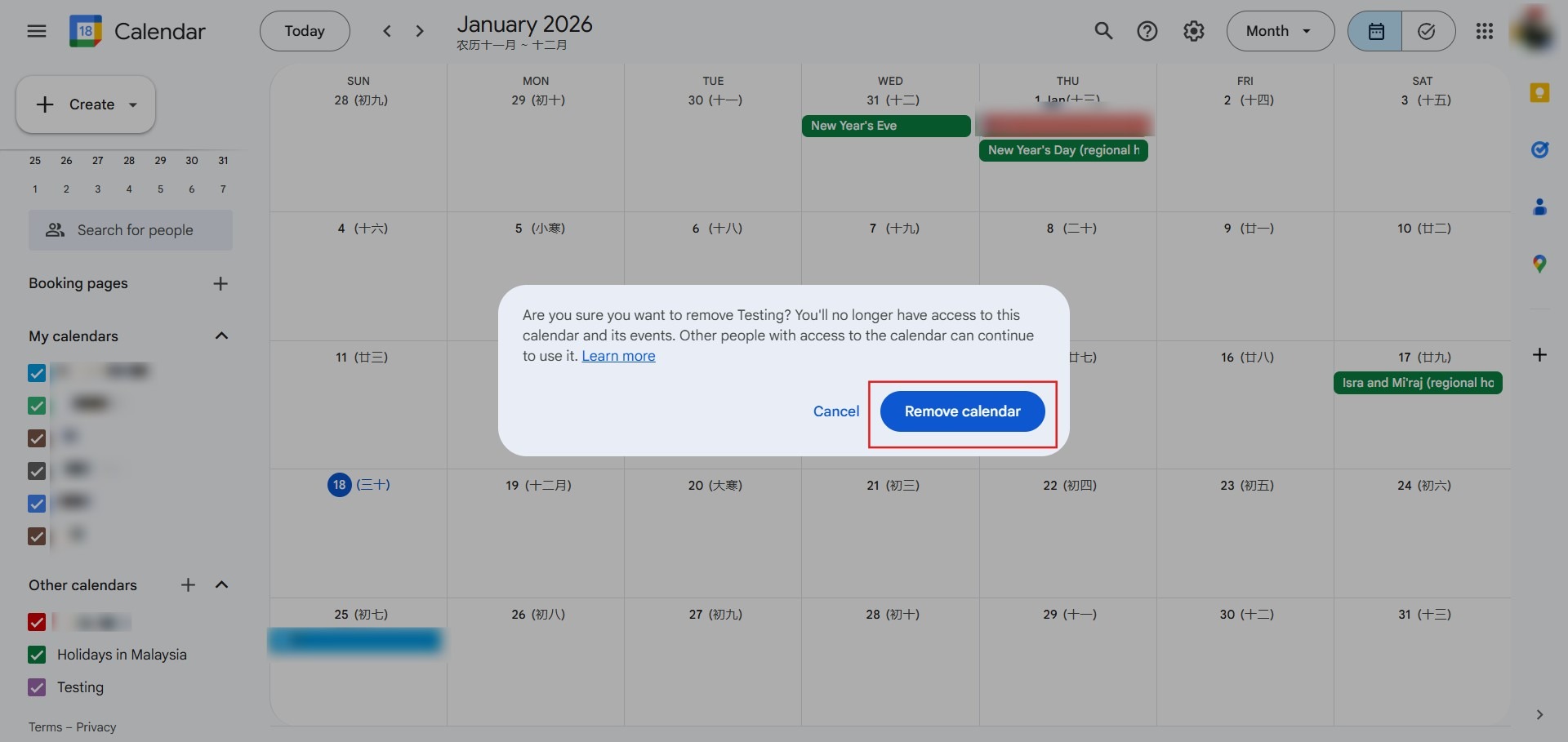
Step 3: Finalize Action
- Select the “Remove Calendar” button to finalize your decision.
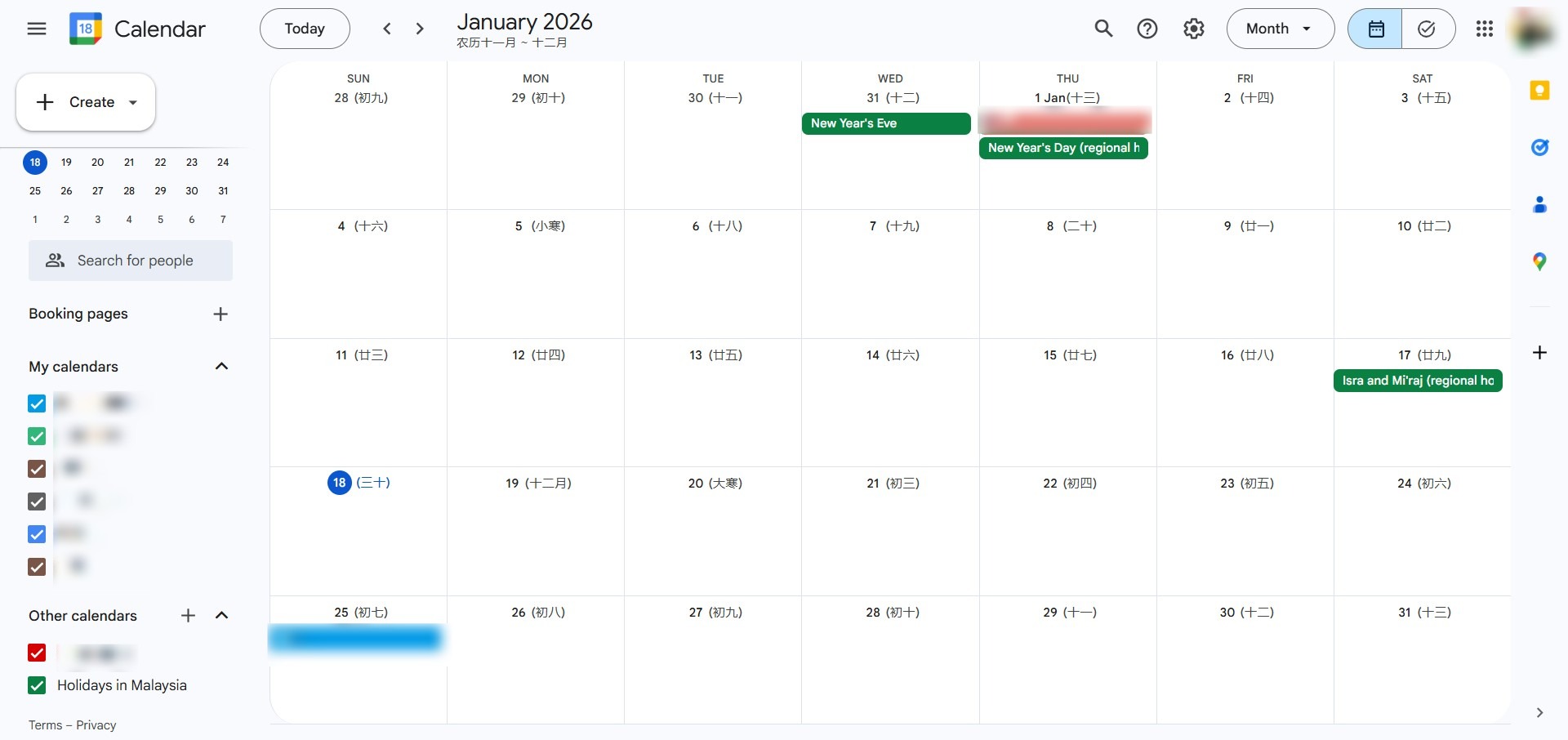
Step 4: Confirmation
- Once the screen refreshes and the calendar is removed from your list, the process is a success.
Conclusion:
To conclude, unsubscribing from a calendar is a vital task for any professional Google Calendar user looking to maintain a streamlined and secure, centralized environment. By choosing to unsubscribe rather than delete, you effectively manage your personal view without disrupting the schedule for other stakeholders.
The process is considered a success once the calendar is removed from your list, whether you utilized the “X” icon on the web interface or the “unsubscribe” option within the app settings. This ensures your digital workspace remains free of clutter and focused solely on the relevant milestones for your current projects.