
Search Our Database
How to Delete a Calendar in Google Calendar Web
Introduction:
For any Google Calendar user, maintaining a clutter-free and relevant digital workspace is vital for professional efficiency. When a specialized project timeline or shared schedule is no longer needed, the Google Calendar Web interface provides a robust mechanism to remove it entirely through the “Settings and sharing” menu.
By navigating to the specific calendar’s options and selecting the permanently delete function, you can ensure that obsolete schedules are completely erased, leaving your interface focused only on current priorities. This process is the final step in the lifecycle of a calendar, allowing you to decommission a centralized platform once a project has reached its conclusion or is marked as a success.
Prerequisites:
- You must be logged into a valid Google account.
- Ensure you are accessing the web-based version.
- You must have an established calendar available to share.
Step-by-step Guide:
Step 1: Open Options
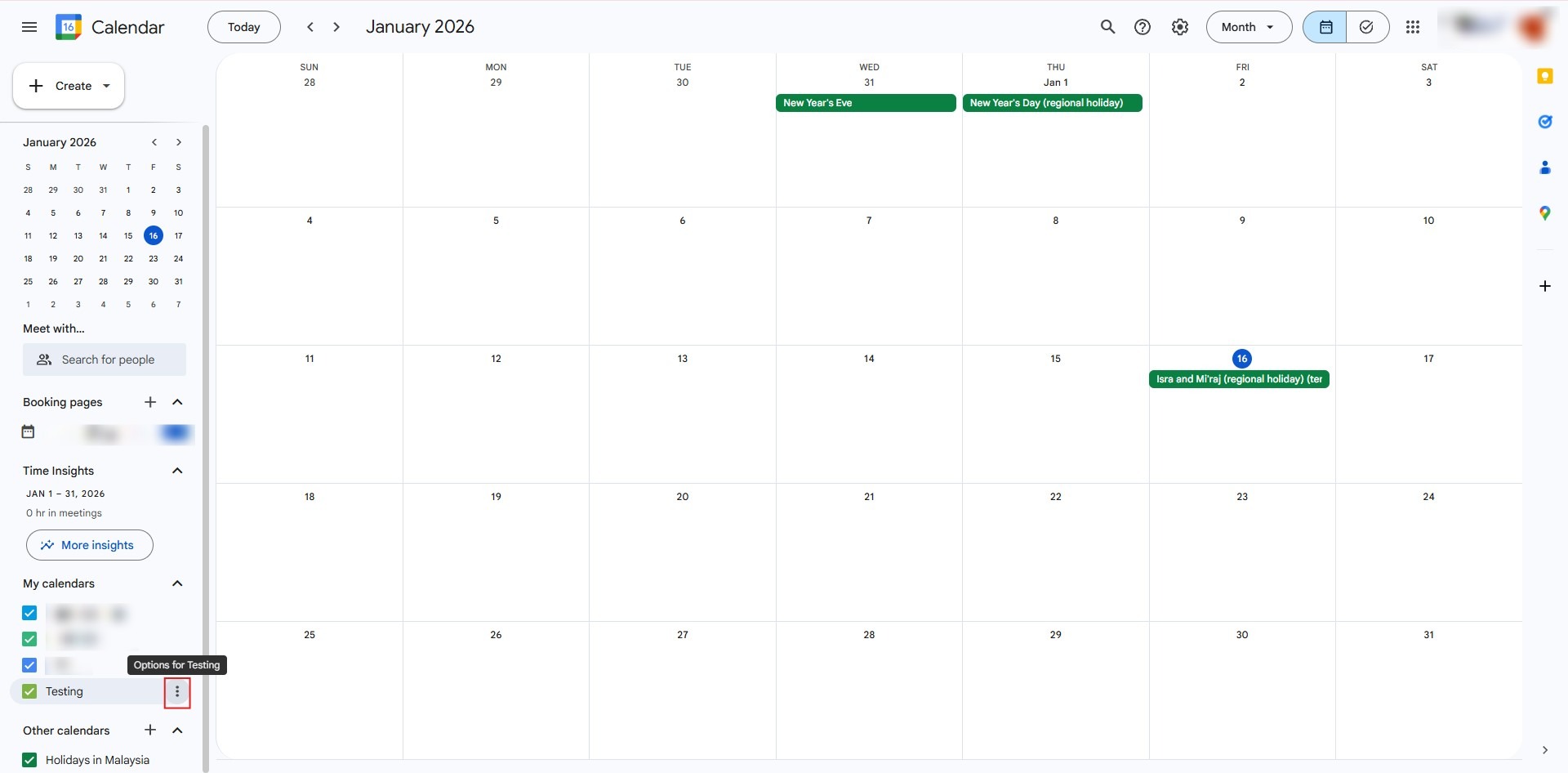
- Locate the calendar in your sidebar and click the three dots (options icon) next to its name.
Step 2: Access Sharing
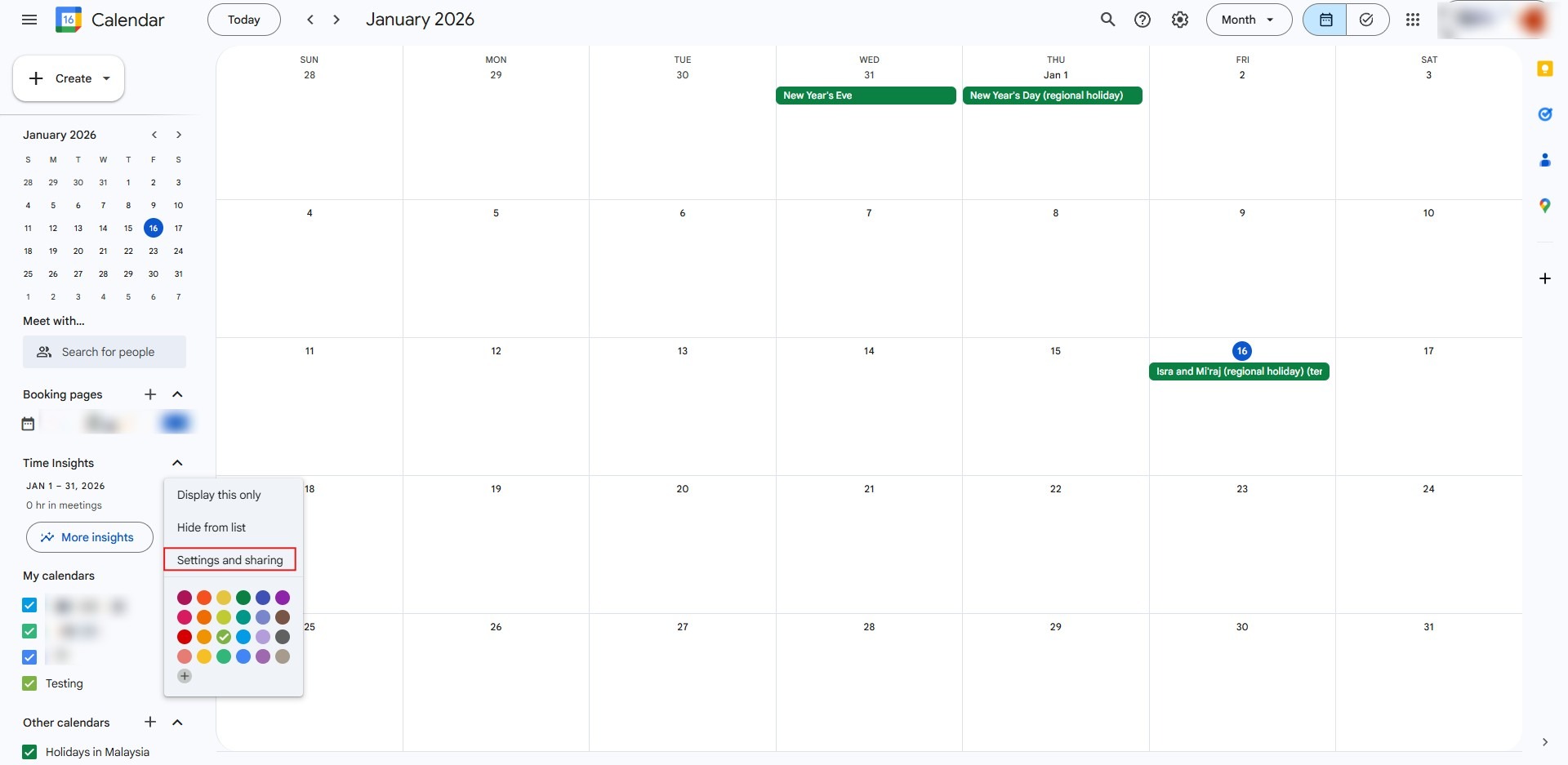
- Select “Settings and sharing” from the resulting dropdown menu.
Step 3: Finalize Action
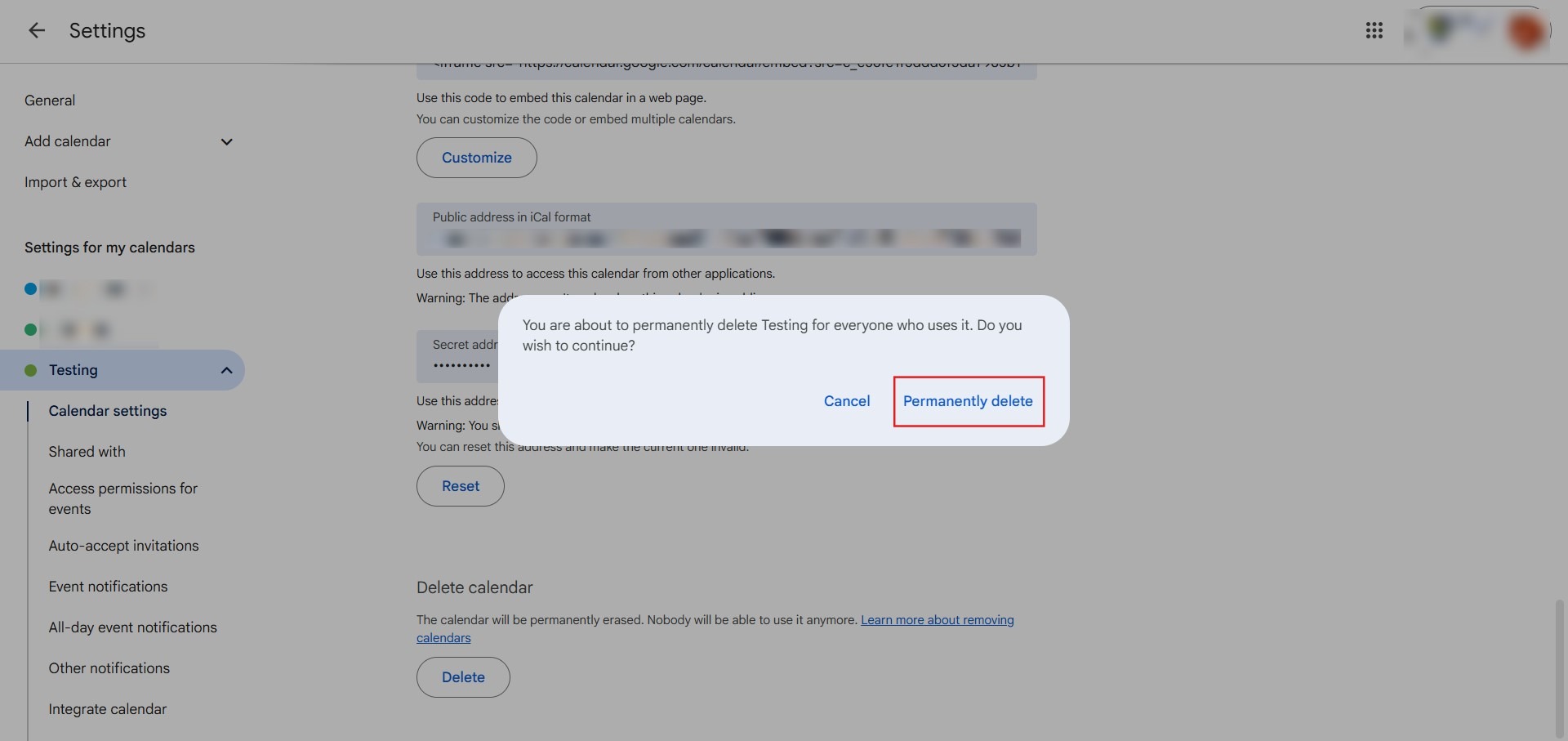
- Click on “Permanently Delete” to confirm you wish to erase the schedule and all its data.
Step 4: Confirmation
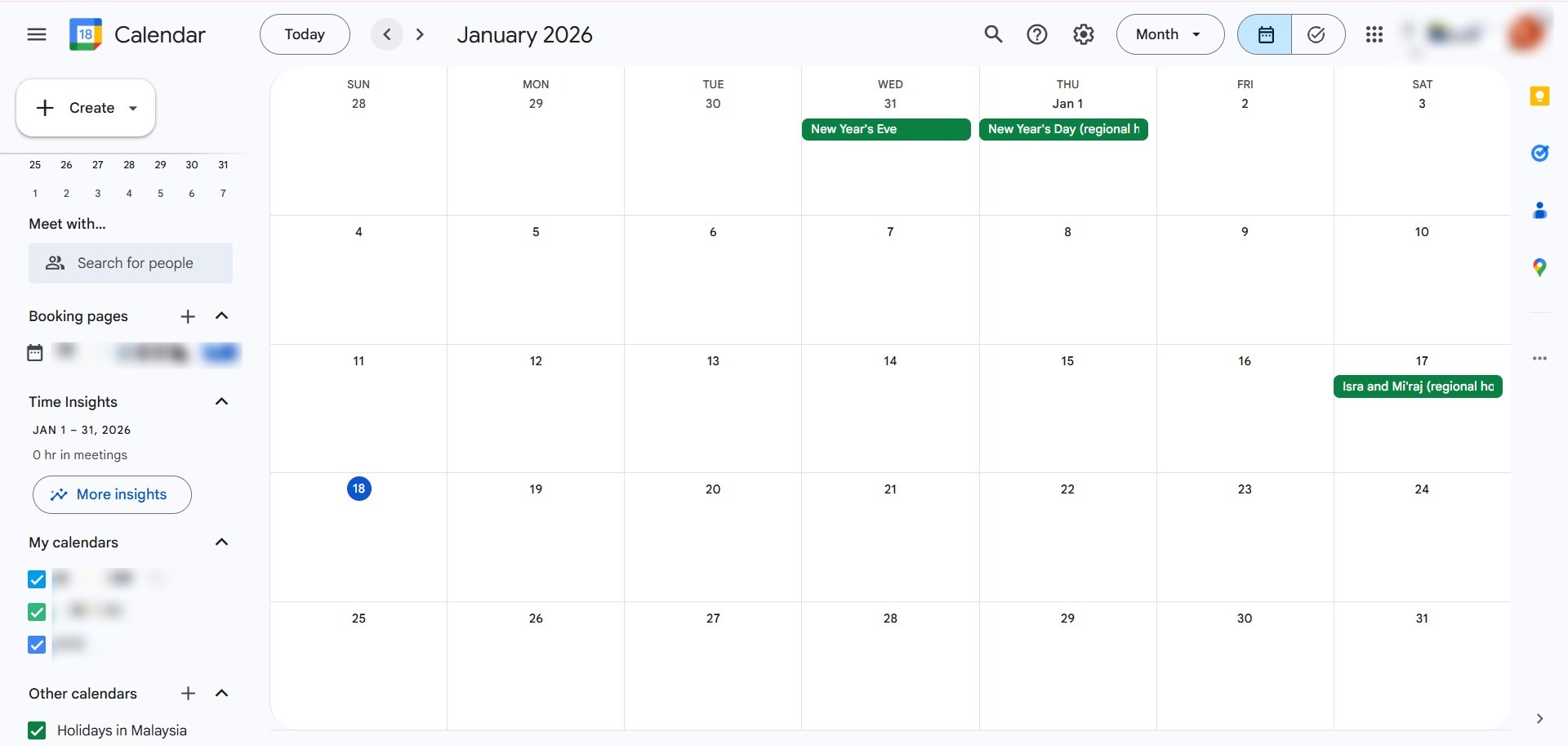
- Once the screen refreshes and the calendar is removed from your list, the process is a success.
Conclusion:
Efficiently managing your digital workspace in Google Calendar Web requires a clear understanding of when to hide, unsubscribe from, or permanently remove a schedule. By following the administrative workflow within the “Settings and sharing” menu, you can ensure that obsolete data is completely purged from your system, leaving your interface focused only on active and relevant milestones.
Selecting “Permanently Delete” is the definitive action for a calendar owner, ensuring that the centralized platform is cleared of outdated project information for all previous collaborators. This process is marked as a success when the schedule no longer appears in your list, effectively closing the chapter on finished projects or social planning groups.