
Search Our Database
How to Remove a Calendar Viewer in Google Calendar Web
Introduction:
For a professional Google Calendar user, maintaining precise control over project visibility is essential for organizational security and efficiency. As project requirements shift or team compositions change, a specific collaborator may become no longer suitable to view a particular schedule.
In such instances, the Google Calendar Web interface provides a streamlined mechanism within the “Settings and sharing” menu to manage and revoke access. By proactively removing viewers who are no longer involved in planning an event or monitoring specific milestones, you ensure that your Google Calendar remains a secure, centralized, and clutter-free environment focused only on relevant stakeholders.
Prerequisites:
- You must be logged into a valid Google account.
- Ensure you are accessing the web-based version.
- You must have an established calendar available to share.
- Have the specific email address or name of the individual you wish to remove ready.
Step-by-step Guide:
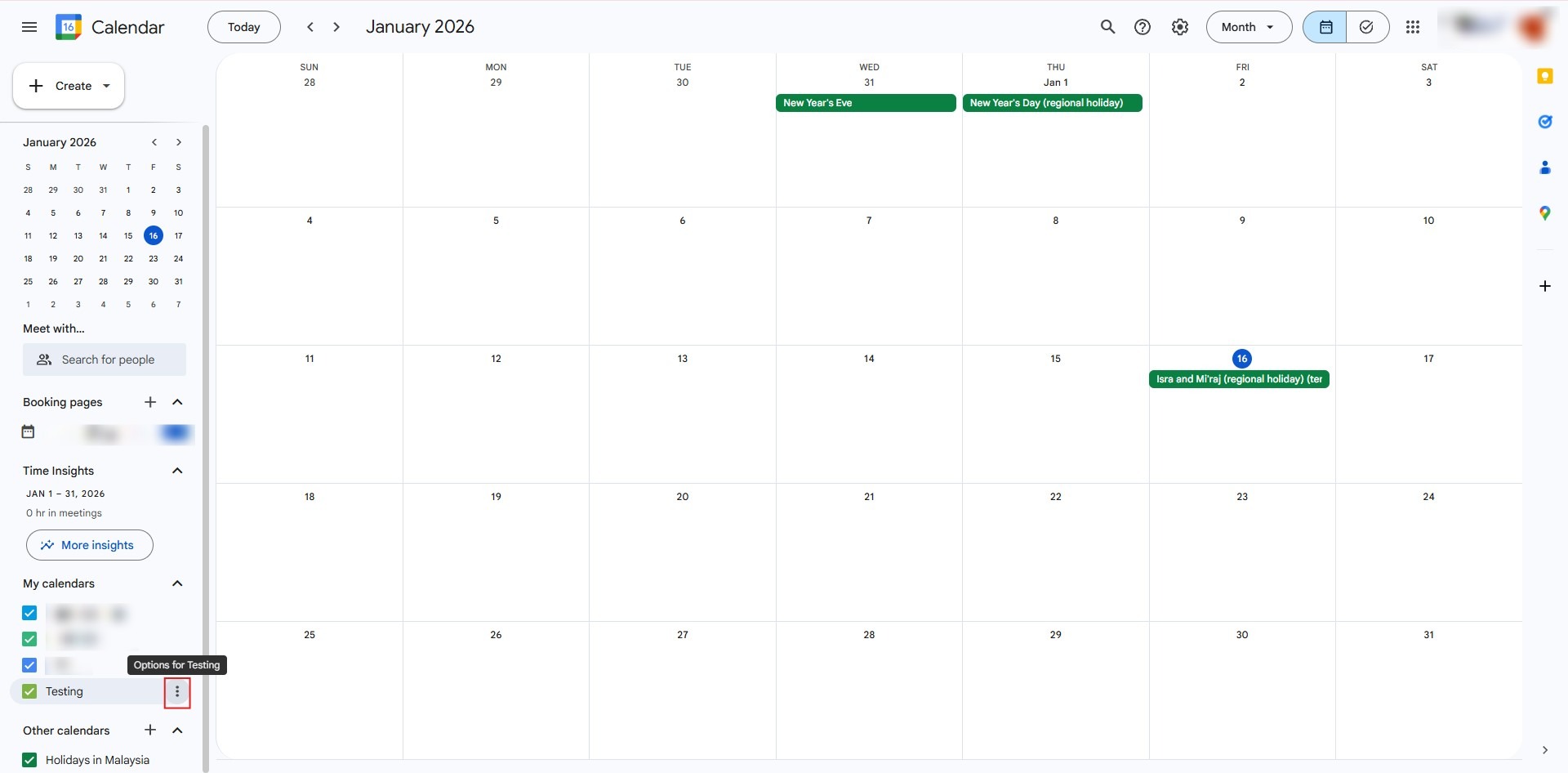
Step 1: Open Options
- Locate the calendar in your sidebar and click the three dots (options icon) next to its name.
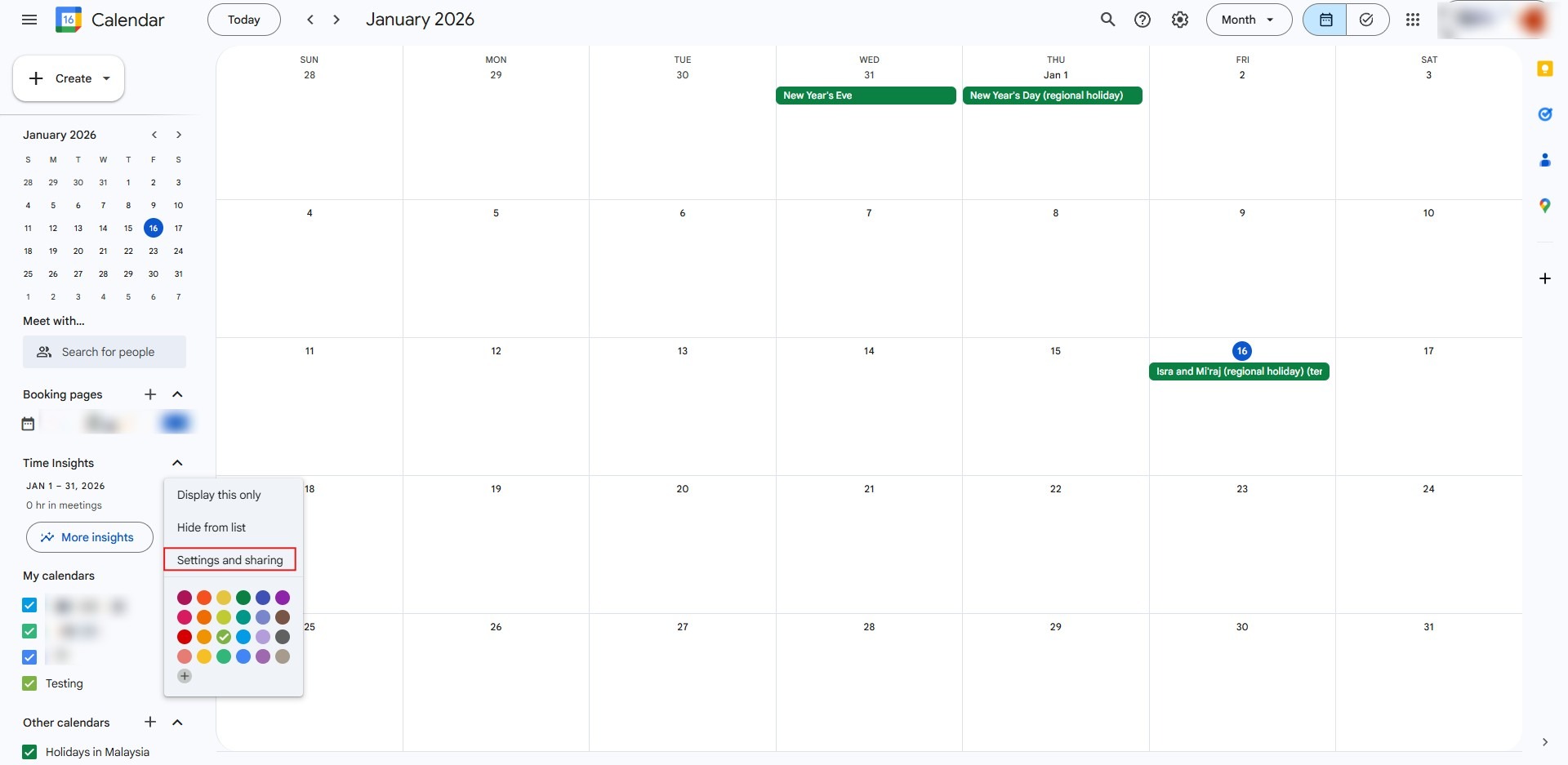
Step 2: Access Sharing
- Select “Settings and sharing” from the resulting dropdown menu.
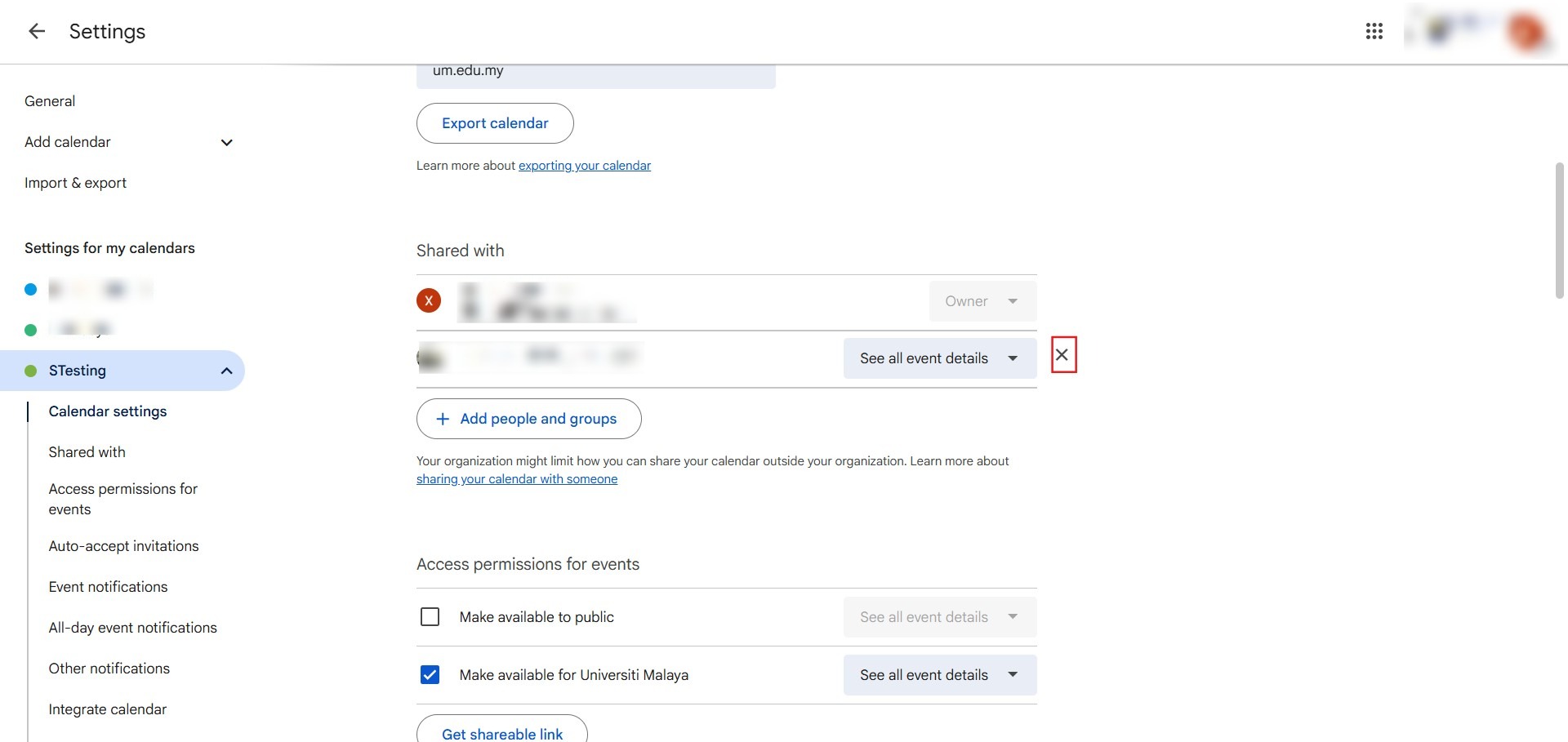
Step 3: Revoke Access
- Scroll down to the “Share with specific people” section where current viewers and their permissions are listed.
- Find the email address or name of the individual you wish to remove from the list.
- Click the “Remove” (X) icon located to the right of the user’s name to immediately delete their access.
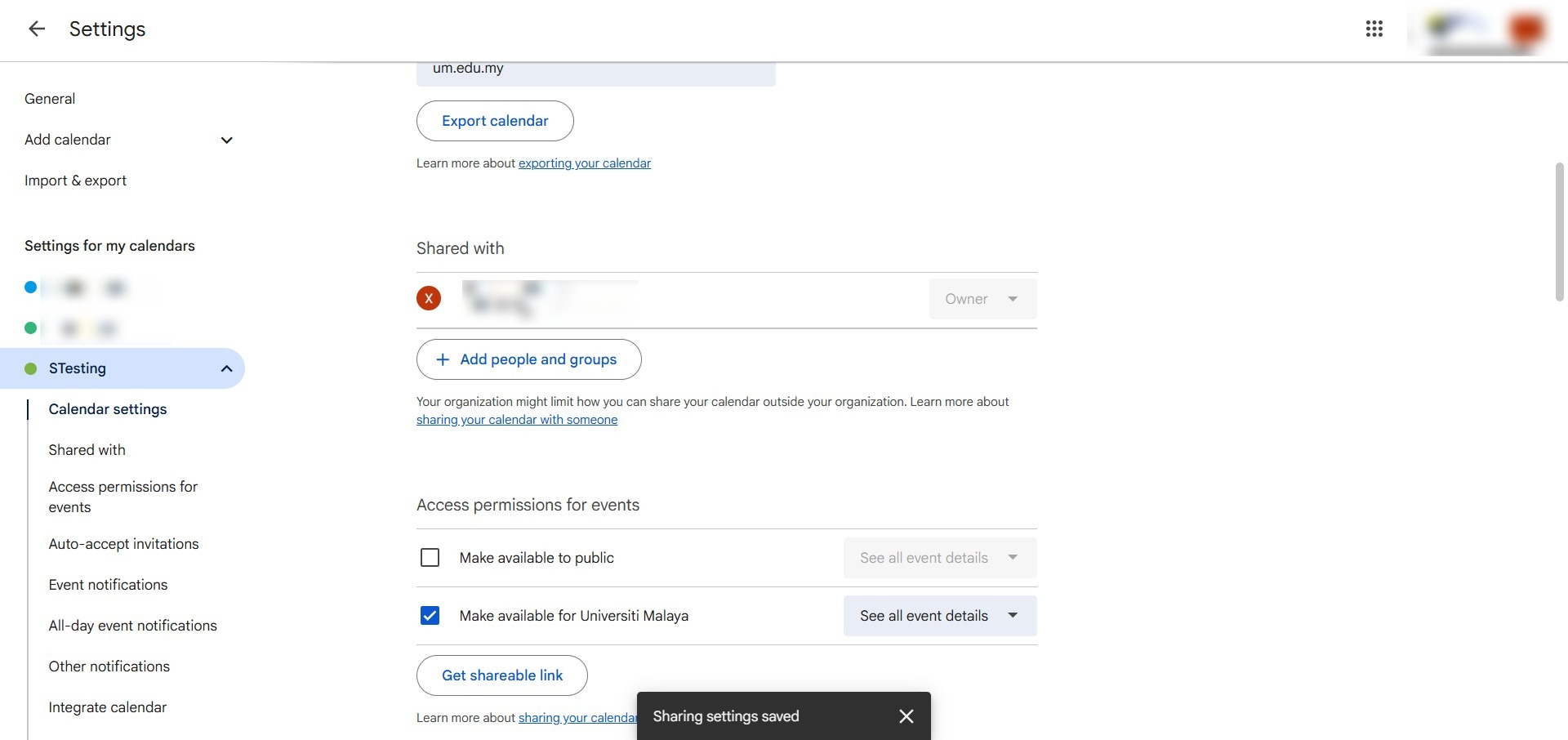
Step 4: Verify Removal
- Ensure the user’s name no longer appears in the sharing list to confirm success.
Conclusion:
Effectively managing access to your schedules in Google Calendar Web is a fundamental practice for maintaining both digital security and organizational clarity. By utilizing the “Settings and sharing” menu, you can ensure that your calendar visibility is restricted only to those collaborators who are currently relevant to your project or social planning.
To maintain a professional and efficient shared environment, keep the following best practices in mind:
- Dynamic Permission Control: Regularly reviewing your sharing list allows you to add or remove people and groups as roles change, ensuring that sensitive project timelines or personal descriptions remain confidential.
- Targeted Collaboration: If a viewer is still needed but requires less access, use the same “Settings and sharing” interface to adjust their permission levels rather than removing them entirely.
- Organizational Integrity: Proactively removing viewers who are no longer suitable prevents unauthorized access to your specialized calendars, keeping your collaborative environment focused and secure.