
Search Our Database
How to Create Calendar in Google Calendar Web
Introduction:
For professional users seeking to optimize their organizational workflow, the Google Calendar Web interface offers a sophisticated mechanism for managing distinct schedules and project timelines. Creating a specialized calendar is a strategic necessity when planning an event or isolating specific categories of activities—such as major project milestones or recurring administrative deadlines—to maintain a clear and focused primary agenda.
By utilizing the “Create New Calendar” feature, you can effectively segregate unique event data, allowing for a centralized yet clutter-free environment. This professional approach to time management ensures that all relevant details and descriptions are precisely documented in one accessible location, enhancing your ability to coordinate complex tasks with greater accuracy and efficiency.
Prerequisites:
- You must be logged into a valid Google account.
- Ensure you are accessing the web-based version.
- Prepare a specific Calendar Name and a concise Description.
Step-by-step Guide:
Step 1: Initiate Creation
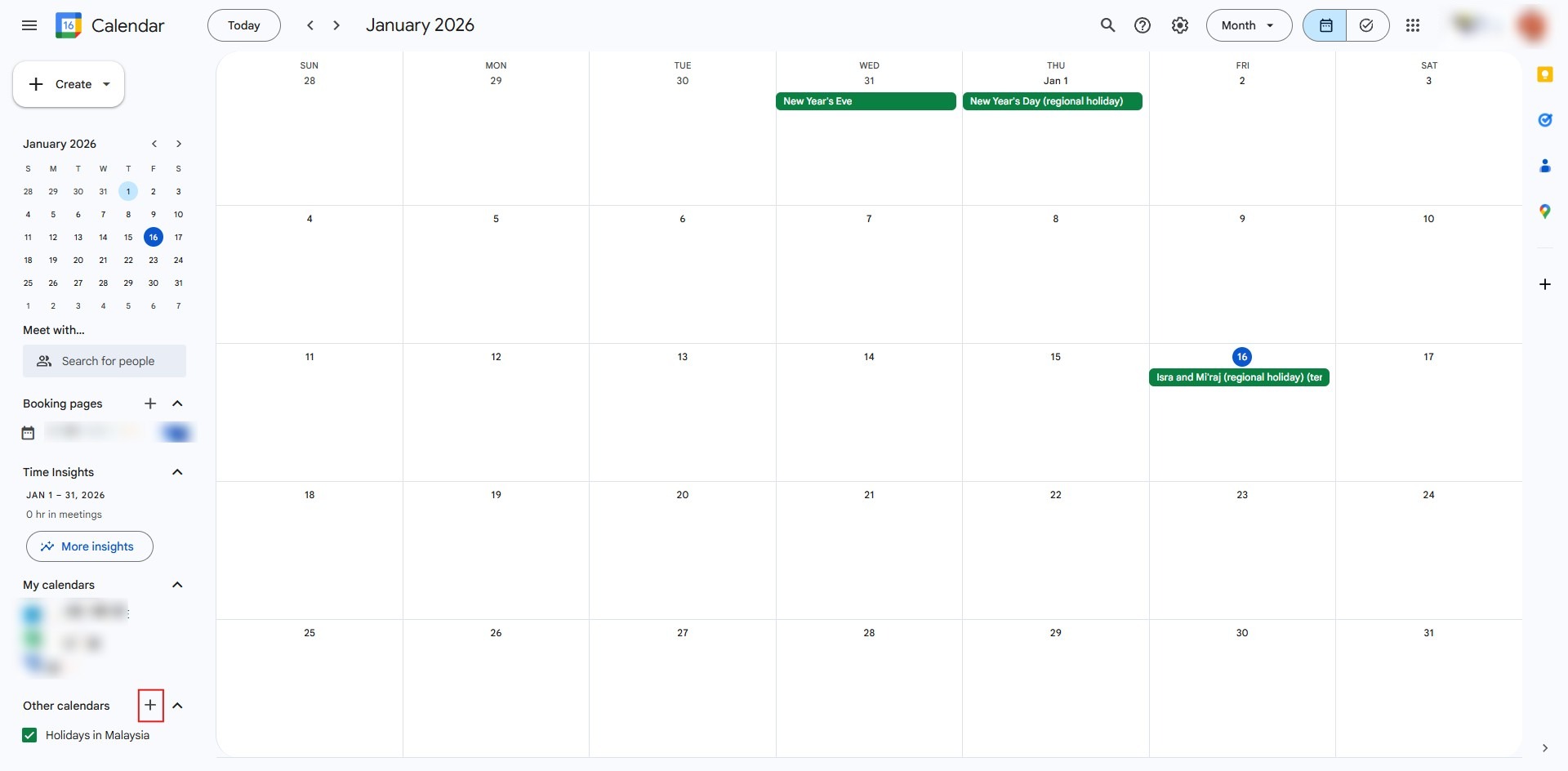
- Locate the sidebar and click the “+” (Add other calendars) button.
Step 2: Select Option
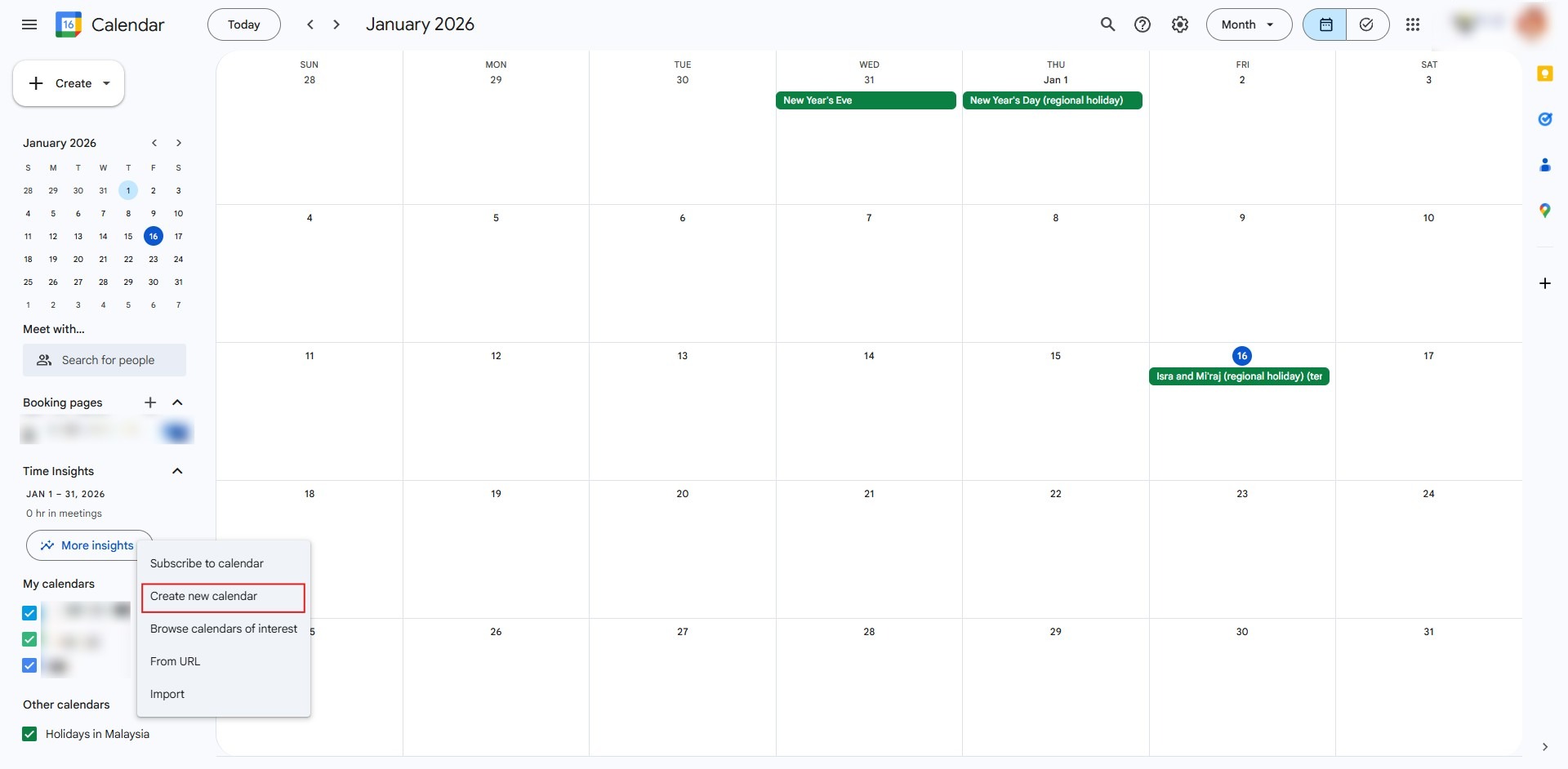
- From the resulting menu, select “Create New Calendar”.
Step 3: Enter Details and Execute Setup
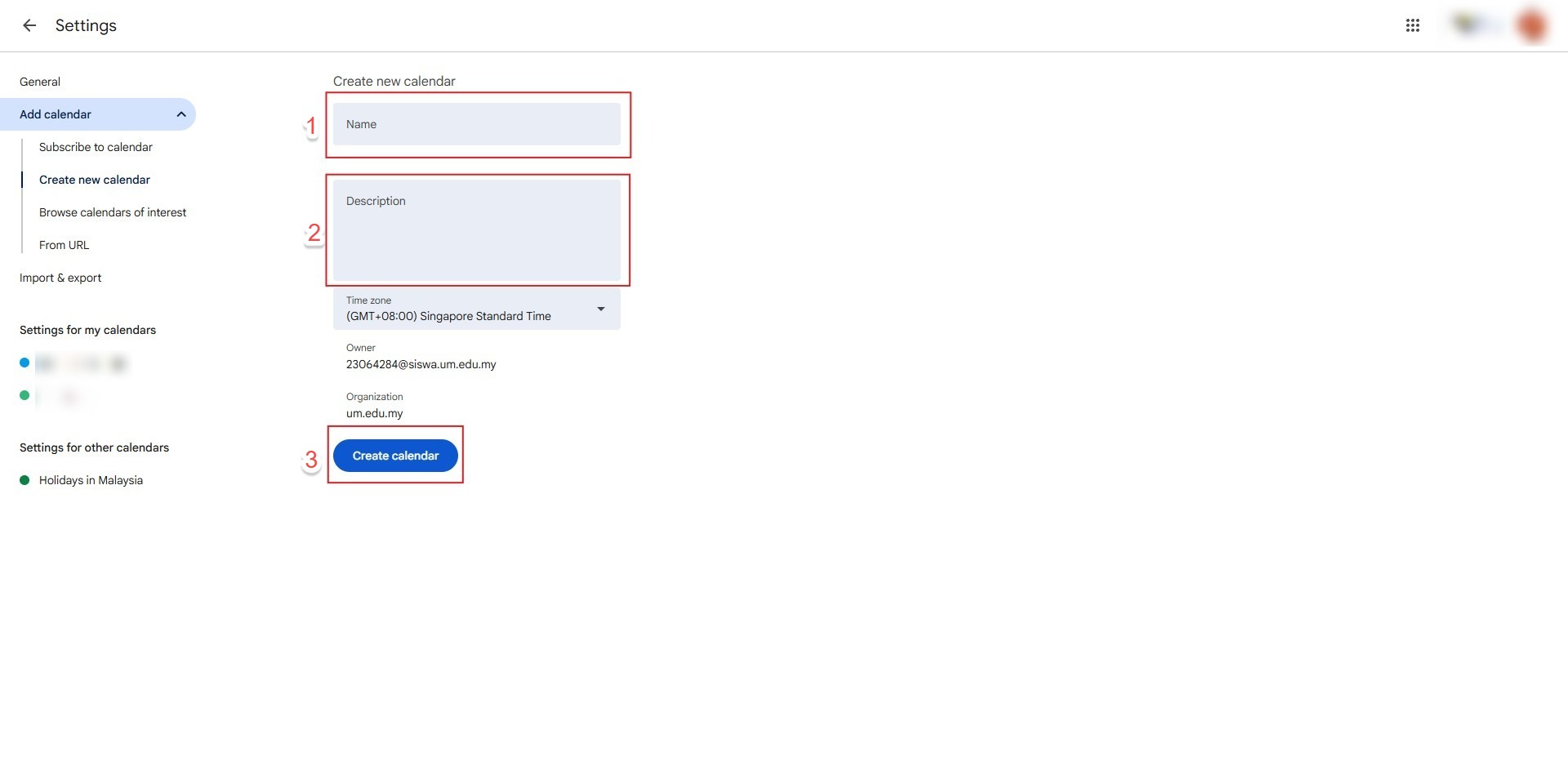
- Key in the name of the calendar and provide a concise description of its purpose.
- Click the “Create Calendar” button to finalize the administrative entry.
Step 4: Confirmation
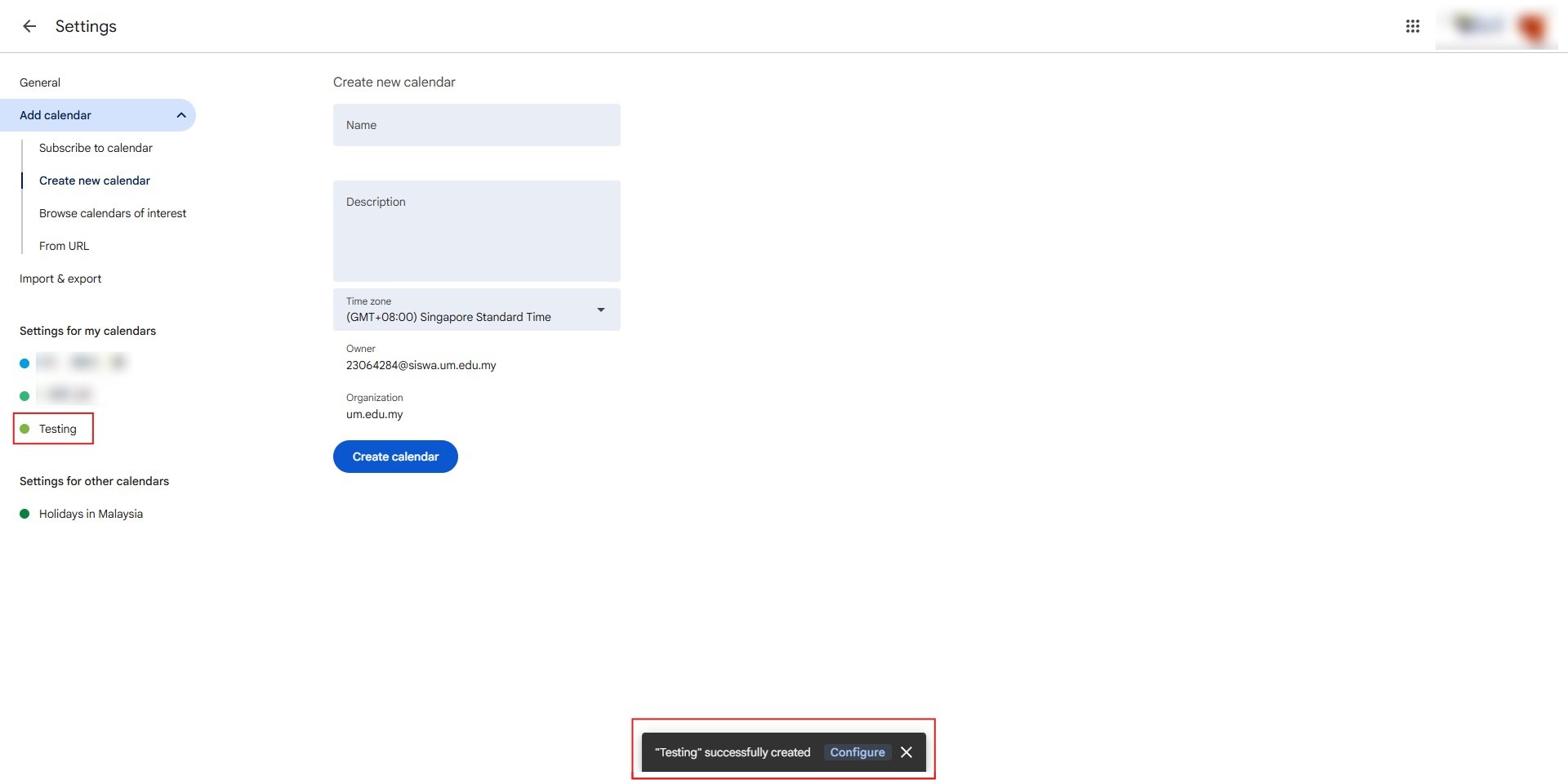
- Once the process is complete, the system will indicate Success, and the calendar will be active in your list.
Conclusion:
By successfully establishing a new calendar in Google Calendar Web, you have created a structured and professional environment for managing specific project milestones and high-priority administrative tasks. This configuration allows for the isolation of unique event data, ensuring your primary agenda remains focused while all secondary documentation and descriptions are organized in a centralized, accessible location.
To maintain long-term organizational efficiency, consider the following best practices:
- Granular Visibility: Utilize the ability to toggle individual calendars to maintain a clutter-free view of your schedule, which is particularly useful when planning events that involve complex timelines.
- Collaborative Management: If your project requires team coordination, leverage the “Settings and sharing” menu to add people and groups, granting them specific permissions to view or edit the calendar as needed.
- Documentation Standards: Consistently updating the calendar name and description fields will ensure that all collaborators understand the calendar’s purpose and the nature of the special events tracked within it.