
Search Our Database
How to Share Address Book with Other User in cPanel
Introduction
This Knowledge Base article provides a step-by-step guide on How to Share Address Book with Other User in cPanel. Sharing address books allows multiple email users on your cPanel account to access and optionally edit contact information, making it useful for team collaboration, shared client lists, or maintaining company-wide contact databases. Use this guide when you need to grant address book access to other email users within your cPanel account.
Prerequisite
- Access to your cPanel login page.
Step-by-Step Guide
Step 1: Log in to cPanel
- Access and log in to your cPanel account using your username and password.

Step 2: Open Calendars & Contacts Sharing
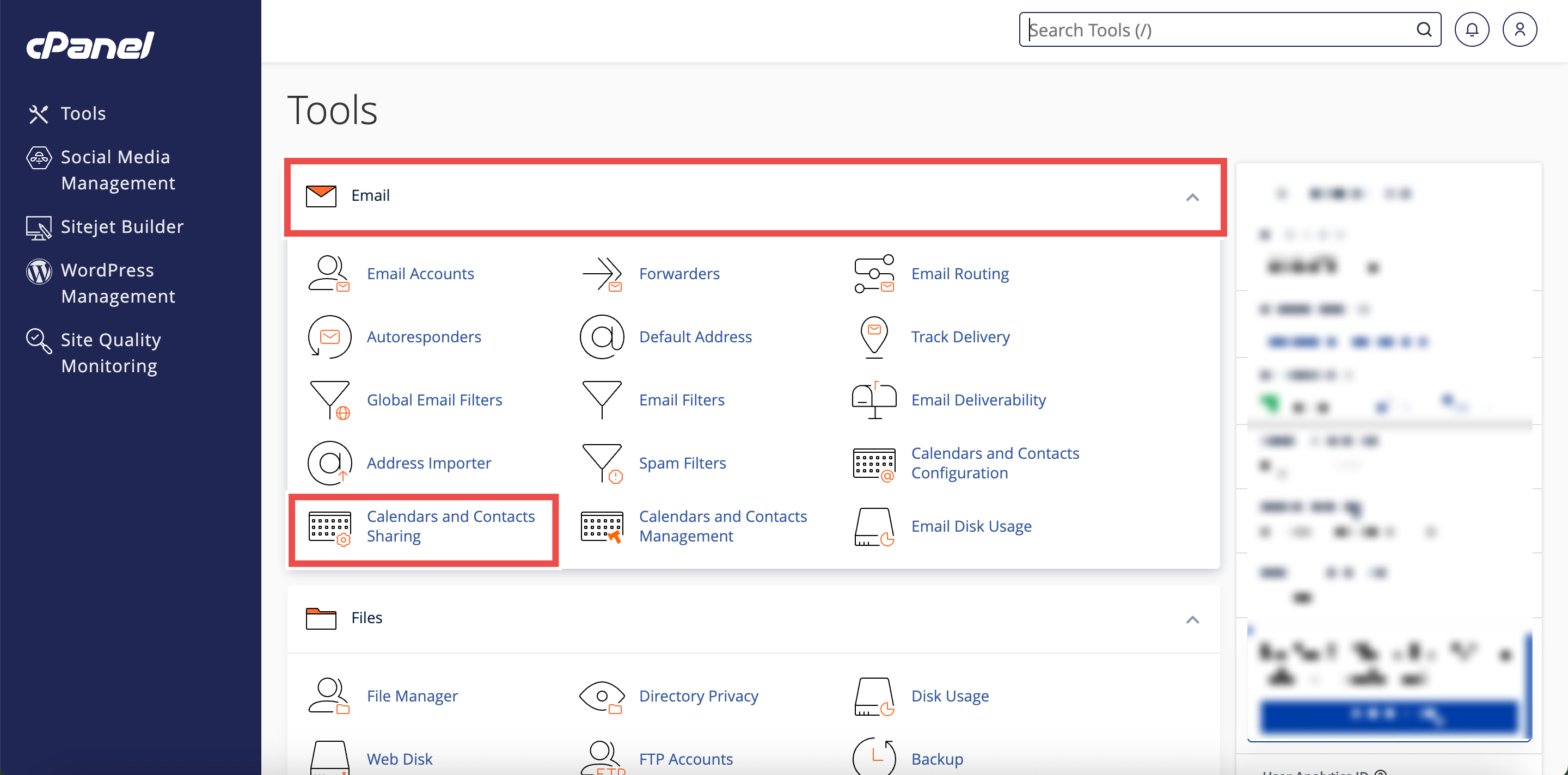
- On the Home page, under Email, click Calendars & Contacts Sharing.
Step 3: Select the Address Book Owner
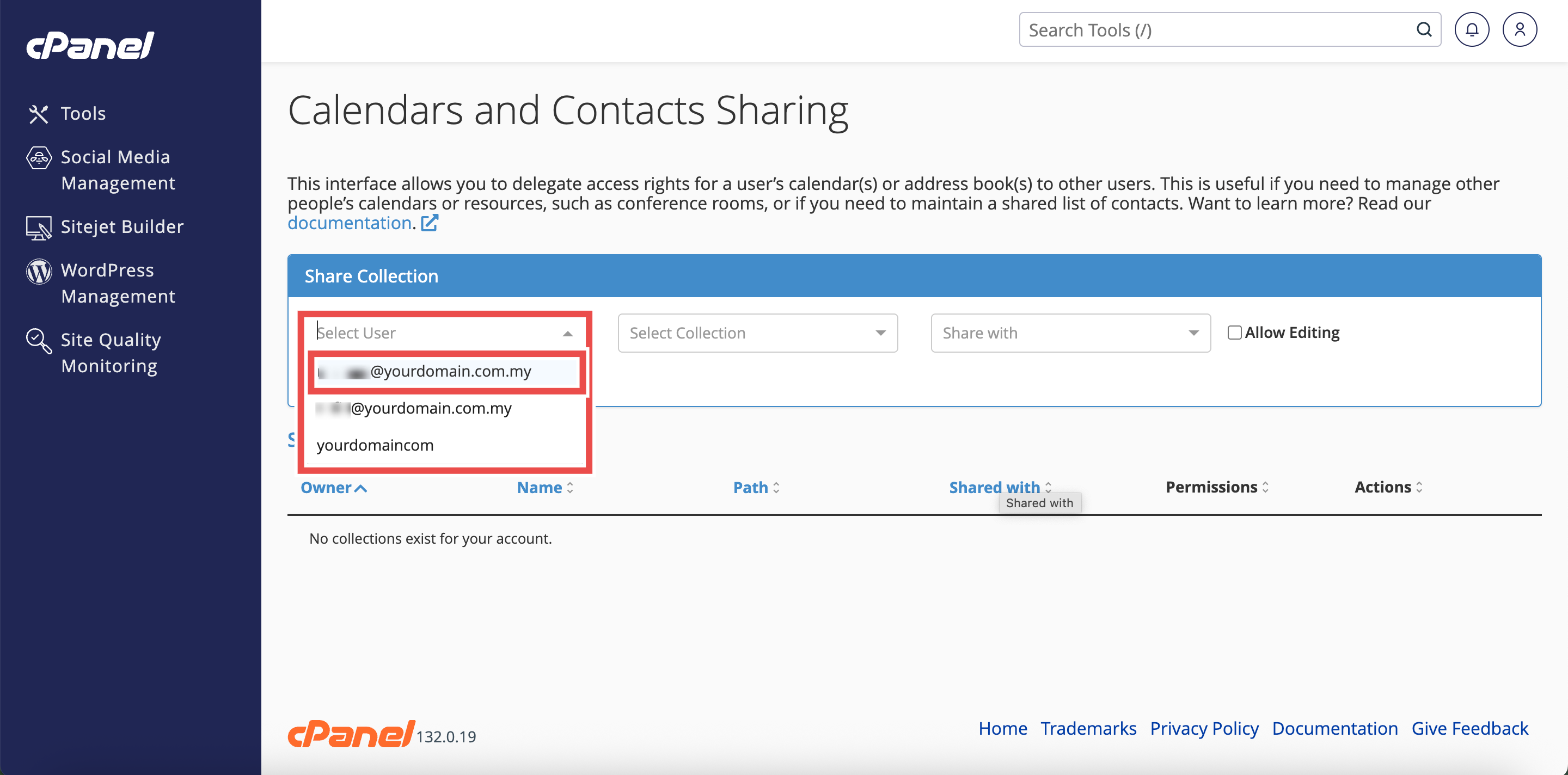
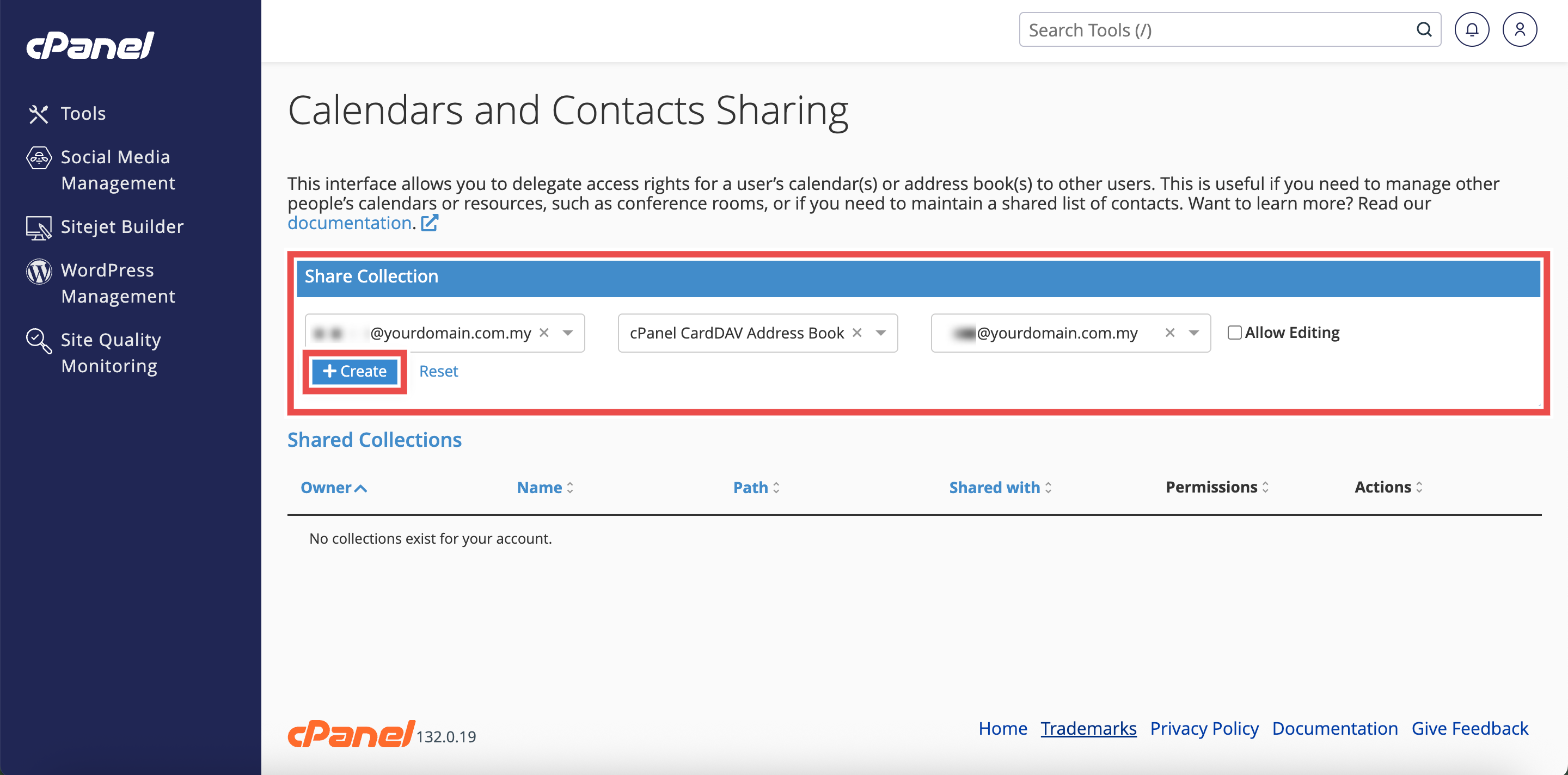
- In the Share Collection section, locate the Select User dropdown menu.
- Select the email user whose address book you wish to share.
Step 4: Select the Address Book
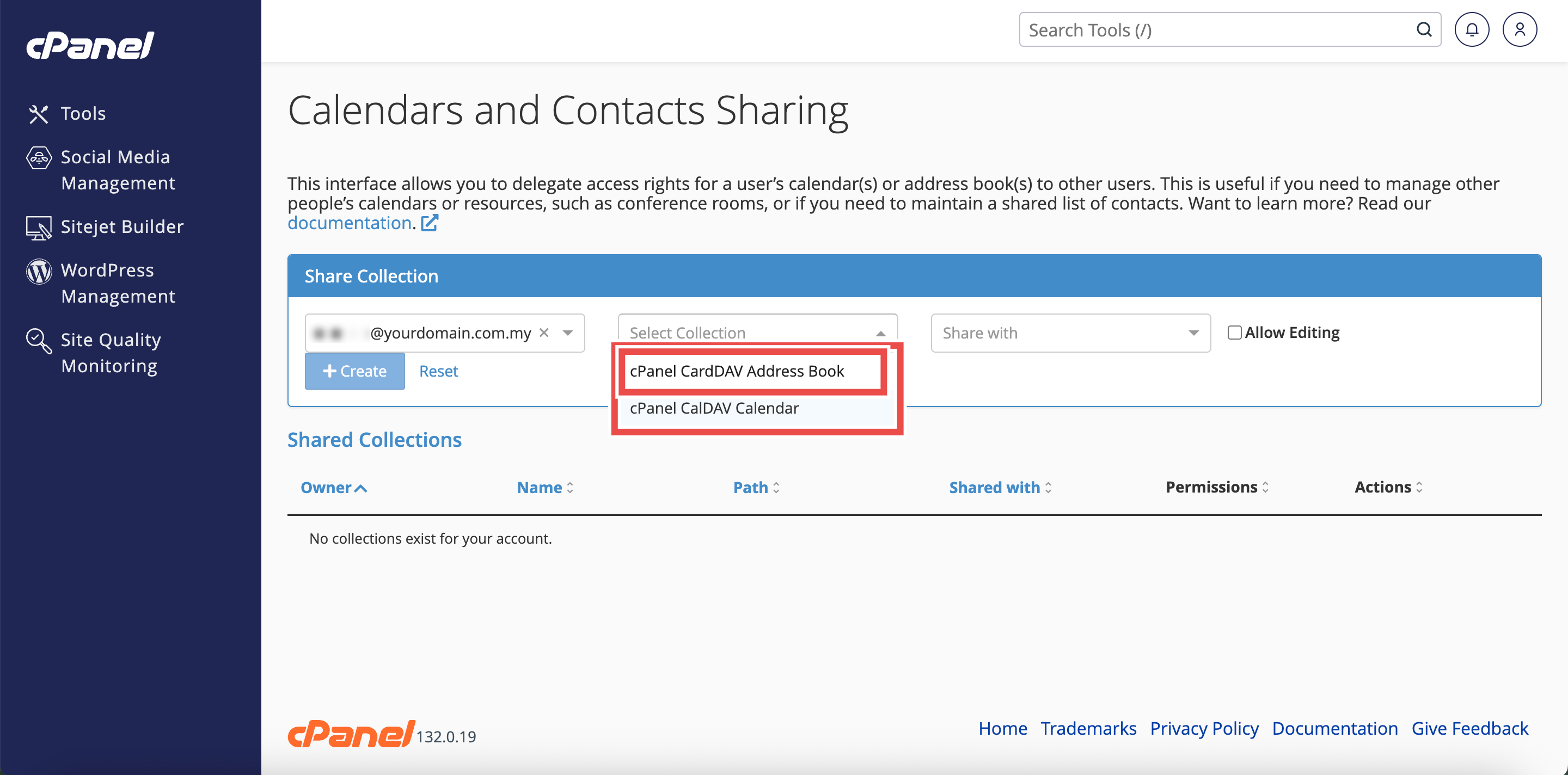
- From the Select Collection dropdown menu, choose the address book you wish to share.
- The dropdown will display available address book for the selected user.
Step 5: Choose the Recipient
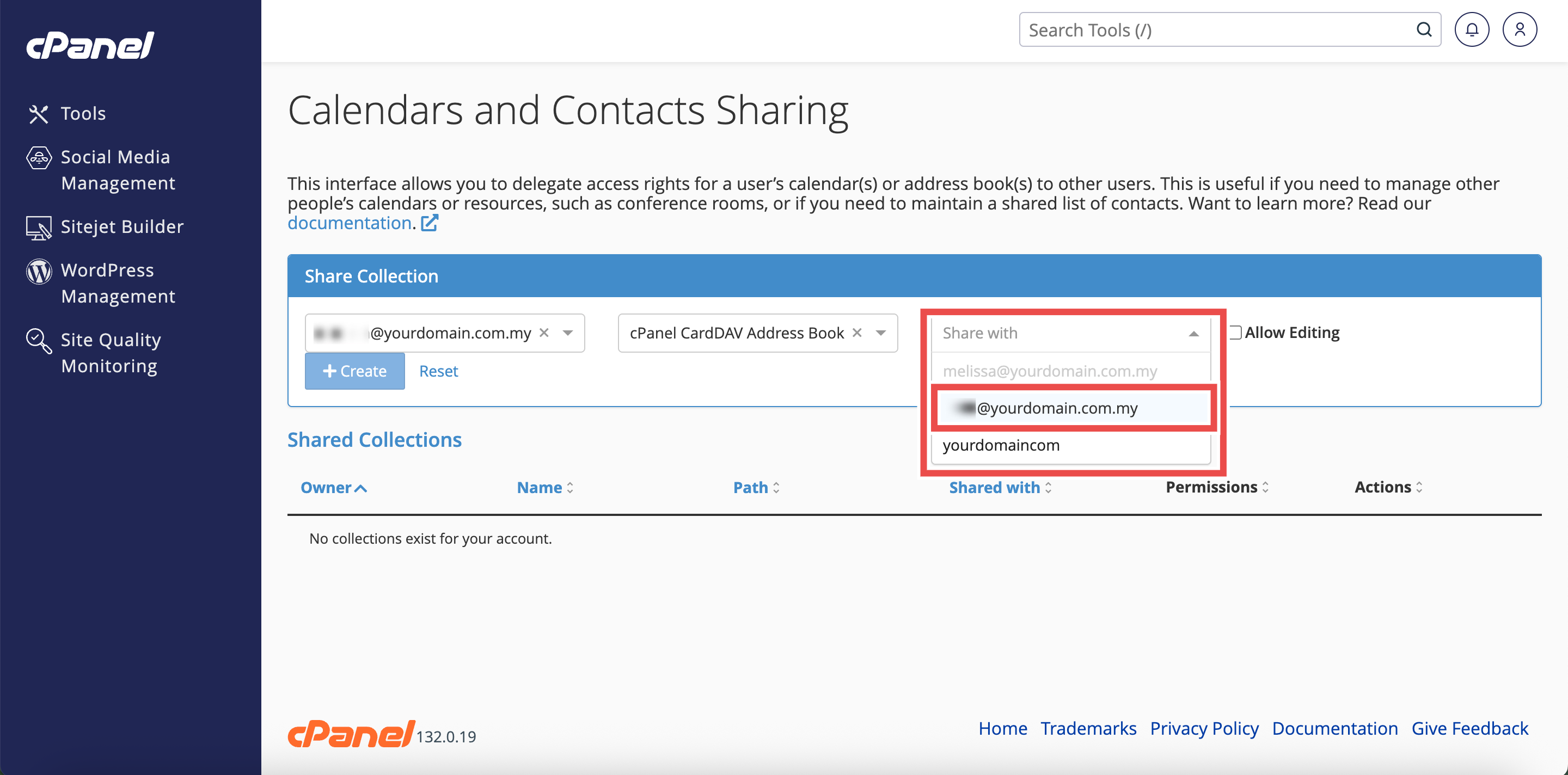
- From the Share with dropdown menu, select the email user to whom you wish to grant address book access.
⚠️ Important Note: This must be another email user on the same cPanel account.
Step 6: Create the Shared Address Book
- Click Create to share the address book.
⚠️ Important Note:
- To allow the recipient to edit the address book, select the Allow Editing checkbox.
- If you do not select this checkbox, the user will only have read-only access to view the address book.
Step 7: Verify the Shared Address Book
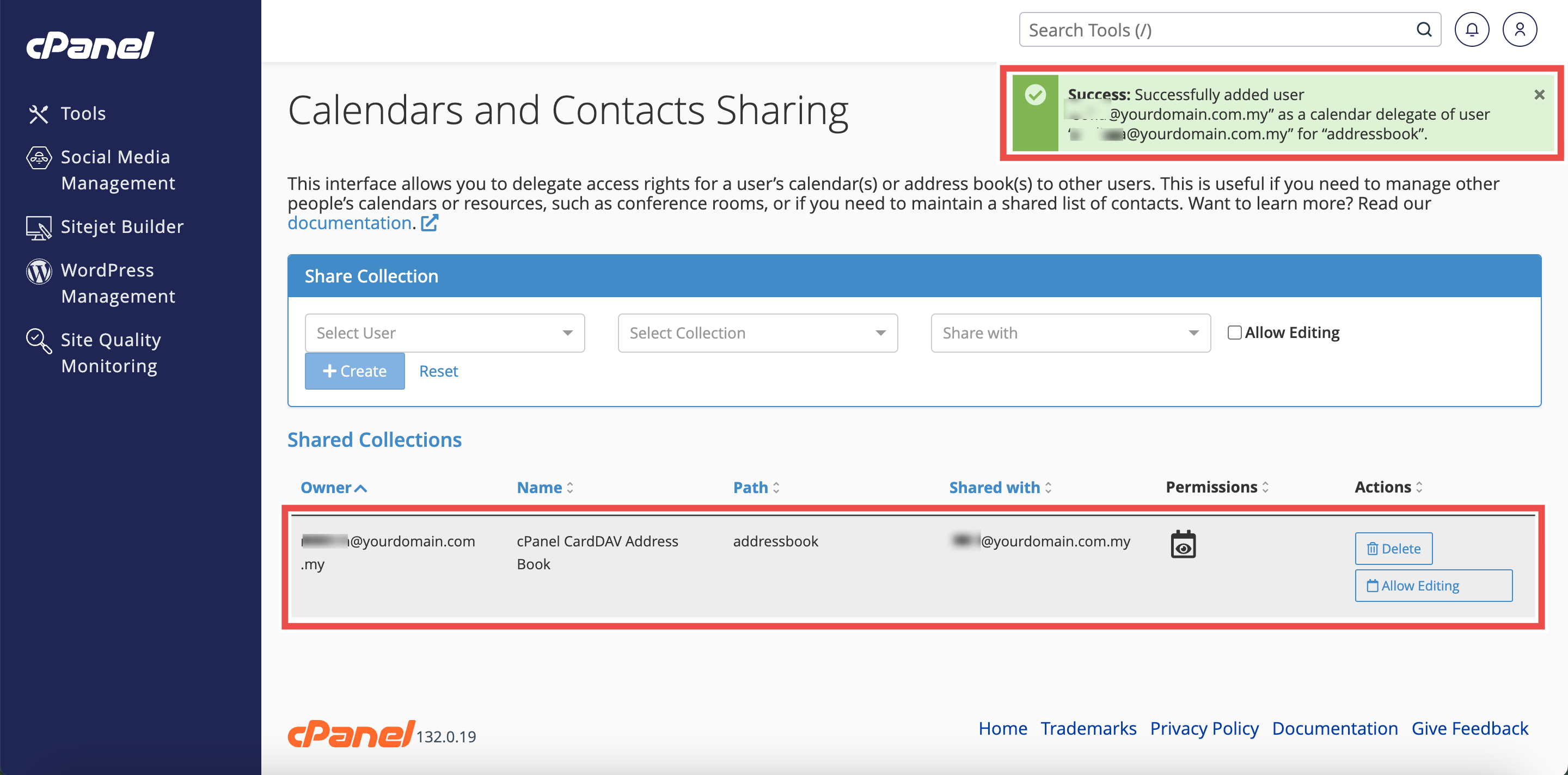
- The interface will refresh, and the shared address book will appear in the Shared Collections table.
- Additionally, you may check the recipient’s email client to verify they can access the shared address book.
Conclusion
By following these steps, you can share an address book with other users in cPanel. Address book sharing enables team collaboration and ensures all team members have access to current contact information. Recipients can view or edit the address book based on the permissions you grant.
Should you encounter any issues or have any questions, our support team at IPSERVERONE is always here to assist you. Don’t hesitate to reach out to us at support@ipserverone.com for any help you need.