
Search Our Database
How to Enable Zlib Compression for PHP Output in DirectAdmin (Enhanced Skin)
Introduction
PHP output compression reduces the size of data sent from the server to browsers by compressing content before transmission, and enabling this feature improves website performance and reduces bandwidth consumption. Compressing web pages, API responses, and other output can significantly decrease load times, especially for users on slower connections, while reducing server bandwidth costs. DirectAdmin’s PHP Settings interface provides a straightforward method for enabling output compression through custom PHP overrides. This guide explains how to enable output compression using the PHP Settings section in DirectAdmin, improving website performance through automatic content compression for faster delivery to visitors.
Prerequisites
- Access to DirectAdmin control panel with the necessary permissions.
Step-by-step Guide
Step 1: Access DirectAdmin
Log in to your DirectAdmin control panel.

Step 2: Access PHP Settings
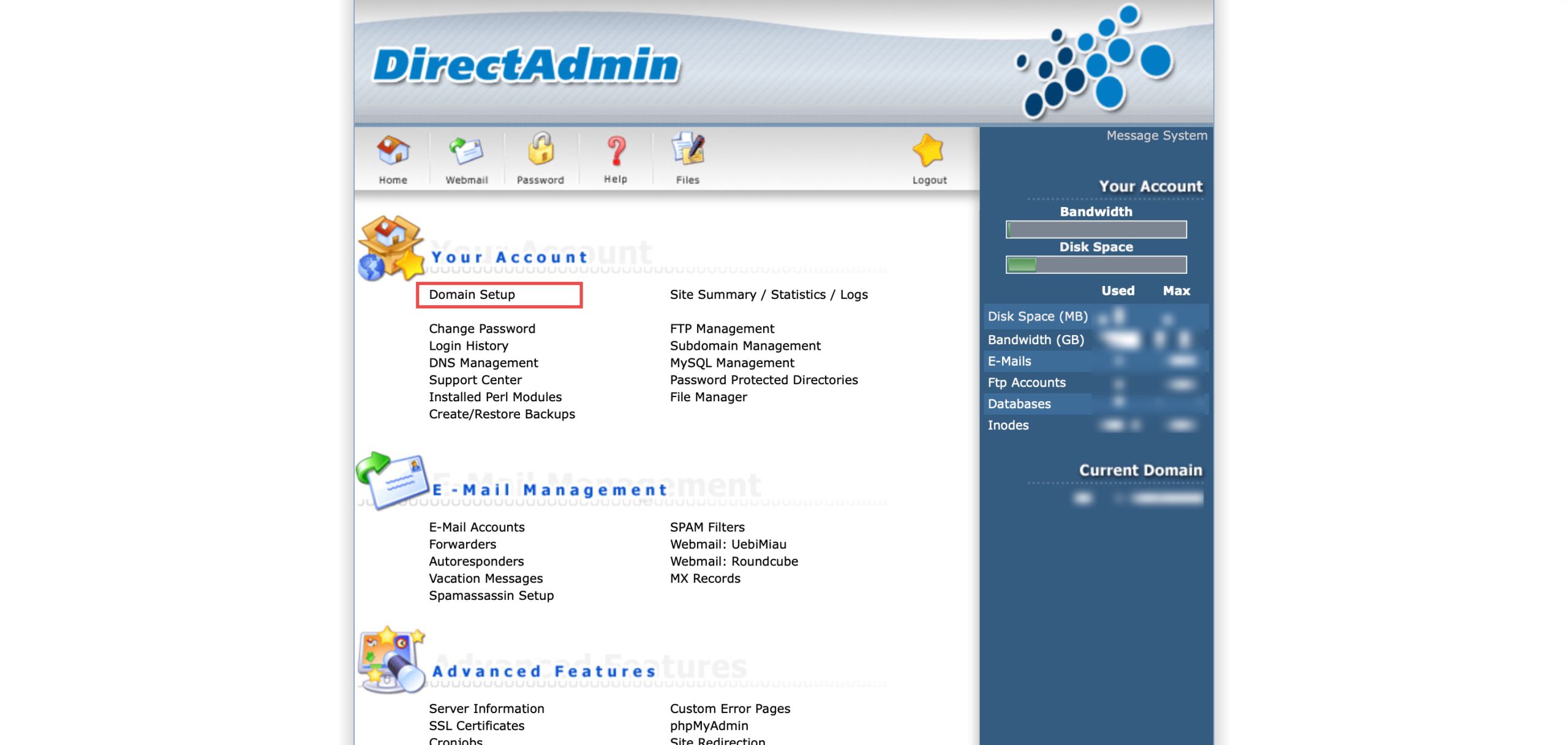
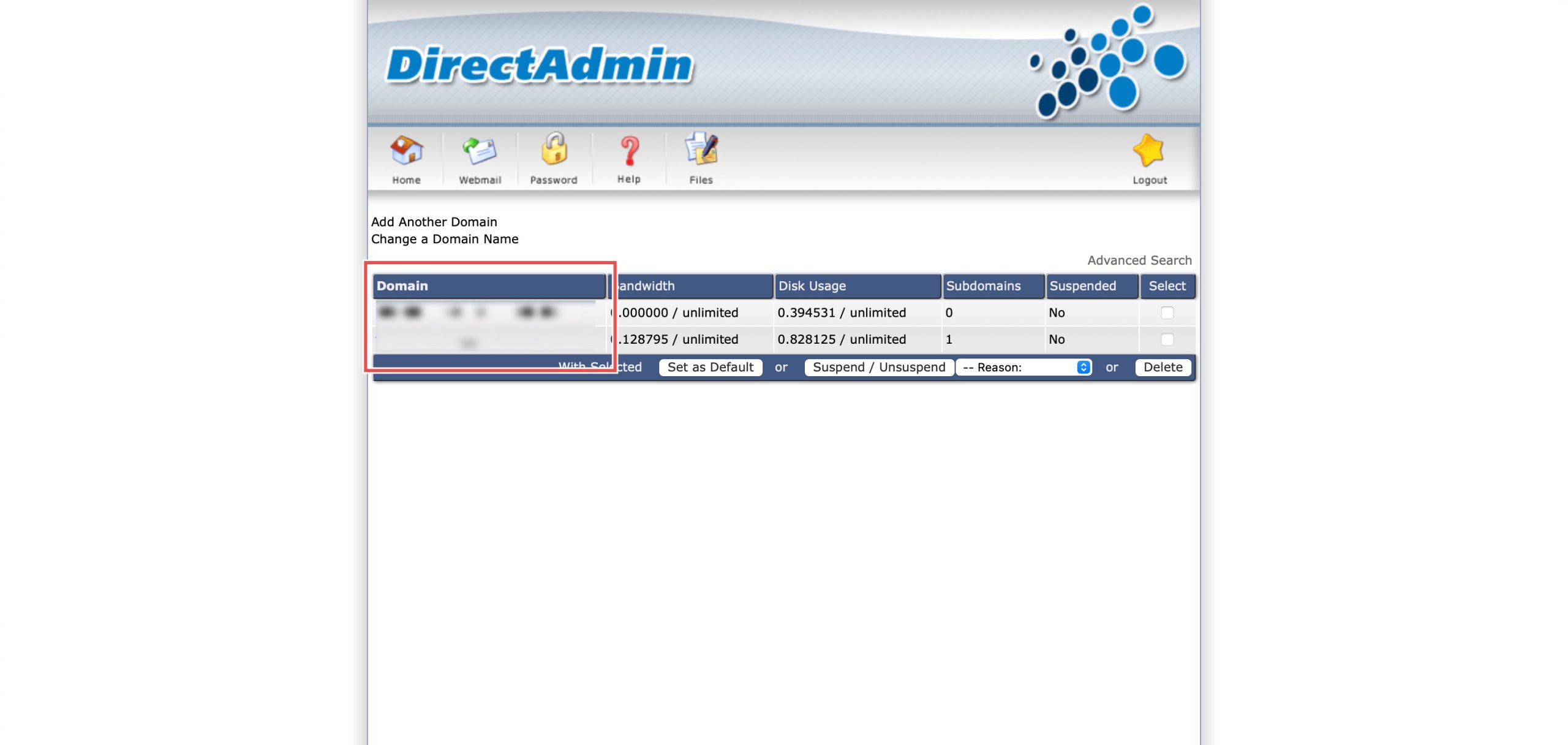
Go to the Your Account section and click on Domain Setup. Then, select the domain/subdomain you wish to modify PHP settings for by clicking on the domain/subdomain name.
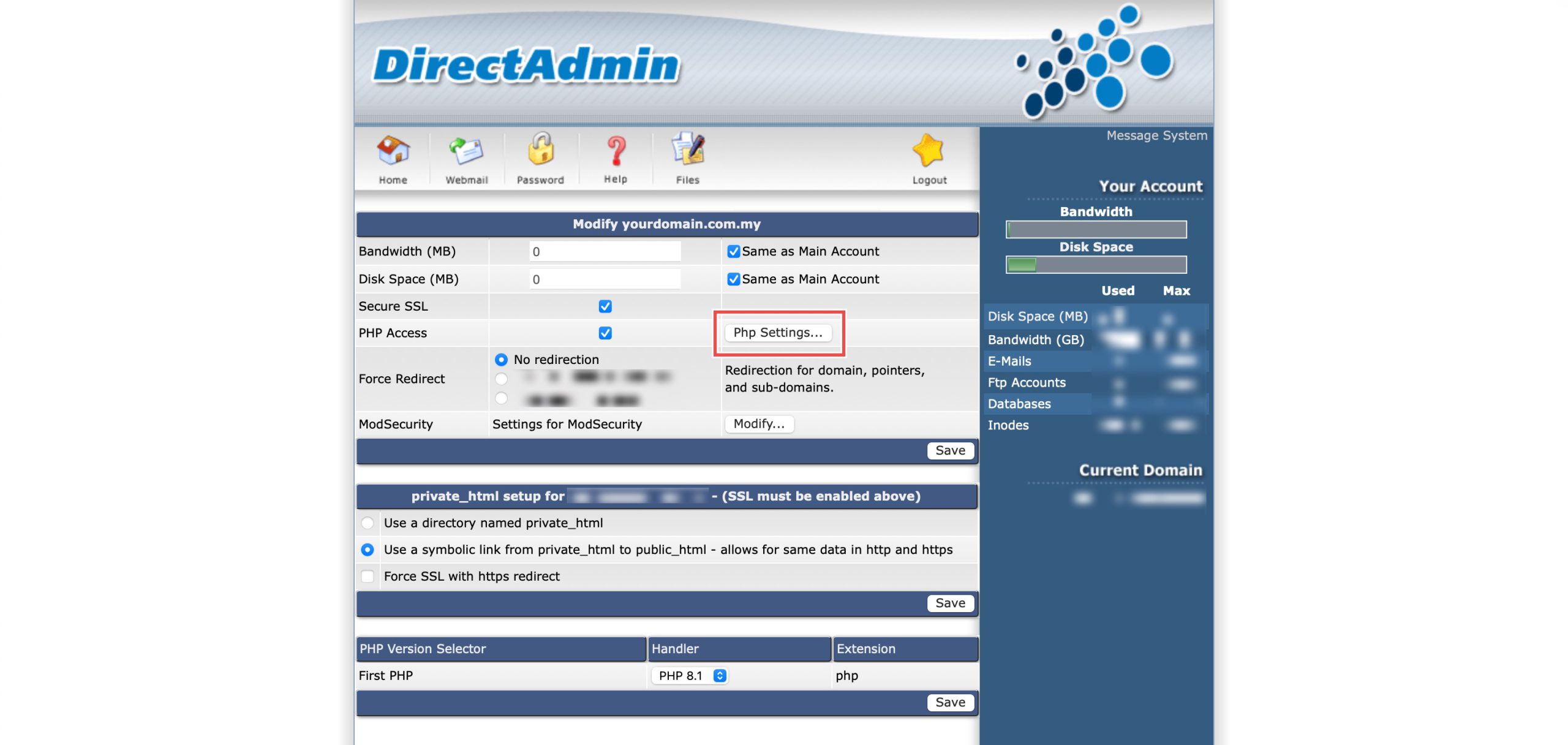
At the PHP Access row, click Php Settings…. You should be able to see a list of your current PHP configuration.
Step 3: Enable Output Compression
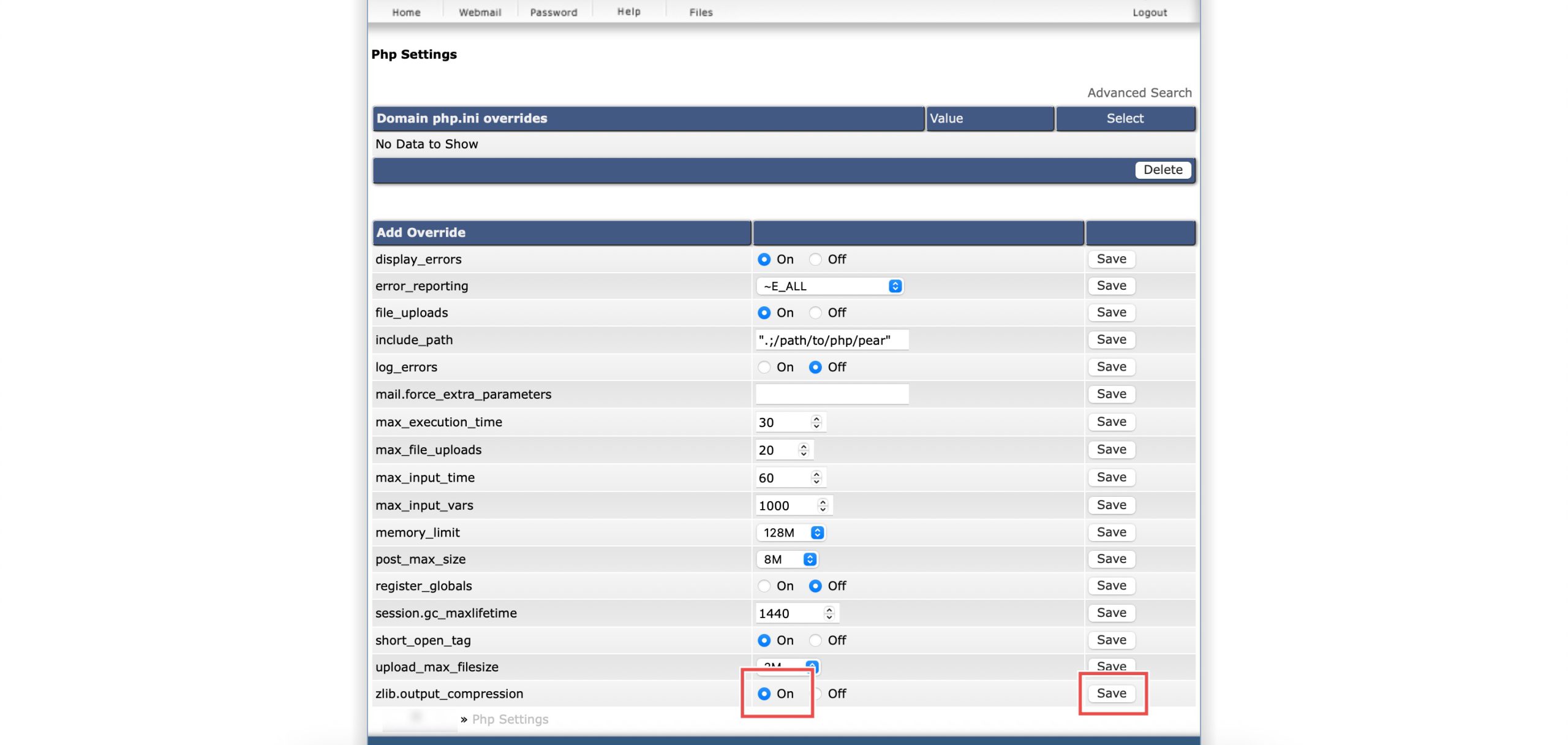
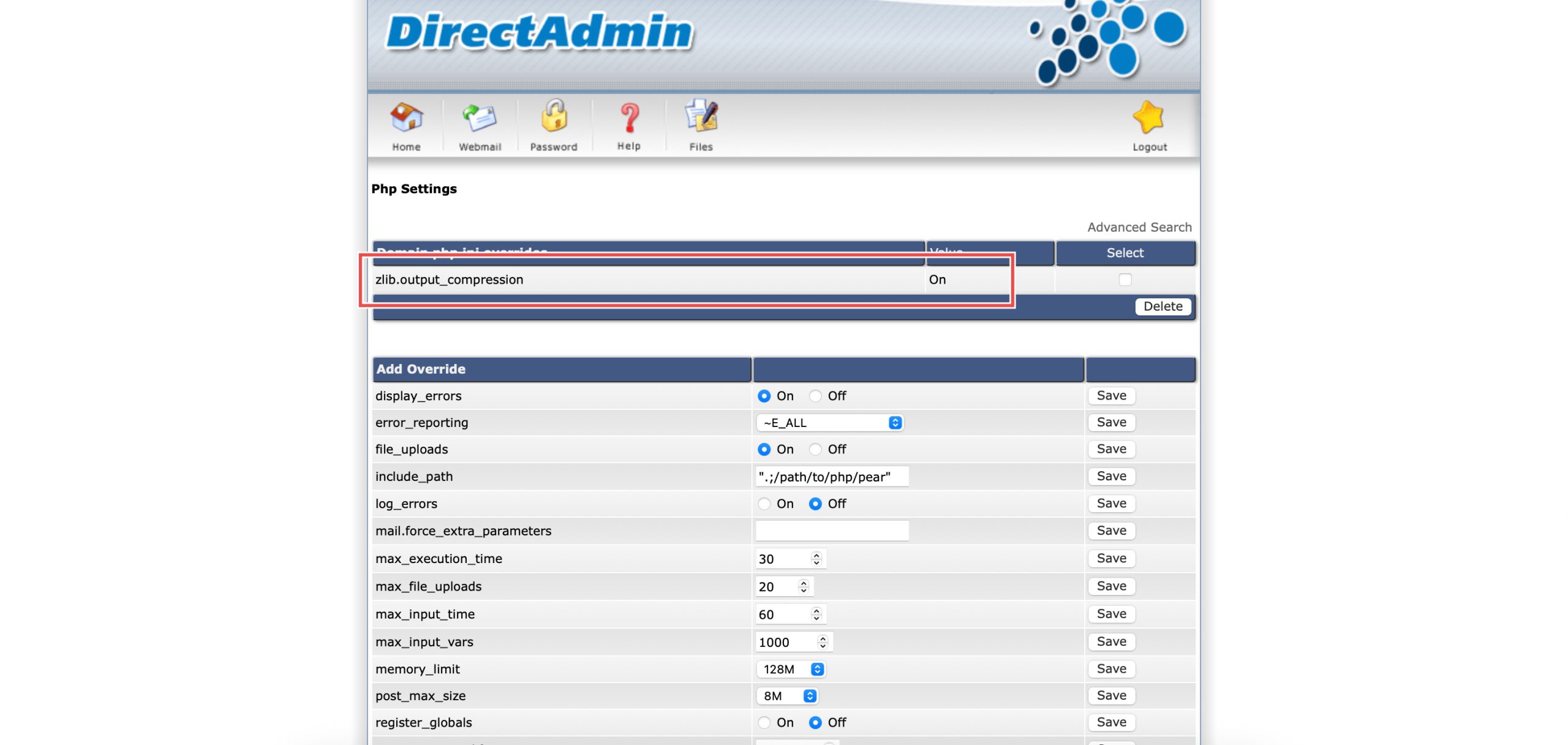
Scroll down to the Add Override section. On the zlib.output_compression row, select On. Then, click Save on the right.
Step 4: Verify the changes
You may confirm the new override settings in the updated Domain php.ini overrides table. Web pages will now be compressed before sending, reducing bandwidth and speeding up load times.
Conclusion
Enabling PHP output compression through DirectAdmin’s PHP Settings interface is a simple process that automatically compresses web content before transmission. Activating zlib output compression reduces bandwidth usage and improves page load times by delivering smaller, compressed files to browsers, enhancing overall website performance without requiring changes to your application code.
Should you have any inquiries about the guidelines, please feel free to open a ticket through your portal account or contact us at support@ipserverone.com. We’ll be happy to assist you further.