
Search Our Database
How to Modify Session Lifetime in DirectAdmin (Enhanced Skin)
Introduction
PHP session garbage collection max lifetime defines how long session data remains valid before being eligible for automatic cleanup, and adjusting this setting is essential for balancing security with user convenience. Extending session lifetimes accommodates users who remain logged in for extended periods, while shorter lifetimes enhance security by expiring inactive sessions more quickly. DirectAdmin’s PHP Settings interface provides a straightforward method for configuring session lifetime limits through custom PHP overrides. This guide explains how to modify session garbage collection max lifetime using the PHP Settings section in DirectAdmin, enabling appropriate session duration settings that balance user experience with security requirements.
Prerequisites
- Access to DirectAdmin control panel with the necessary permissions.
Step-by-step Guide
Step 1: Access DirectAdmin
Log in to your DirectAdmin control panel.

Step 2: Access PHP Settings
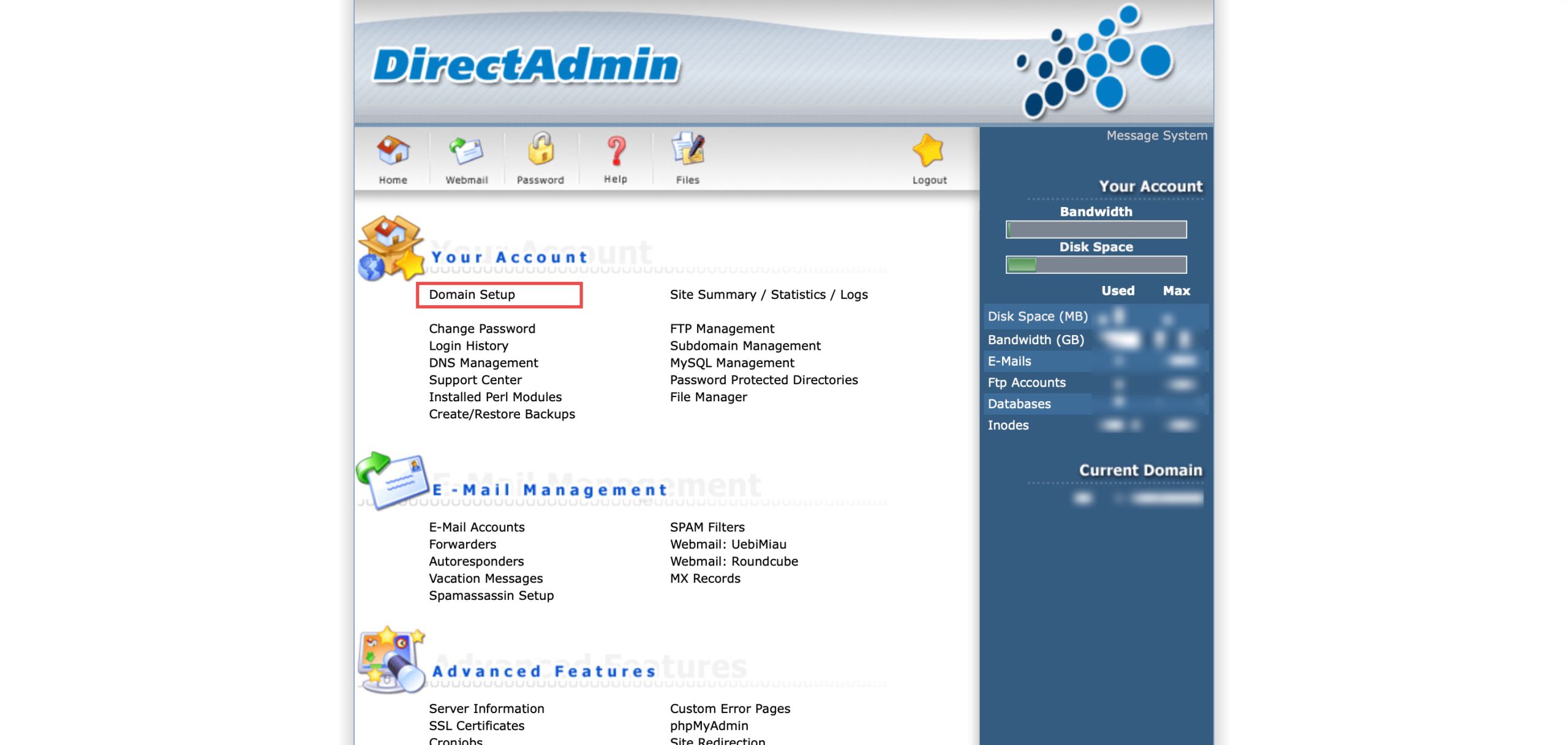
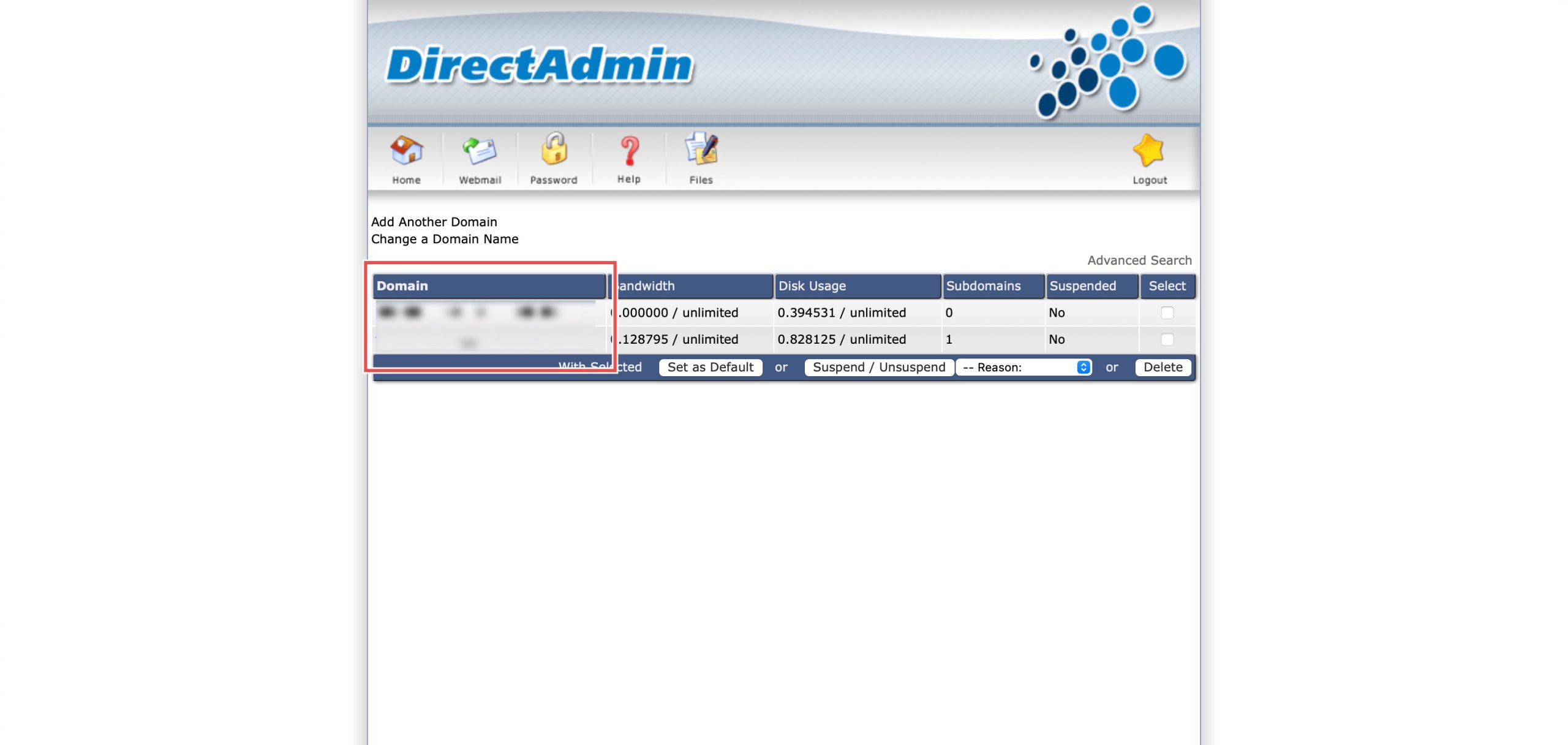
Go to the Your Account section and click on Domain Setup. Then, select the domain/subdomain you wish to modify PHP settings for by clicking on the domain/subdomain name.
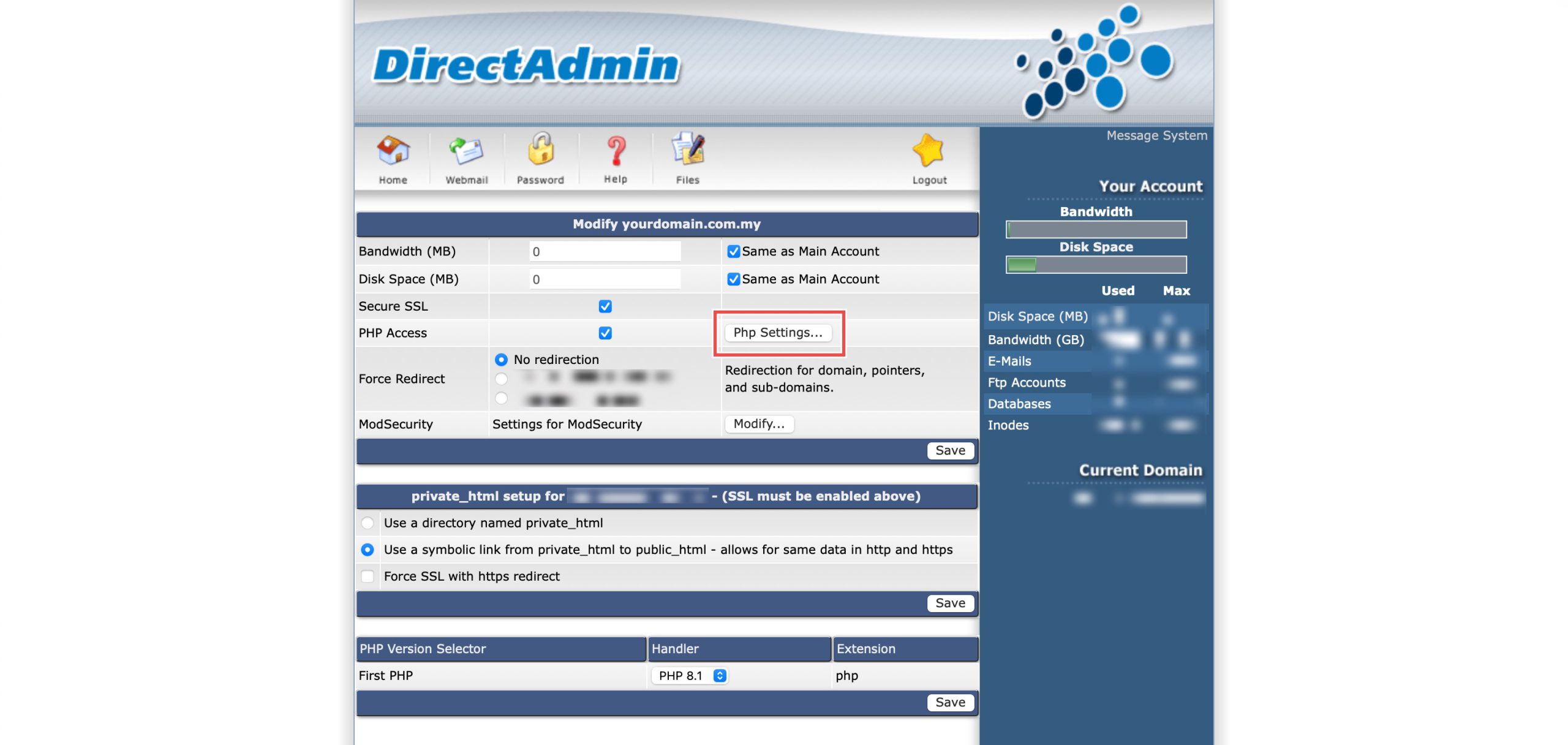
At the PHP Access row, click Php Settings…. You should be able to see a list of your current PHP configuration.
Step 3: Modify Maximum POST data size
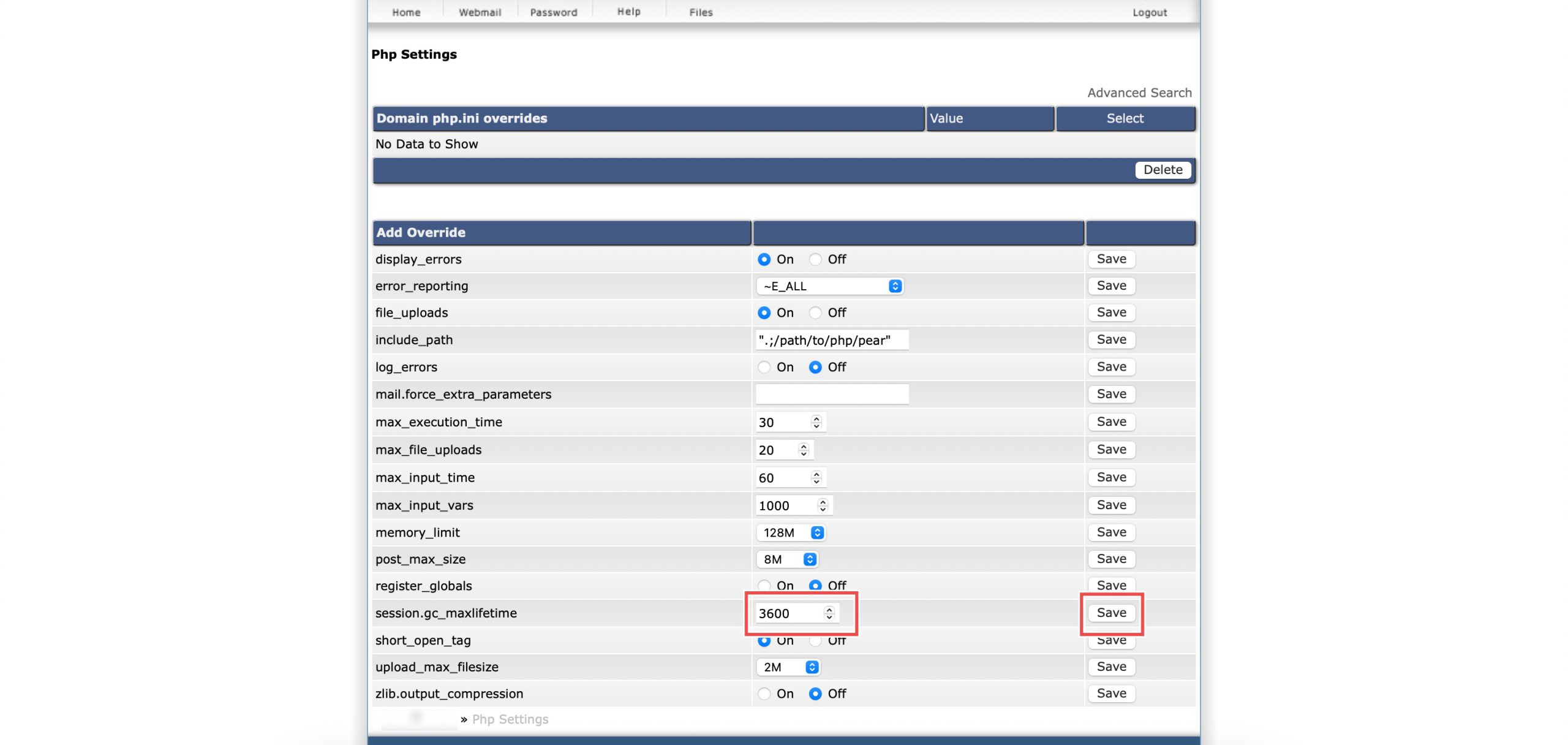
Scroll down to the Add Override section. On the session.gc_maxlifetime row, you may enter how long in seconds session data should be considered valid.
Then, click Save on the right.
Step 4: Verify the changes
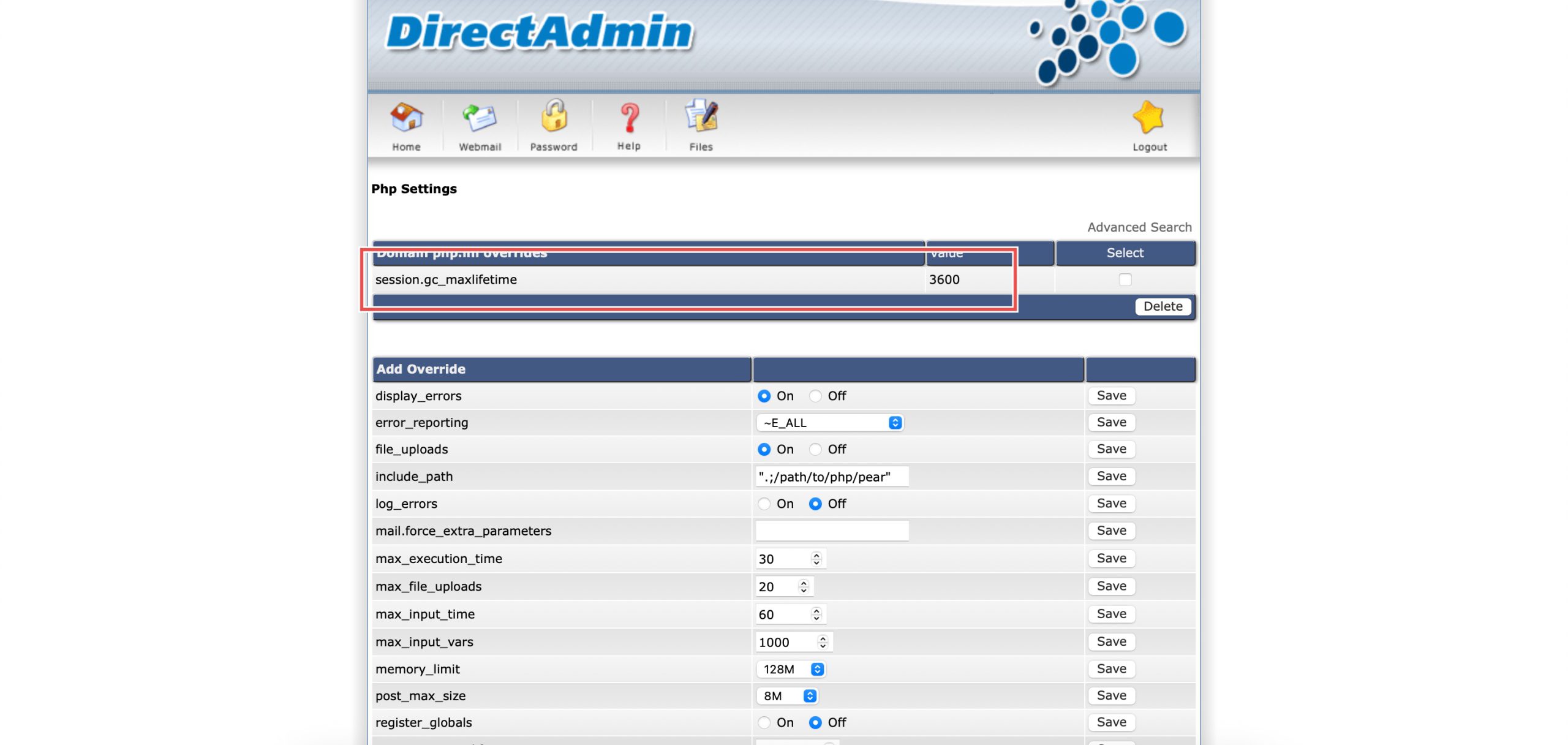
You may confirm the new override settings in the updated Domain php.ini overrides table.
Conclusion
Configuring PHP session garbage collection max lifetime through DirectAdmin’s PHP Settings interface is a simple process that controls how long session data remains valid. Adjusting this setting allows you to balance user convenience with security considerations, ensuring sessions remain active for appropriate durations while preventing indefinite session persistence that could pose security risks.
Should you have any inquiries about the guidelines, please feel free to open a ticket through your portal account or contact us at support@ipserverone.com. We’ll be happy to assist you further.