
Search Our Database
How to Check Website Robots/Spiders Visitors using AWStats in cPanel
Introduction
This Knowledge Base article provides a concise, step-by-step guide on How to Check Website Robots/Spiders Visitors using AWStats in cPanel. Robots and spiders are automated programs that crawl websites, typically for search engines, security scanning, or content aggregation. Monitoring robot activity helps you understand search engine crawl patterns and identify unwanted bots. Use this guide when you need to analyze which robots are accessing your website and how frequently.
Prerequisite
- Access to your cPanel login page.
Step-by-Step Guide
Step 1: Log in to cPanel
- Access and log in to your cPanel account using your username and password.

Step 2: Open AWStats
- In the Home page, under Metrics, click AWStats.
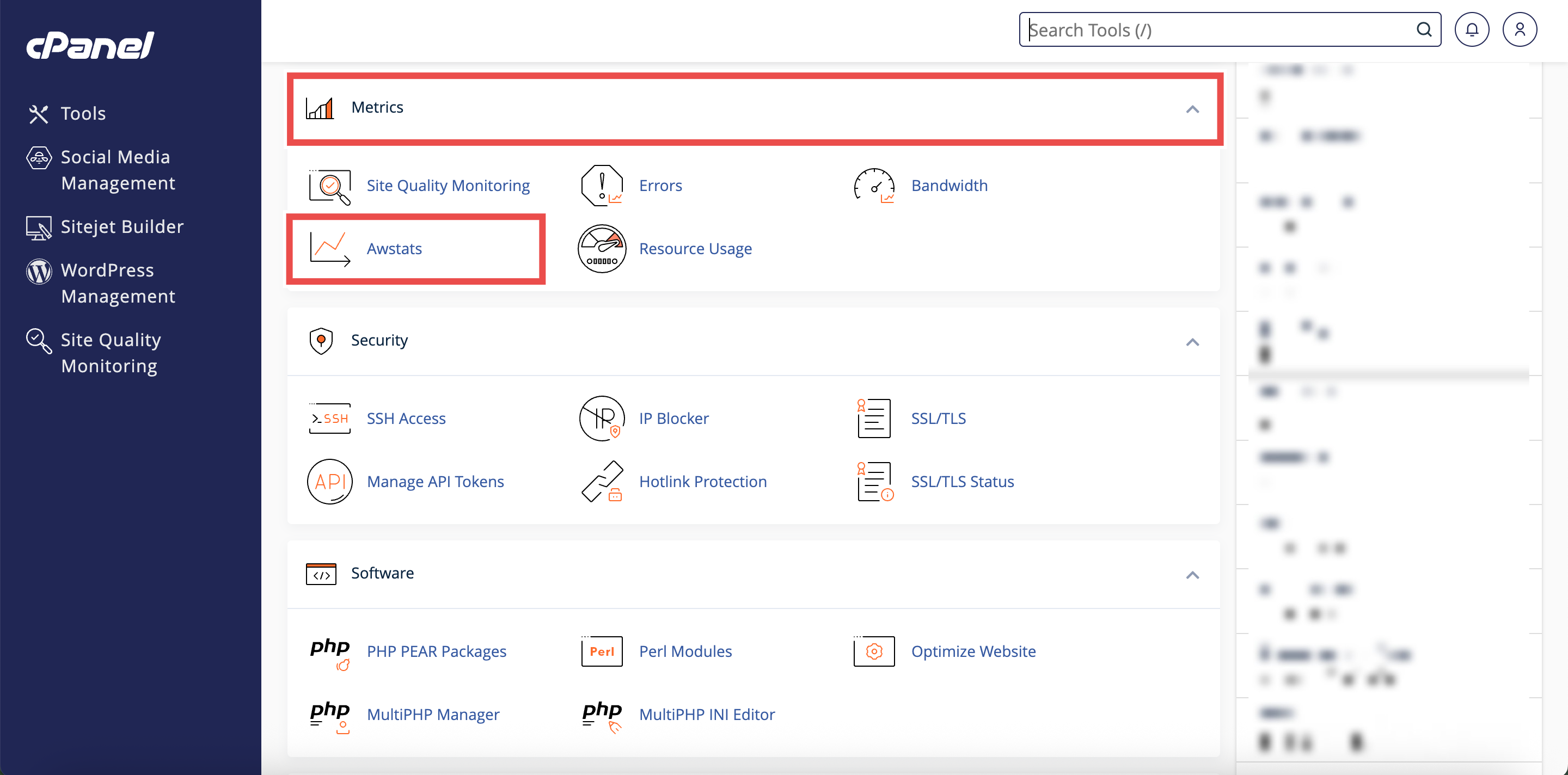
Step 3: Locate Your domain
- From the Domain menu, locate the domain you want to view traffic statistics.
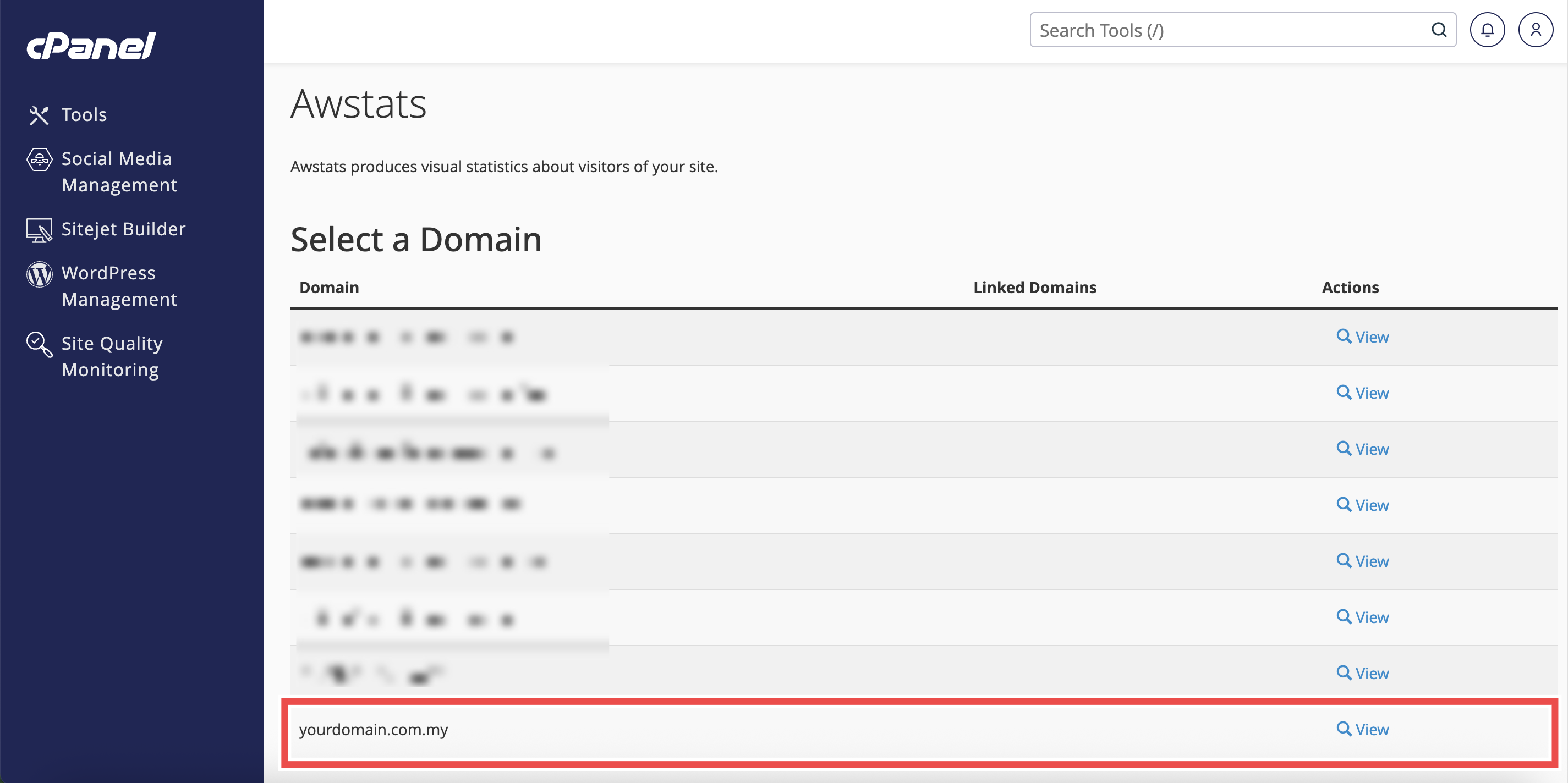
Step 4: Select Your domain
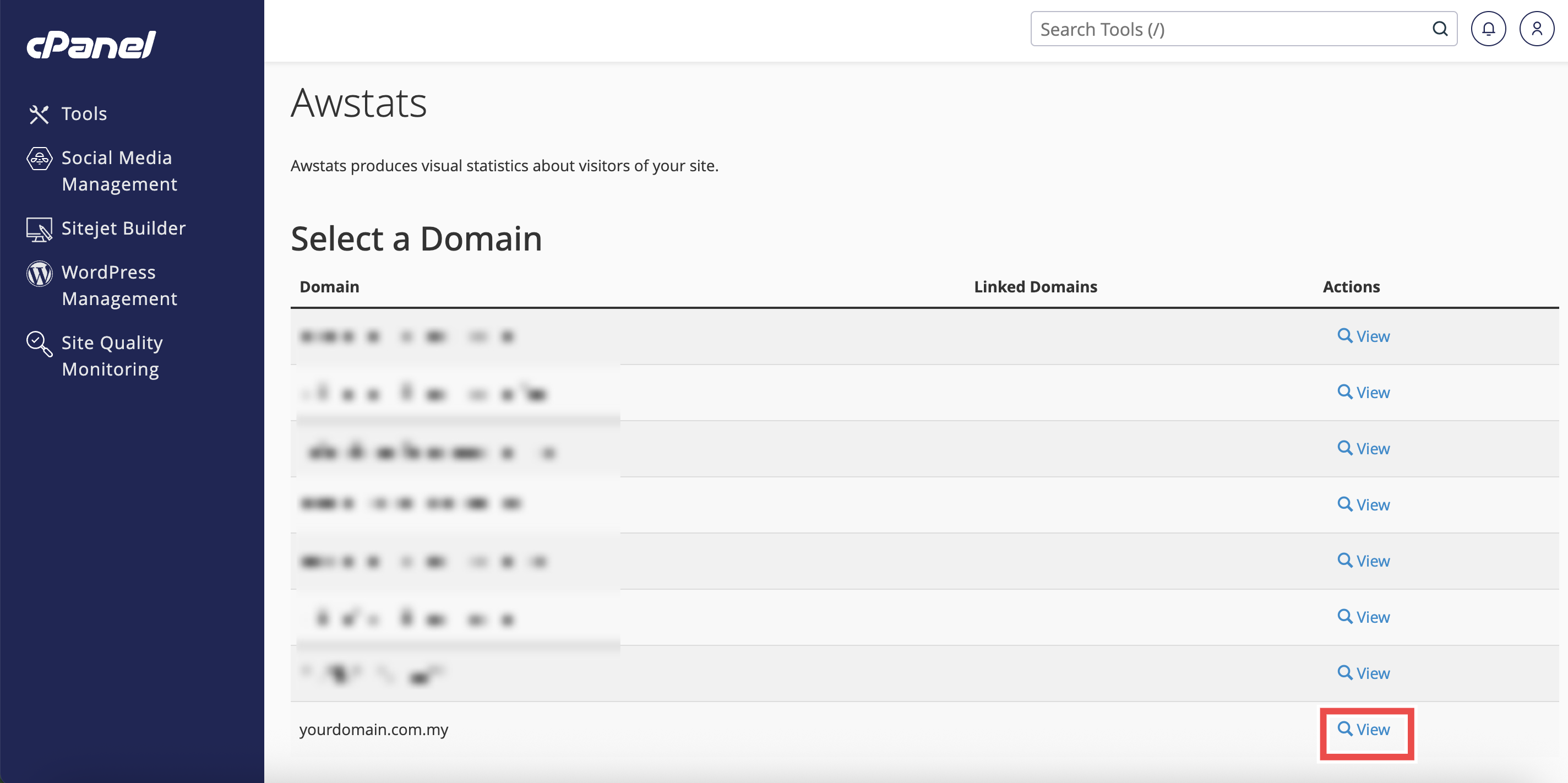
- Click View next to the domain name.
- The AWStats interface will open in a new window or tab.
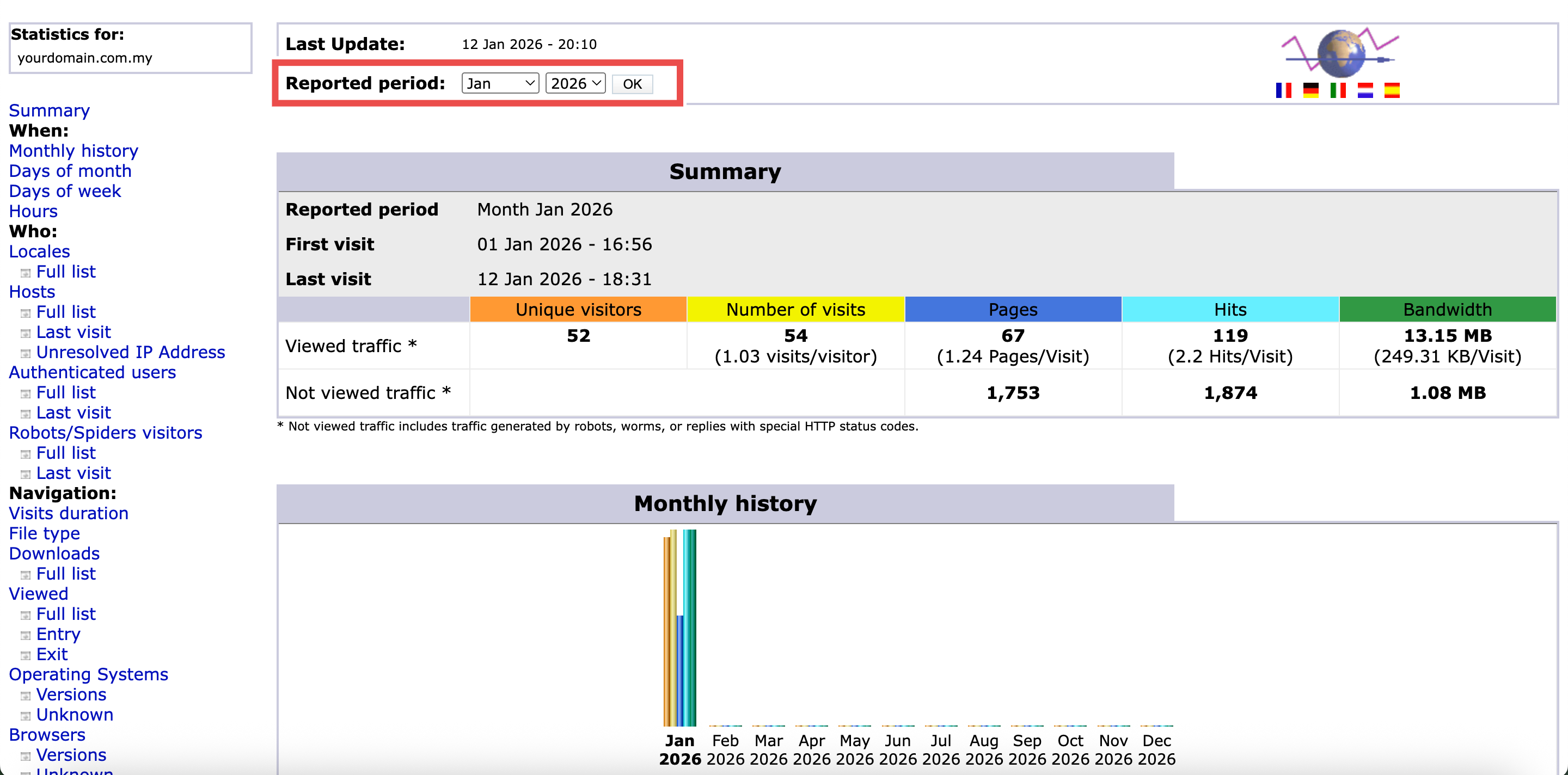
Step 5: Select the Date
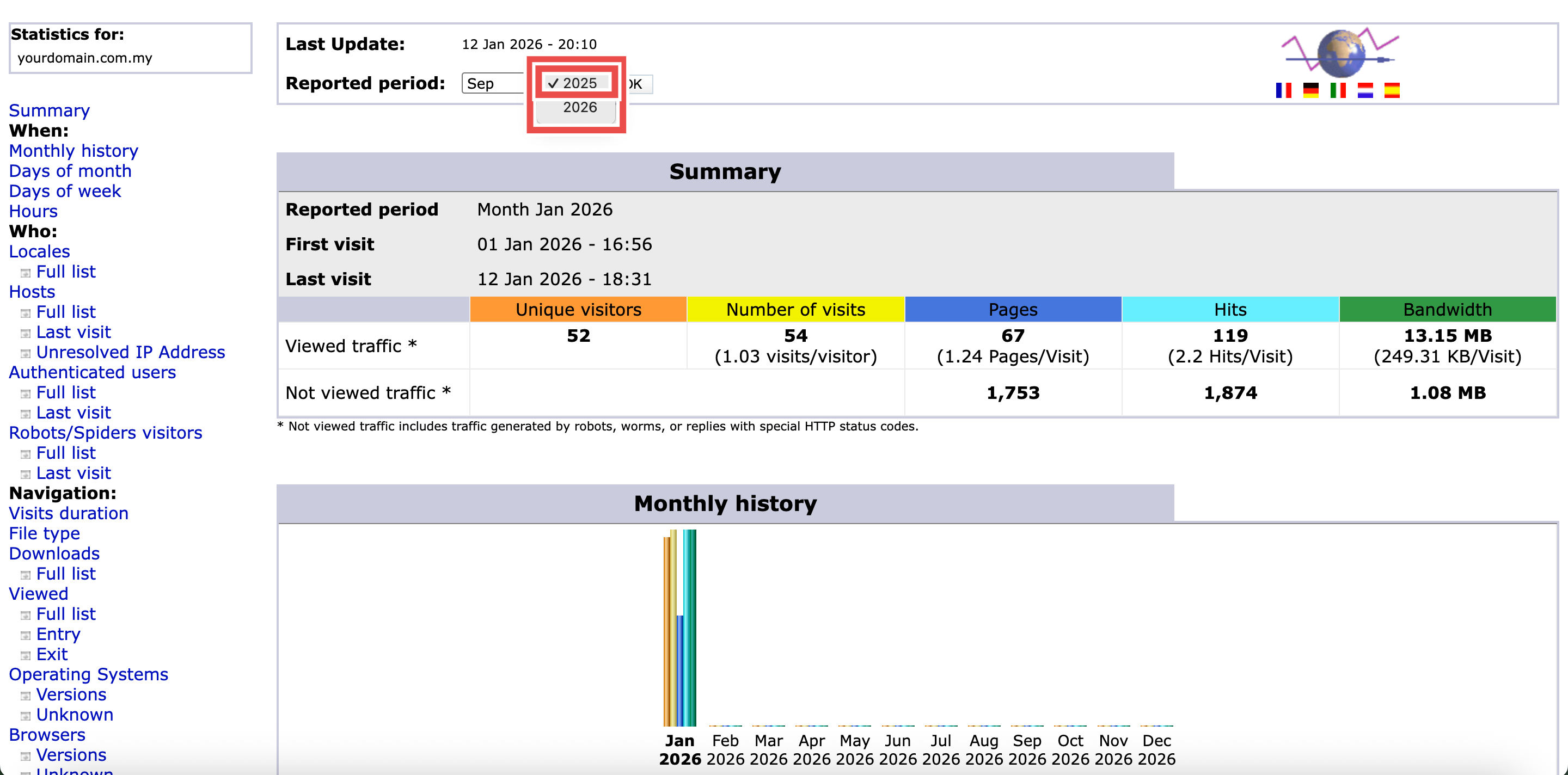
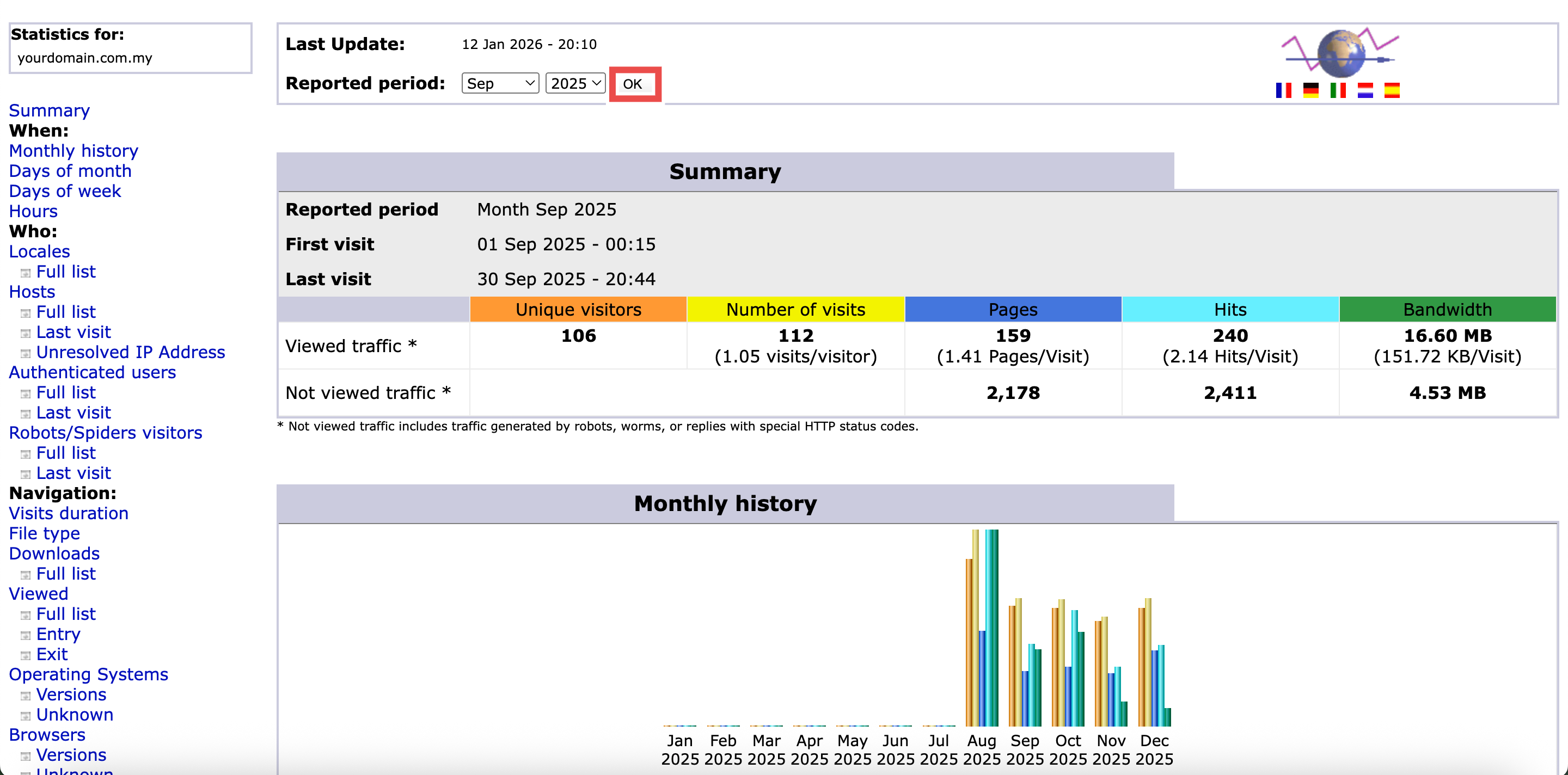
- In the Reported period, select the month and year you want to review.
- Click OK to apply the changes.

Step 6: Locate the Robots/Spiders Visitors Section
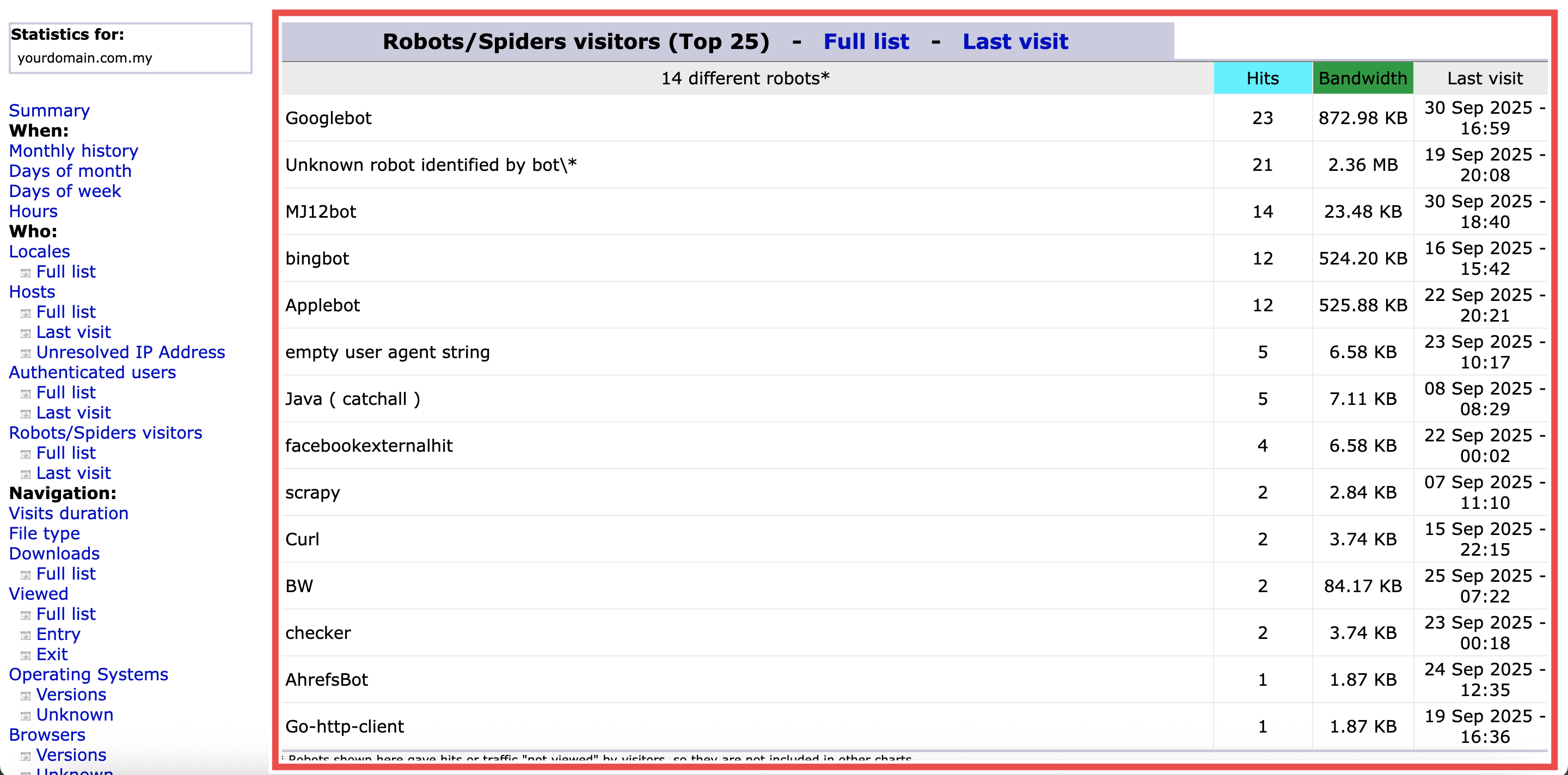
- In left side of the page, locate and click the Robots/Spiders Visitors.
- You will be directed to the Robots/Spiders Visitors section of the page.
⚠️ Important Note:
- Understanding Robots/Spiders Sections:
- Full List: Displays all Robots/Spiders Visitors that accessed your website, sorted by activity level. Shows pages viewed, hits, bandwidth consumed, and last visit date.
- Last Visit: Shows the most recent Robots/Spiders Visitors to your website with the exact date and time of their last access. Useful for monitoring real-time traffic.

Step 7: Review the Robots/Spiders Visitors
- In the Robots/Spiders Visitors section, review the key traffic metrics displayed in the color-coded table.
⚠️ Important Note:
- Understanding Traffic Metrics:
- Hits: All file requests including images, scripts, and stylesheets.
- Bandwidth: Total data transferred to visitors.
- Last Visit: The date and time of the most recent access from that IP address.
Conclusion
By following these steps, you can check website robots and spiders visitors using AWStats in cPanel. Monitoring robot activity helps you ensure that search engines are properly indexing your site while also identifying potentially harmful or unwanted bots. This information is essential for SEO optimization and website security.
Should you encounter any issues or have any questions, our support team at IPSERVERONE is always here to assist you. Don’t hesitate to reach out to us at support@ipserverone.com for any help you need.