
Search Our Database
How to View Website Traffic Statistics using AWStats in cPanel
Introduction
This Knowledge Base article provides a concise, step-by-step guide on How to View Website Traffic Statistics using AWStats in cPanel. AWStats (Advanced Web Statistics) compiles comprehensive information about how users access your website, including visitor patterns, traffic sources, and browser details. Use this guide when you need to access and review your website’s traffic analytics to understand visitor behavior and improve your site performance.
Prerequisite
Prerequisite
- Access to your cPanel login page.
Step-by-Step Guide
Step 1: Log in to cPanel
- Access and log in to your cPanel account using your username and password.

Step 2: Open AWStats
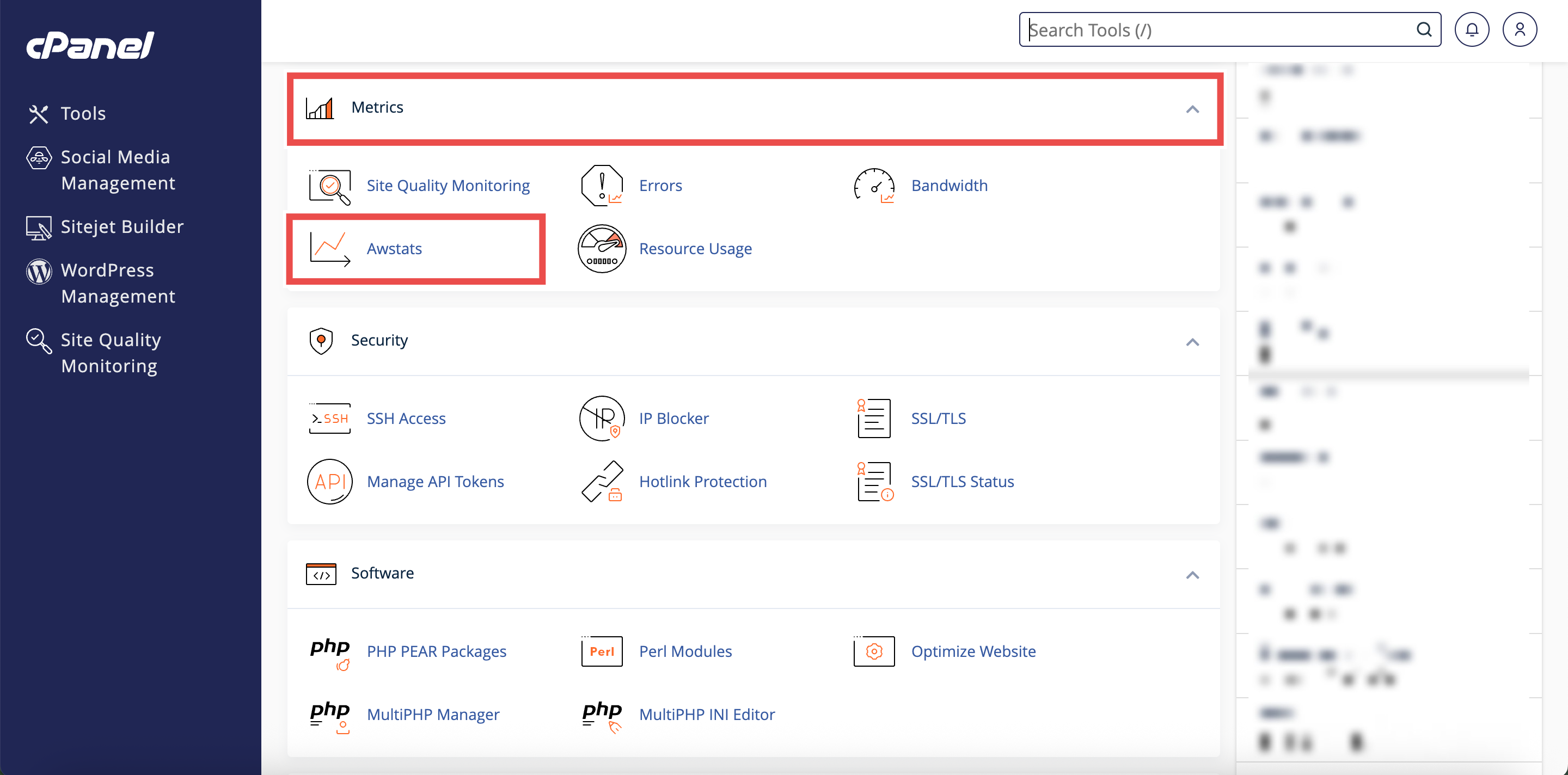
- In the Home page, under Metrics, click AWStats.
Step 3: Locate Your domain
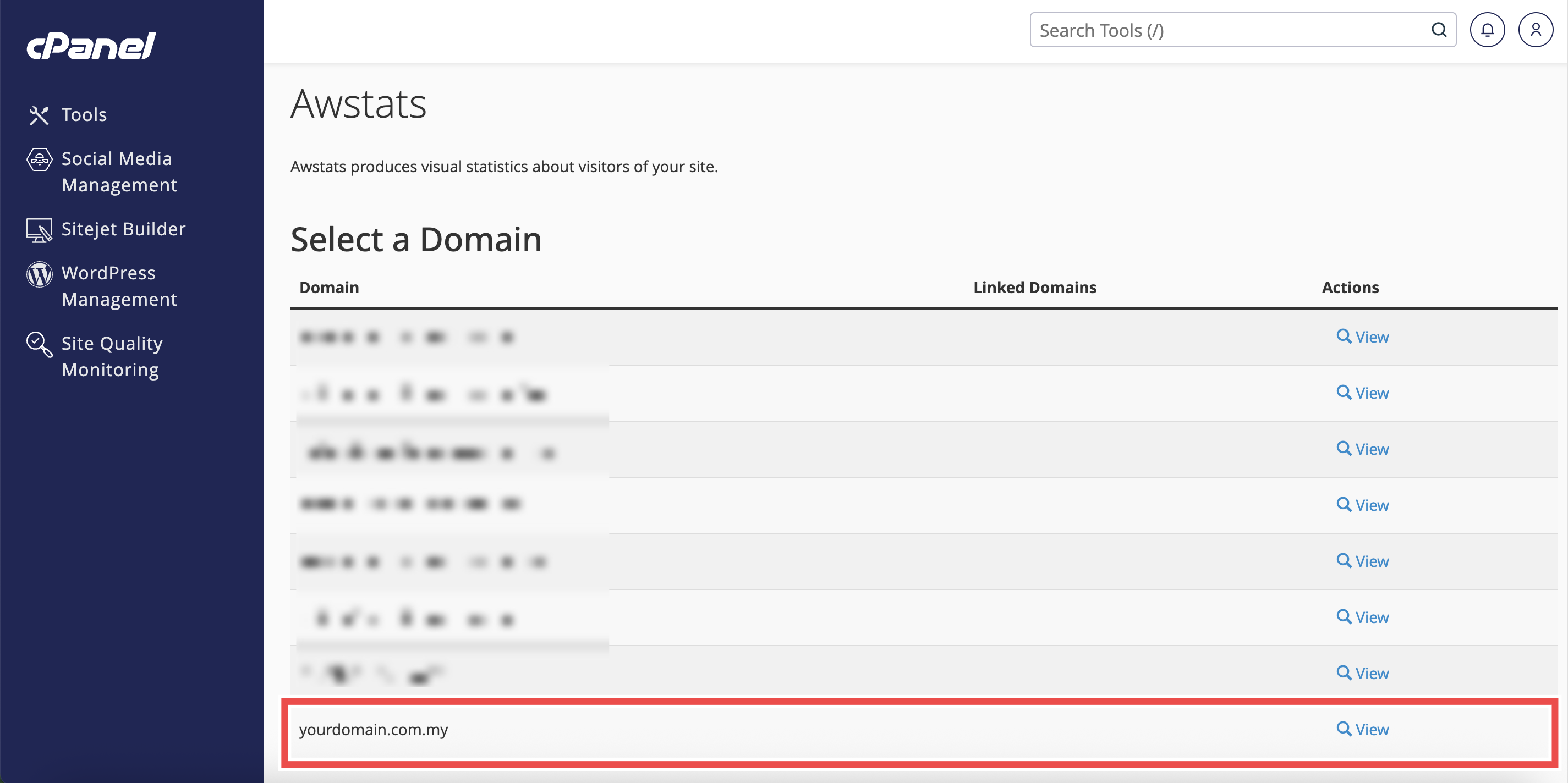
- From the Domain menu, locate the domain you want to view traffic statistics.
Step 4: Select Your domain
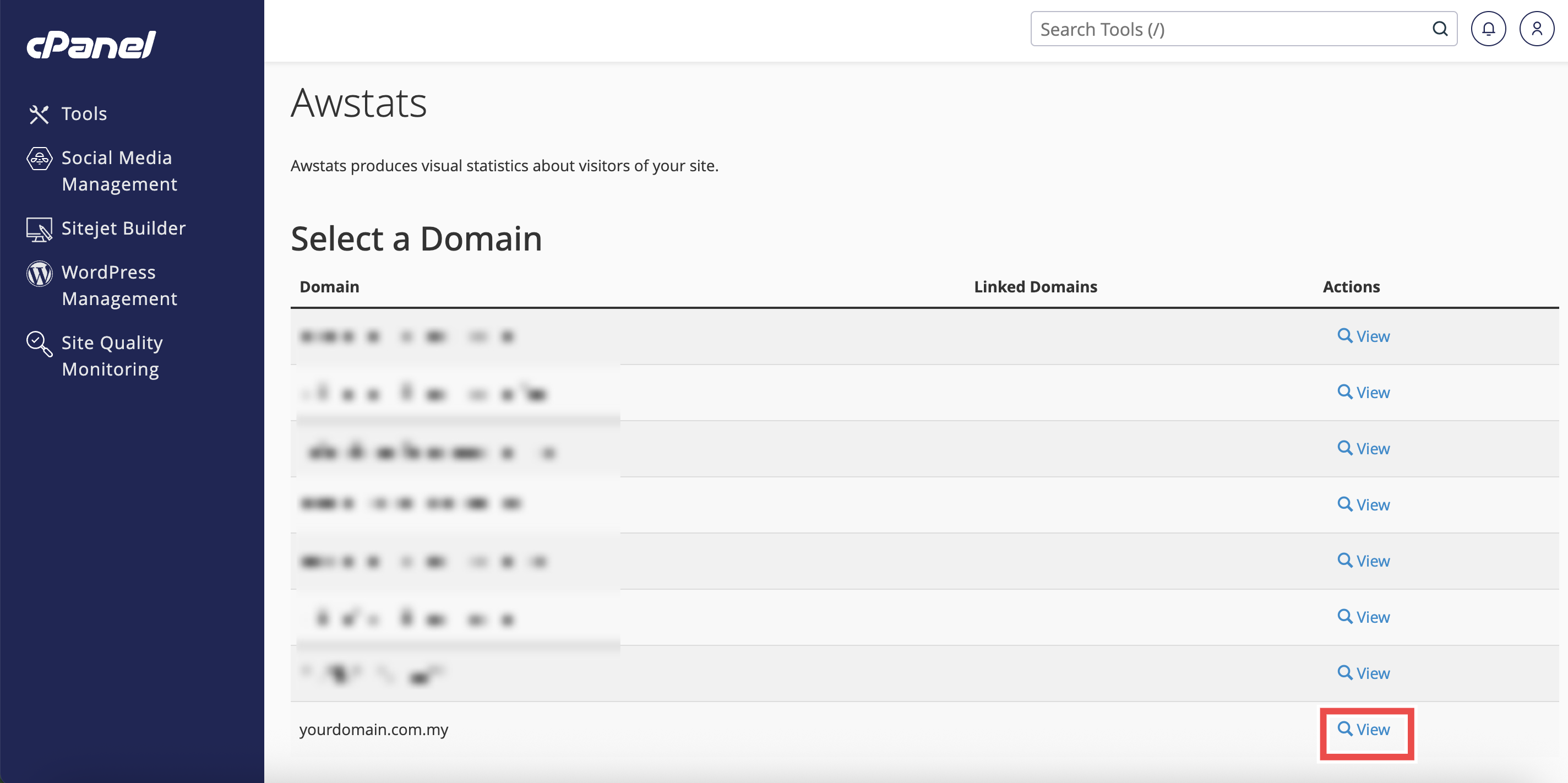
- Click View next to the domain name.
Step 5: Review Traffic Statistics
- The AWStats interface will open in a new window or tab.
- Scroll through the AWStats interface to review various statistics sections.
- In the left side, you may click on the statistics you want to review.
⚠️ Important Note:
- Each section provides detailed information about different aspects of your website traffic.

Conclusion
By following these steps, you can view website traffic statistics using AWStats in cPanel. This powerful tool provides comprehensive insights into your website’s performance, visitor behavior, and traffic patterns. Regular monitoring of these statistics helps you understand your audience and make informed decisions about your website.
Should you encounter any issues or have any questions, our support team at IPSERVERONE is always here to assist you. Don’t hesitate to reach out to us at support@ipserverone.com for any help you need.