
Search Our Database
How to Disable Two-Factor Authentication in Customer Portal
Introduction:
Maintaining efficient access to your account is as vital as the security measures protecting it. For Customer Portal users, there may be operational requirements—such as upgrading mobile hardware or transitioning to a different security protocol—that necessitate the disabling of Two-Factor Authentication (2FA). This administrative action allows you to manage the entry points to your account, which houses critical services like NovaCloud instances, GPU Servers, and professional Email Hosting.
By utilizing the Customer Portal interface, you can manage your verification layers under the “Account Security” section of your profile. The system requires you to re-verify your identity with your account password before authorizing the removal of the 2FA layer, ensuring that this sensitive change is performed with deliberate administrative control. Successfully disabling 2FA returns your account to a standard login process, providing the flexibility needed to reconfigure your security environment according to your current workflow.
Prerequisites:
- You must have an active, registered account and be successfully logged into the IP ServerOne Customer Portal.
- Two-Factor Authentication must already be configured and active on the account.
Step-by-step Guide:
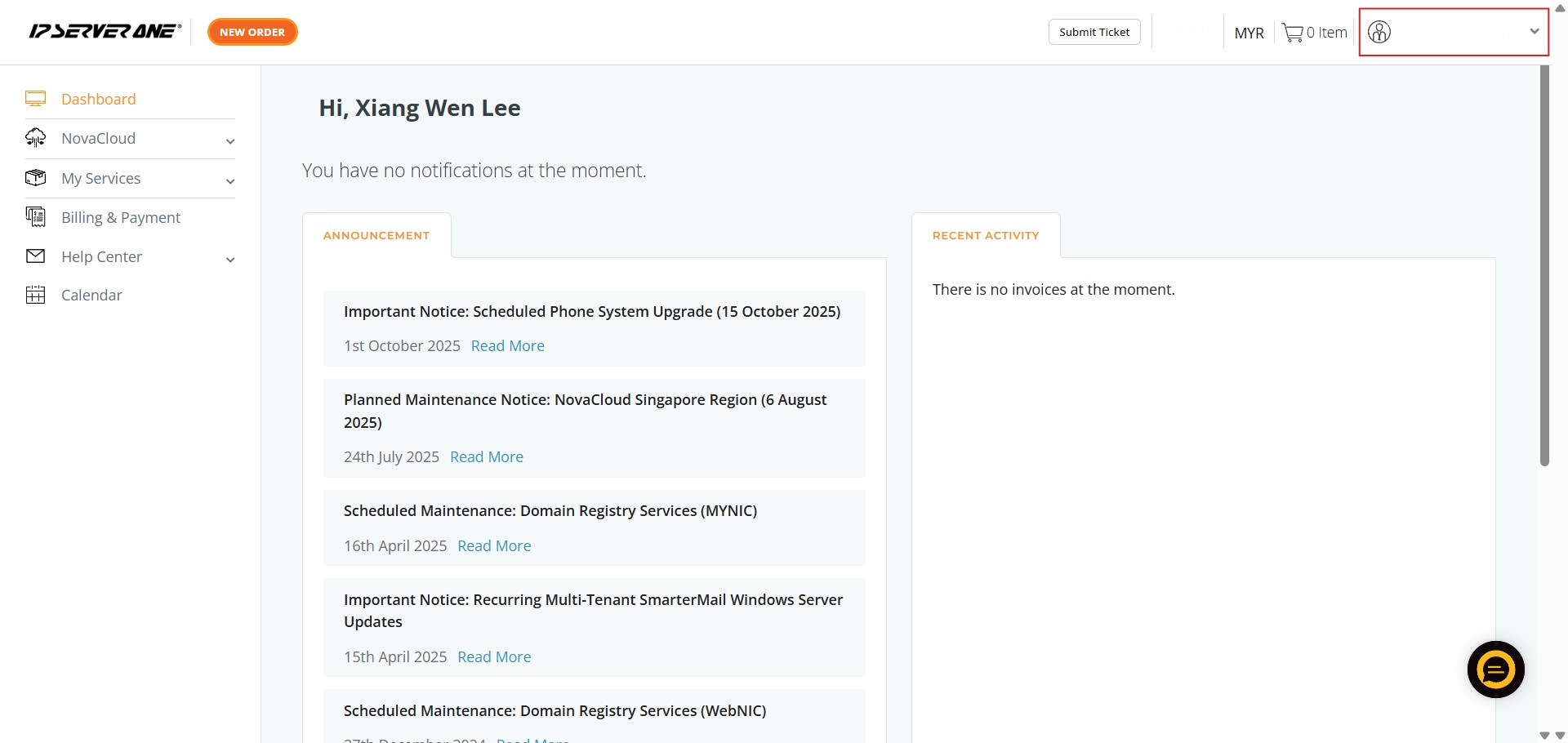
Step 1: Access User Profile
- Click on the User icon or name located in the Customer Portal interface.
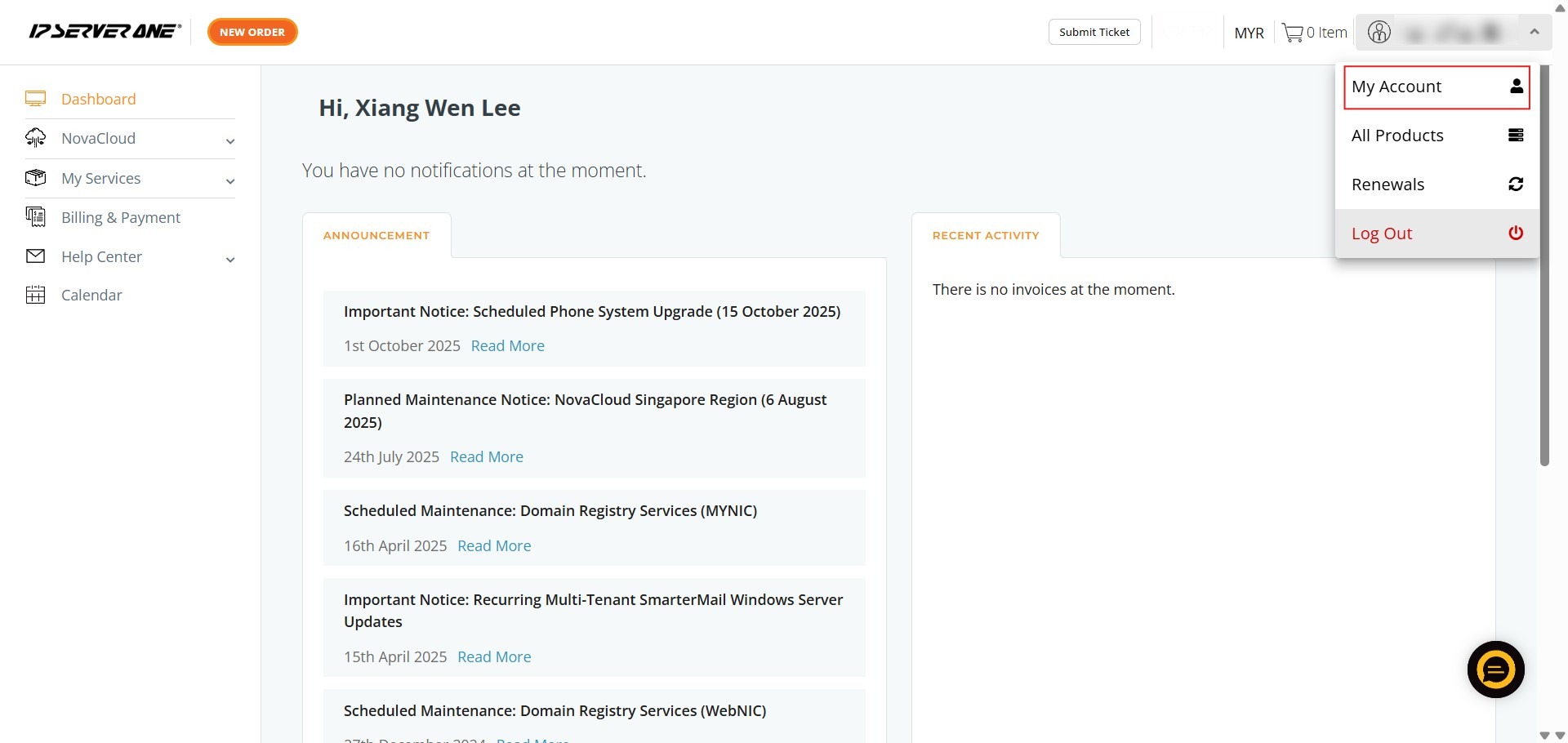
Step 2: Enter Account Settings
- Select “My Account” from the dropdown menu to view your personal profile.
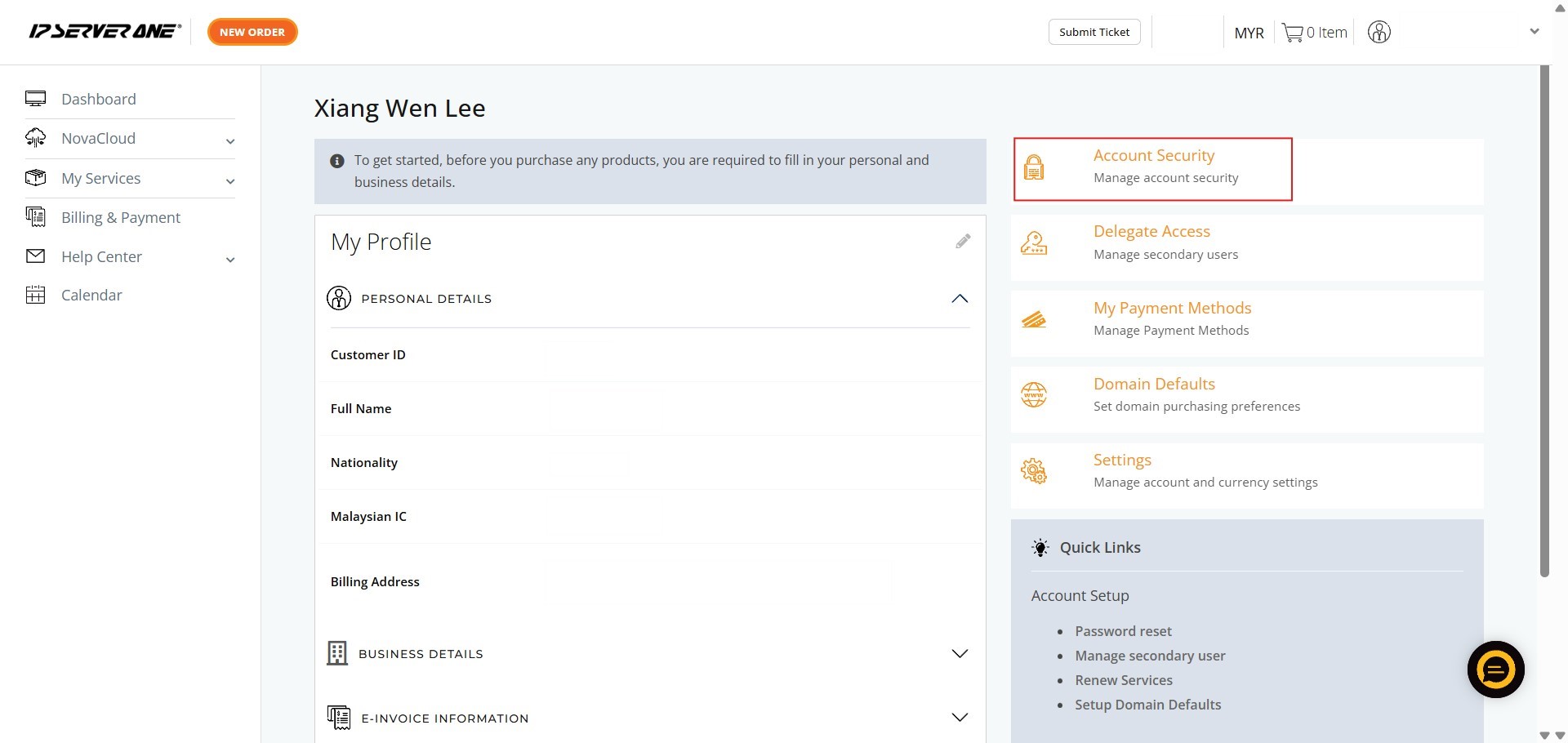
Step 3: Navigate to Security
- Click on the “Account Security” tab to manage your login protection settings.
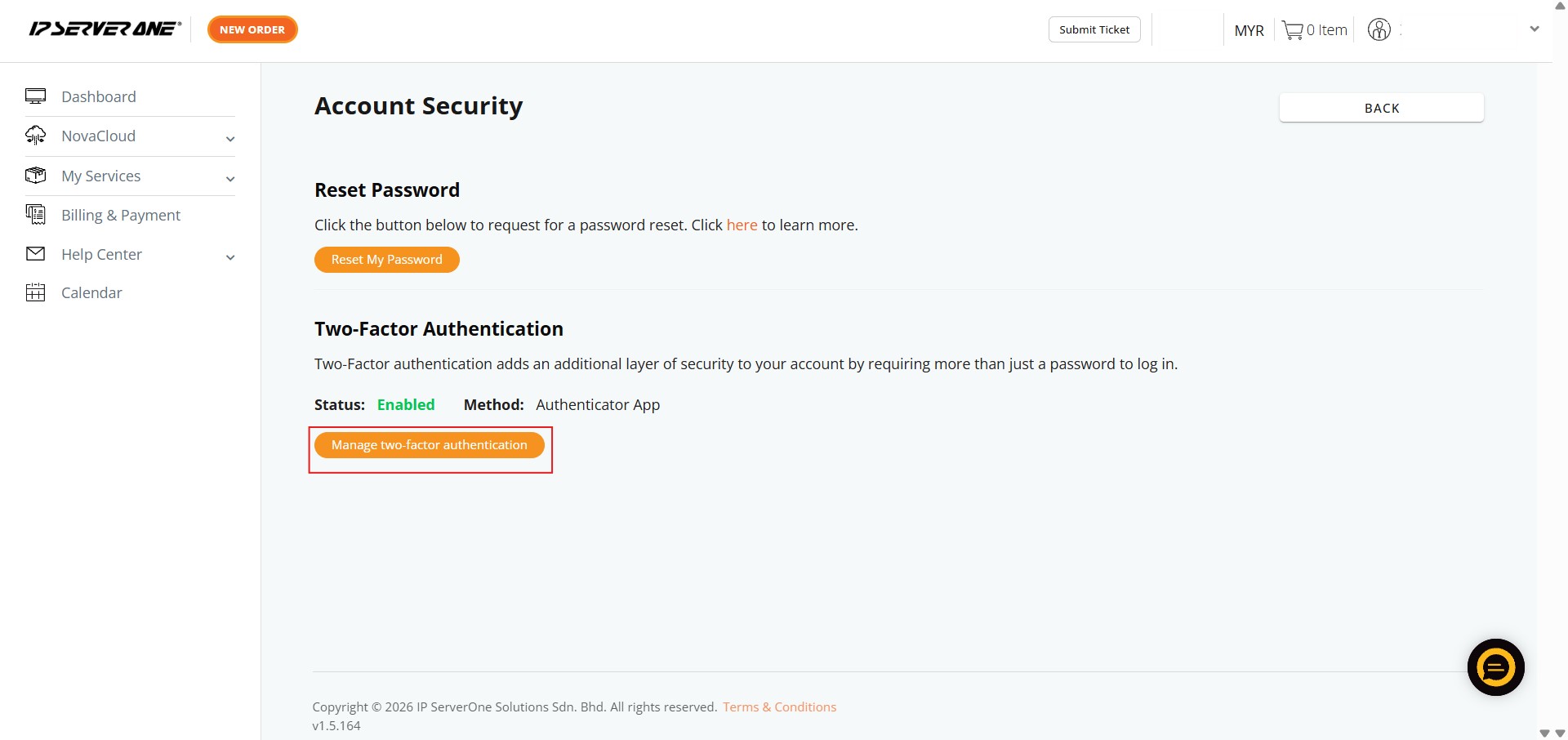
Step 4: Manage 2FA
- Locate and click on “Manage two-factor authentication”. This option is only available if 2FA is currently active.
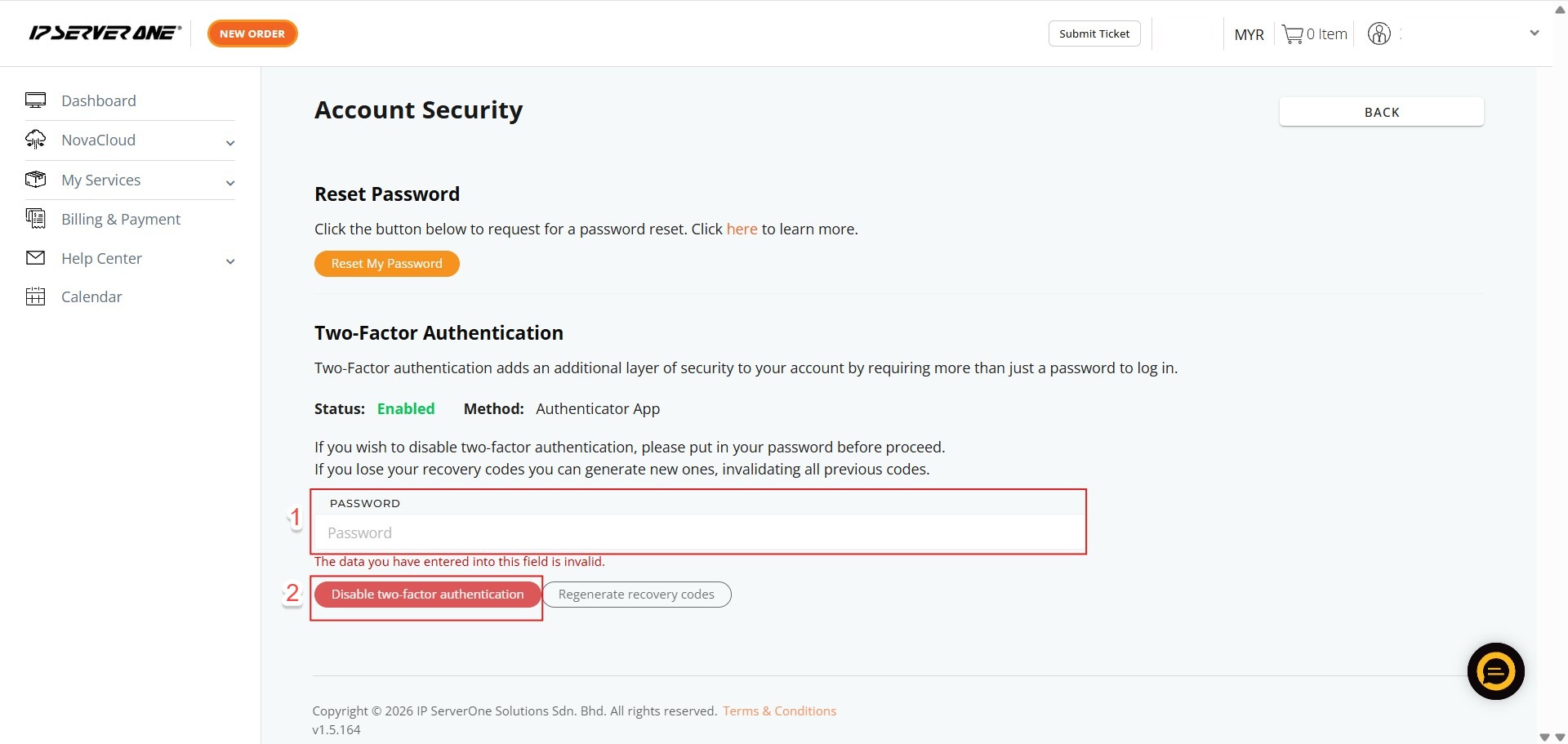
Step 5: Identity Verification and Deactivate
- Enter your account password in the required field to authorize the security downgrade.
- Click the “Disable 2FA” button to remove the secondary authentication requirement.
Step 6: Confirmation
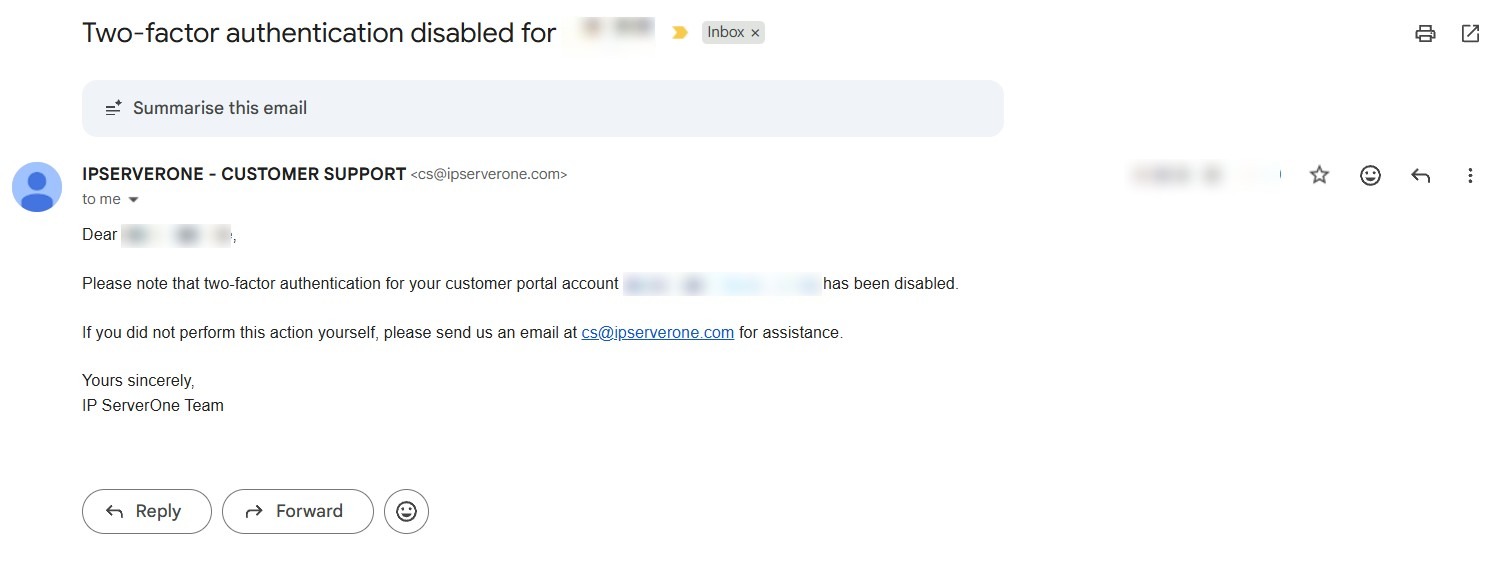
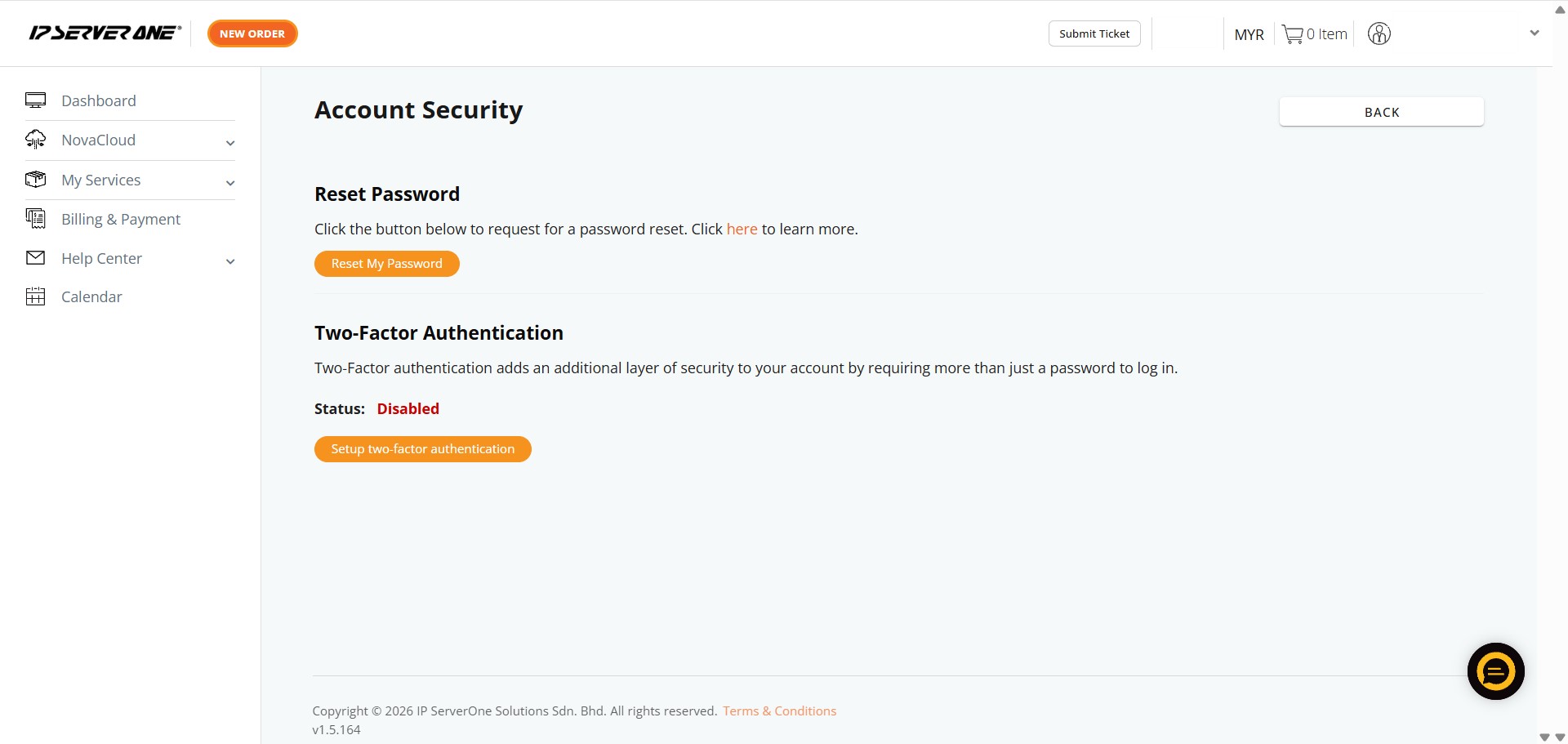
- A success message will appear, confirming that your account is no longer protected by an Authenticator App.
Conclusion:
By completing these steps, you have successfully deactivated Two-Factor Authentication (2FA) for your Customer Portal account. This administrative action returns your profile to a standard login process, providing the necessary flexibility for hardware transitions or security reconfigurations.
To maintain a secure and efficient environment for your managed resources, consider the following final points:
- Security Impact: Disabling 2FA removes a critical layer of protection for your infrastructure, including NovaCloud instances, GPU Servers, and professional Email Hosting. It is recommended to only use this as a temporary measure during device upgrades.
- Verification of Success: The process is finalized once you see the success notification within the portal, confirming that your account is no longer linked to an authenticator application.
- Accessing Support: If you encounter errors during deactivation or find yourself locked out of your account, you can reach the IP ServerOne support team at support@ipserverone.com or through the 24×7 Hotline at +603 2026 1688.