
Search Our Database
How to Hide PHP Errors on Your Website in DirectAdmin (Enhanced Skin)
Introduction
PHP error display shows runtime errors directly in the browser during development, but disabling this feature is essential for production environments to maintain security and professional presentation. Hiding error messages from public view prevents exposure of sensitive system information, file paths, and potential security vulnerabilities to website visitors. DirectAdmin’s PHP Settings interface provides a straightforward method for disabling error display through custom PHP overrides. This guide explains how to disable error display using the PHP Settings section in DirectAdmin, ensuring production websites maintain security best practices by hiding technical error information from public visibility.
Prerequisites
- Access to DirectAdmin control panel with the necessary permissions.
Step-by-step Guide
Step 1: Access DirectAdmin
Log in to your DirectAdmin control panel.

Step 2: Access PHP Settings
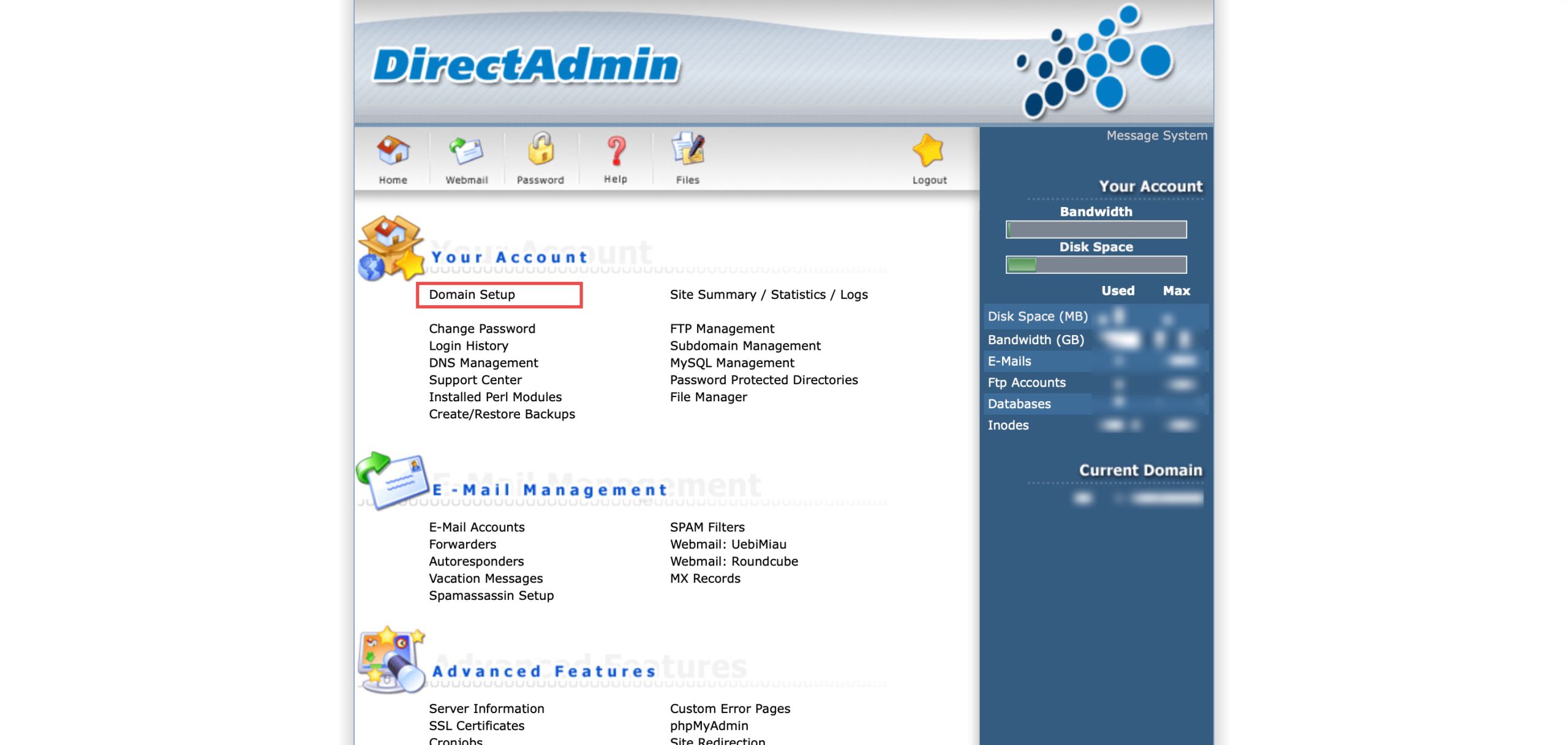
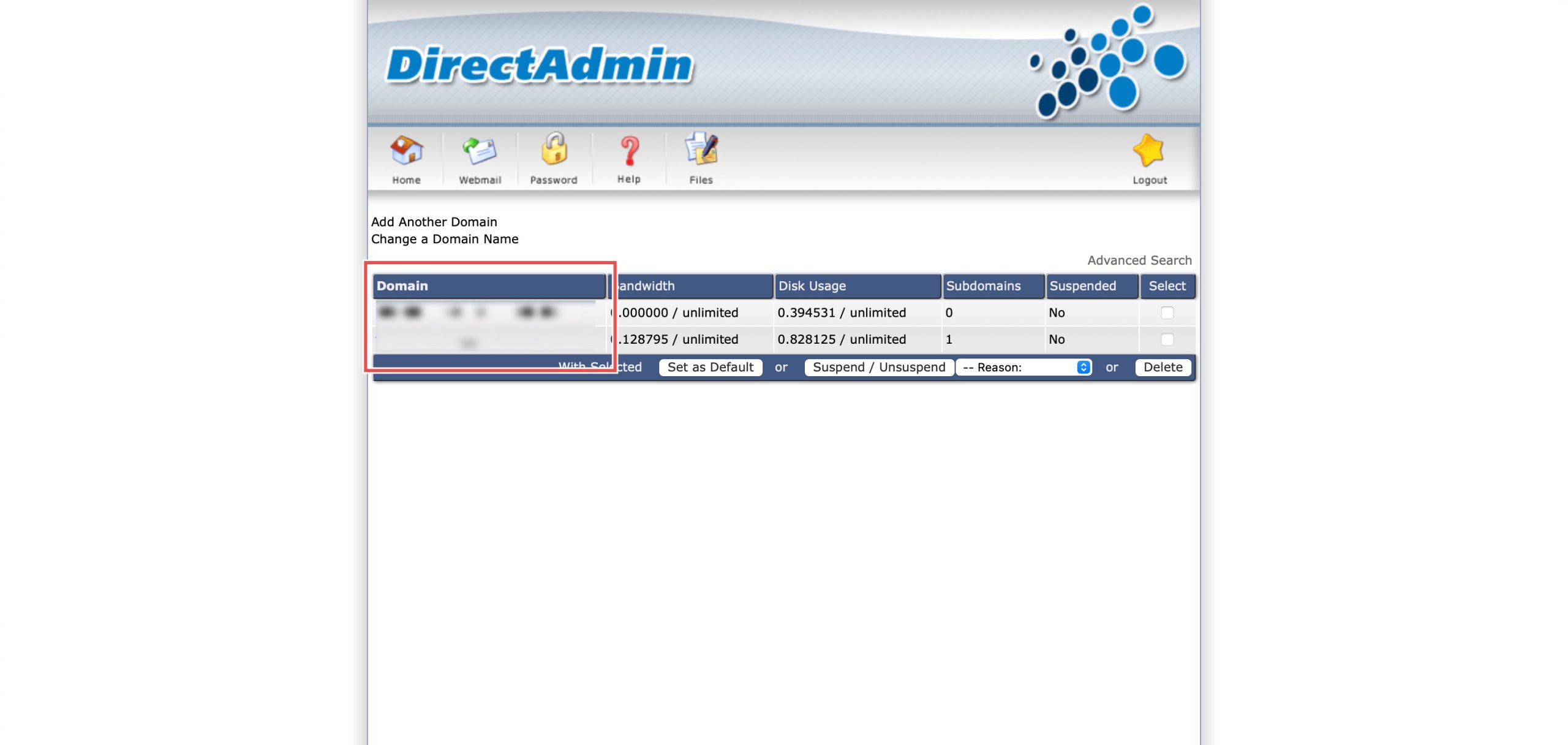
Go to the Your Account section and click on Domain Setup. Then, select the domain/subdomain you wish to modify PHP settings for by clicking on the domain/subdomain name.
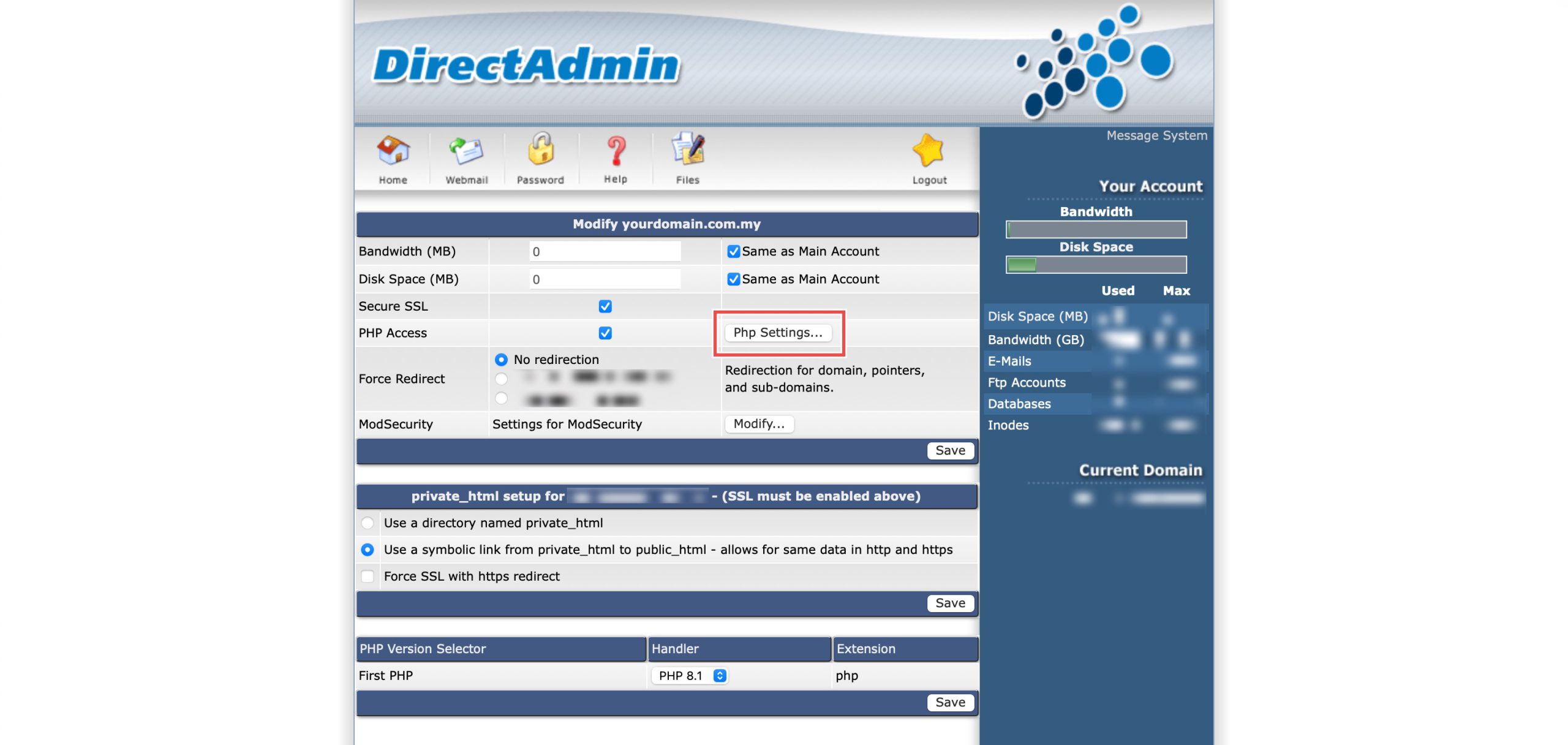
At the PHP Access row, click Php Settings…. You should be able to see a list of your current PHP configuration.
Step 3: Enable Error Display
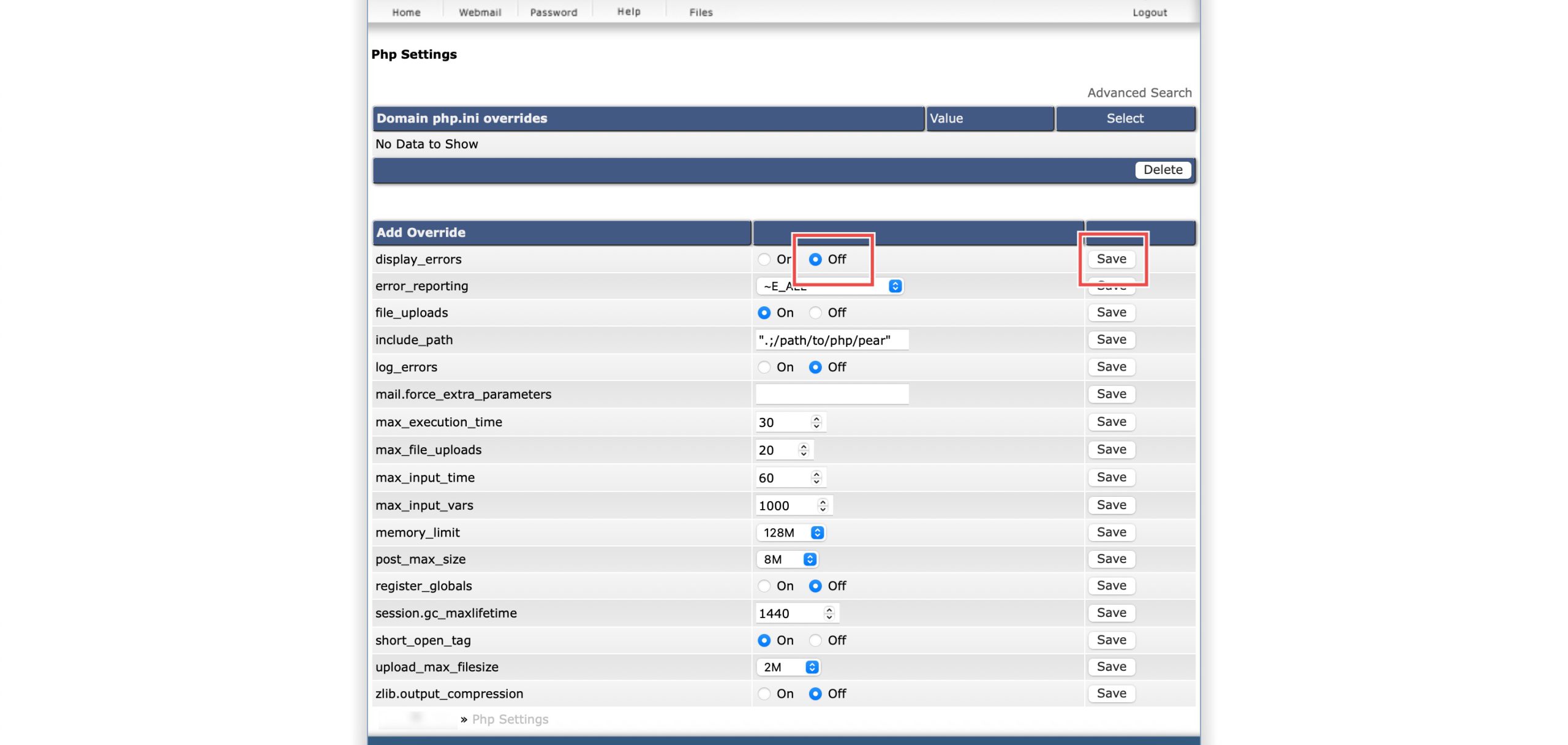
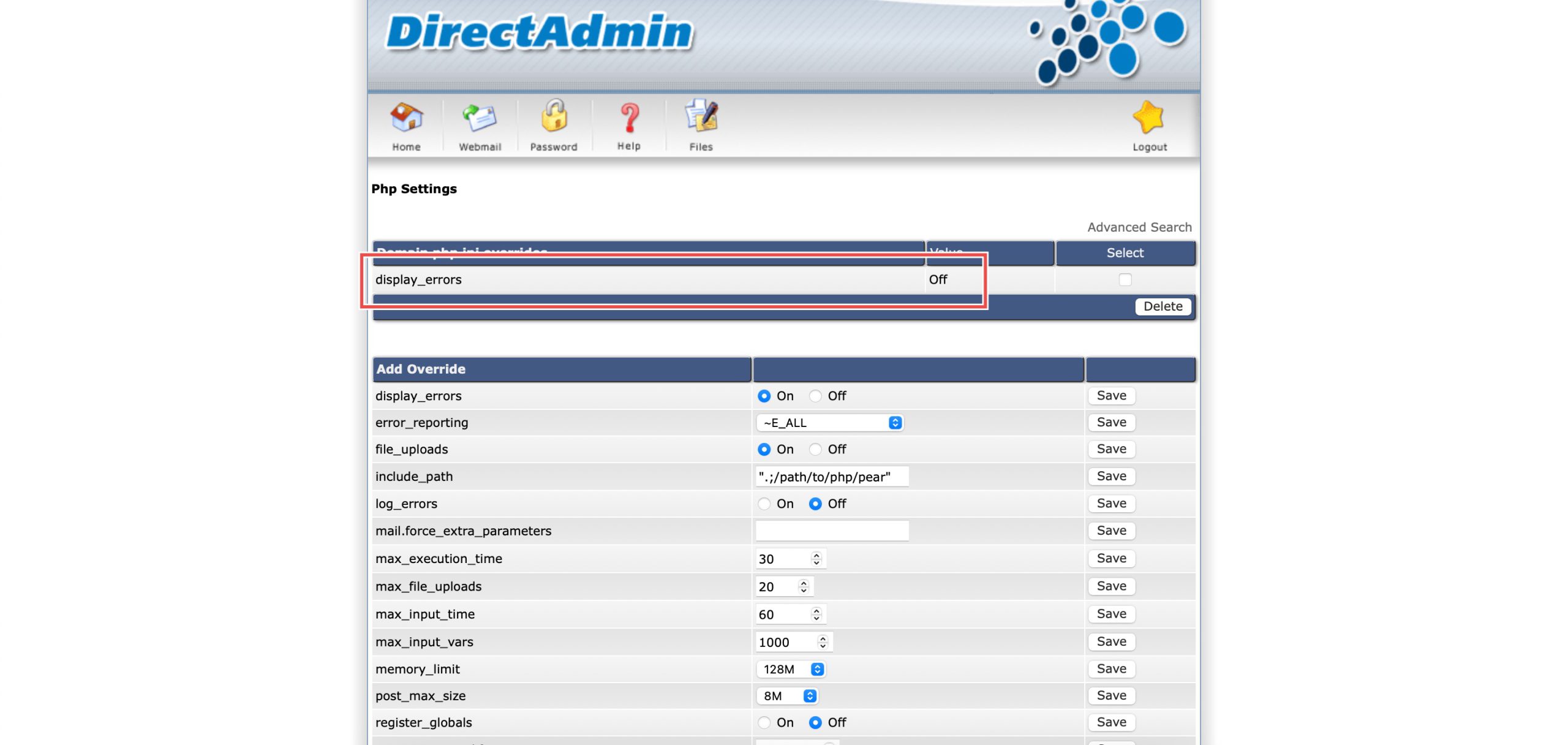
Scroll down to the Add Override section. On the display_errors row, select Off. Then, click Save on the right.
Step 4: Verify the changes
You may confirm the new override settings in the updated Domain php.ini overrides table. PHP errors will now be hidden for your website.
Conclusion
Disabling PHP error display through DirectAdmin’s PHP Settings interface is a simple process that enhances website security and professionalism. Configuring the display_errors setting to “Off” prevents sensitive error information from being visible to visitors while errors can still be logged for administrative review and troubleshooting purposes.
Should you have any inquiries about the guidelines, please feel free to open a ticket through your portal account or contact us at support@ipserverone.com. We’ll be happy to assist you further.