
Search Our Database
How to Sort Draft Emails by Subject in Roundcube Webmail
Introduction
This Knowledge Base article provides a concise, step-by-step guide on How to Sort Drafts Emails by Subject in Roundcube Webmail. Sorting drafts by subject organizes your unsent messages alphabetically based on their subject lines, making it easy to locate specific drafts and group related messages together. Use this guide when you need to find draft emails about particular topics quickly.
Prerequisite
- Access to your Roundcube Webmail login page.
Step-by-Step Guide
Step 1: Log in to Roundcube Webmail
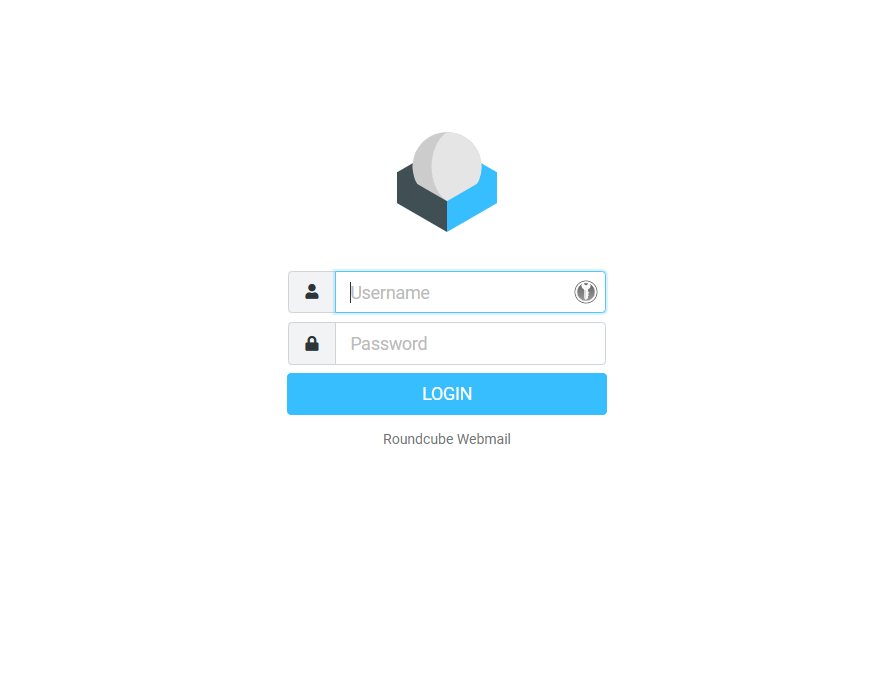
- Visit the webmail login page (e.g., https://webmail.yourdomain.com).
- Enter your email address and password, then click Login .
Step 2: Locate the Folder
- Navigate to the folder containing the email you want to sort (e.g., Drafts).

Step 3: Sort Emails by Subject
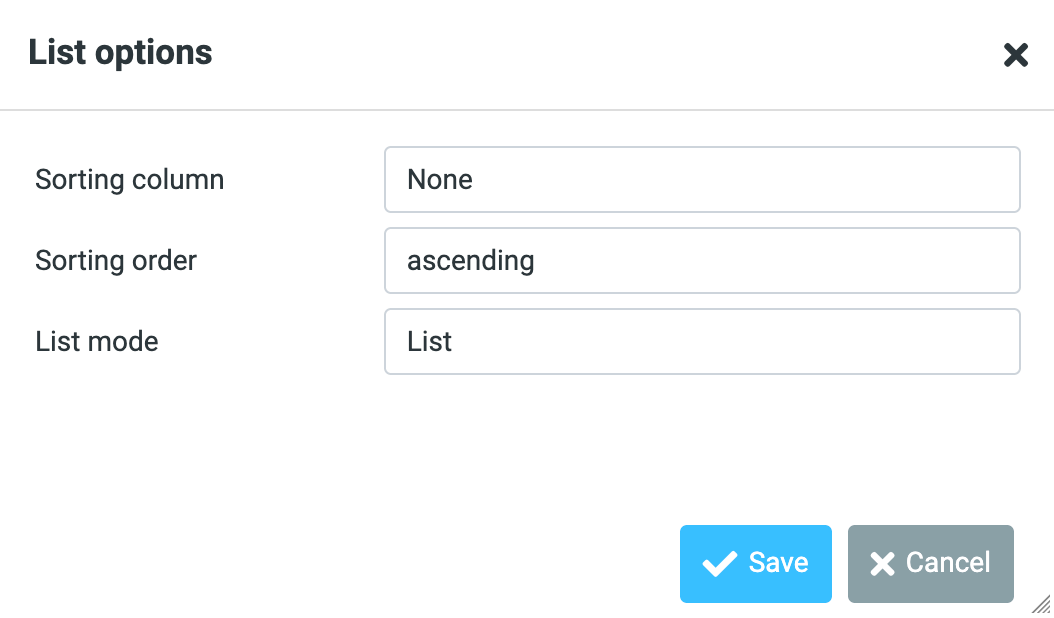
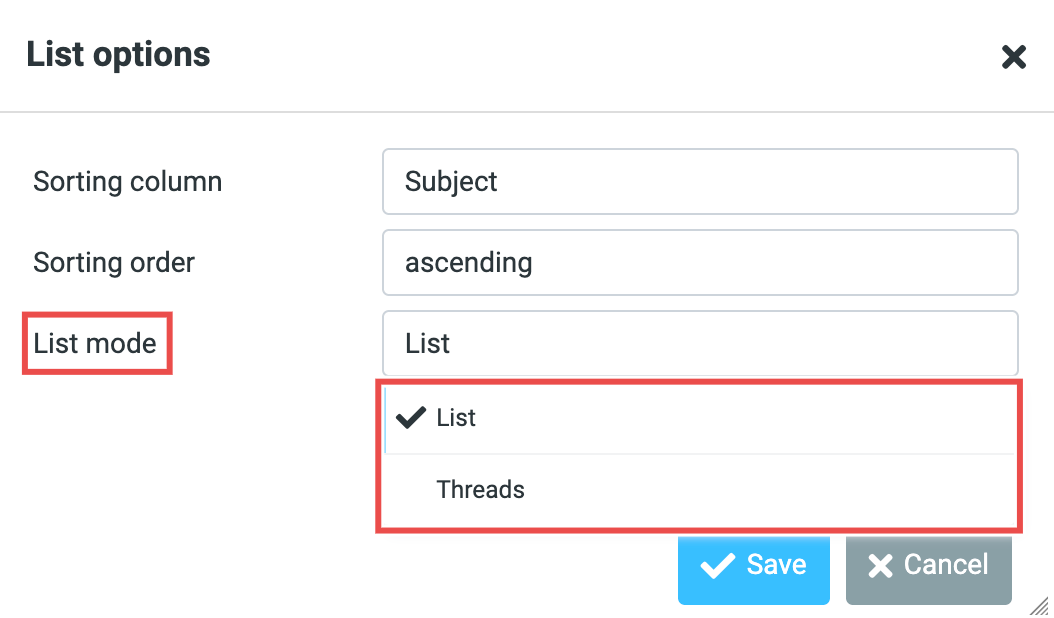
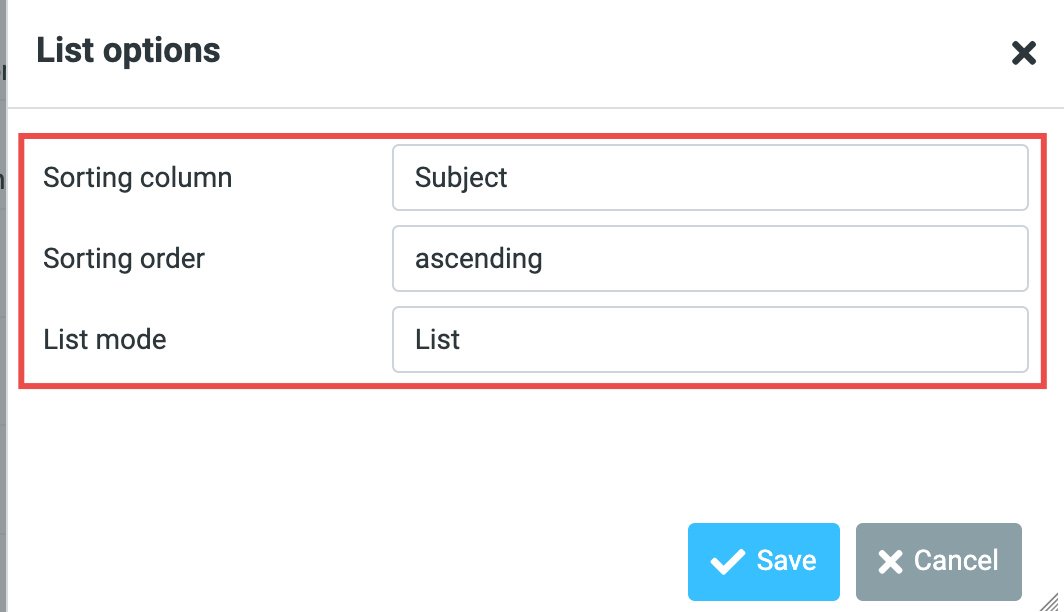
- Click Options and a pop up window will appear.
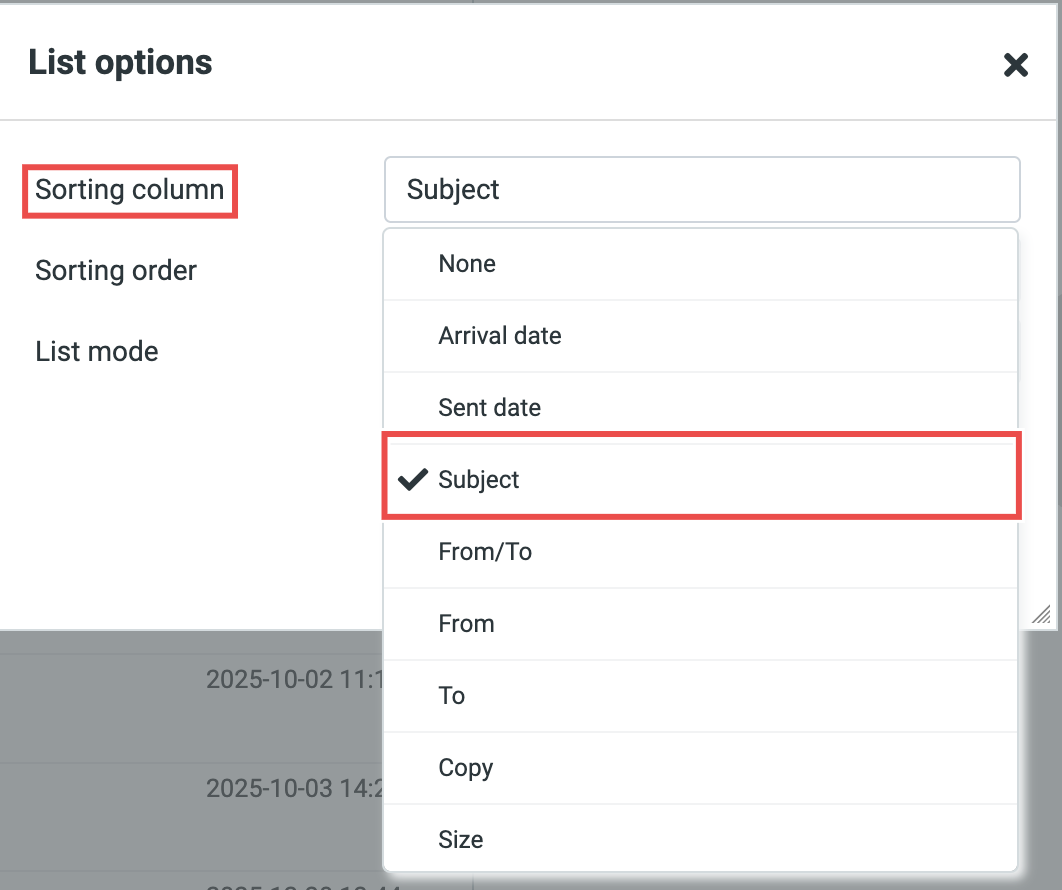
- Select Subject for the Sorting Column.
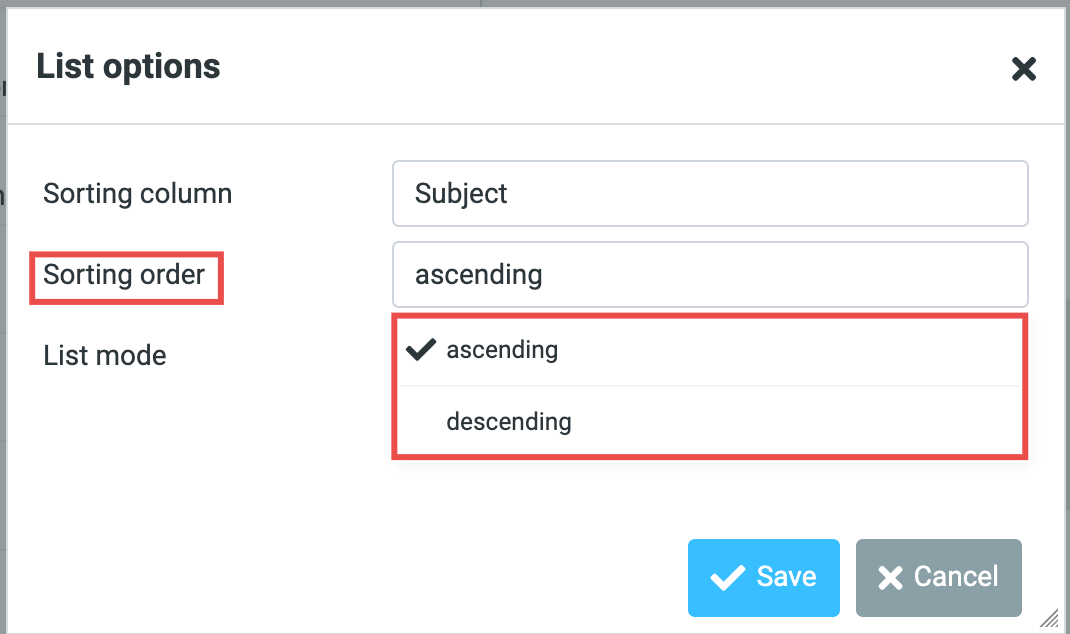
- Select either ascending or descending as you desired.
- Select either List and Threads as you desired.
⚠️ Important Note:
-
Ascending vs. Descending:
-
Ascending: A-Z, oldest to newest, smallest to largest.
-
Descending: Z-A, newest to oldest, largest to smallest.
-
-
List vs. Threads:
-
List: Shows each email separately.
-
Threads: Groups related emails into conversations.
-

Step 4: Apply the Changes
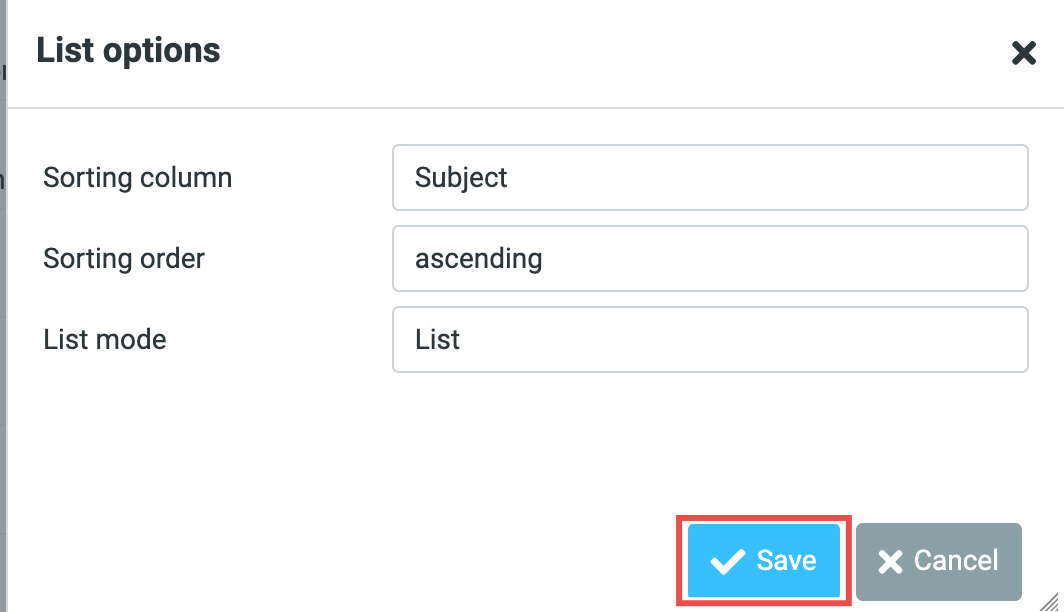
- Click Save to apply for the changes.
Step 5: Verify the Sort Order
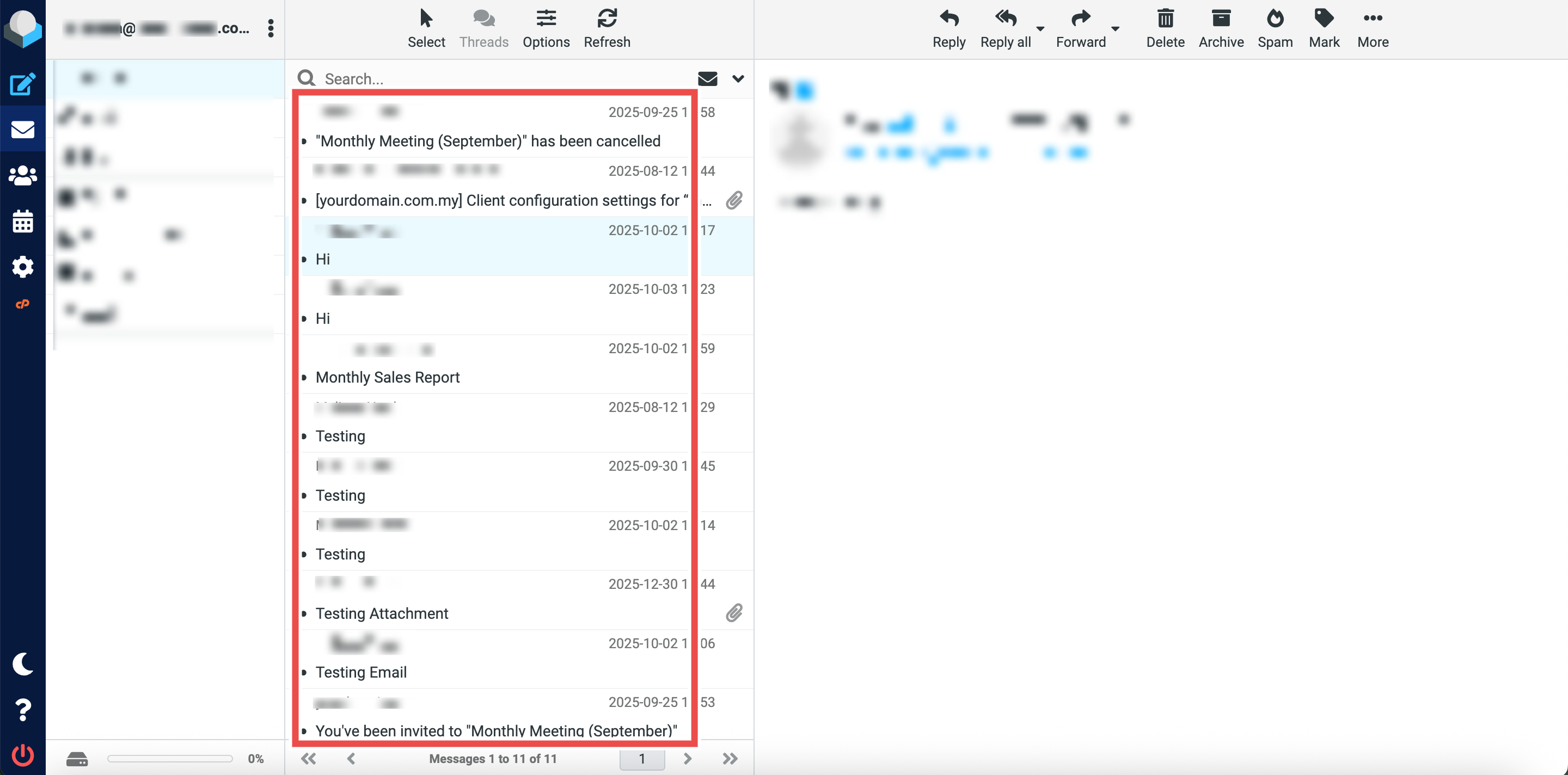
- Review your inbox email list.
- Emails should now be organized by their subject in your chosen order (ascending or descending).
- The sort order will remain active until you change it or select a different sorting option.
⚠️ Important Note:
-
Ascending order displays punctuation marks first, then numbers, then letters (A-Z).
-
Descending order reverses this sequence.
Conclusion
By following these steps, you can sort draft emails by subject in Roundcube Webmail. This sorting method helps you quickly locate specific drafts and organize unsent messages by topic, making it easier to find and complete drafts related to particular subjects or projects.
Should you encounter any issues or have any questions, our support team at IPSERVERONE is always here to assist you. Don’t hesitate to reach out to us at support@ipserverone.com for any help you need.