
Search Our Database
How to Disable Short PHP Tags in DirectAdmin (Enhanced Skin)
Introduction
PHP short open tags allow abbreviated <? syntax instead of the standard <?php opening tag, but disabling this feature improves code portability and prevents conflicts with XML declarations. Modern PHP development practices recommend using full opening tags for better compatibility across different server configurations and to avoid parsing conflicts with XML documents that use similar syntax. DirectAdmin’s PHP Settings interface provides a straightforward method for disabling short open tag support through custom PHP overrides. This guide explains how to disable short open tags using the PHP Settings section in DirectAdmin, ensuring your PHP environment follows modern coding standards and maintains better cross-platform compatibility.
Prerequisites
- Access to DirectAdmin control panel with the necessary permissions.
Step-by-step Guide
Step 1: Access DirectAdmin
Log in to your DirectAdmin control panel.

Step 2: Access PHP Settings
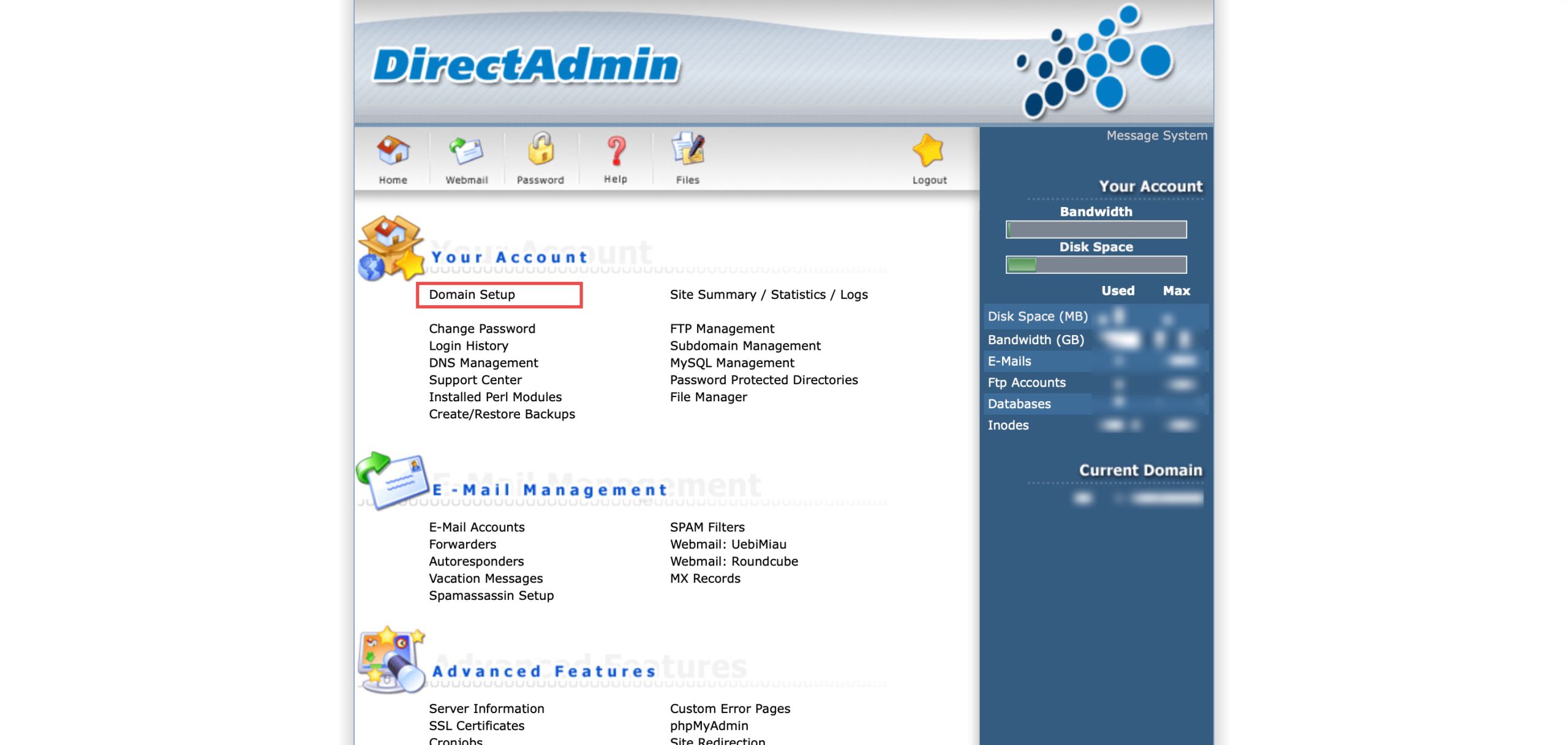
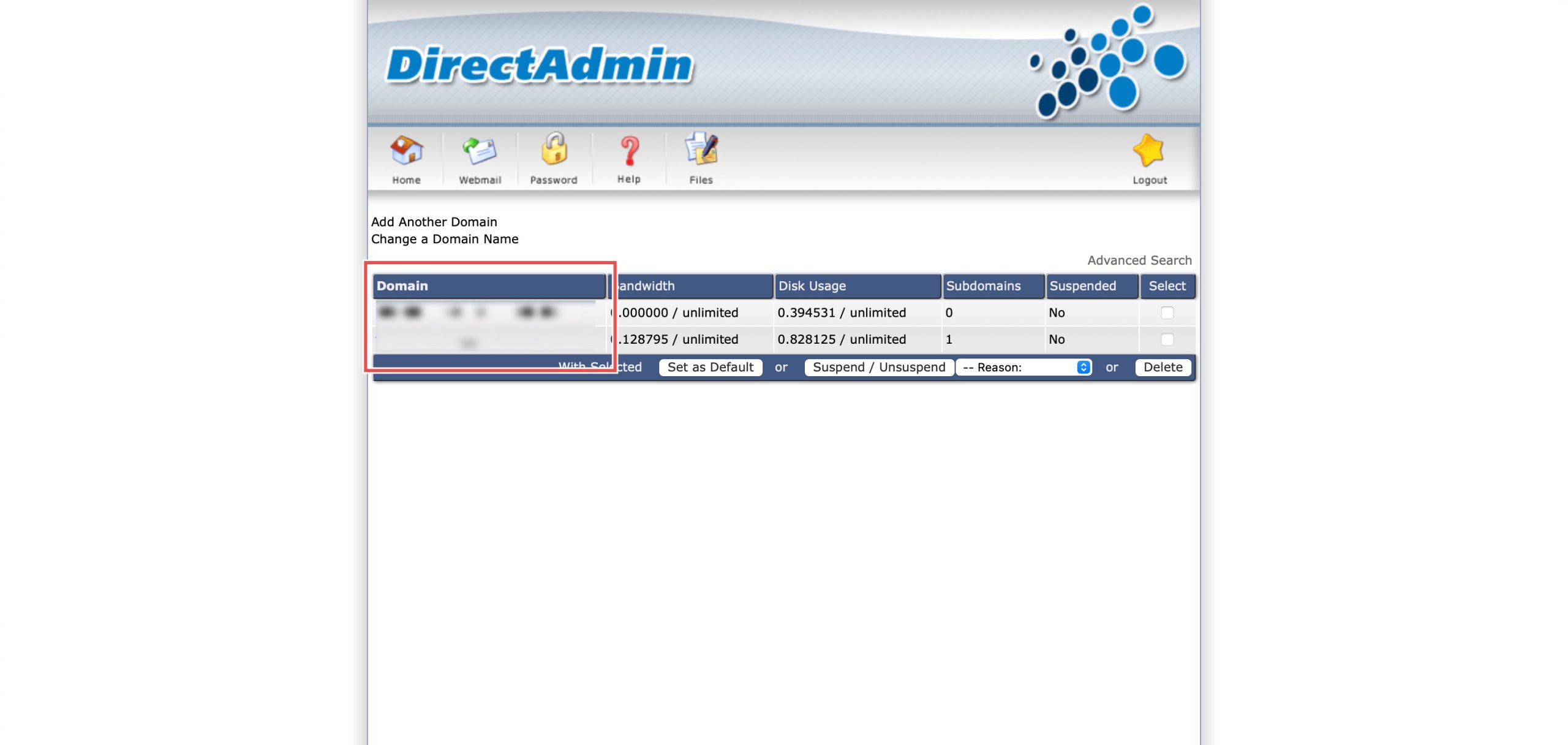
Go to the Your Account section and click on Domain Setup. Then, select the domain/subdomain you wish to modify PHP settings for by clicking on the domain/subdomain name.
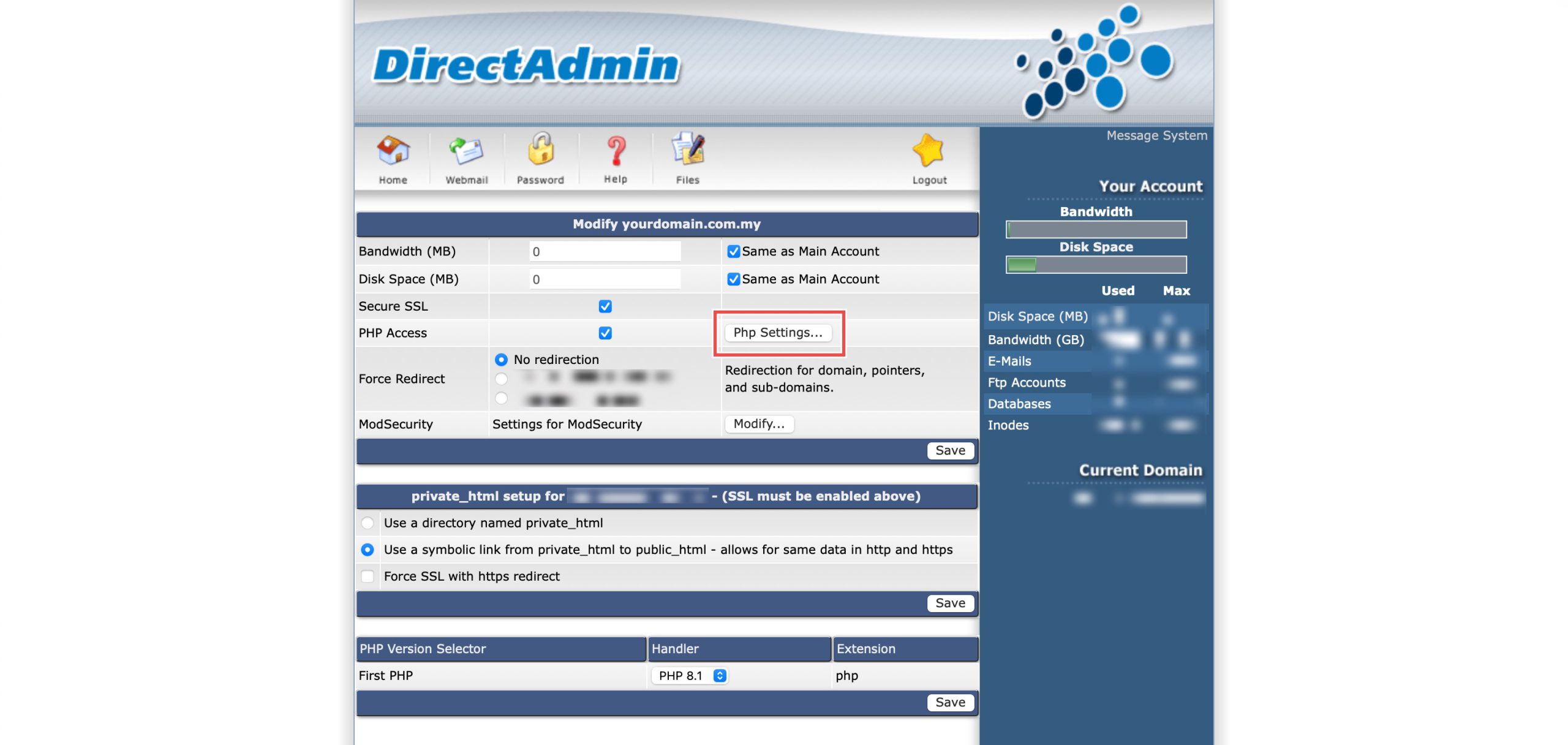
At the PHP Access row, click Php Settings…. You should be able to see a list of your current PHP configuration.
Step 3: Disable Short Tags
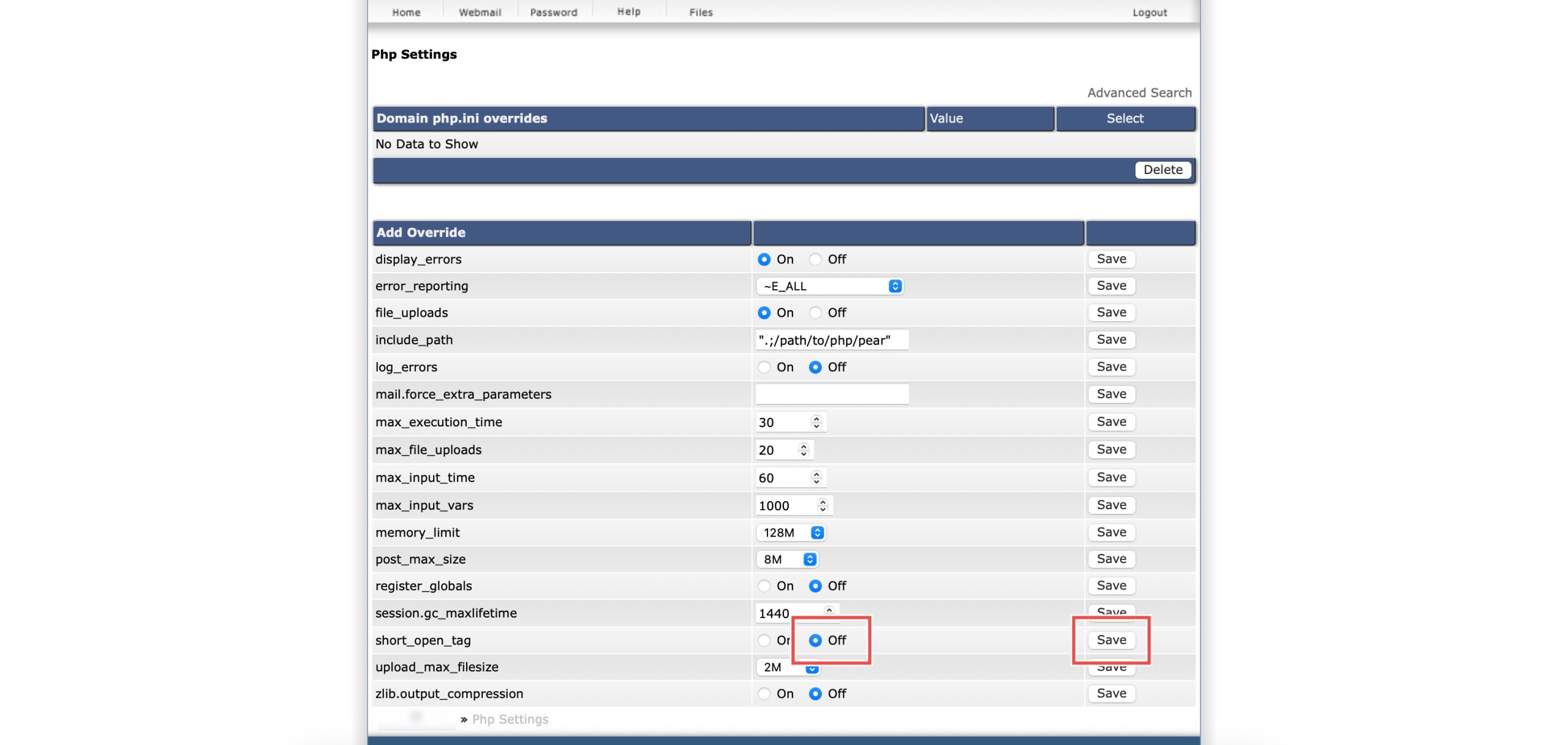
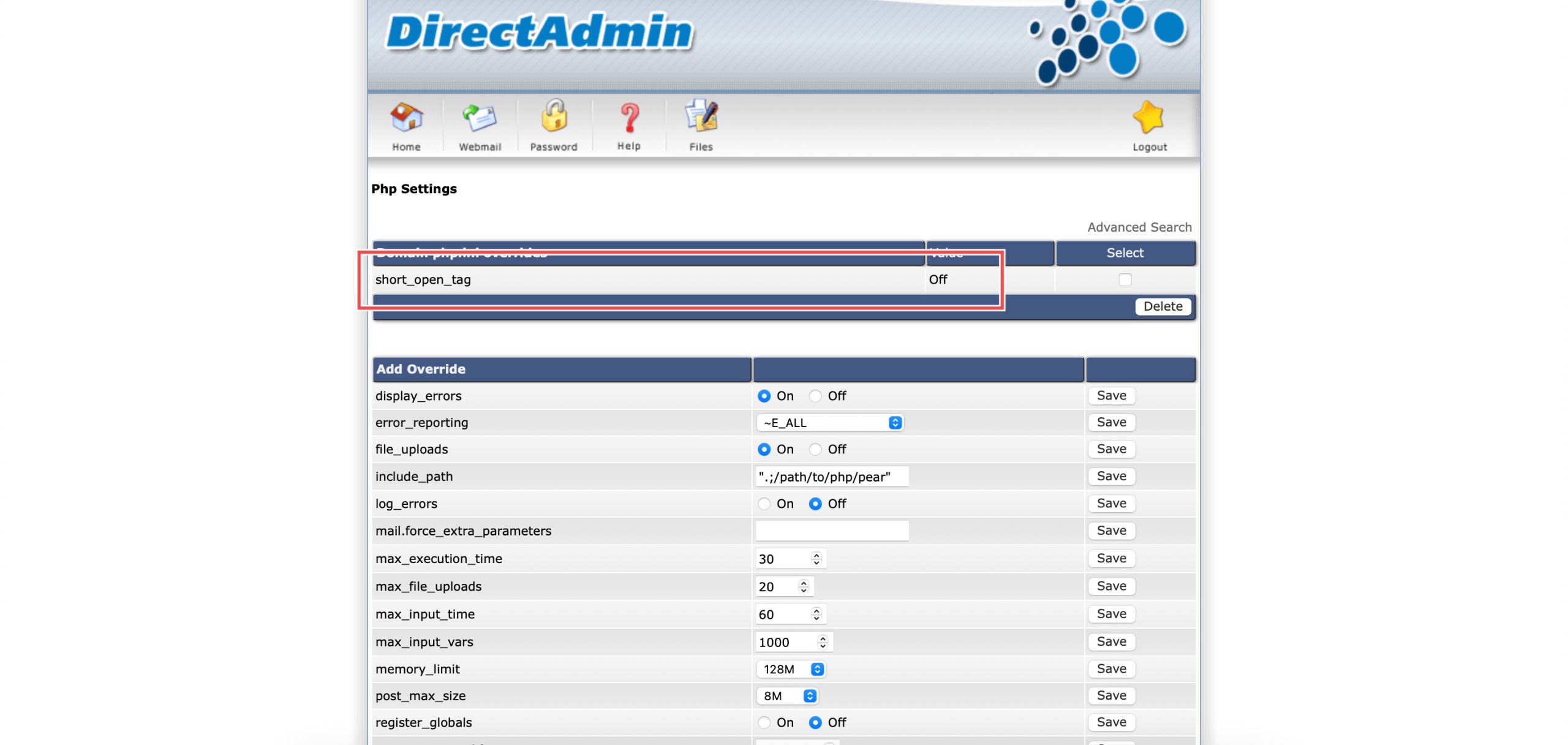
Scroll down to the Add Override section. On thet short_open_tag row, select Off. Then, click Save on the right.
Step 4: Verify the changes
You may confirm the new override settings in the updated Domain php.ini overrides table. Only full <?php tags will now work; short tags will break.
Conclusion
Disabling PHP short open tags through DirectAdmin’s PHP Settings interface is a simple process that enforces modern PHP coding standards. Turning this feature off requires full <?php opening tags throughout your code, improving portability and preventing potential conflicts with XML syntax while encouraging adherence to current PHP best practices.
Should you have any inquiries about the guidelines, please feel free to open a ticket through your portal account or contact us at support@ipserverone.com. We’ll be happy to assist you further.