
Search Our Database
How to Review Detail of My Support Ticket in Customer Portal
Introduction:
Effective communication and timely updates are vital components of a seamless cloud management experience. The IP ServerOne Customer Portal features a dedicated Help Center designed to empower users with full visibility into their technical inquiries.
Whether you need to monitor the current status of an ongoing request or review a specific solution provided by the technical team for a past issue, the portal provides a centralized interface for all support correspondences. By utilizing the “My Support Ticket” section, customers can revisit troubleshooting steps or foundational advice at any time, ensuring operational consistency across their environment.
This guide provides a professional overview of how to navigate the portal’s support interface to locate, expand, and successfully review the comprehensive details of your support tickets.
Prerequisites:
- You must be a registered user with an active account and successfully logged in to the IP ServerOne Customer Portal.
- Your account must have at least one previously submitted or ongoing support ticket.
Step-by-step Guide:
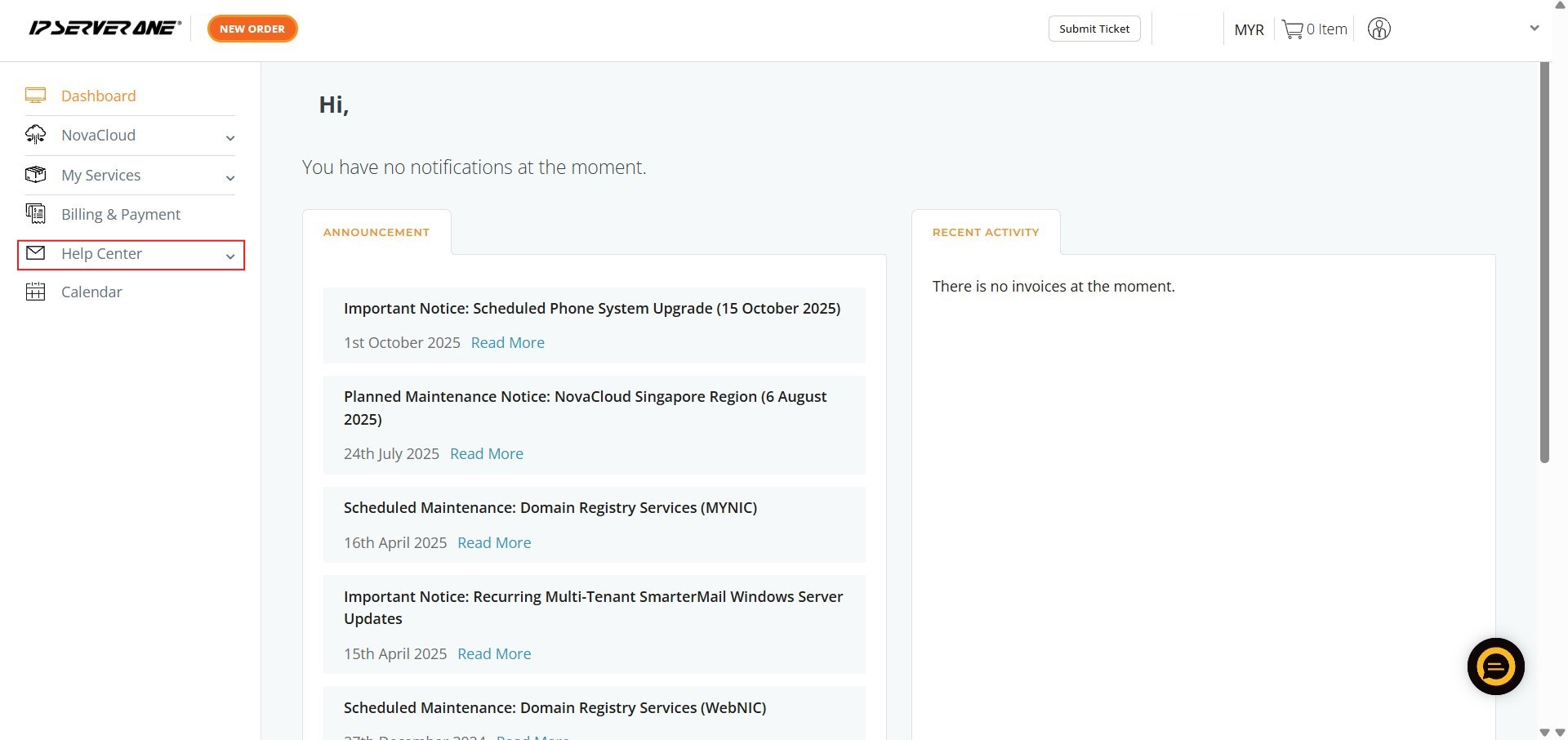
Step 1: Click Help Center
- Locate the Help Center option on the left-hand navigation menu of the portal.
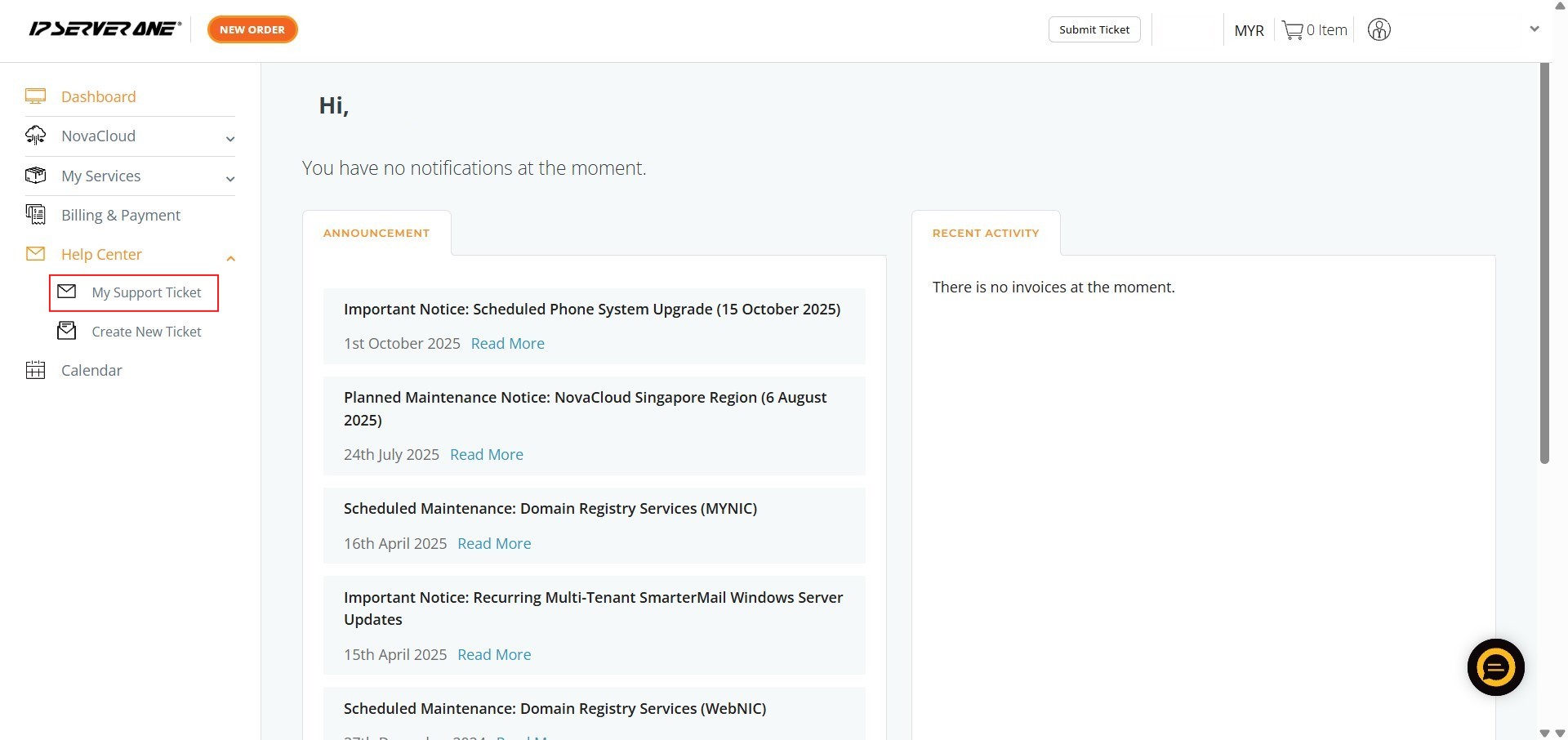
Step 2: Click My Support Ticket
- From the Help Center menu, select My Support Ticket to view your list of past and active inquiries.
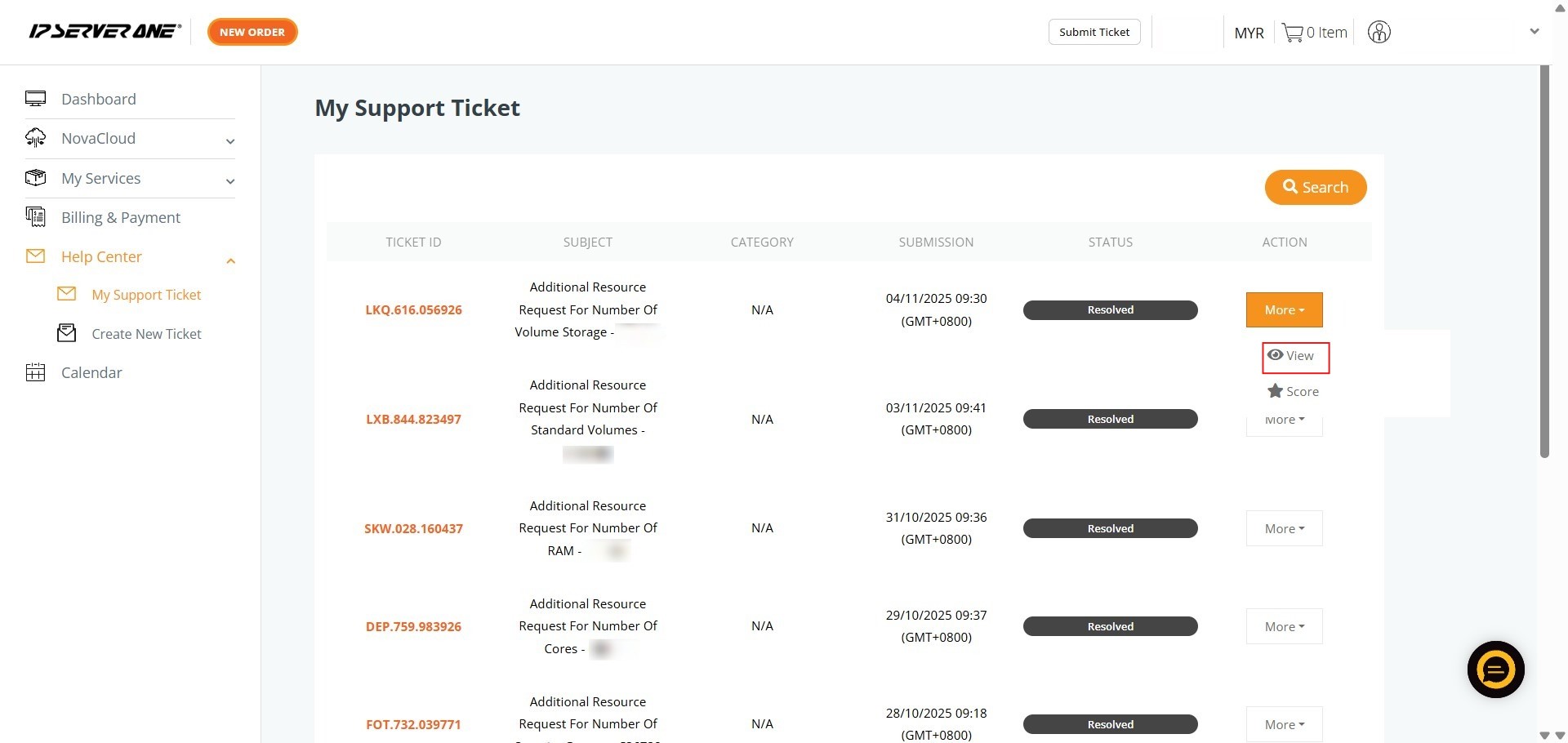
Step 3: Click More
- Find the specific ticket you wish to review and click the “more” button to expand available options.

Step 4: Click View
- Select the View option to open the full detail page of the ticket.
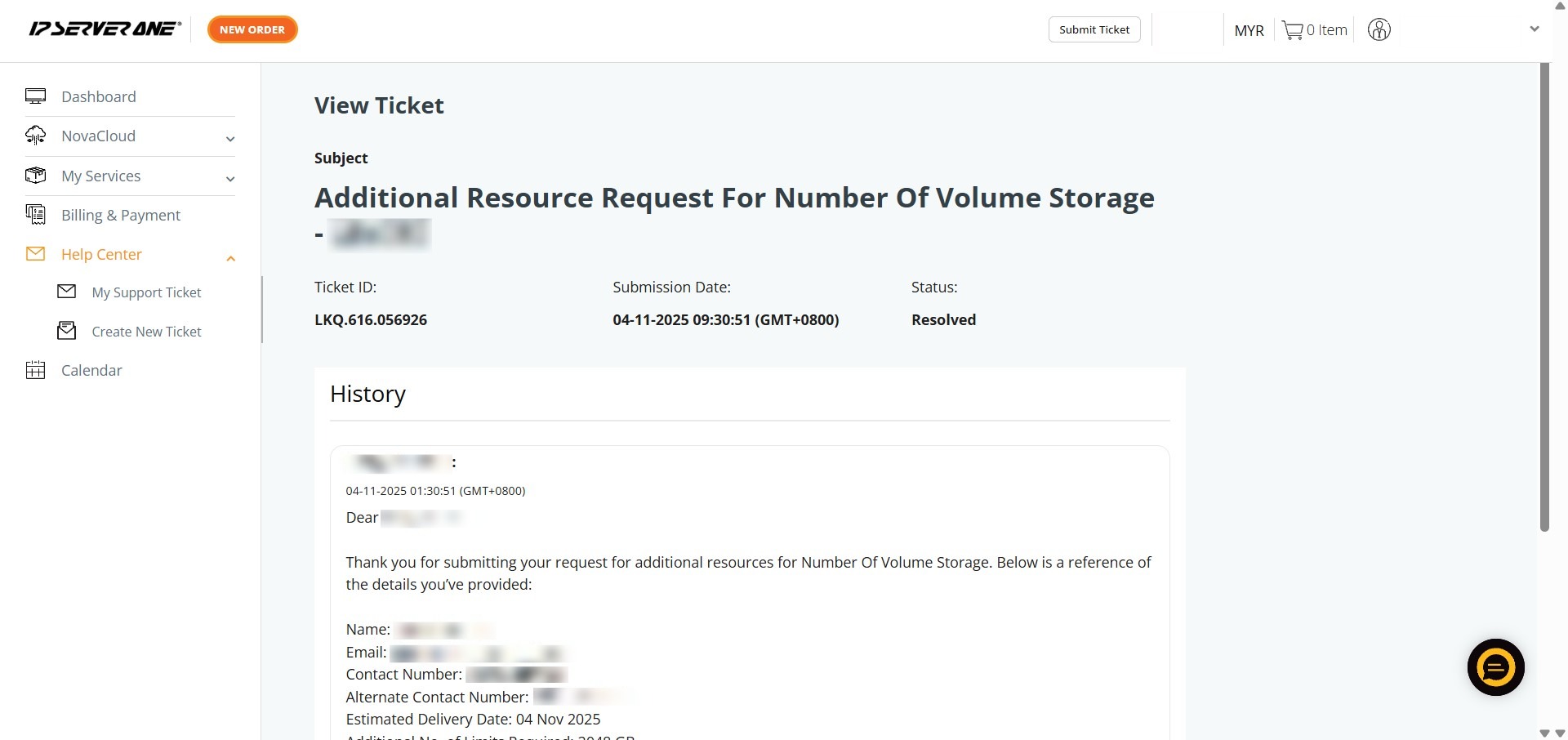
Step 5: Review Details
- Once the page loads, you can read the full conversation history and any technical solutions provided.
Conclusion:
By following the outlined steps, you have successfully utilized the Help Center within the Customer Portal to locate and review the comprehensive details of your support inquiries. Just as deploying a Redis-enabled instance requires monitoring the “All Cloud Instances” section for status updates, the “My Support Ticket” interface ensures you have full visibility into the progress and historical solutions of your technical requests.
To ensure you get the most out of the support interface, keep the following points in mind:
- Historical Reference: Reviewing past ticket details is an efficient way to revisit specific troubleshooting steps or foundational advice provided by the technical team, ensuring operational consistency across your environment.
- Comprehensive Visibility: By clicking “View” through the “More” dropdown menu, you gain access to the complete conversation history and finalized solutions for any given issue.
- Centralized Tracking: Whether your inquiry was initiated via the portal or the 24×7 hotline, all records are consolidated here to maintain a reliable audit trail of your technical interactions.
If you are unable to find a specific record or require immediate assistance with a new matter, please reach out to the IP ServerOne support team at support@ipserverone.com.