
Search Our Database
How to Modify Maximum Input Variables in DirectAdmin (Evolution Skin)
Introduction
PHP max input vars defines the maximum number of input variables accepted in a single request, and adjusting this limit is essential for applications with complex forms or extensive data submissions. Large forms with numerous fields, bulk editing interfaces, or applications with complex menu systems may exceed default input variable limits, causing data truncation or submission failures. DirectAdmin’s PHP Settings interface provides a straightforward method for configuring input variable limits through custom PHP overrides. This guide explains how to modify max input vars using the Account Manager > PHP Settings section in DirectAdmin, ensuring your applications can handle complex forms and extensive data submissions while maintaining protection against hash collision attacks.
Prerequisites
- Access to DirectAdmin control panel with the necessary permissions.
Step-by-step Guide
Step 1: Access DirectAdmin
Log in to your DirectAdmin control panel.

Step 2: Access PHP Settings
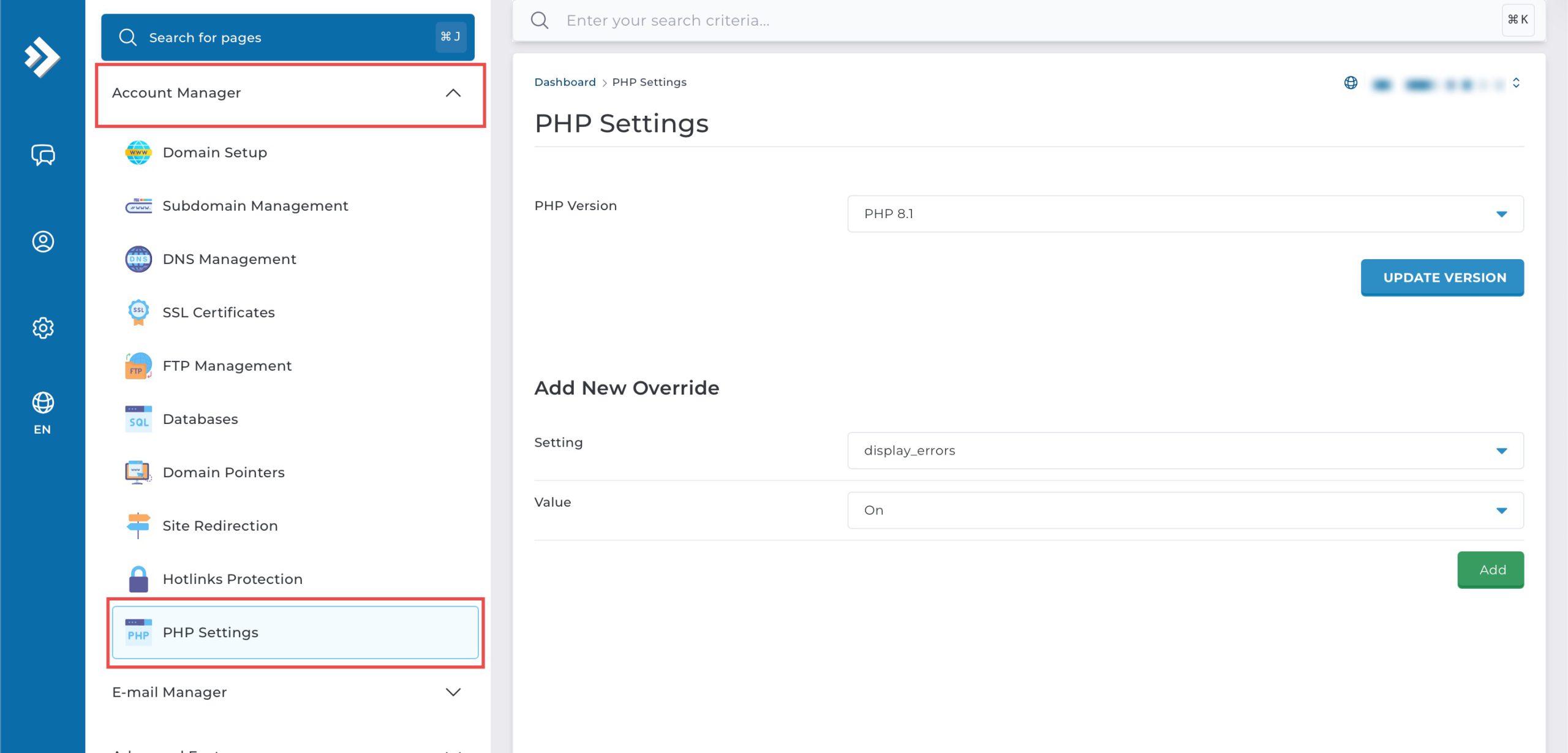
Go to the Account Manager section and click on PHP Settings.
Step 3: Modify Max Variable Input
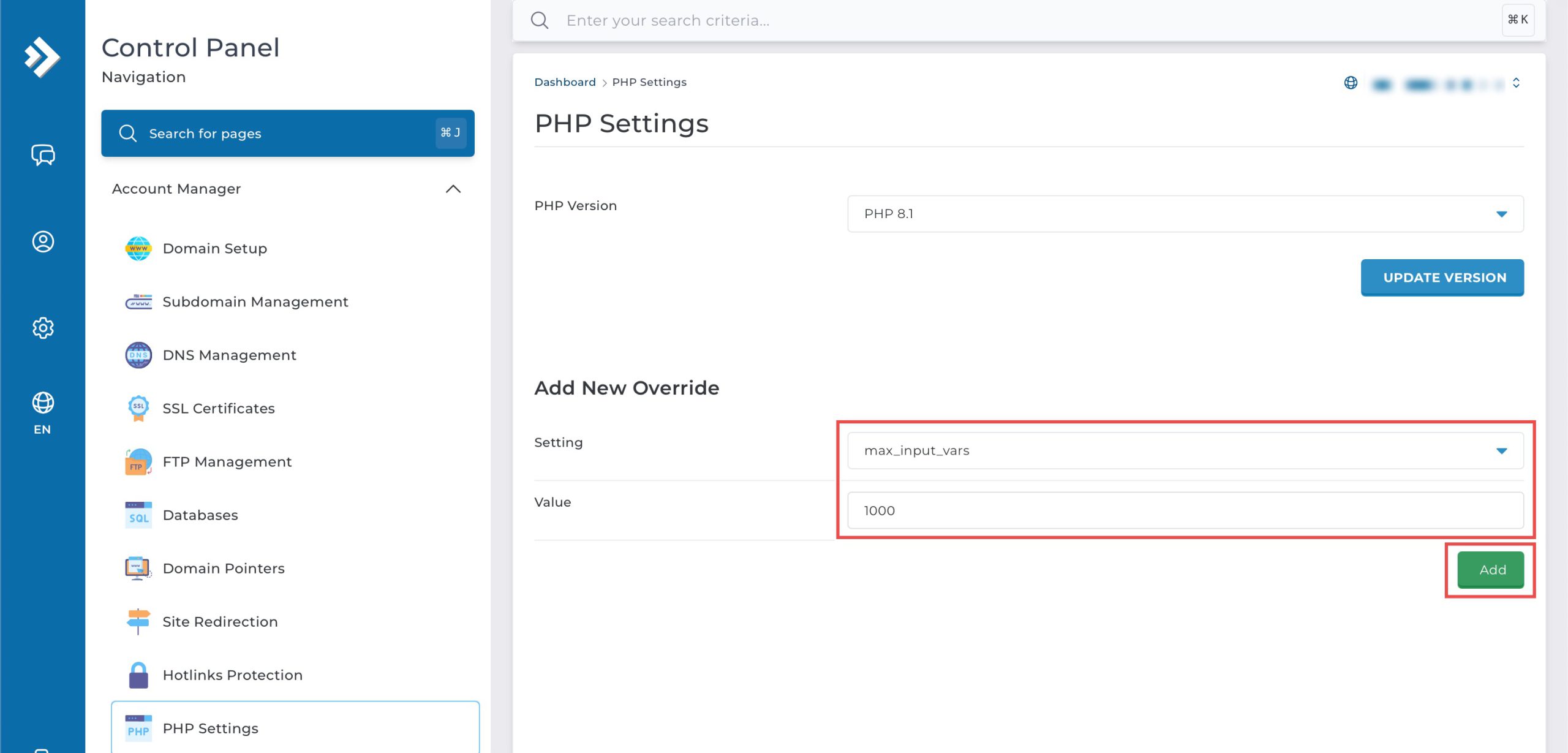
Scroll down to the Add New Override section. From the Setting drop-down menu, select max_input_vars. In the Value field, you may enter the maximum number of input variables accepted per request, preventing hash collision attacks.
Then, click Add on the bottom right.
Tips: If your website is “cutting off” data at the end of a long form or menu list, increasing this value to 3000 or 5000 might solve the problem.
Step 4: Verify the changes
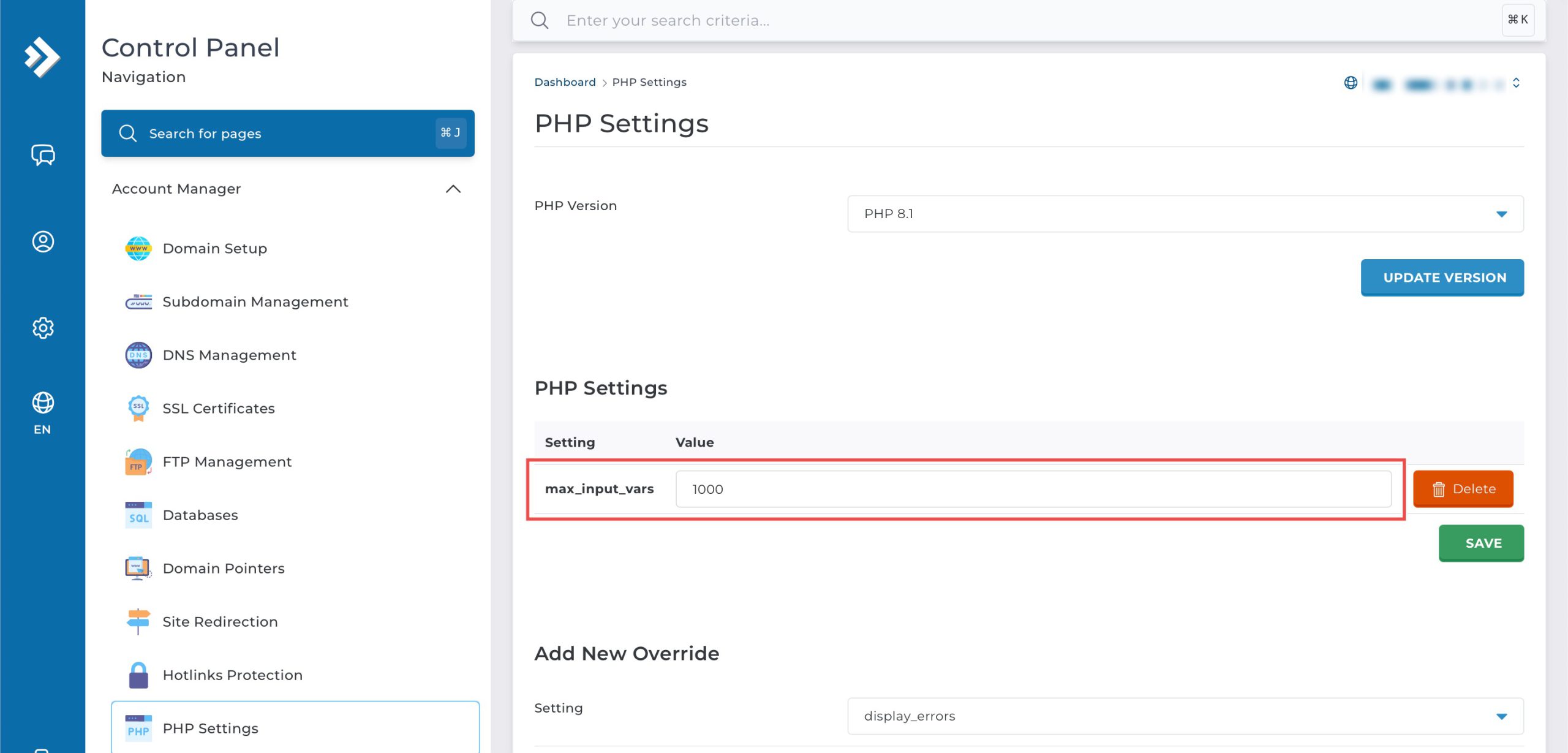
You may confirm the new override settings in the updated PHP Settings table.
Conclusion
Configuring PHP max input vars through DirectAdmin’s PHP Settings interface is a simple process that controls how many input variables can be processed per request. Adjusting this limit enables your applications to handle complex forms and extensive data submissions without truncation, ensuring all submitted information is properly received and processed by your PHP scripts.
Should you have any inquiries about the guidelines, please feel free to open a ticket through your portal account or contact us at support@ipserverone.com. We’ll be happy to assist you further.