
Search Our Database
How to Create a New NovaCloud Volume from an Existing Snapshot in Customer Portal
Introduction:
Efficiency in data management is a cornerstone of a reliable cloud environment. NovaCloud empowers users to protect their information and maintain business continuity by providing streamlined tools for persistent storage management within the IP ServerOne Customer Portal.
One of the most effective ways to manage data recovery or environment replication is by creating a new storage volume from an existing snapshot. This process allows you to provision a highly available volume that is pre-populated with data from a specific point-in-time recovery state, rather than starting with an empty disk. This functionality is particularly useful for restoring instances in the event of an issue or reverting unwanted changes to a system.
This guide provides a professional walkthrough of the steps required to navigate the NovaCloud Volumes section, select a desired snapshot source, and successfully initiate the creation of a new, billed storage resource.
Volume charges are based on hourly usage. Charging for your newly created Storage Volume begins immediately upon successful creation of the volume. It is important to note that you will continue to be charged for any volumes as long as they exist, even if they are not currently attached to a running instance. To cease charges for the volume, ensure it is permanently deleted from your account.
Prerequisites:
- Active Customer Portal Account and Subscription.
- Sufficient Account Credit
- Acknowledge Billing Structure
- You must have at least one existing snapshot available in your account.
Step-by-step Guide:
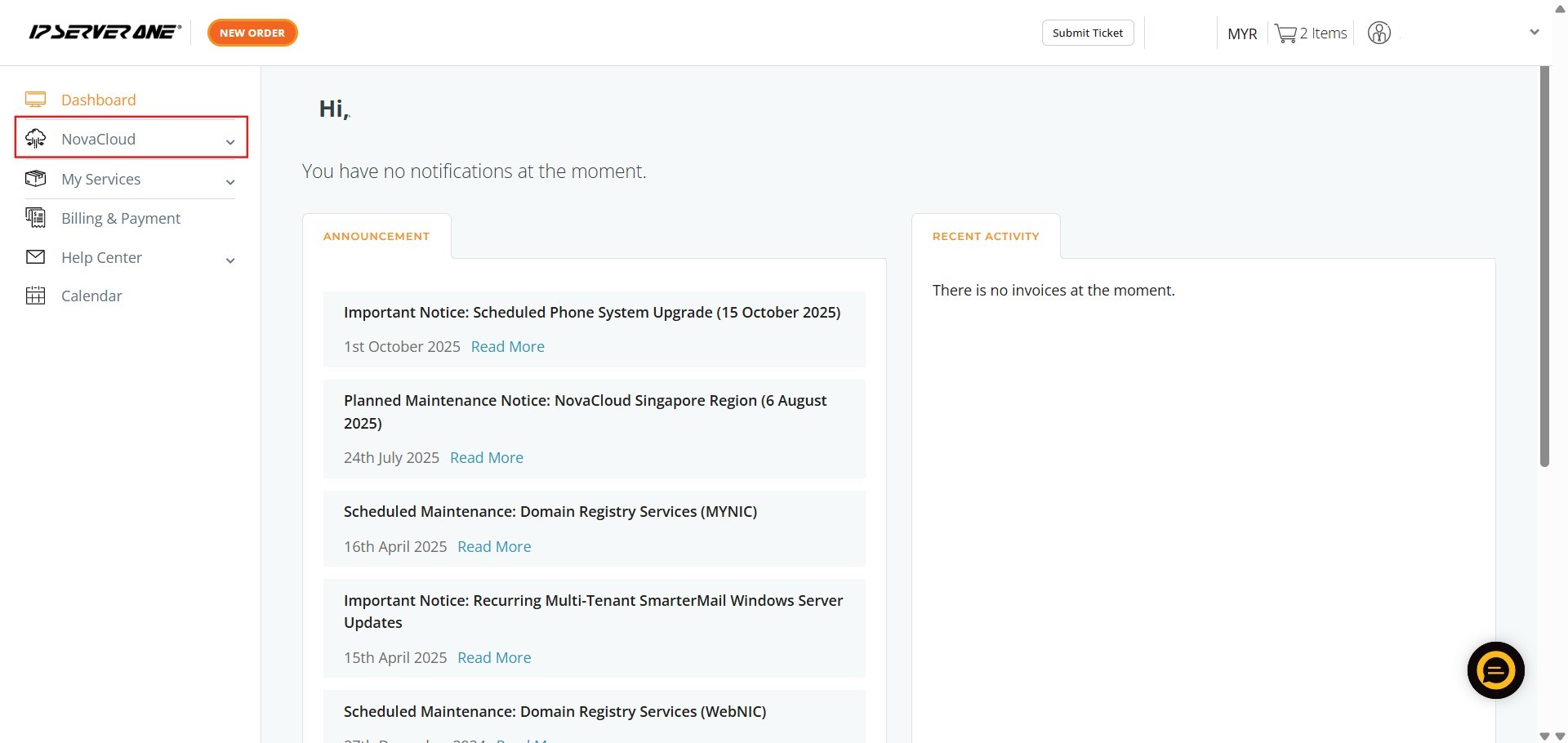
Step 1: Click NovaCloud
- Locate and click on the NovaCloud menu item in the left-hand navigation panel.
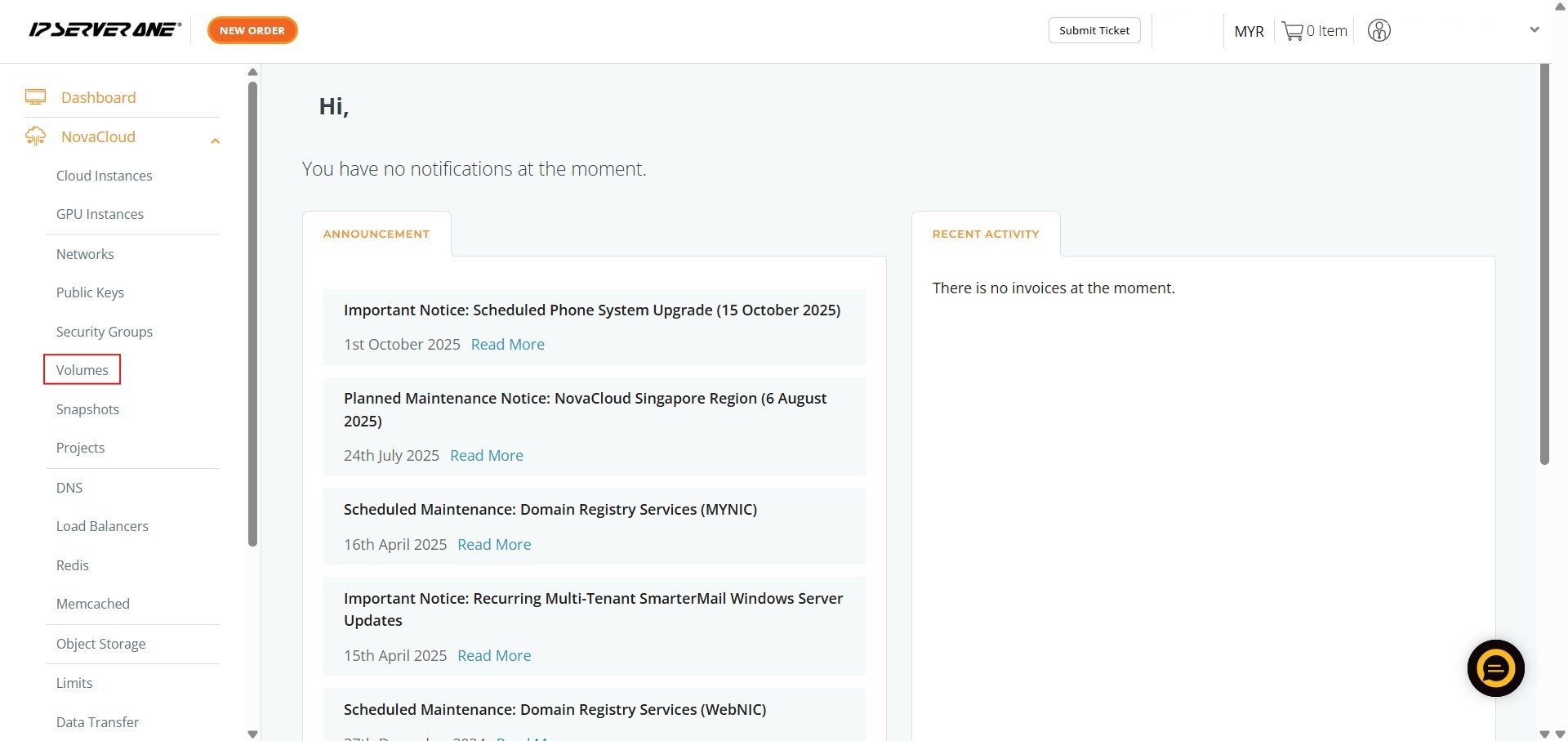
Step 2: Click Volume
- In the NovaCloud sub-menu, click on Volumes to access the storage management section.
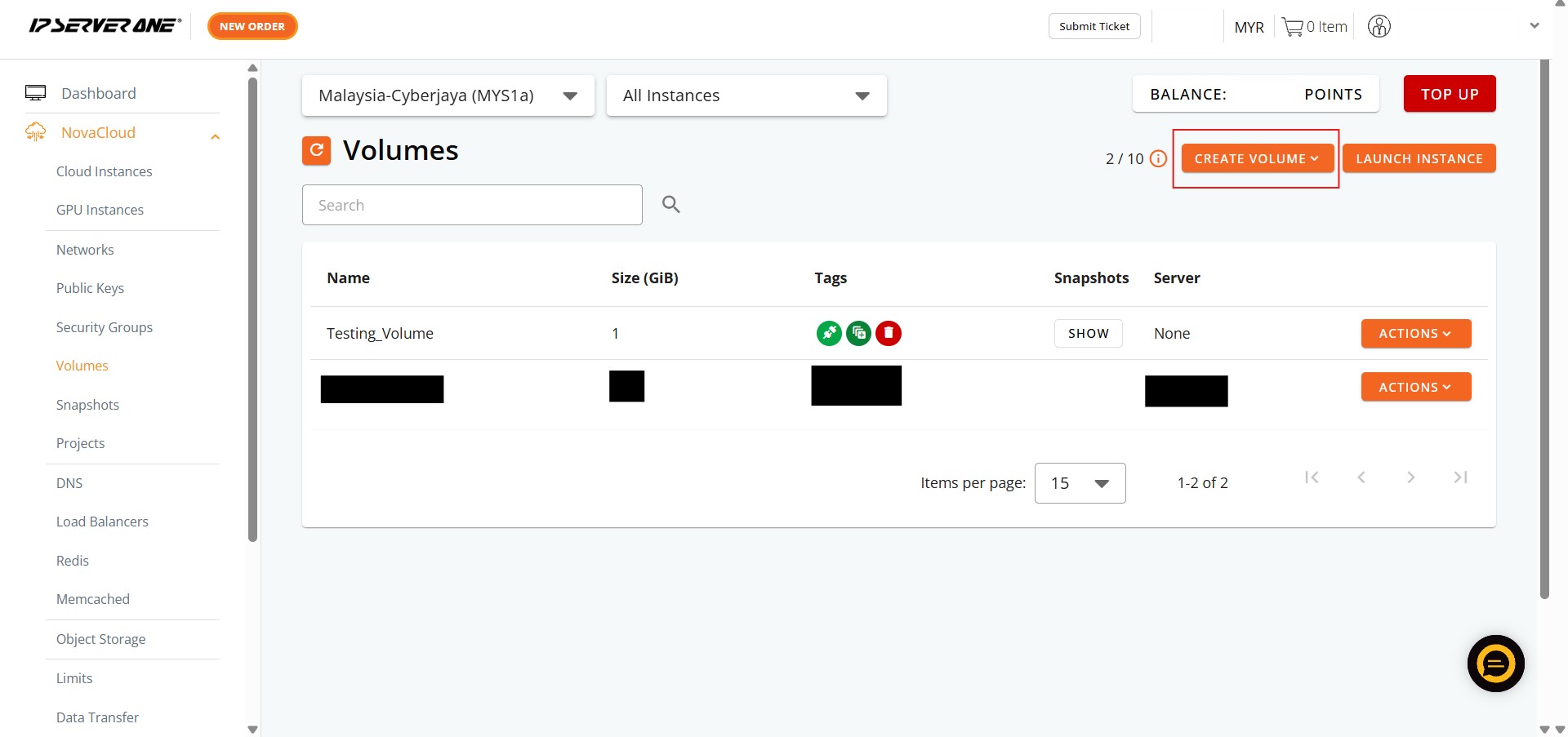
Step 3: Click Create Volume
- On the Volumes page, initiate the provisioning process by clicking the Create Volume button.
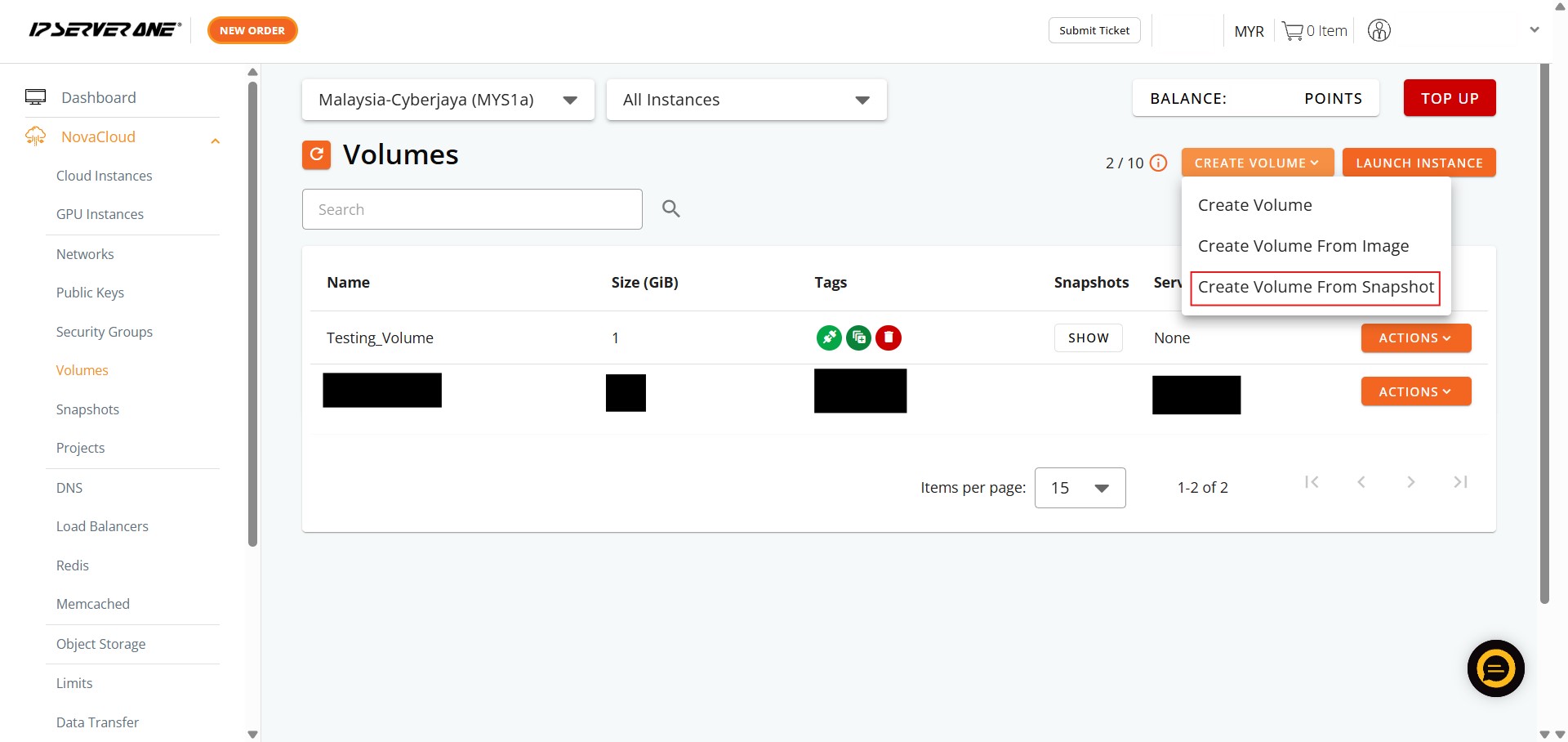
Step 4: Click Create Volume From Snapshot
- Select the option to Create Volume From Snapshot.
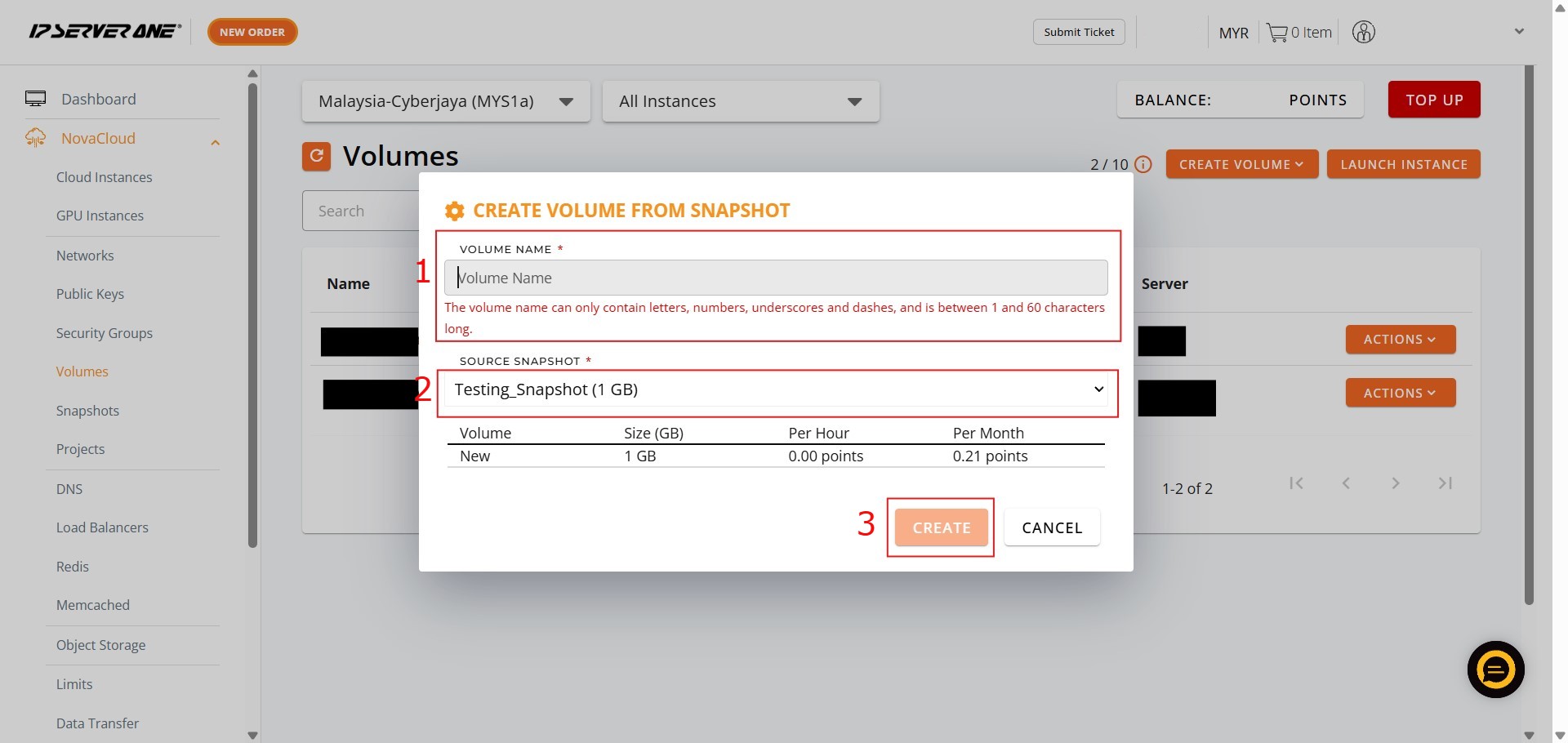
Step 5: Enter Details and Click Create
- Input the Volume Name
- Select the Source Snapshot
- Specify the Volume Size
- Click Create.
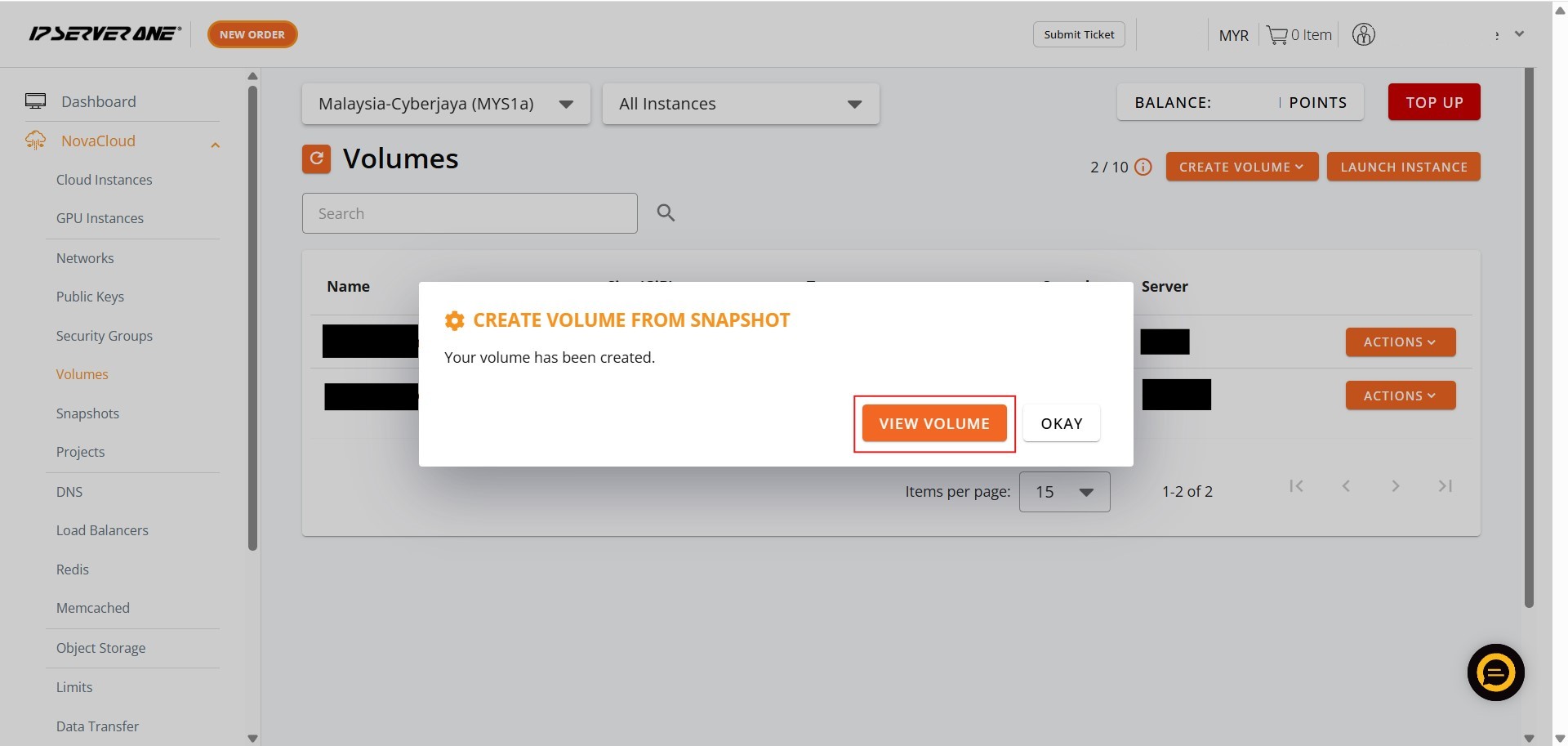
Step 6: Click View Volume
- After submitting the creation request, click the View Volume button to navigate to the volume list.
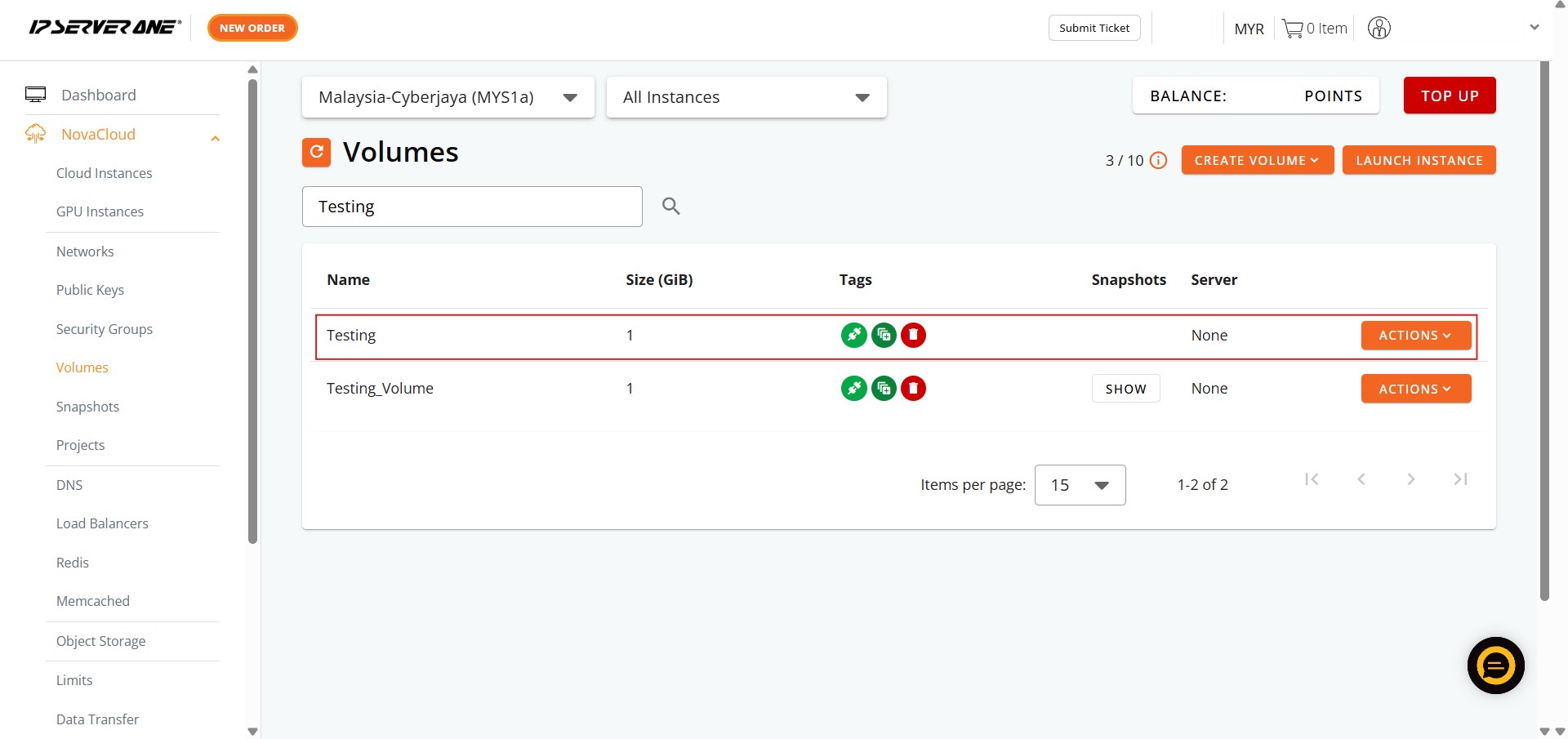
Step 7: Success
- Verify that your newly created volume appears in the list, confirming the initiation of the provisioning process.
Conclusion:
By following the steps outlined in this guide, you have successfully utilized the IP ServerOne Customer Portal to provision a new storage volume from a recovery point. This process involved navigating the NovaCloud menu and selecting the Create Volume From Snapshot option within the Volumes section. This functionality is essential for restoring instances or reverting unwanted changes by deploying a volume identical to a specific point-in-time recovery state.
During this process, you ensured the Volume Name adhered to naming standards (containing only letters, numbers, underscores, or dashes and being 1 to 60 characters long) and that the Volume Size was at least 1 GB and met or exceeded the original disk’s requirements.
It is important to remember that:
- Billing commences immediately upon the creation of the volume.
- Charges are applied on an hourly basis for as long as the volume exists in the portal, even if it is not attached to a cloud instance.
- Provisioning success can be confirmed by clicking View Volume and checking your active resources list.
If you encounter any difficulties during the provisioning process or have questions regarding your cloud storage, please reach out to the technical support team at support@ipserverone.com.