
Search Our Database
How to Disable Email Notifications for System Messages in DirectAdmin (Evolution Skin)
Introduction
System message email notifications keep you informed of account activities through your inbox, but there are situations where disabling these forwarded alerts becomes necessary. Reducing email volume, preventing notification overload, or preferring to check messages directly in the control panel may require turning off email copies of system messages. DirectAdmin’s Message System interface provides a straightforward option for disabling email notification forwarding while keeping messages accessible within the control panel. This guide explains how to disable email notifications using the Message System options in DirectAdmin, giving you control over how you receive system alerts and reducing inbox clutter.
Prerequisites
- Access to DirectAdmin control panel with the necessary permissions.
Step-by-step Guide
Step 1: Access DirectAdmin
Log in to your DirectAdmin control panel.

Step 2: Access System Messages
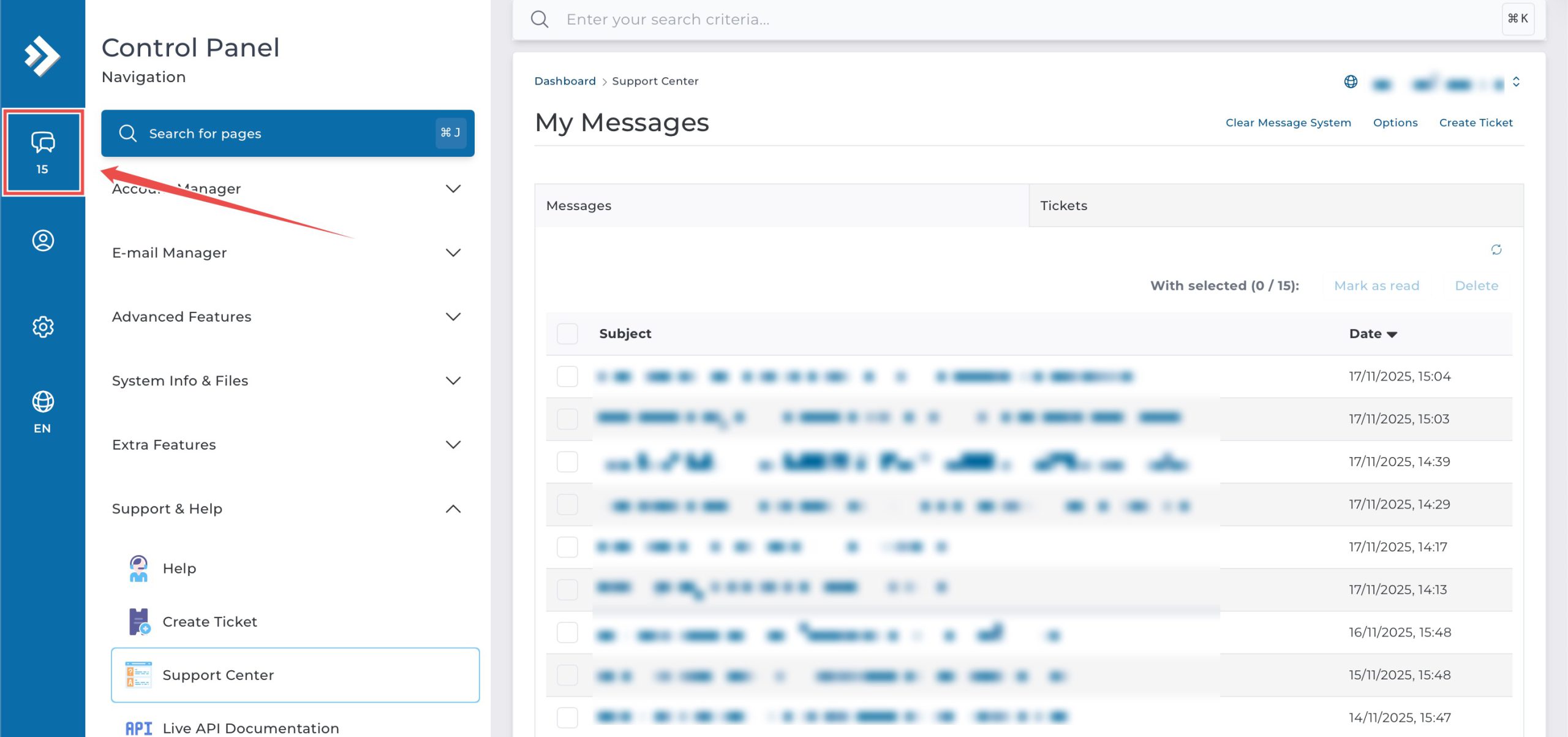
On the top left, click on the System Message icon.
Step 3: Disable Email Notifications
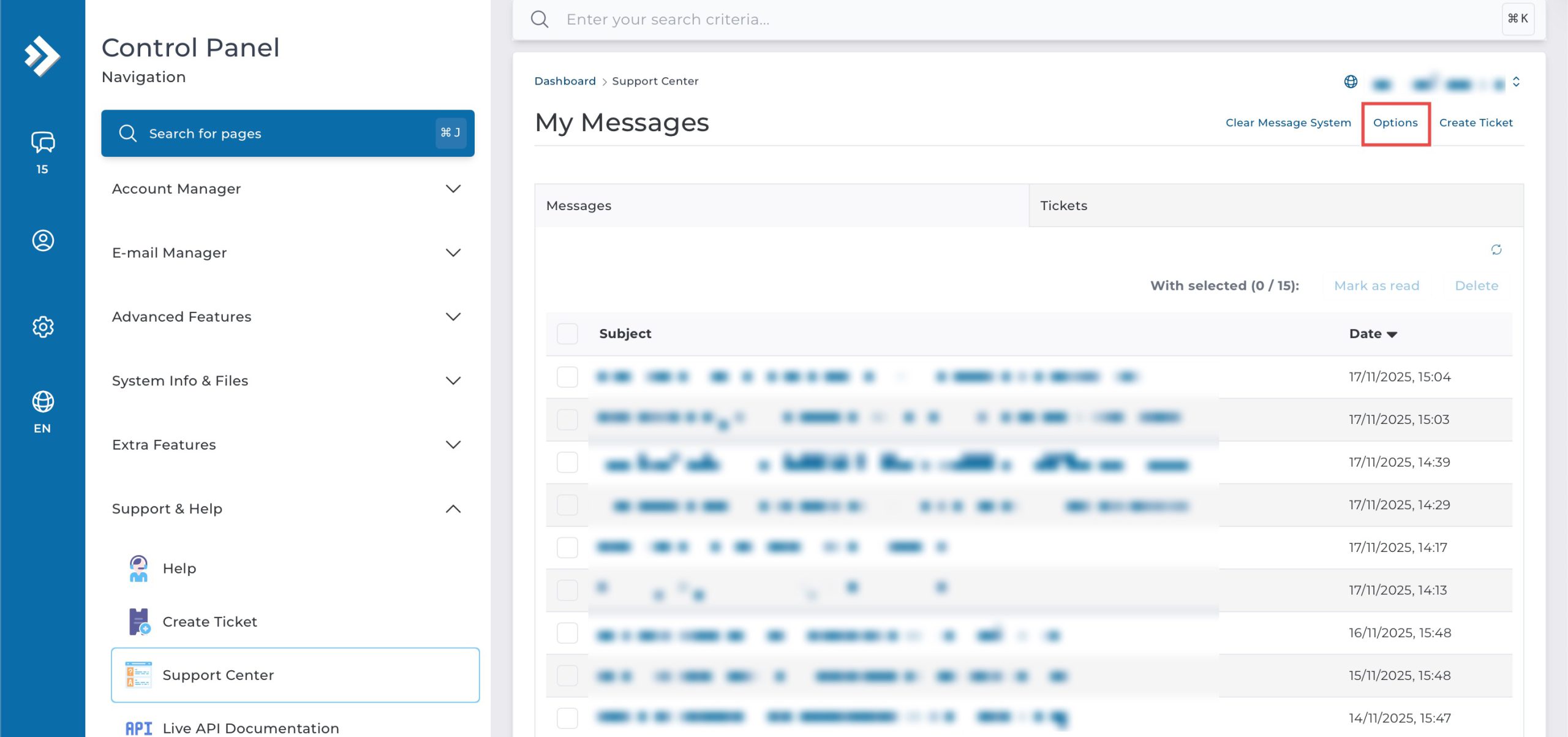
Click on Options at the top. On the pop-up window, uncheck the E-mail a copy of all messages box. Then, click Save.
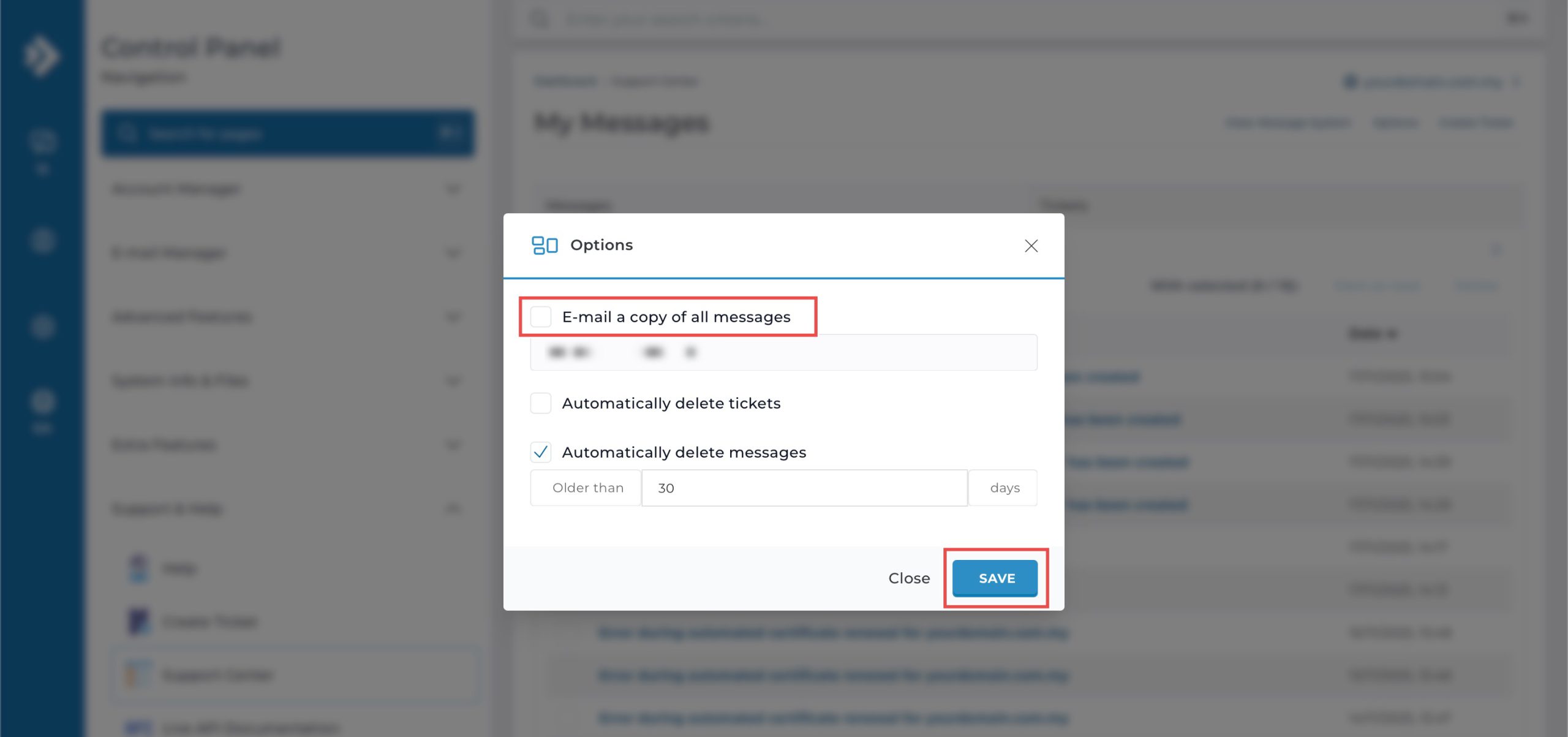
All system messages will no longer be forwarded to an email address.
Conclusion
Disabling email notifications through DirectAdmin’s Message System interface is a simple process that stops forwarding copies of system messages to your inbox. Turning off email alerts reduces notification volume while system messages remain accessible within the control panel for review when you’re actively managing your account.
Should you have any inquiries about the guidelines, please feel free to open a ticket through your portal account or contact us at support@ipserverone.com. We’ll be happy to assist you further.