
Search Our Database
How to Download a Email Filters Backup Using cPanel
Introduction
This Knowledge Base article provides a concise, step-by-step guide on How to Download a Email Filters Backup Using cPanel. Email filters help you automatically organize, sort, and manage incoming emails based on specific criteria such as sender, subject line, or content. Backing up your email filter configurations ensures you can restore your email management rules if they are accidentally deleted or need to be migrated to another account.
Prerequisite
- Access to your cPanel login page.
- Sufficient disk space available for the backup file.
Step-by-Step Guide
Step 1: Log in to cPanel
- Access and log in to your cPanel account using your username and password.

Step 2: Open Backup
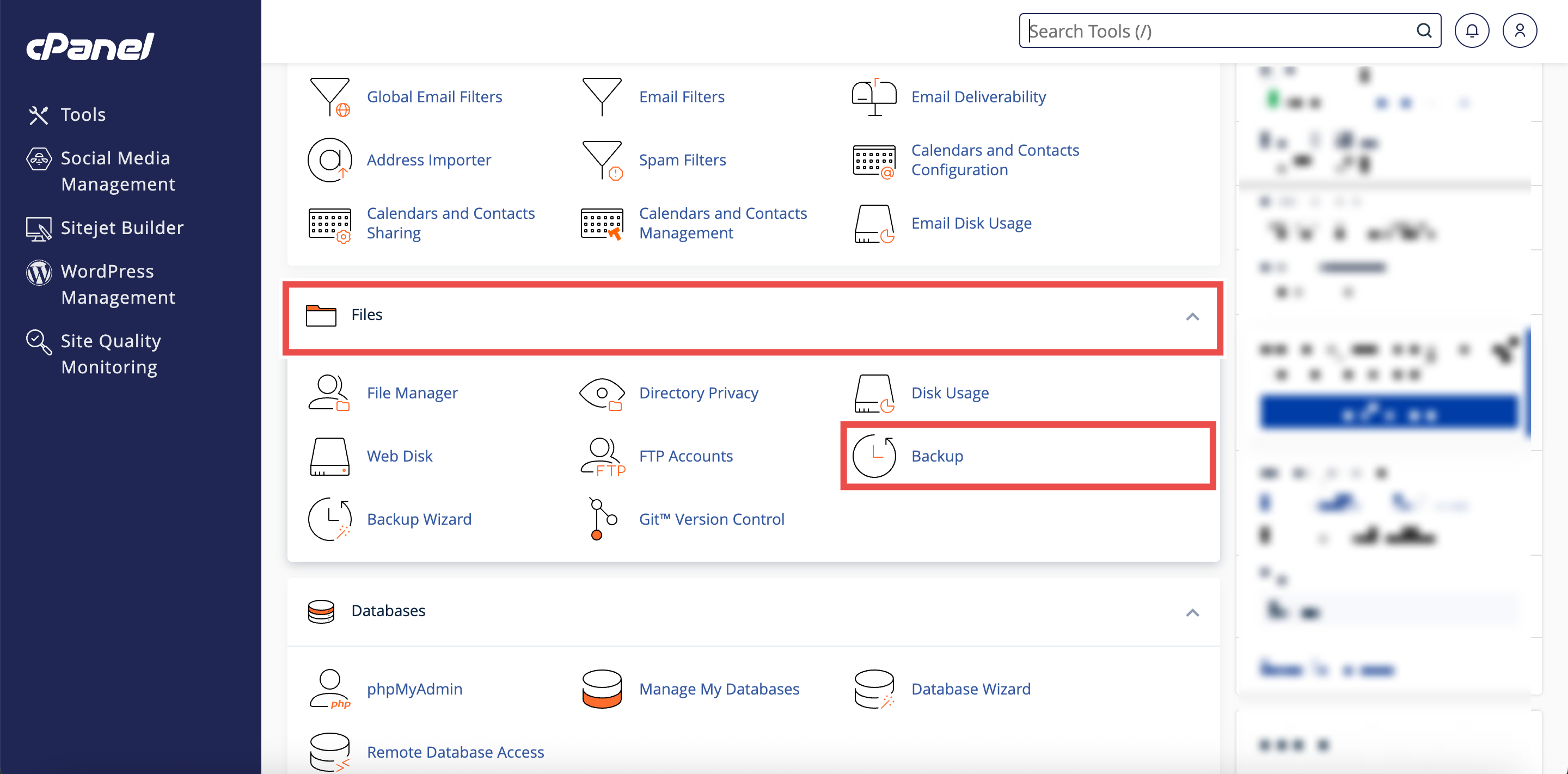
- In the Home page, under Files, click Backup.
Step 3: Locate Partial Backups Section
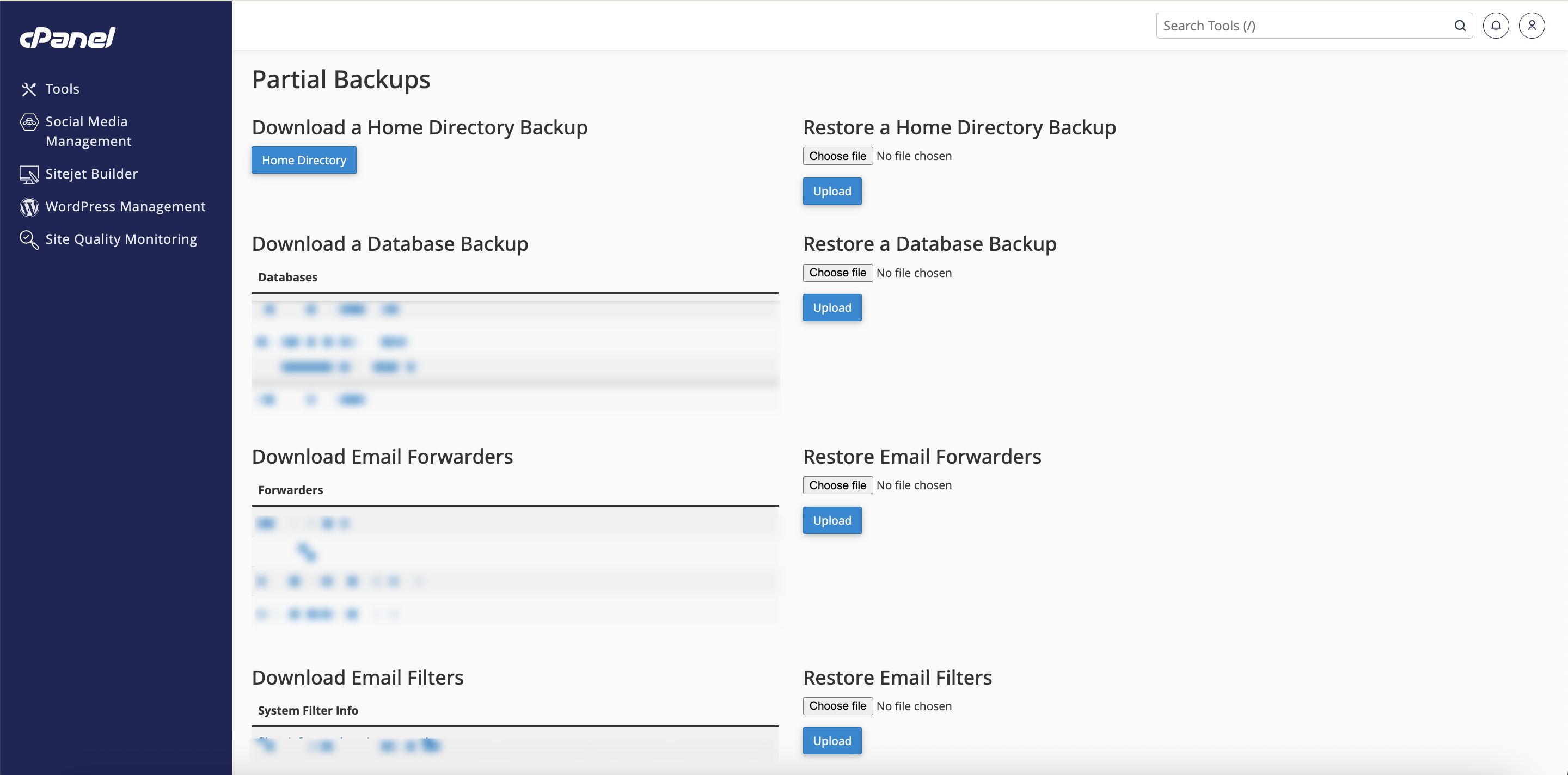
- Scroll down to the Partial Backups section.
- This section contains options for downloading specific parts of your account.
Step 4: Download the Email Filters Backup
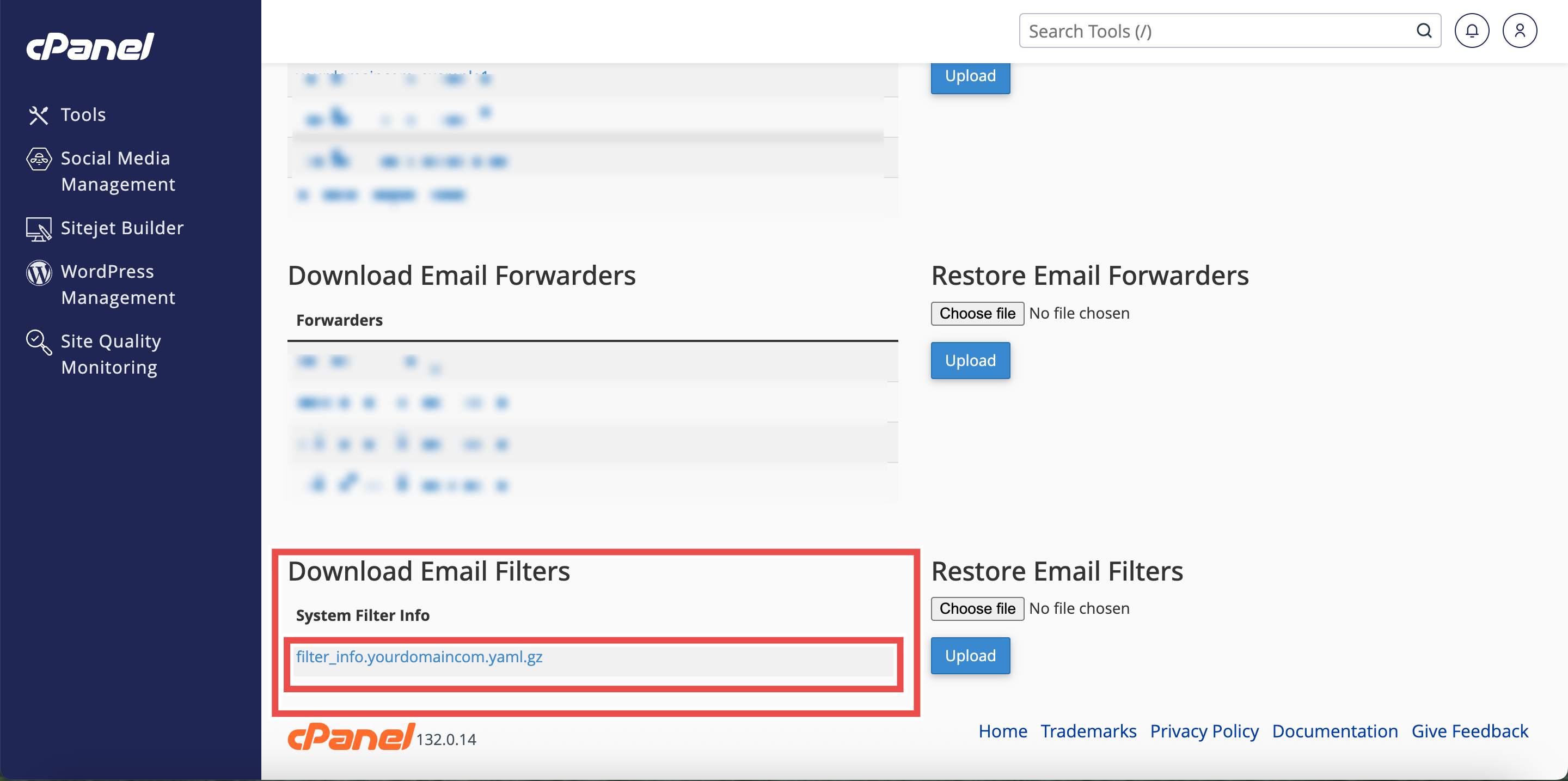
- Under the Download Email Filters heading, locate the email filter you want to backup.
- Click on the filter name to download it.
⚠️ Important Note:
- The Email Filters backup only stores account-level email filters from cPanel’s Global Email Filters interface.
- It does not store user account-level email filters from the Email Filters interface.
- If you have multiple filters, you must download each one separately.
Step 5: Verify the Backup File
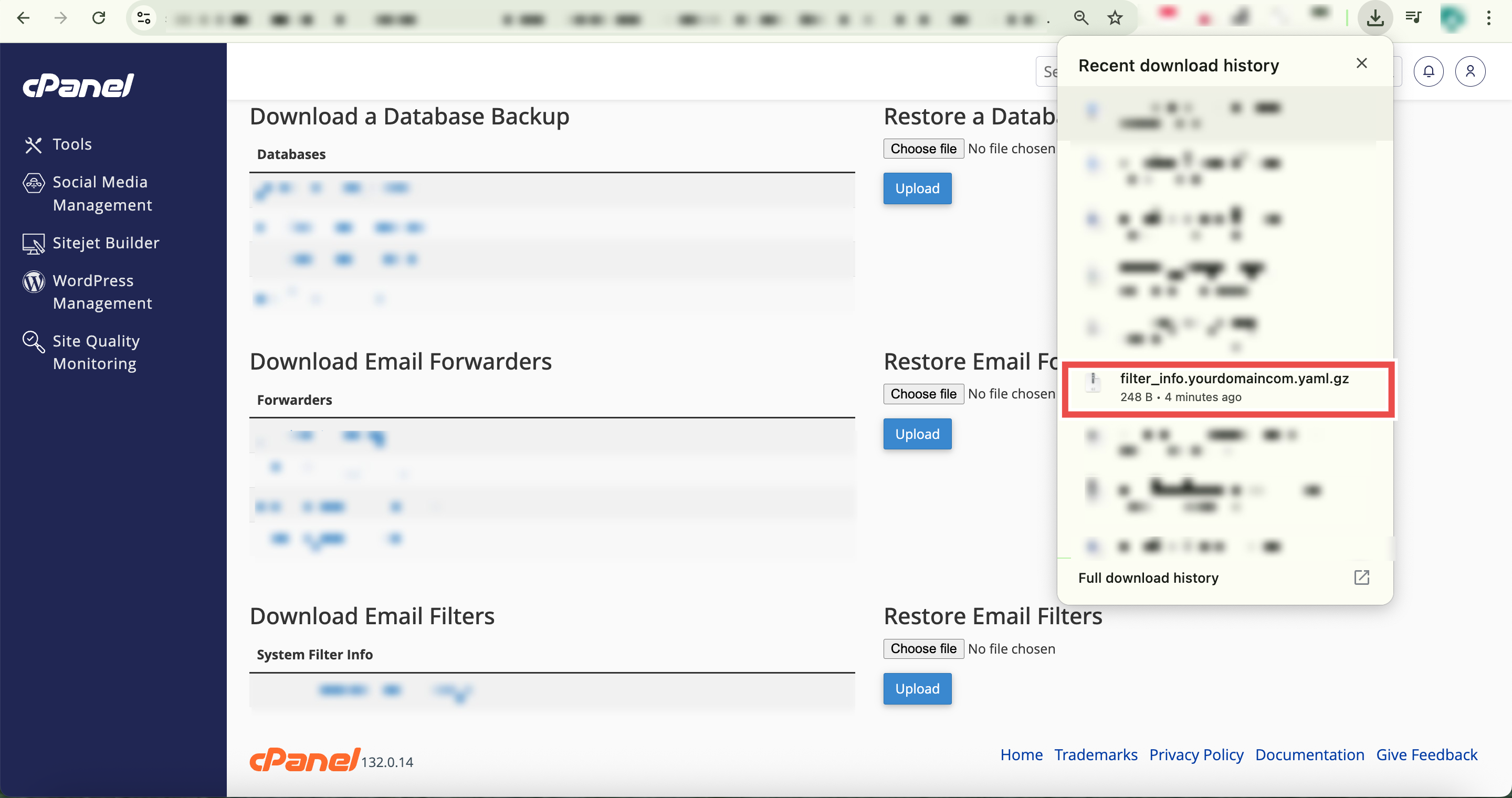
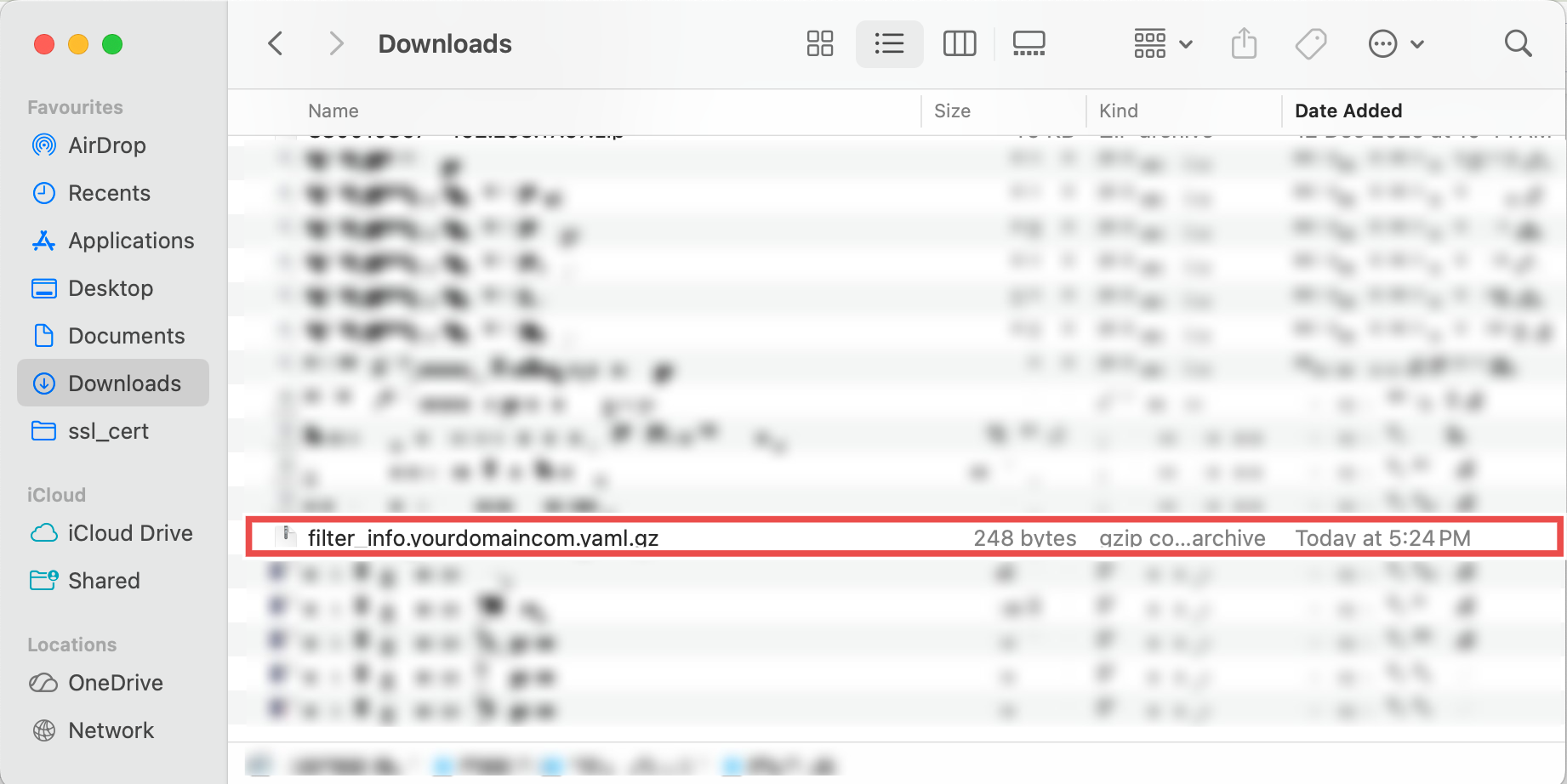
- Locate the downloaded backup file in your computer’s Downloads folder.
- Additionally, you may extract and inspect the contents to ensure all necessary files are included.
⚠️ Important Note:
- This backup can be restored through cPanel’s Backup interface if you need to recover your email filter settings in the future.
Conclusion
By following these steps, you can successfully download an email filters backup using cPanel. Backing up your email filter configurations protects your custom email management rules and allows you to restore them quickly after account changes or migrations. Remember to backup all important filters regularly and store them in a safe location.
Should you encounter any issues or have any questions, our support team at IPSERVERONE is always here to assist you. Don’t hesitate to reach out to us at support@ipserverone.com for any help you need.