
Search Our Database
How to Adjust PHP Memory Limit for All Websites using MultiPHP INI Editor in cPanel
Introduction
This Knowledge Base article provides a concise, step-by-step guide on How to Adjust PHP Memory Limit for All Websites using MultiPHP INI Editor in cPanel. The memory_limit directive controls the maximum amount of memory that a PHP script is allowed to allocate. By applying this setting to your Home Directory, you can configure memory limits across all domains under your hosting account, which is essential for websites running memory-intensive applications such as content management systems, e-commerce platforms, or image processing scripts.
Prerequisite
- Access to your cPanel login page.
Step-by-Step Guide
Step 1: Log in to cPanel
- Access and log in to your cPanel account using your username and password.

Step 2: Open MultiPHP INI Editor
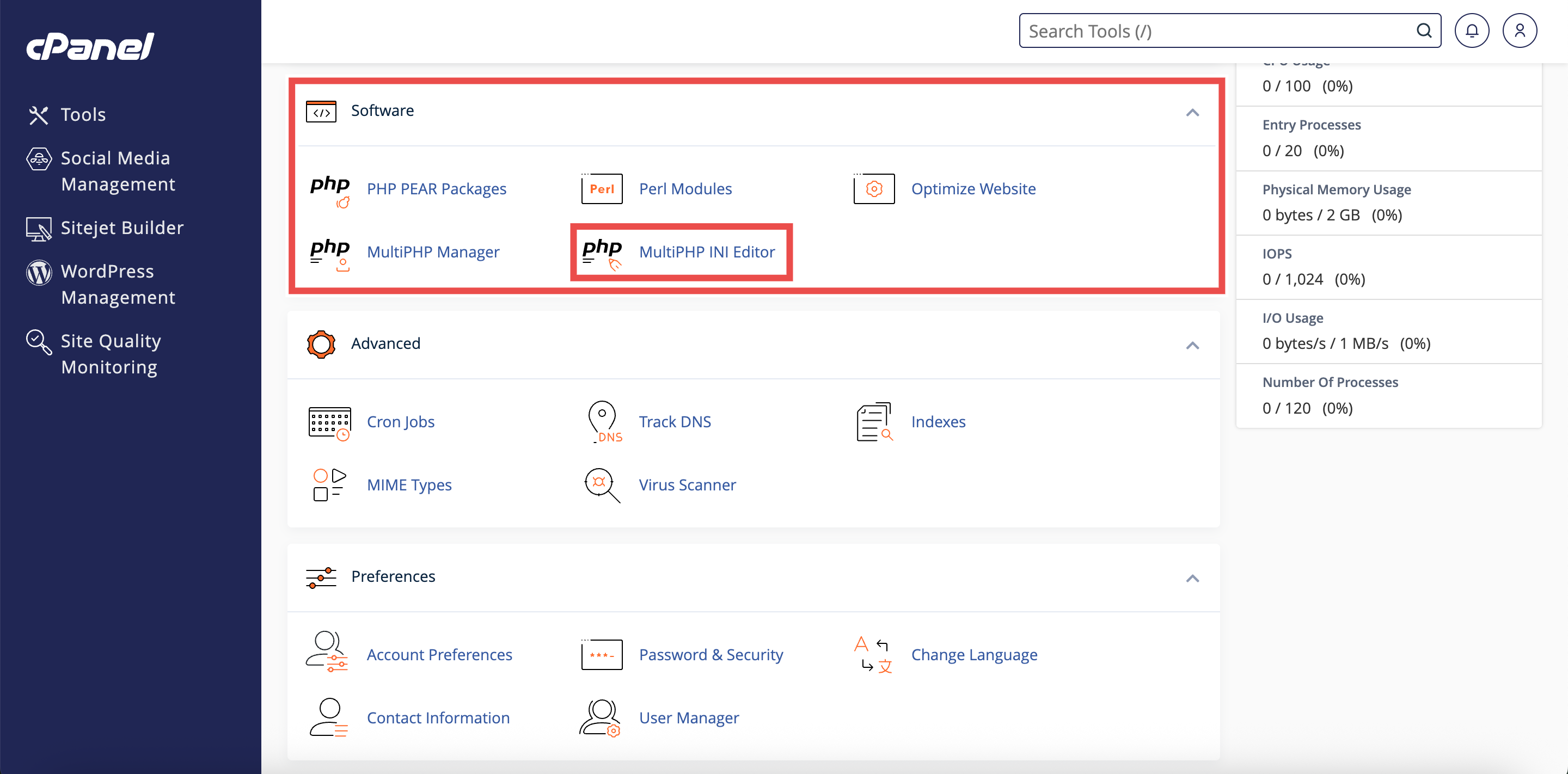
- In the Home page, under Software, click MultiPHP INI Editor.
Step 3: Access Basic Mode
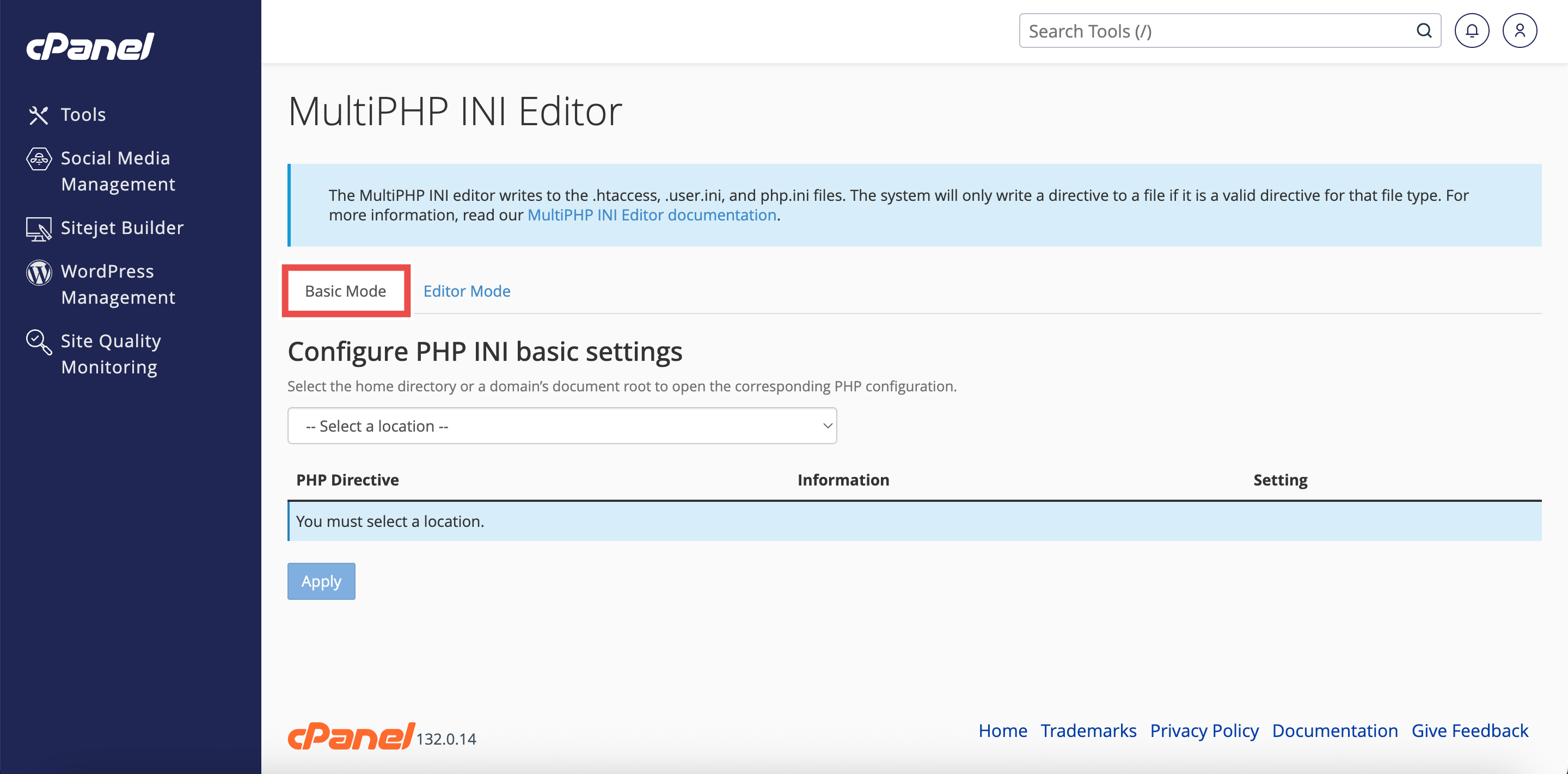
- The interface will open in the Basic Mode tab by default.
- If you are in Editor Mode, click the Basic Mode tab at the top of the interface.
Step 4: Select Home Directory
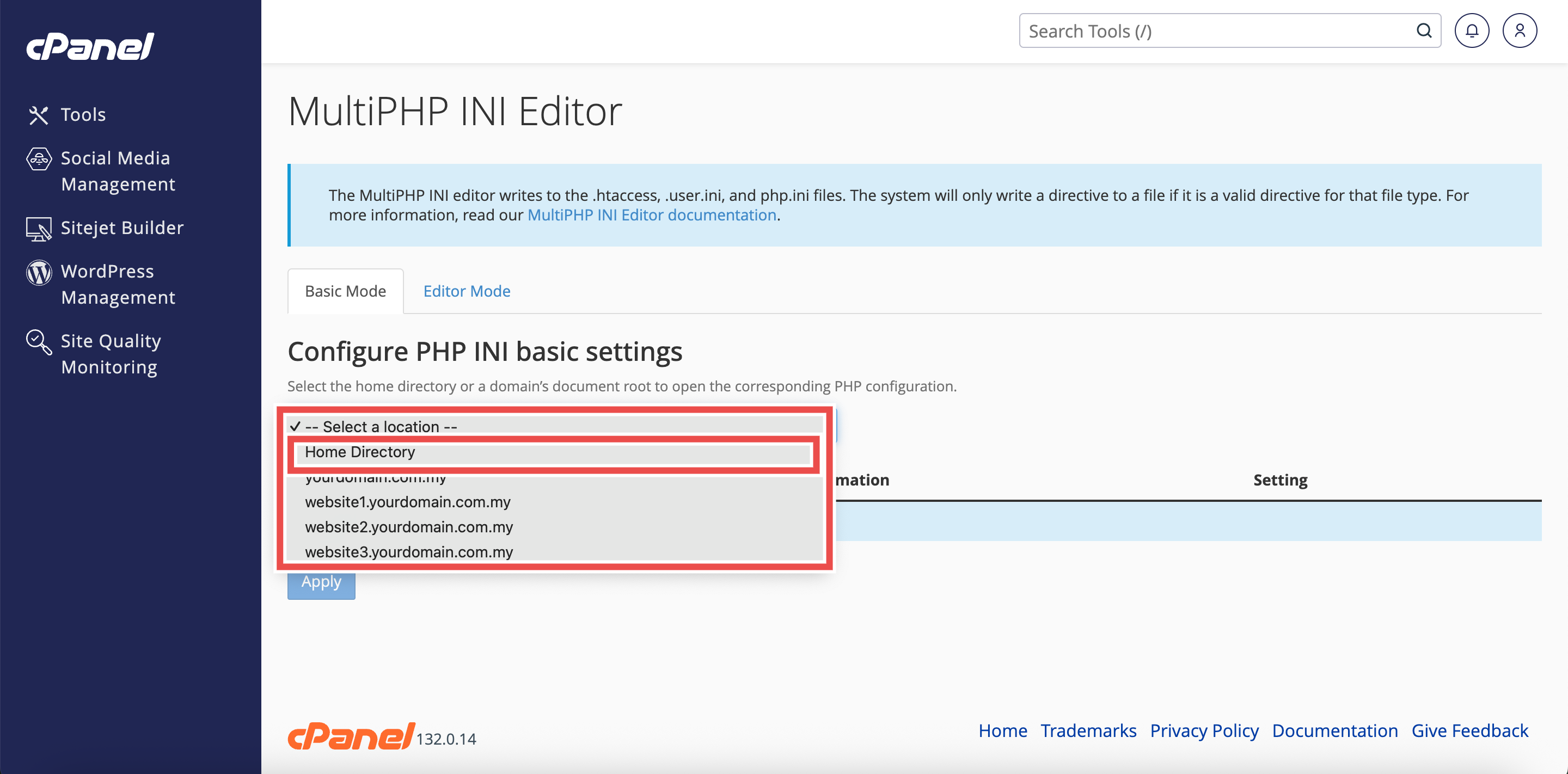
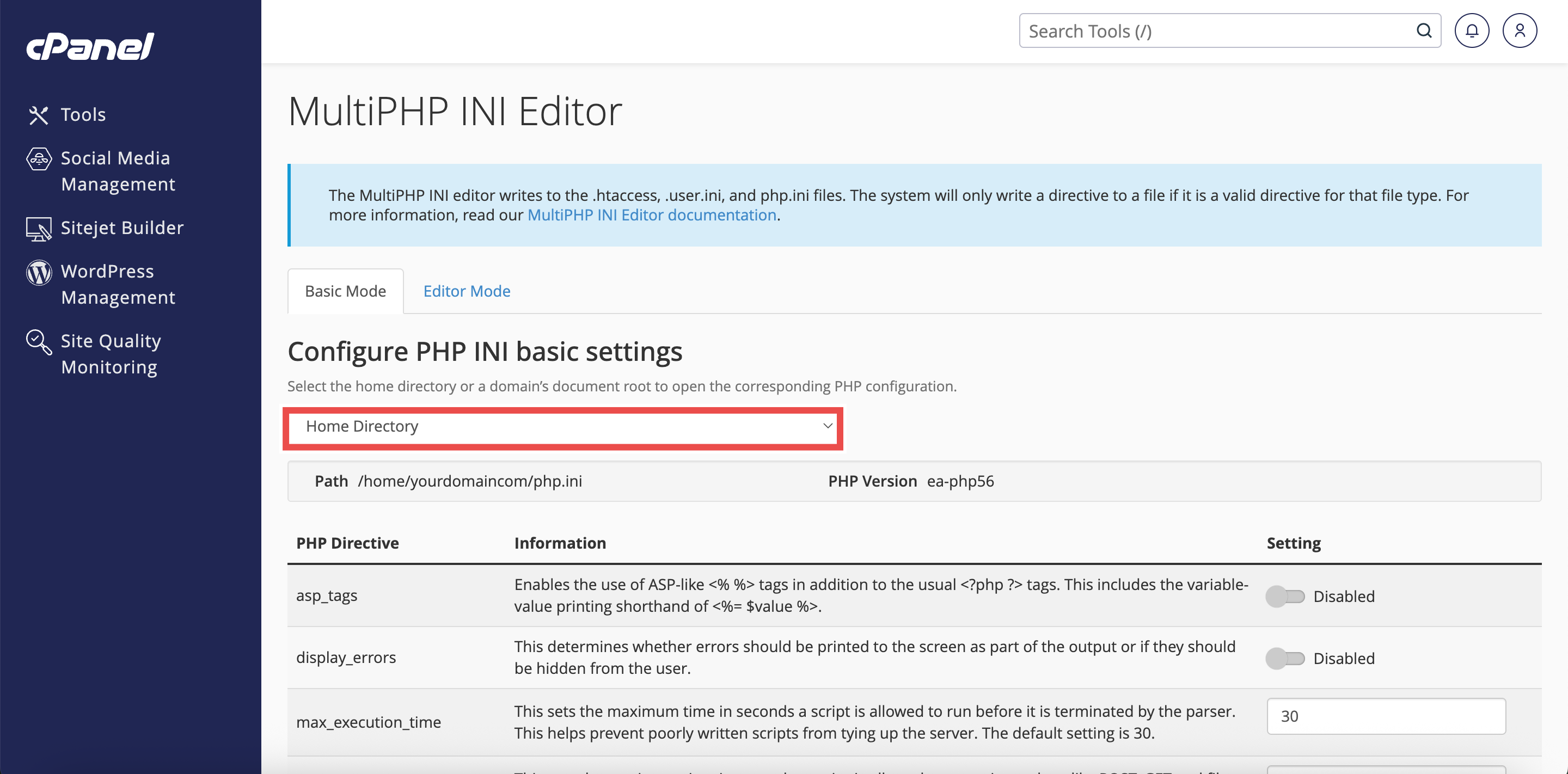
- From the Configure PHP INI basic settings dropdown menu, select Home Directory.
⚠️ Important Note: Selecting Home Directory will apply PHP configuration changes to all domains.
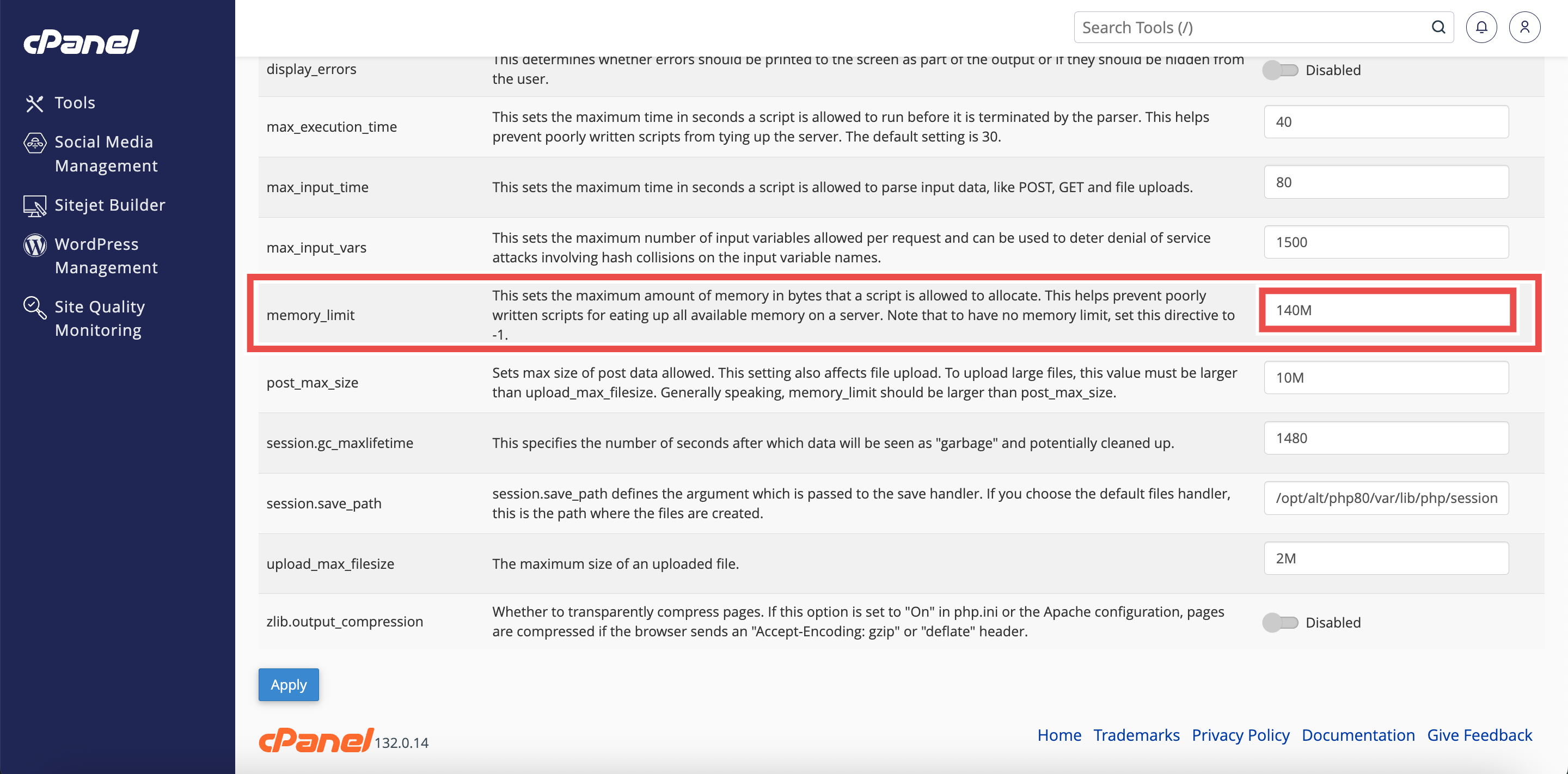
Step 5: Adjust Memory Limit
- Locate the memory_limit directive in the list of PHP directives.
- Enter the desired memory limit (e.g., 256M for 256 megabytes, 512M for 512 megabytes).
- The default value is typically 128M.
⚠️ Important Note:
- Your hosting provider may impose server-level limits on memory allocation.
- Setting this value too high may not take effect if it exceeds server limits.
- Contact your hosting provider if you need higher limits.
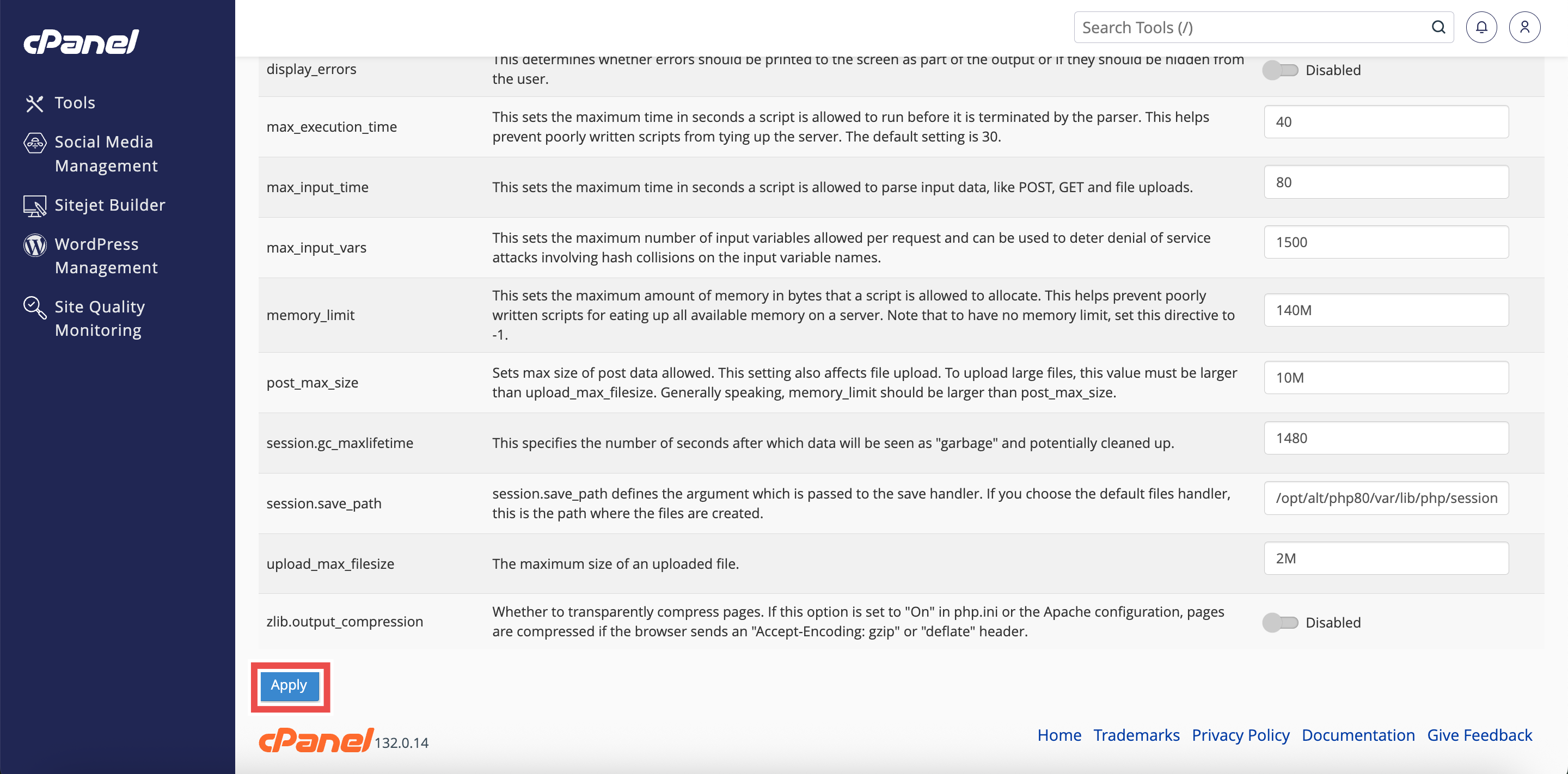
Step 6: Apply the Changes
- Click the Apply button at the bottom of the page to apply the changes made.
Step 7: Verify the Changes
- A successful message will pop up to confirm that the changes is applied successfully.
⚠️ Important Note:
- Increasing memory limits should be done carefully.
-
Excessive memory allocation can impact server performance and may indicate inefficient code that should be optimized

Conclusion
By following these steps, you can adjust PHP memory limit for all websites using MultiPHP INI Editor in cPanel. This ensures that your websites have sufficient memory resources to run complex applications without encountering memory exhaustion errors.
Should you encounter any issues or have any questions, our support team at IPSERVERONE is always here to assist you. Don’t hesitate to reach out to us at support@ipserverone.com for any help you need.