
Search Our Database
How to Enable Email Notifications for System Messages in DirectAdmin (Evolution Skin)
Introduction
System messages in DirectAdmin provide important notifications about account activities and system events directly within the control panel, but receiving these alerts via email ensures you stay informed even when not actively logged in. Enabling email notification forwarding allows real-time awareness of critical system updates, security alerts, and administrative notifications. DirectAdmin’s Message System interface provides a straightforward option for routing copies of all system messages to a specified email address. This guide explains how to enable email notifications using the Message System options in DirectAdmin, ensuring you receive timely alerts about important account and system activities.
Prerequisites
- Access to DirectAdmin control panel with the necessary permissions.
Step-by-step Guide
Step 1: Access DirectAdmin
Log in to your DirectAdmin control panel.

Step 2: Access System Messages
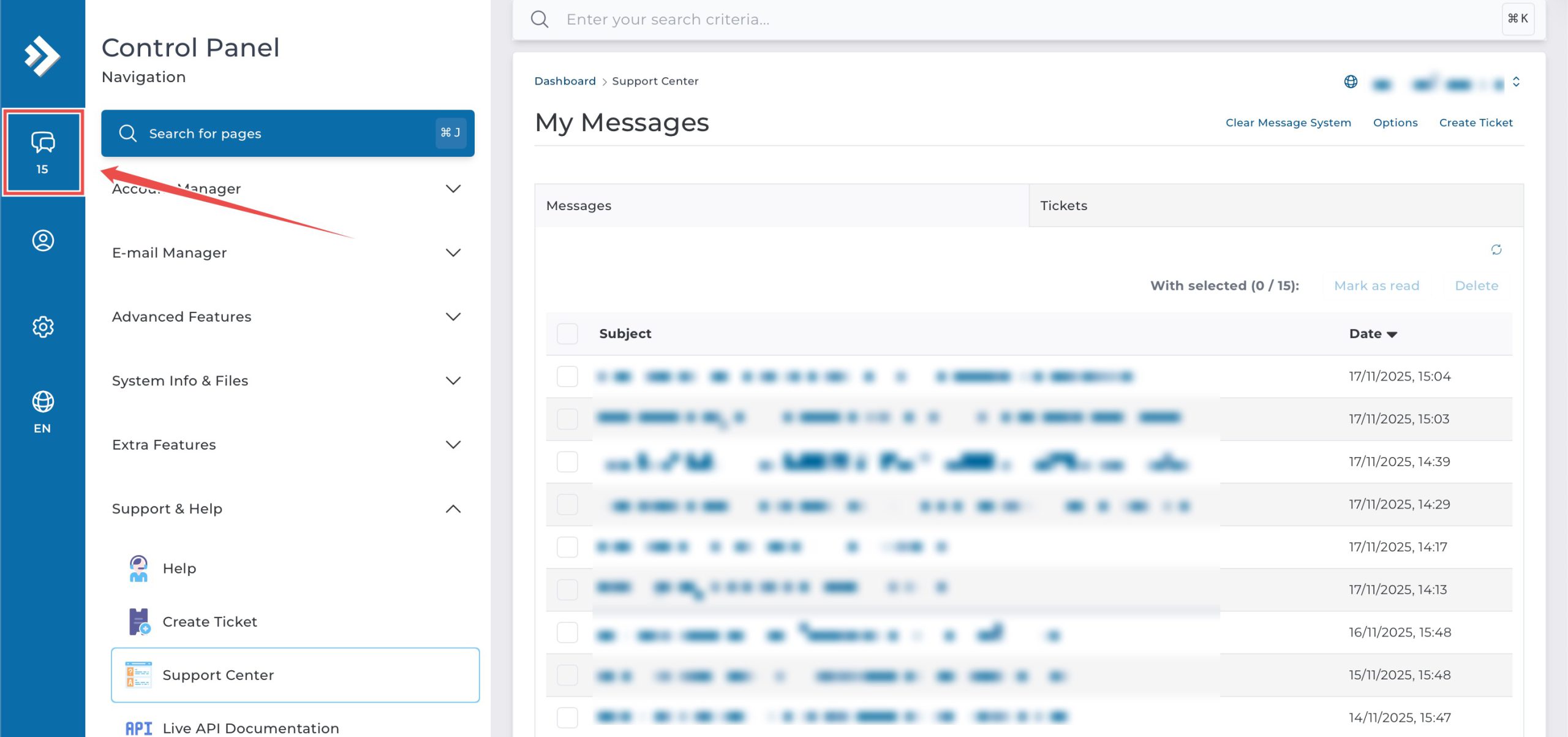
On the top left, click on the System Message icon.
Step 3: Enable Email Notifications
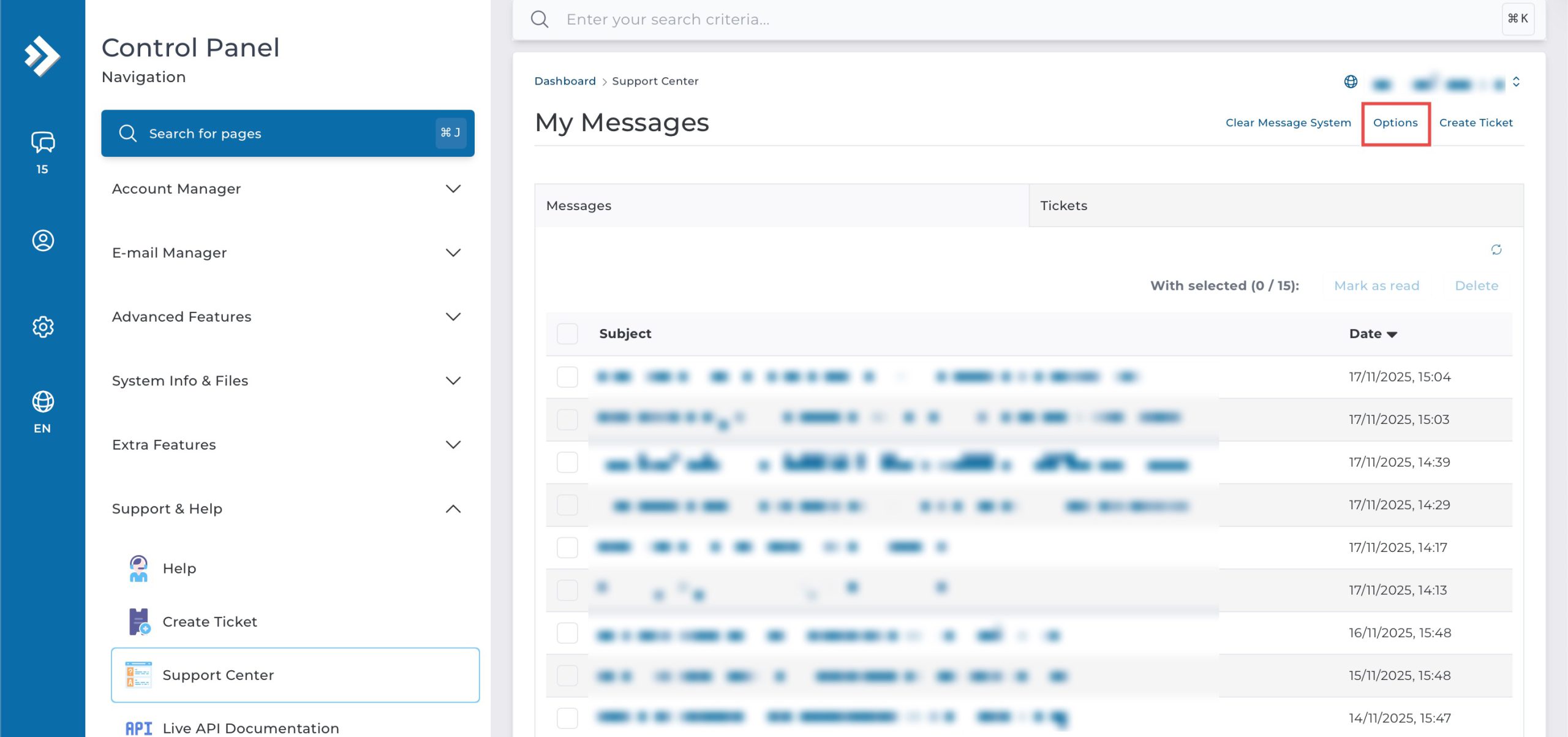
Click on Options at the top. On the pop-up window, check the E-mail a copy of all messages box and enter the email address in the provided field. Then, click Save.

All system messages will be forwarded to the entered email address.
Conclusion
Enabling email notifications through DirectAdmin’s Message System interface is a simple process that ensures you receive copies of all system messages directly in your inbox. Forwarding system notifications to email provides real-time awareness of account activities and administrative alerts, helping you stay informed without needing to regularly check the control panel.
Should you have any inquiries about the guidelines, please feel free to open a ticket through your portal account or contact us at support@ipserverone.com. We’ll be happy to assist you further.