
Search Our Database
How to Assign Monitoring Bandwidth Usage Alarm to GPU Instance(s) in Customer Portal
Introduction:
Proactive resource management is a critical component of optimizing cloud operations, ensuring both stable performance and effective cost control, especially for resource-intensive workloads like AI/ML. This comprehensive guide is designed for Customer Portal users who utilize NovaGPU—the GPU as a Service offering used for essential tasks such as training, fine-tuning, and deploying AI—and wish to gain immediate visibility into their network consumption by assigning a specific monitoring bandwidth usage alarm on their deployed GPU Instance(s). By establishing these crucial monitoring thresholds, users can receive timely alerts regarding resource utilization. This process is seamlessly executed directly within the Customer Portal interface, specifically within the NovaCloud service management area, enabling direct control over your environment. This article provides the professional, step-by-step procedure required to navigate to the Monitoring section, manage existing alarms, and confidently assign them to your designated GPU Instance(s).
Prerequisites:
- Validated Customer Portal Credentials and Active Account Status.
- There must be at least one GPU Instance.
Step-by-step Guide:
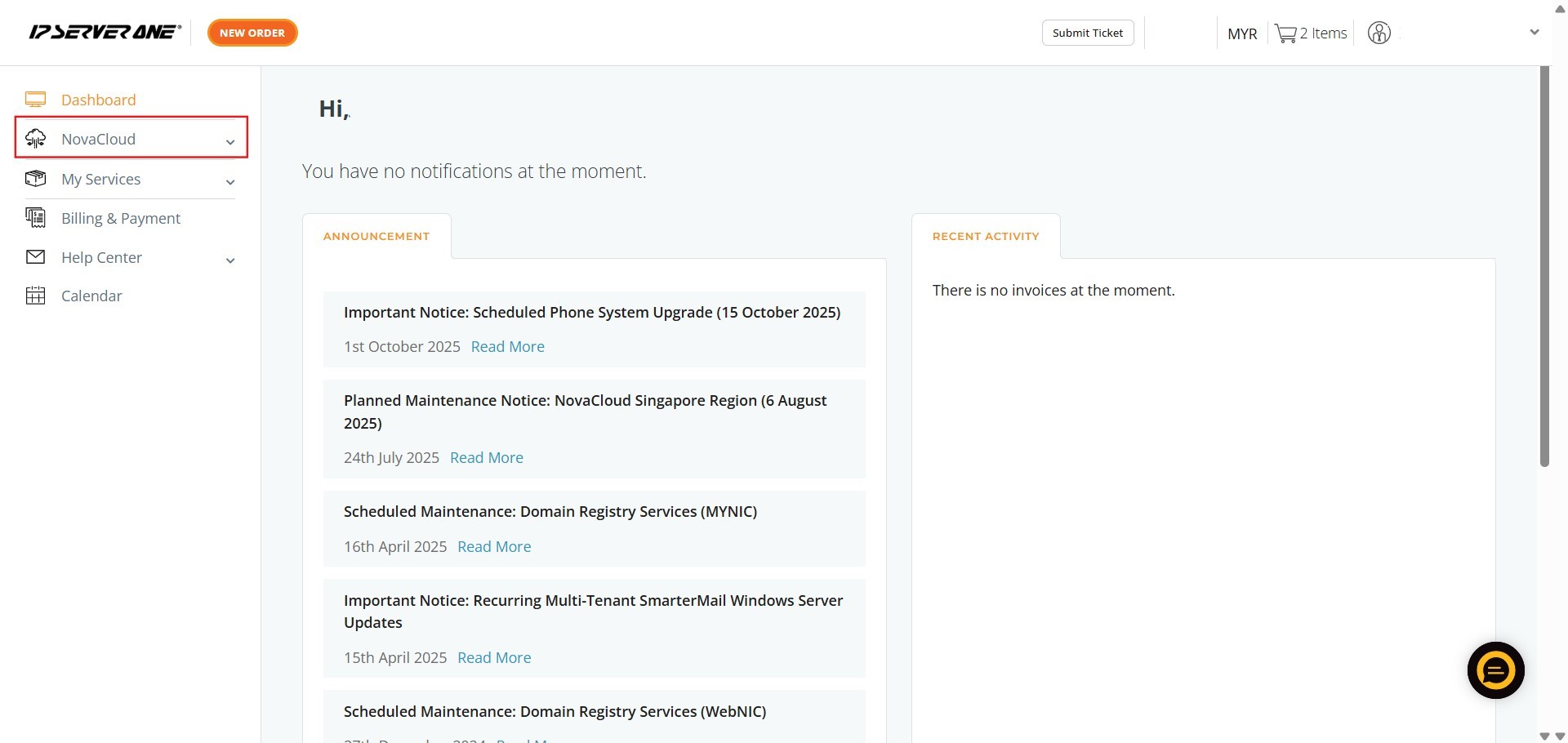
Step 1: Access NovaCloud Services
- On the left-hand navigation menu of the Customer Portal, click NovaCloud.
Step 2: Navigate to Monitoring
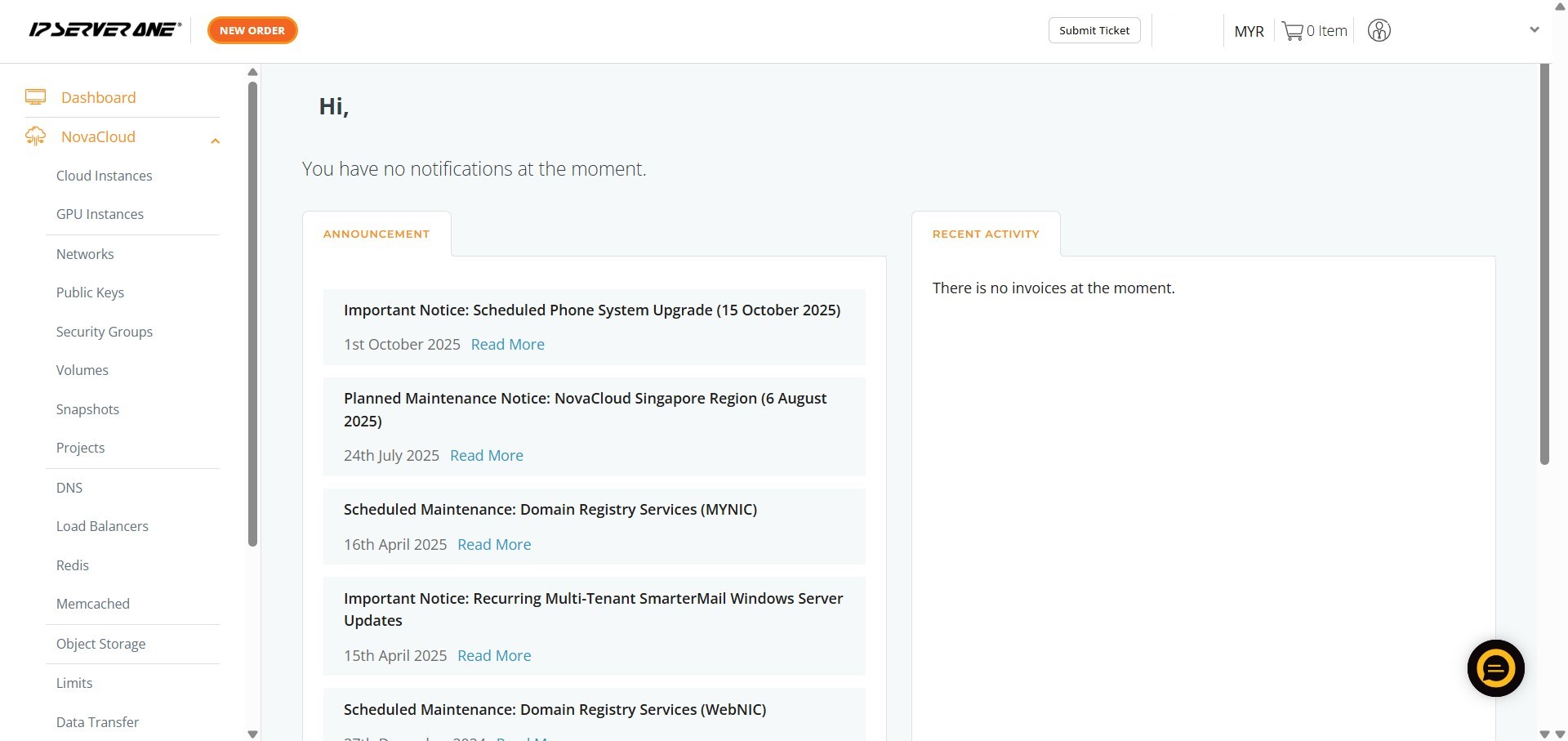
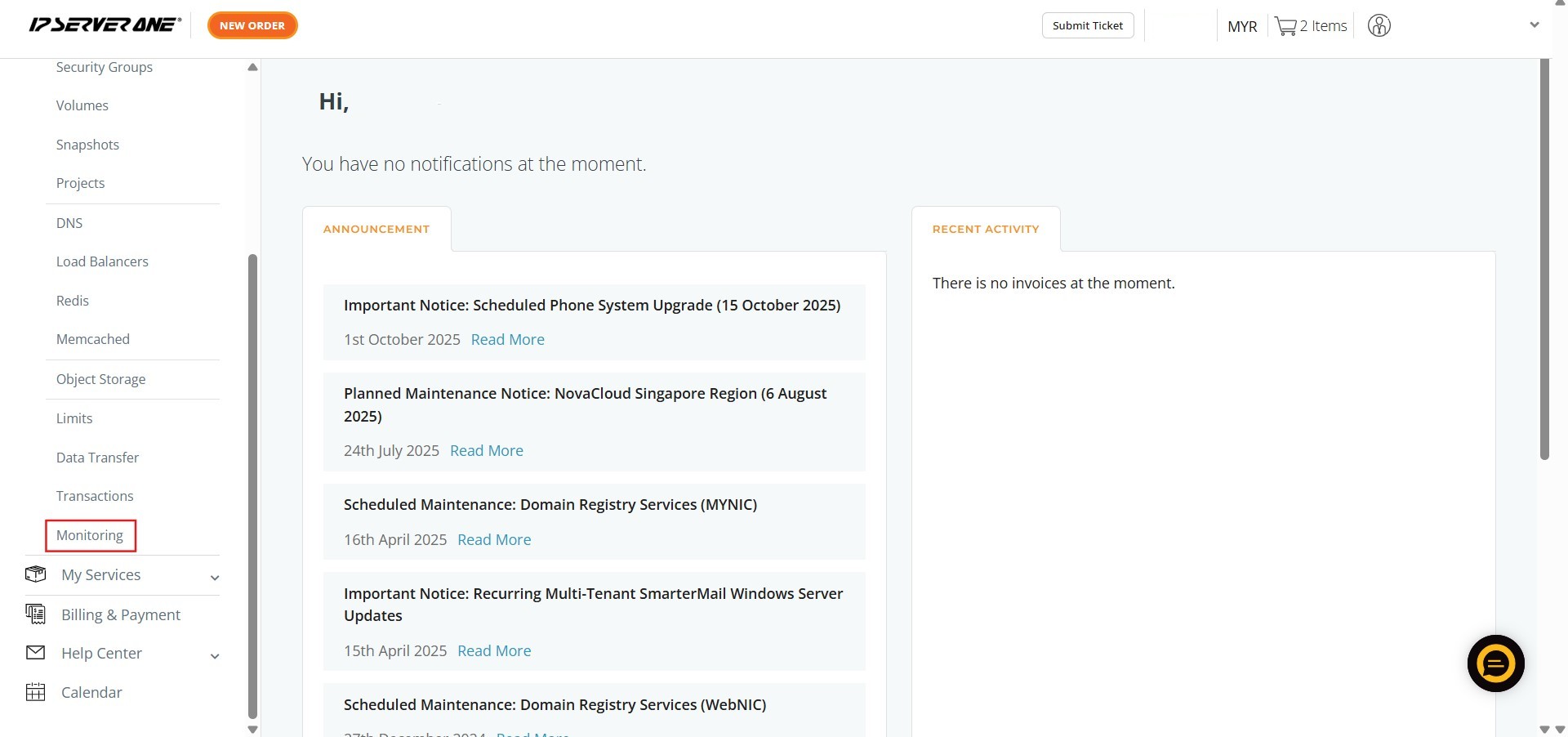
- Scroll down the expanded NovaCloud menu and click Monitoring.
Step 3: Locate Alarm Actions
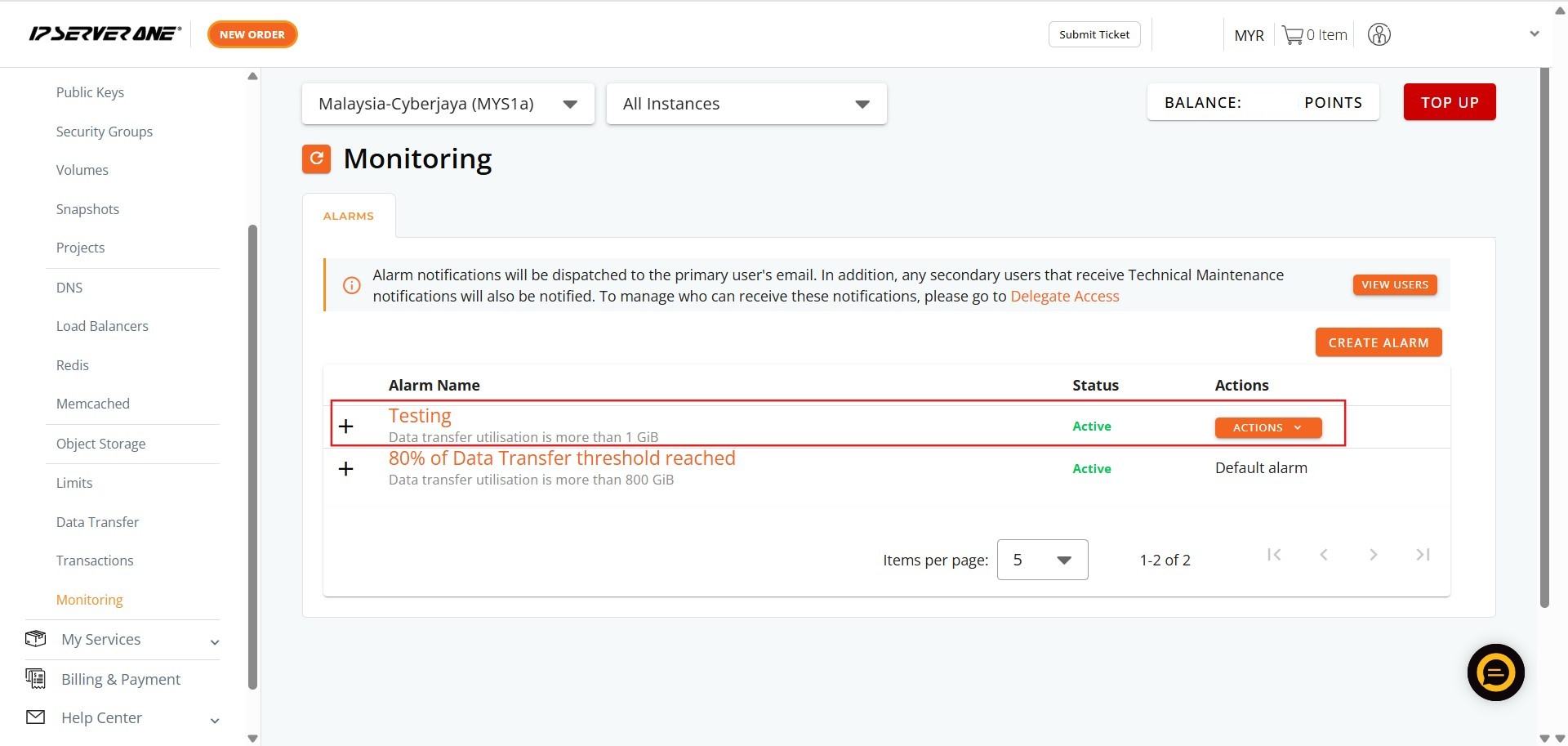
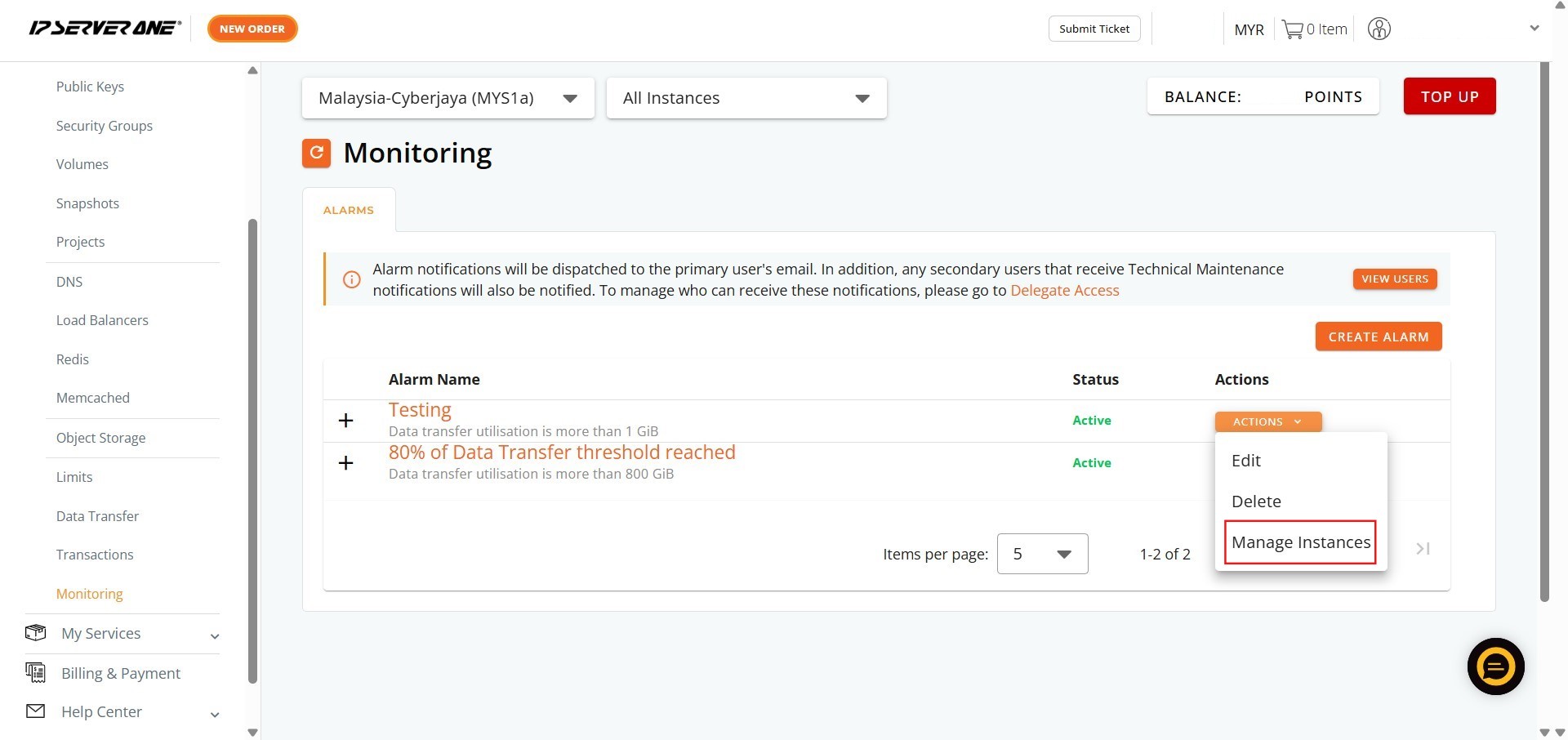
- Locate the existing alarm in the Monitoring list and click Action.
Step 4: Access Instance Management
- From the dropdown menu, click Manage Instance.
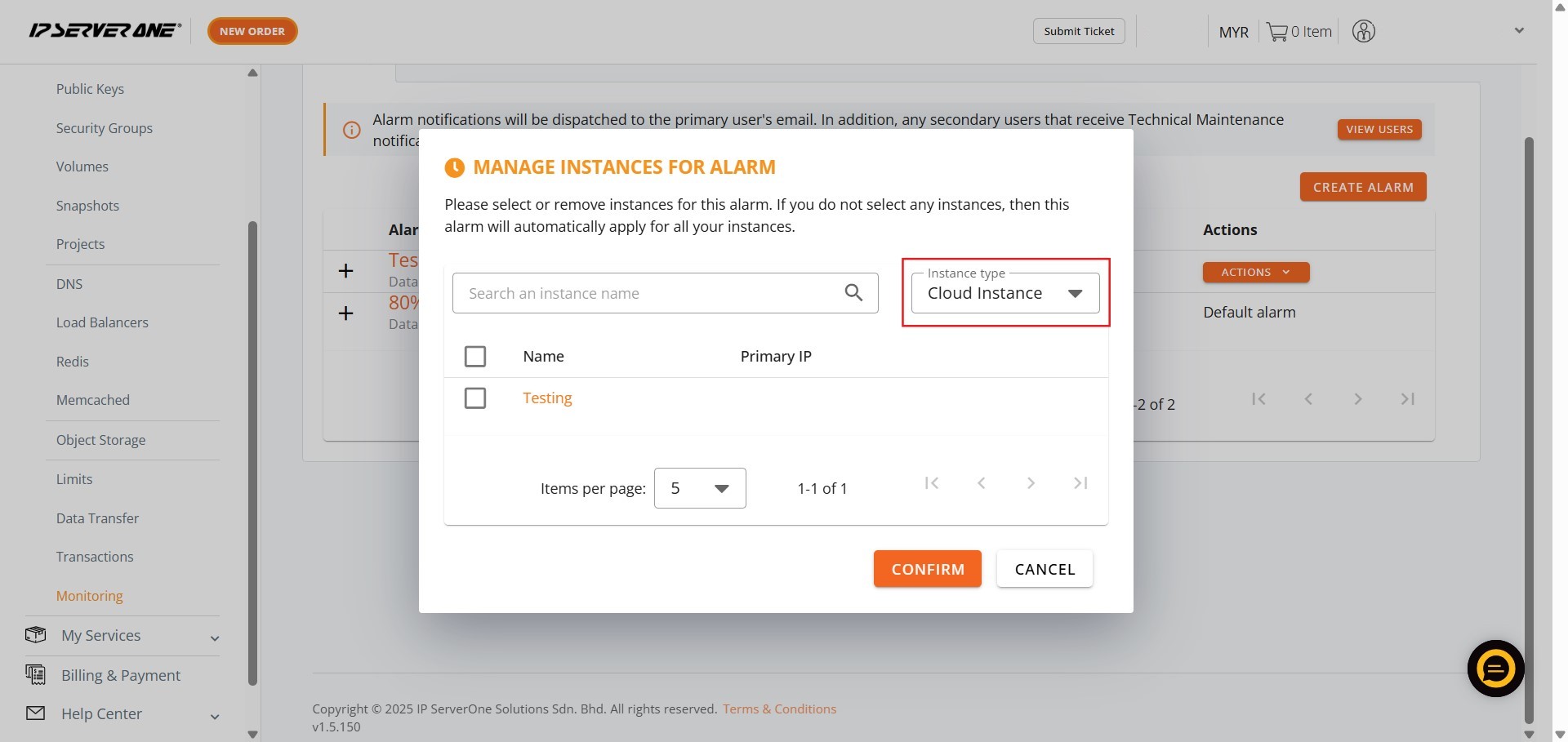
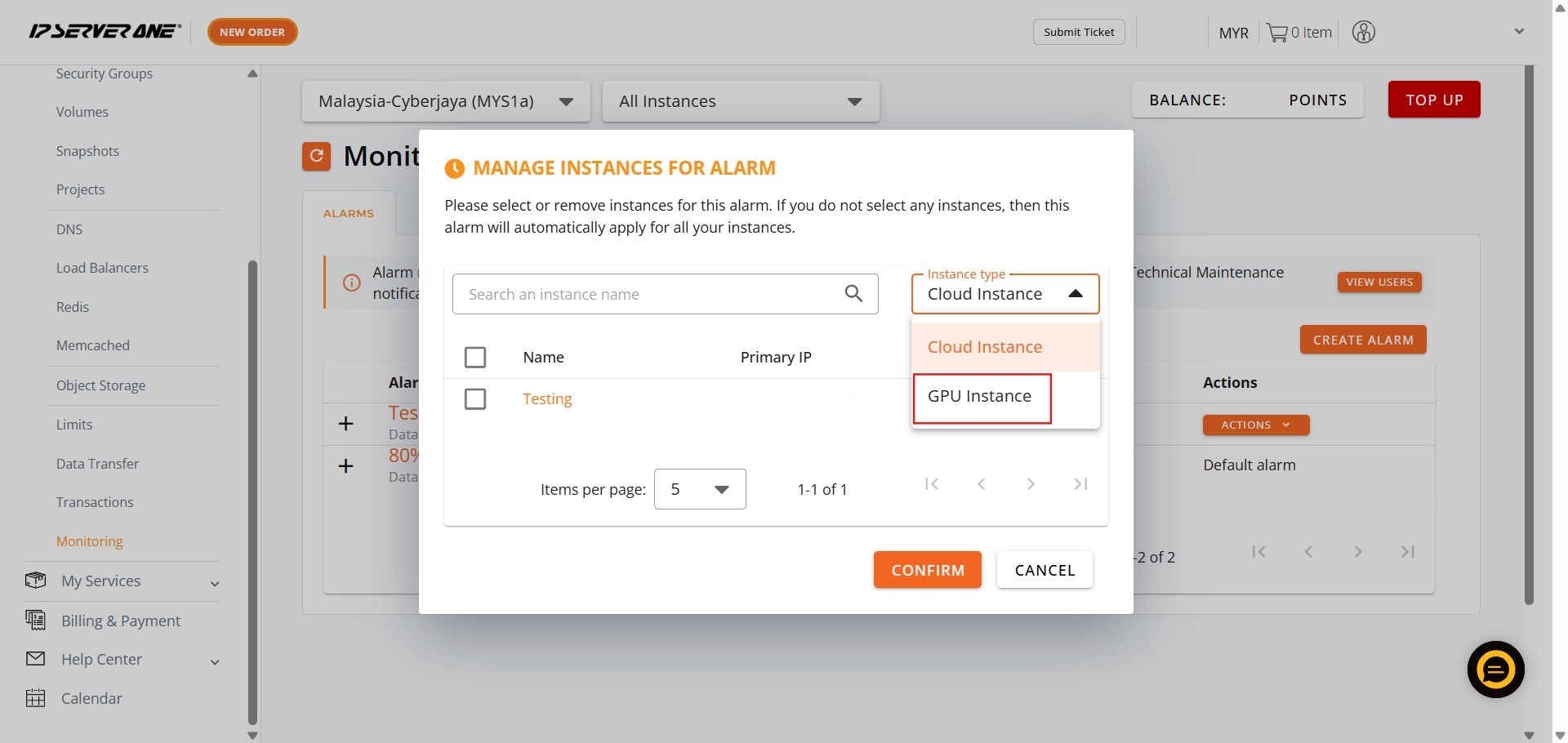
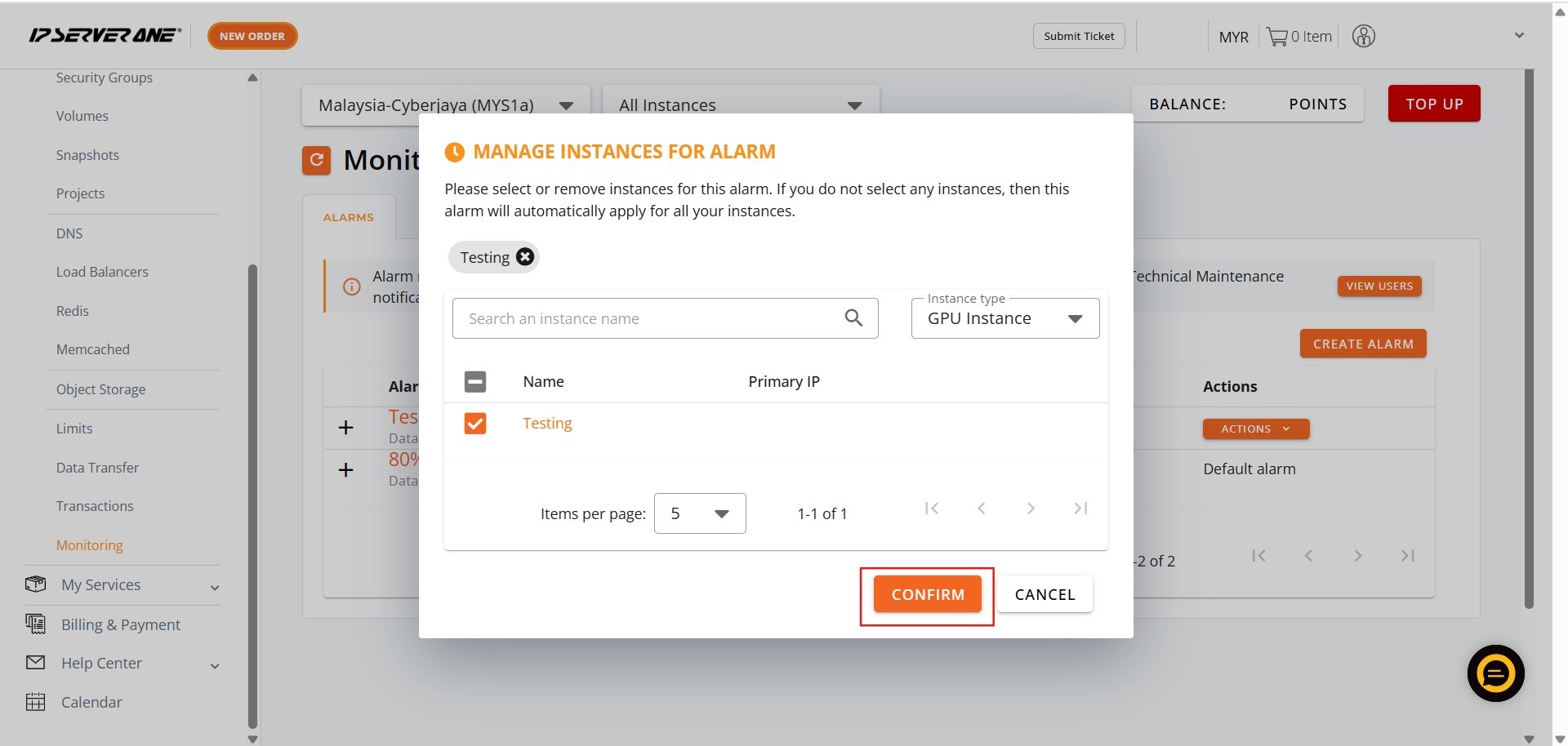
Step 5: Locate and Change the type to GPU instance
- Adjust the instance filter or type selector within the management window to display only the GPU instances.
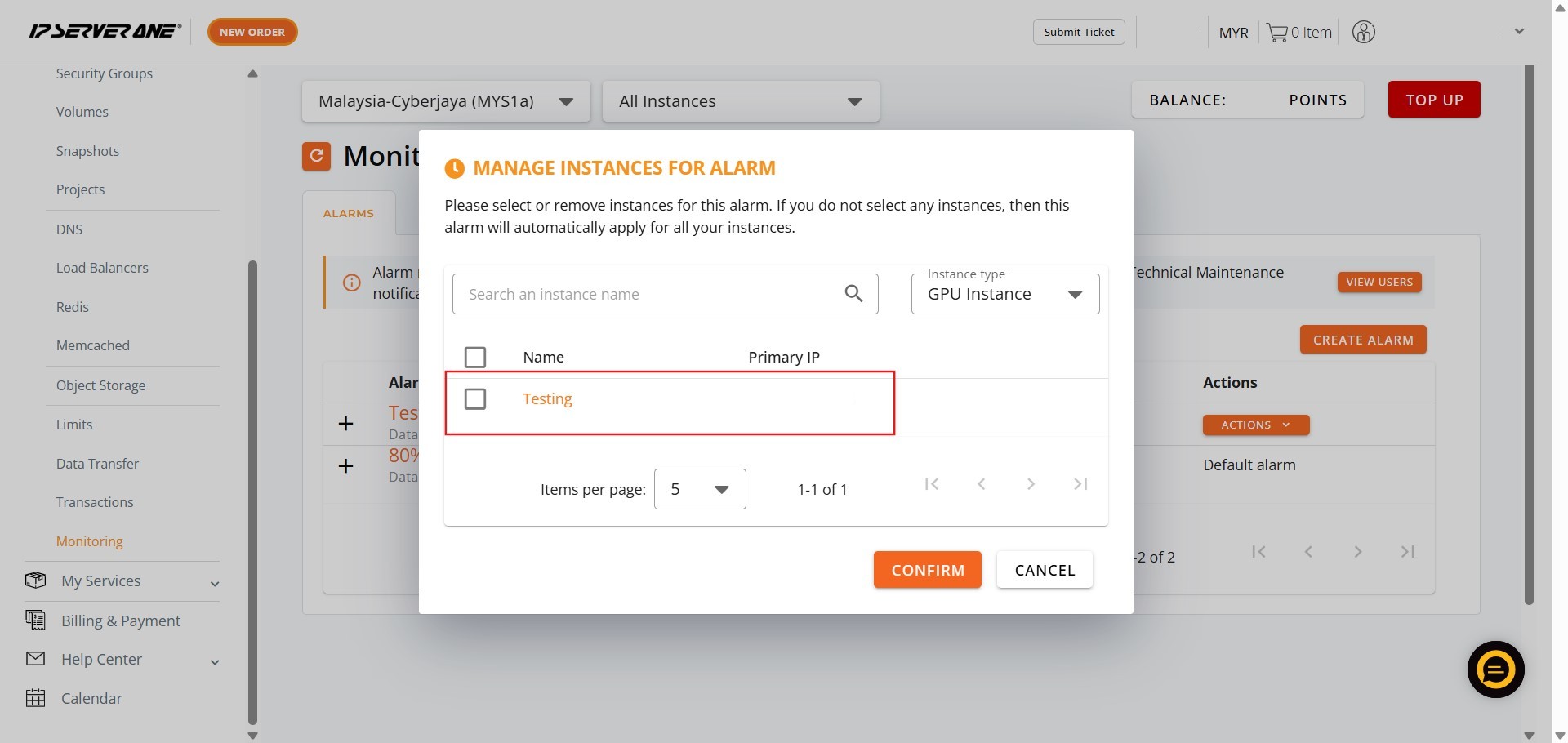
Step 6: Tick the GPU Instance You Want to Add
- Select one or more specific GPU instances by clicking the checkbox next to each one that you want the bandwidth usage alarm to monitor.
Step 7: Click Confirm
- Finalize the selection of the GPU instances to be monitored by the existing bandwidth usage alarm and click Confirm.
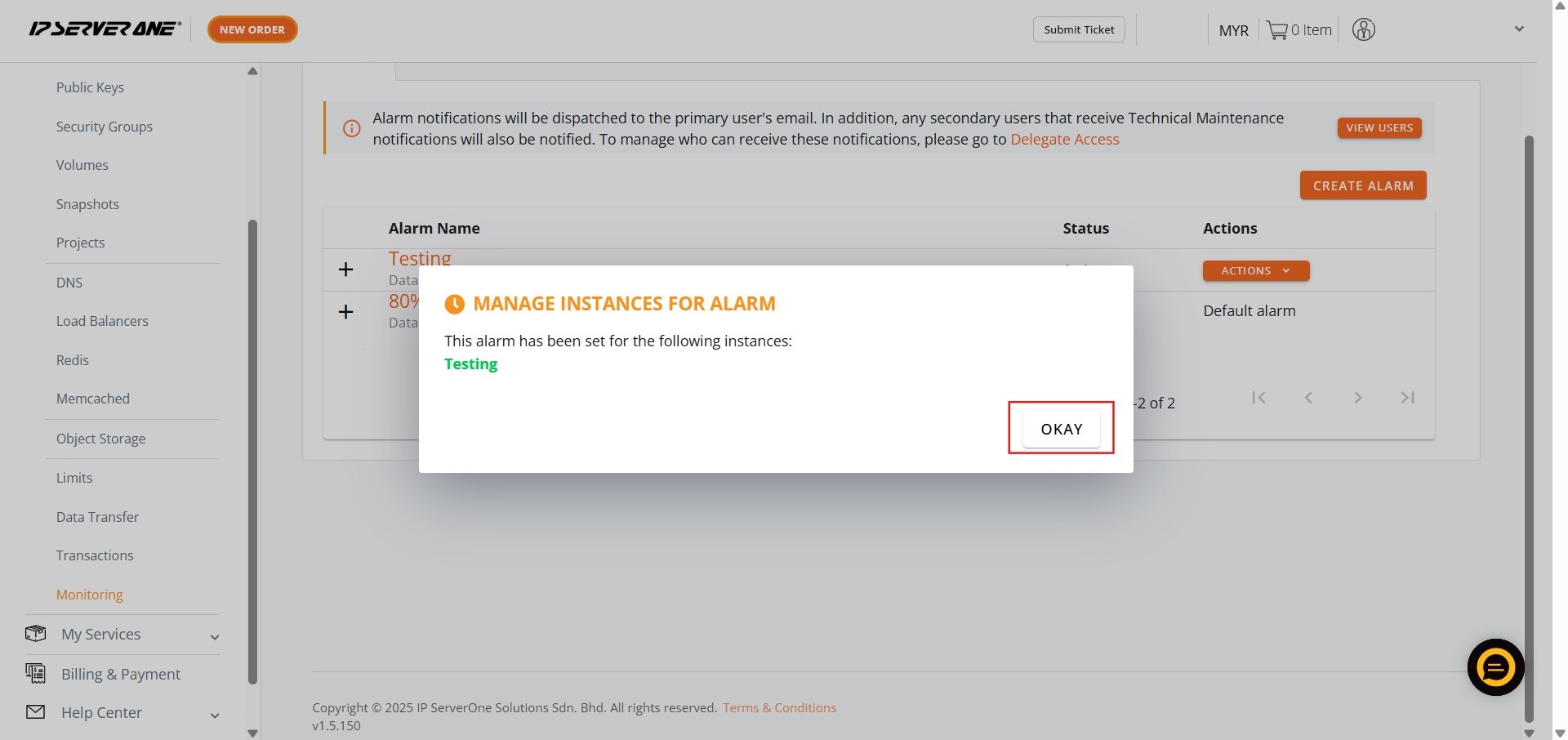
Step8: Acknowledge Success
- A confirmation notification will appear. Click Okay.
- The monitoring bandwidth usage alarm is now successfully assigned.
Conclusion:
By successfully following the comprehensive steps outlined above, you have efficiently assigned a monitoring bandwidth usage alarm to your designated GPU Instance(s) within the Customer Portal interface.
This capability is central to proactive resource management for GPU workloads, ensuring that you maintain stable performance and effective cost control over these specialized resources. By filtering for the GPU instance type and confirming the assignment, you ensure that the alarm provides timely alerts regarding network consumption for services powered by NovaGPU, which offers GPU as a Service for high-demand functions such as training, fine-tuning, and deploying AI.
Should you require any further assistance with configuring or managing your alarms, or if you encounter any issues during the process, please do not hesitate to reach out to the support team for help at support@ipserverone.com.